The best audio setup for PC gaming is not one expensive purchase. It is a small chain of parts that each do one job well: a headset for competitive play, speakers for relaxed sessions, a DAC and amplifier for clean headphone sound, a microphone for voice chat, and a sound card that ties the chain together. When the parts match, footsteps stay easy to place, teammates hear every callout, and music sounds full between matches.
This guide builds the full desk rig piece by piece, then shows how to wire the five parts so they cooperate. For the rest of the desk, see the complete gaming setup guide.
Why One Purchase Cannot Cover Every Job
A headset alone cannot fill a room. Speakers alone cannot give private directional cues at night. A microphone built into a headset cannot match a desk microphone for streaming. A motherboard audio jack can drive easy headphones, but it often adds hiss and offers no quick way to balance game sound against voice chat.
Splitting the job across five parts solves each weakness in the right place. The headset handles direction and privacy. The speakers handle shared sound. The DAC and amplifier handle clean power. The desk microphone handles voice. The sound card handles processing, switching, and volume control.
How the Five Pieces Fit Together
Game audio leaves the PC over USB, passes through the sound card, and reaches either the headset or the speakers. Music takes a second path through the DAC and amplifier, while voice travels from the desk microphone straight into the PC over its own USB cable.
The hub. The external sound card sits at the center, adding virtual surround and voice monitoring, with one-knob switching between headphones and speakers.
The two listening paths. Competitive games run through the headset plugged into the sound card, where virtual surround and cue-boosting modes live. Music and single-player games run through the DAC and amplifier, which delivers cleaner power to full-size headphones.
The voice path. The desk microphone connects directly to the PC by USB and stays independent of the headset microphone, so switching between speakers and headset never changes how teammates hear the voice.
1. HyperX Cloud II Gaming Headset

The HyperX Cloud II Gaming Headset is the competitive piece of this setup. It is a wired over-ear headset with large 53 mm drivers, memory foam ear pads, and an aluminum frame built for long sessions. The included USB sound card control box adds 7.1 virtual surround sound on PC and puts volume and microphone mute controls within reach on the cable.
Directional cues are the reason this headset leads competitive play. Footsteps, reloads, and ability cues arrive with enough separation to judge direction, and the closed ear cups block enough room noise to keep attention on the game. The detachable noise-cancelling microphone handles quick voice chat when the desk microphone is not in use.
Specs
- Drivers: 53 mm dynamic drivers; surround: 7.1 virtual surround through the USB control box
- Ear pads: memory foam, over-ear closed design; frame: aluminum with padded headband
- Microphone: detachable, noise-cancelling, mute control on the USB box
- Connection: 3.5 mm jack plus USB control box for PC
- In the box: headset, detachable microphone, USB sound card control box, mesh travel bag
Where it fits. Plug the Cloud II into the headphone jack of the external sound card for competitive play. Use its USB control box only when the sound card is not in the chain, because running two surround processors at once muddies direction.
2. Logitech Z623 Speaker System

The Logitech Z623 is the room-filling piece of this setup. It is a THX-certified 2.1 speaker system with two satellite speakers and a large subwoofer, rated at 400 watts peak power and 200 watts RMS. The subwoofer carries 130 watts RMS while each satellite carries 35 watts RMS, so explosions land with weight while dialogue stays clear.
Specs
- Configuration: THX-certified 2.1 system, two satellites plus subwoofer
- Power: 400 watts peak, 200 watts RMS total; subwoofer 130 watts RMS; satellites 35 watts RMS each
- Frequency response: 35 Hz to 20 kHz
- Inputs: two 3.5 mm inputs, one RCA input
- Controls: volume and bass on the right satellite, headphone jack included
- Warranty: 2-year limited hardware warranty
Where it fits. Connect the Z623 to the line output of the external sound card, so one control switches the output between speakers and headset. Place the satellites at ear height with the subwoofer on the floor nearby and the bass knob near the middle.
3. FiiO K5 Pro ESS DAC and Headphone Amplifier

The FiiO K5 Pro ESS is the clean-power piece of this setup. It is a desktop DAC and headphone amplifier built around the ESS ES9038Q2M DAC chip and the XMOS XUF208 USB decoding chip, decoding PCM audio up to 768 kHz at 32-bit and native DSD up to DSD512. Its amplifier delivers up to 1.5 watts into a 32-ohm load, with three gain levels, so it drives sensitive in-ear monitors and demanding full-size headphones alike.
Why add a separate DAC and amplifier when the sound card already has one? Motherboard audio and many USB sound cards share power with a busy PC, which can add hiss and limit headroom. The K5 Pro ESS runs from its own 15-volt external power supply and holds a signal-to-noise ratio of 118 dB or better, so the background stays quieter and volume stays clean at the top of the dial.
Specs
- DAC chip: ESS ES9038Q2M; USB decoding: XMOS XUF208, PCM up to 768 kHz at 32-bit, native DSD512
- Amplifier output: up to 1.5 watts into 32 ohms, up to 20 volts peak-to-peak into 300 ohms
- Gain: three levels, 0 dB, plus 6 dB, plus 10 dB; signal-to-noise ratio: 118 dB or better
- Inputs: USB-B, optical, coaxial, RCA line-in; outputs: 6.35 mm headphone jack, RCA line-out
- Power: 15-volt external supply; dimensions: 120 by 146.5 by 55 mm, weight about 480 grams
Where it fits. Connect the K5 Pro ESS to the PC by USB for music and single-player listening, and feed it from the sound card line output when game audio needs the sound card processing first. Choose the lowest gain that reaches comfortable volume with the knob near the middle.
4. Blue Yeti USB Microphone

The Blue Yeti is the voice piece of this setup. It is a USB condenser microphone built around a custom three-capsule array, with four pickup patterns on a dial: cardioid for one voice, bidirectional for two people facing each other, omnidirectional for a round table, and stereo for music and wide sources. Cardioid is the pattern for solo streaming and voice chat, because it favors the voice in front of the microphone and rejects sound from behind it.
A desk microphone changes voice quality in a way a headset microphone cannot match. The larger capsules capture more body in the voice, and the built-in gain, mute, and headphone volume controls keep adjustments on the microphone itself. Speak into the side of the microphone, not the top, at roughly six to twelve inches, with the microphone slightly below mouth height.
Specs
- Capsules: custom three-capsule condenser array
- Pickup patterns: cardioid, bidirectional, omnidirectional, stereo
- Resolution: 16-bit at 48 kHz over USB; frequency response: 20 Hz to 20 kHz
- Controls: gain dial, mute button, headphone volume knob; monitoring: zero-latency headphone output
- Connection: USB, plug and play; included: adjustable desktop stand, USB cable
Where it fits. Connect the Yeti directly to the PC by USB, separate from the sound card, and select it as the input device in the game, chat app, and streaming software. Room noise is the main weakness of any condenser microphone, so use the cardioid pattern, low gain, and close distance.
5. Creative Sound BlasterX G6 External Sound Card
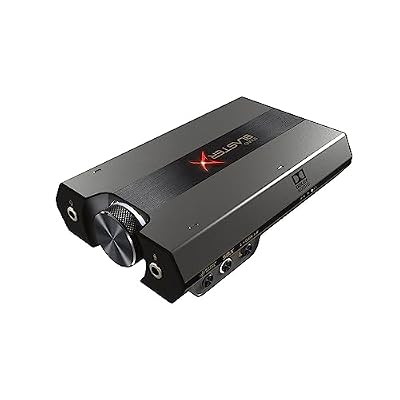
The Creative Sound BlasterX G6 is the hub piece of this setup, and the part that makes the other four cooperate. It is an external USB sound card and gaming DAC with a 32-bit, 384 kHz converter, a dynamic range of 130 dB, and a discrete Xamp headphone amplifier that drives headphones from 16 to 600 ohms. Virtual 7.1 surround, Dolby Digital decoding, and Scout Mode shape game audio, while sidetone control feeds a little microphone signal back into the headphones.
The G6 earns its place as the hub through switching and control. One volume wheel balances game audio against voice, side buttons switch processing profiles, and the software switches output between headphones and speakers without touching a cable. Scout Mode lifts quiet cues such as footsteps above the rest of the mix for competitive shooters, and stays off for music and film.
Specs
- DAC: 32-bit at 384 kHz, 130 dB dynamic range
- Headphone amplifier: discrete Xamp design, supports headphones from 16 to 600 ohms
- Surround: virtual 7.1, Dolby Digital decoding, Scout Mode
- Controls: volume wheel, sidetone control, profile buttons, gain switch
- Connections: USB, optical-in, line-in, line-out, headphone and headset jacks, external microphone input
- Power: USB bus powered; dimensions: 111 by 70 by 24 mm, weight 144 grams
Where it fits. Connect the G6 to the PC by USB and make it the default playback device. Plug the Cloud II headset into its headphone jack and the Z623 speakers into its line output.
Wiring the Whole Rig
Wiring takes ten minutes when the order is clear. Plug the G6 into a rear USB port on the PC. Set the G6 as the default playback device in Windows sound settings, and set the Yeti as the default recording device.
Plug the Cloud II into the G6 headphone jack and the Z623 into the G6 line output, then confirm the switch between them works and set a comfortable volume for each one separately. Connect the K5 Pro ESS to the PC by USB and to its own power supply, and plug full-size headphones into its front jack. Plug the Yeti into a separate USB port, place it to one side of the keyboard, and select it as the microphone in the chat app and the game.
Confirm the full loop: play a game scene with clear footsteps, switch from headset to speakers and back, and speak into the Yeti while listening through the headset.
Tuning Game Sound, Voice, and Music
Set the game volume first, then bring voice chat up until callouts sit clearly above the game. The G6 volume wheel handles this balance on the fly. Keep processing light: virtual surround helps direction in competitive games, but heavy processing flattens music and dialogue, so use surround for ranked play and direct stereo for story games, film, and music.
Set microphone gain once, then leave it. Find the gain level where normal speech sits comfortably in the middle of the input meter, then lock it and adjust distance instead of the knob.
Mistakes That Waste Good Gear
Running two surround processors at once doubles the effect and smears direction, so choose one processor per path and bypass the other. Buying five similar headsets does not make a setup; each purchase should fill a missing role, and if a new part does the same job as one already on the desk, the money belongs elsewhere. A great microphone at arm length with high gain sounds worse than a modest microphone at six inches with low gain, so distance and gain matter more than brand.
FAQ
Which piece should I buy first for PC gaming audio?
Buy the headset and the sound card first, because that pair covers competitive play, voice chat, and switching. Add speakers next, then the desk microphone, then the DAC and amplifier when headphone listening becomes a priority.
Do I need both a sound card and a DAC and amplifier?
No, the rig works with either one alone, but the two do different jobs. The sound card handles game processing, voice monitoring, and switching between headset and speakers. The DAC and amplifier delivers cleaner power to demanding headphones. Keep the sound card if competitive play matters most, and add the DAC and amplifier for headphone listening.
Why does my desk microphone pick up keyboard noise?
A condenser microphone hears the room as faithfully as it hears the voice, and a keyboard sits close to the microphone on most desks. Move the microphone closer to the mouth, lower the gain, use the cardioid pattern, and place the microphone on a boom arm away from the keyboard.
Can speakers replace a headset for competitive gaming?
Speakers work for relaxed and story-driven games, but they lose to a headset for competitive play. Headphones place directional cues directly at the ears, block room noise, and keep late-night sessions private. Use speakers when direction matters less and comfort matters more, and switch to the headset whenever hearing an opponent first decides the round.
As an Amazon Associate we earn from qualifying purchases.