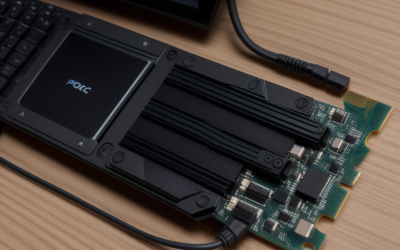
A Stream Deck is a software-driven control surface with customizable keys, usually with small screens, built mainly to trigger actions in streaming and creator apps, while a macro pad is a compact programmable keypad that sends keystrokes or shortcuts, often from onboard firmware. Choose a stream deck if you run scenes, audio and chat while live, and a macro pad if you want simple, reliable shortcuts for games, editing or office work.
The two categories overlap, and some products blur the line, but the day-to-day experience is different. This guide explains what each does, how they are set up, where each one fits for gaming and streaming, and what to check before you decide. Features, supported apps and model lineups change over time, so confirm details with the manufacturer’s current documentation before you commit.
What Each Device Does
Stream Deck-Style Controllers
These devices have a grid of keys, and on many models each key shows an image or label that changes depending on the profile. They are designed to run with companion software, which lets you assign actions such as switching a scene, starting a recording, muting a microphone, posting a chat message, launching an application, or opening a folder. Many integrate with streaming software, chat services, and smart-home or audio tools through plugins.
Macro Pads
A macro pad is typically a small keyboard with a handful of keys or a few knobs. It sends keystrokes, key combinations or sequences, and many models store the mappings in onboard memory. Some use open-source firmware that supports remapping through a configuration tool, so they work on any computer without background software. They are generally simpler, though the keys themselves do not usually show changing icons.
Key Differences at a Glance
| Feature | Stream deck style | Macro pad |
|---|---|---|
| Key display | Often LCD keys with icons | Usually plain keycaps, sometimes a small screen |
| Setup | Companion software with profiles and plugins | Firmware mapping or small configuration tool |
| Best at | Scenes, audio, chat and app control | Keystrokes, shortcuts and repeated sequences |
| Works without software running | Often needs the software active | Often stores mappings on the device |
| Customization | Icons, folders, plugins | Layers, key switches, physical layout |
| Typical user | Streamers and creators | Gamers, editors, office users |
Treat the table as general guidance. Individual products vary, and some macro pads now include screens while some stream deck products offer extra hardware controls.
Using Them for Gaming
In games, both devices can place shortcuts within reach, such as ability sequences, quick chat commands, or voice channel toggles. A macro pad’s physical keys can feel more like a keyboard, which some players prefer for fast, repeated presses. A stream deck’s changing icons can help in games with many contextual actions.
Be careful with automation. Many online games prohibit macros that perform multiple actions from a single press, and anti-cheat systems may flag them. Using a device to launch applications, mute a microphone or trigger a single keystroke is generally low risk, but rules differ by game. Read each game’s terms and community rules before assigning a complex sequence, and avoid anything that automates gameplay actions.
Using Them for Streaming
Scenes, Sources and Audio
For live streaming, a stream deck’s labeled keys let you switch between layouts, toggle a camera, mute or unmute audio sources and start or stop a stream without leaving the game. Visual feedback helps when you are focused on gameplay, since a key can show whether a source is on.
Chat, Alerts and Social Actions
Plugins and integrations can send chat messages, create clips, run commands or trigger alerts. Check which apps and services your chosen device supports, since support depends on the software and plugin ecosystem.
Where Macro Pads Fit
Macro pads can control streaming software through keyboard shortcuts, since many applications allow global hotkeys. The setup requires assigning unique shortcuts, and you lose the visual labeling, but the result can be dependable and simple.
Reliability on Air
Reliability during a live show deserves its own thought. If a key controls something important, such as muting a microphone, you want the device to behave the same every time. Keep software updated, avoid running too many plugins at once, and rehearse the layout before going live. A short practice session with the profile you plan to use prevents most on-air mistakes, and it shows quickly whether a key is placed where your hand expects it.
Hardware Features That Matter
Number and Type of Controls
Stream deck products come in several key counts, and some add dials, touch strips or foot pedals. Macro pads range from a few keys to full grids with rotary encoders. More controls reduce page switching, but they also take more desk space. Think about the number of actions you need within one glance, not the total across all profiles.
Key Feel
Stream deck keys are usually soft-press buttons designed for quick taps. Many macro pads use mechanical switches, so you can choose a linear, tactile or clicky feel. If you intend to press keys rapidly during gameplay, switch feel and sound are worth considering. If you stream with a microphone open, quiet switches may be a better fit.
Connection and Power
Most units connect by USB cable. Check the connector type, the cable length and whether the device needs a powered port, particularly if you plan to use a hub. A stable wired connection is generally more reliable during a live broadcast than a wireless link.
Operating System Support
Companion software, plugins and drivers do not always support every operating system equally. If you use a less common system, check the manufacturer’s compatibility notes before choosing a device.
Examples of Useful Setups
The best layout depends on what you do most. These examples describe patterns, not specific products.
Solo Streamer With One Display
Keep the top row for scene changes, the middle row for audio mute toggles and the bottom row for stream start, stop and clip creation. Place destructive actions, such as ending a stream, in a folder or behind a confirmation to avoid accidental presses.
Competitive Player Who Does Not Stream
Use a small pad for voice chat toggles, push-to-talk alternatives, screenshot capture and a quick app launcher. Avoid automating in-game actions.
Video Editor Who Also Games
A macro pad with layers can switch between editing shortcuts and game utilities. Label the layers on paper or through icons so you always know which mode is active.
Choosing Between Them
Choose a Stream Deck-Style Device If
You stream or record often, switch many scenes or sources, want visual feedback, and like using plugins. You are comfortable running companion software in the background.
Choose a Macro Pad If
You want a straightforward set of shortcuts, prefer physical keys with a keyboard feel, or need mappings that live on the device and work on different computers. It also suits people who like to customize layouts and key switches.
Consider a Software Alternative If
You want to try the concept first. Touch-based control apps can run on a spare phone or tablet and offer similar button layouts, though a physical device is more reliable when you cannot look away from the game.
Practical Setup Steps
- List the actions you repeat most often, such as scene switches, mute toggles and common shortcuts.
- Count how many keys you need, and leave room to grow, noting that folders or layers can multiply what a small device can do.
- Check compatibility with your streaming software, chat service and operating system.
- Assign actions one profile at a time, and name them clearly.
- Back up your configuration, so that you can restore it after reinstalling or moving to another computer.
Before You Buy Checklist
- Confirm which software, plugins and operating systems are supported.
- Decide how many keys, knobs or dials you actually need.
- Check whether mappings stay on the device or require the app to run.
- Review the rules of any competitive game you intend to use it in.
- Check that the desk has room and the cable reaches.
Common Mistakes
- Buying a large device with more keys than you will ever assign.
- Assigning multi-step game macros and risking a rules violation.
- Forgetting to back up profiles before a system change.
- Choosing a device without checking that your streaming software is supported.
- Expecting a macro pad to show scene status the way an LCD key does.
Related guides
- Aio Liquid Coolers For High Performance Gaming
- How To Lower Input Delay In Competitive Shooters
- Wireless Gaming Headsets Under 100 For Pc
Frequently Asked Questions
Can a macro pad replace a stream deck?
For simple hotkey control, yes, since most streaming programs support global shortcuts. You lose the visual feedback and plugin integrations that stream decks provide.
Are these devices allowed in online games?
Single-action shortcuts are commonly accepted, while multi-step automation can break a game’s rules. Check the terms of each game.
Do I need one if I do not stream?
No. A macro pad or stream deck is a convenience for repeated tasks, and it can help with editing, audio control and productivity, but it is not required.
Which is easier to set up?
Stream deck-style devices usually have guided software with drag-and-drop actions, while macro pads can require firmware tools, depending on the model. Check the setup process in the manufacturer’s documentation.