

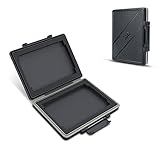
- Top Pick: 2 Slots Hard Drive Case for 2.5 inch SSD, Solid State Hard Drive Storage Protection Box, Water Resistant and Shockproof 2.5'' SSD Carrying Case
- Best Value: Hard Drive Case Fits 25-Bay Protection 3.5" HDD | High-Density Protective Foam | External Hard Drive Organizer Storage Box Travel Carrying Suitcase with Handle
- Premium Choice: JJC 3.5 Inch External Hard Drive Case, HDD SSD Storage Box Carrying Case
Short Answer
For a music library, HDDs are usually the better buy. Music files are small, sequential, and rarely need the random-access speed SSDs are good at. A 4TB hard drive costs roughly $80-100 and holds around 800,000 songs at 320kbps MP3, or about 50,000-60,000 albums ripped to FLAC. The only reasons to pay SSD prices for music storage are if the drive also runs your DAW, sample libraries, or OS, where load times actually matter.
What Music Storage Actually Needs
Playback is sequential read of a small file, typically 3-10MB for a compressed track and up to 40-60MB for lossless FLAC or ALAC. Even a 10-year-old 5400RPM hard drive reads sequential data at 100-150MB/s, which is overkill for streaming audio at a few hundred kilobits per second. SSD speed advantages show up with random reads and heavy multitasking, not with “press play on a song.” This is why cheap hard drives feel exactly as fast as expensive SSDs when you’re just listening to music.
As an Amazon Associate we earn from qualifying purchases at no extra cost to you.


Where it changes: if you’re running production software like Ableton or Pro Tools with large multi-sample instrument libraries (think Kontakt libraries that stream dozens of samples simultaneously), an SSD matters because the drive is doing constant random access across many small files at once. That’s a different workload than a music library sitting there waiting to be played.
Cost Per Terabyte Is the Real Divide
This is where the decision actually gets made. As of now, mechanical hard drives run $18-22 per TB at the 4-8TB range. SATA SSDs run $45-60 per TB, and NVMe drives are similar or slightly higher depending on capacity and controller. For a library under 500GB, the price gap in dollars is small enough not to matter. For a 4TB+ archive of lossless rips, the gap becomes real money.
| HDD (7200RPM, 4TB) | SATA SSD (4TB) | |
|---|---|---|
| Price per TB | ~$18-22 | ~$45-60 |
| Sequential read speed | 150-220MB/s | 500-560MB/s |
| Good for sequential playback | Yes, more than enough | Yes, but no audible benefit |
| Noise/vibration | Audible clicking/whirring, some vibration | Silent, no moving parts |
| Failure mode | Mechanical wear, head crash, bearing failure | Flash wear, controller failure |
| Typical lifespan (archival, not daily writes) | 5-10 years | 10+ years (write endurance isn’t the limiting factor for read-mostly use) |
If you’re starting a library from scratch or expanding one that’s already in the multi-terabyte range, a 4TB internal hard drive is the pragmatic choice. You get more headroom for less money, and headroom matters because lossless formats add up fast: a FLAC rip of a single album can run 300-500MB, so a few hundred albums in lossless easily clears 100GB.
Failure Modes You Should Actually Worry About
Hard drives fail mechanically. Common signs are clicking noises, drives that take longer and longer to spin up, or sudden disappearance from the OS after a power event. Annualized failure rates for consumer hard drives sit around 1-2% per year based on published backup-provider data, climbing as drives age past 3-4 years. The failure is often total: a dead head or seized bearing can mean the whole drive is gone, though data recovery services can sometimes get files back for a few hundred dollars.
SSDs fail differently. They tend to fail by going read-only (you can get your data off but can’t write anymore) or by sudden controller death with no warning signs at all, unlike the mechanical noises that often precede HDD failure. For a read-mostly use case like a music archive, SSD write endurance basically never becomes the limiting factor; you’re not wearing them out by listening to songs.
In either case, the real lesson is that drive type doesn’t change the backup math. One copy of your library, on one drive, is one lost library away from a bad week. If the collection took years to rip and curate, back it up.
The Actual Recommendation
Buy a hard drive for the bulk library. If you want a bit of speed for your OS and the apps you use to manage tags and playlists, keep those on whatever SSD your system already boots from, and point your music folder at the hard drive. There’s no need to buy a dedicated SSD just to store audio files on it.
The one case where SSDs earn their price premium is portable use: an external drive that gets thrown in a bag, bumped around in a car, or used on a laptop without much shock protection. Here the lack of moving parts matters more than raw speed. A compact portable external SSD handles drops and vibration far better than a portable hard drive, which is a real consideration if the drive travels with you rather than sitting still in a desktop case.
If you’re building out a dedicated storage setup rather than just adding a single drive, it’s worth looking at NAS-rated hard drives instead of standard desktop drives. They’re built for longer uptime and continuous spin, which matters if the music server runs 24/7 rather than only when you’re actively listening.
Match the drive to the job: hard drives for bulk, quiet, cheap storage that just sits there and plays files back; SSDs for the system drive and anything that gets physically moved around. Spending SSD money on a static music archive buys you nothing you can hear.














