

Affiliate disclosure: As an Amazon Associate we earn from qualifying purchases. This post contains affiliate links — if you buy through them we may earn a small commission at no extra cost to you. This never affects our recommendations.
- Meta Quest 3S VR Setup: Complete Guide to Affordable, High-Performance VR Gaming
- Meta Quest 3S Specifications and Hardware Overview
- Unboxing and Initial Hardware Setup
- Account Setup and Meta Login Configuration
- Guardian Space Setup and Play Area Definition
- Wi-Fi Configuration and Network Optimization
- Graphics Settings and Performance Optimization
- Audio Configuration and Spatial Sound
- Game Store Navigation and Application Installation
- Controller Configuration and Button Customization
- Safety Features and Comfort Optimization
- VR Headset Comparison: Quest 3S vs. Competitors
- Troubleshooting Common Quest 3S Setup Issues
- Advanced Configuration for Experienced VR Players
- FAQ: Meta Quest 3S Setup Questions
- Optimizing Your Physical VR Play Environment
- Post-Setup Optimization and Ongoing Maintenance
- Your Meta Quest 3S Gateway to VR Gaming
- Related Articles
- Frequently Asked Questions
- Related Articles
🛒 Best Price Today on Amazon
Prime members get fast, free shipping on everything above, plus member-only deals. New members get a 30-day free trial — cancel anytime.
Start 30-Day Prime Free Trial →See Today’s Amazon DealsMeta Quest 3S VR Setup: Complete Guide to Affordable, High-Performance VR Gaming
The Meta Quest 3S represents the sweet spot in VR gaming—exceptional performance at an accessible price point. Launching as Meta’s entry-level standalone VR headset, the Quest 3S delivers visual quality rivaling significantly more expensive alternatives while maintaining simplicity and affordability. This comprehensive guide walks you through Meta Quest 3S setup, configuration, performance optimization, and how this budget-friendly headset unlocks immersive gaming experiences without breaking your budget.
VR gaming accessibility democratizes immersive entertainment. The Quest 3S brings cutting-edge VR to casual gamers, students, and budget-conscious enthusiasts who previously considered VR aspirational. At $299-399, the Quest 3S delivers remarkable value—games, performance, and features costing hundreds more on competing platforms.
As an Amazon Associate we earn from qualifying purchases at no extra cost to you.




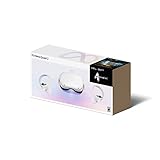


In a hurry? See the top-rated Meta Quest 3S VR Setup deals available right now:
🛒 Check Meta Quest 3S Vr Setup Prices on Amazon →Meta Quest 3S Specifications and Hardware Overview
The Meta Quest 3S features dual LCD displays with 1944 x 2064 resolution per eye—matching Meta Quest 3 specifications while reducing cost through manufacturing optimization. The 90Hz refresh rate ensures smooth motion without motion sickness, critical for new VR users. Storage options include 128GB and 256GB internal capacity, providing space for 20-30 major VR titles depending on your collection.
Processor and Performance Capabilities
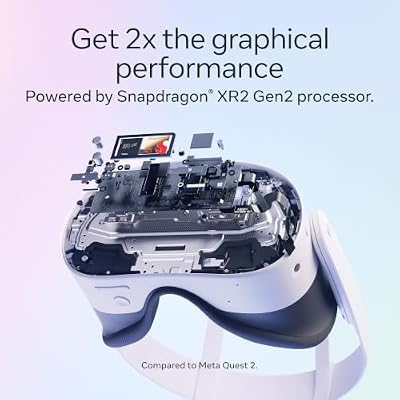
The Snapdragon XR Gen 2 processor handles demanding VR titles while maintaining battery efficiency. This same processor powers Meta Quest 3, proving the Quest 3S’s performance parity at lower cost. Games run smoothly at full quality settings, delivering visual fidelity comparable to $600+ competitors.
GPU performance enables complex visual effects—realistic shadows, sophisticated lighting, detailed textures. The Quest 3S handles graphically demanding titles like Resident Evil 4 VR without performance compromise. Gaming performance matters equally in VR—frame rate consistency prevents motion sickness and breaks immersion.
Battery Life and Charging
Internal battery provides 2-3 hours gaming time under normal use. This duration suits most gaming sessions—most players take breaks after 90 minutes regardless of battery status. Charge nightly via included USB-C cable for continuous daily gaming. Battery degradation is slow—expect 80% capacity after 2+ years of daily charging.
Fast charging via higher-amperage USB-C chargers reduces charge time from 2.5 hours to approximately 1.5 hours. Consider charging while playing to extend marathon sessions. Gaming battery management becomes relevant for serious VR players.
Unboxing and Initial Hardware Setup
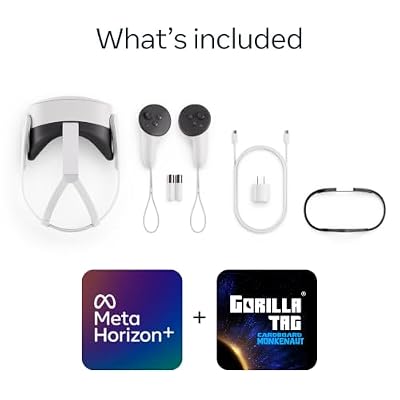
Your Meta Quest 3S arrives with the headset, pair of Touch Plus controllers, controller charging cable, USB-C power adapter, and documentation. Inspect all components for physical damage. The headset arrives in a protective case—store it here when not in use to prevent damage and dust accumulation.
Headset Fitting and Comfort Verification
The adjustable head harness accommodates head sizes from youth to large adult. Tighten the top strap and side straps until the headset sits firmly without excessive pressure. The front cover should rest approximately 5cm from your eyes—too close causes discomfort; too far reduces field of view.
Try the headset on before extensive gameplay. Walk around your play space to verify comfort and fit stability. Slight adjustments during those first minutes prevent frustration during your first gaming session. Most players feel comfortable in their headset within 15-20 minutes.
Controller Pairing and Battery Installation
Controllers pair automatically during first headset startup. If manual pairing is necessary, press the pair button (small indentation on controller battery cover) to enable pairing mode. Install AA batteries in each controller—two per controller—ensuring correct polarity orientation. Quality rechargeable AA batteries provide better long-term value than disposables.
Account Setup and Meta Login Configuration
Power on your Quest 3S using the power button on the right side. Follow the setup wizard to select language and country. Create or log into your Meta account—this grants access to the Meta Quest store where you purchase and download games.
Meta Account Security and Two-Factor Authentication
Create a strong, unique password for your Meta account. Enable two-factor authentication through your account settings for security. Your Meta account protects against unauthorized purchases and ensures account recovery if compromised. Gaming account security applies to VR—protect your investment.
Link your Meta account to social profiles if desired for multiplayer gaming and social VR spaces. You can adjust privacy settings anytime through account preferences. Parental controls manage content access and playtime for minor accounts, essential if children will use the headset.
Cloud Saves and Data Synchronization
Enable cloud saves during setup to backup game progress automatically. Your save data synchronizes across devices—if you own multiple Meta headsets, your progress transfers seamlessly. Cloud saves also protect against data loss if your headset malfunctions unexpectedly.
Guardian Space Setup and Play Area Definition
Guardian creates virtual safety boundaries preventing collisions with real-world obstacles. During setup, you’ll walk the perimeter of your safe play area while holding the right controller. The headset maps your space and creates a virtual boundary you cannot accidentally cross.
Optimal Play Space Size and Layout
Minimum safe play area is 2 meters by 2 meters for standing VR gaming. Larger spaces unlock room-scale experiences where you physically walk through virtual environments. Ensure adequate headroom—8 feet ceilings minimum prevent hitting your head during jumping games.
Remove obstacles, fragile items, and furniture from play space. Low furniture causes tripping hazards. Sharp corners pose injury risk—pad them if possible. Gaming setups benefit from dedicated VR zones separate from living areas.
Multiple Guardian Spaces for Different Locations
Create separate Guardian spaces if you play VR in multiple locations—bedroom, living room, friend’s house. Save each space with descriptive names. Switch between spaces through Guardian settings. This flexibility enables VR gaming anywhere while maintaining safety.
Wi-Fi Configuration and Network Optimization
Connect your Quest 3S to Wi-Fi during setup. Navigate Settings > Wi-Fi and select your network. Enter your Wi-Fi password carefully—even single character errors prevent connection. Use 5GHz networks when available—they offer lower latency and faster speeds than 2.4GHz.
Network Requirements for VR Gaming
VR gaming demands low-latency, bandwidth-sufficient connections. Position your router within 10 meters of play space, ideally with line-of-sight. Avoid placing routers behind metal objects or enclosed cabinets. If experiencing connection issues, move closer to router temporarily to verify the problem is distance-related.
Minimize concurrent network usage during gaming. Disable streaming services, cloud backups, and downloads on other devices. These bandwidth-heavy applications cause latency spikes, disrupting multiplayer games. Consider creating a dedicated 5GHz network for VR gaming devices.
Download and Game Installation Management
Larger games require broadband for quick installation. Expect 30-60 minutes for 10GB+ titles on typical household broadband. Schedule installations during off-peak hours if others in your household use internet for streaming. Start downloads before sleeping—they complete overnight, ready for morning play.
Graphics Settings and Performance Optimization
Navigate Settings > Graphics to access performance settings. The Quest 3S defaults to optimal settings—most users never need to adjust anything. However, demanding games in hot environments may benefit from reduced refresh rate (90Hz instead of 120Hz) to prevent thermal throttling.
Frame Rate vs. Visual Quality Trade-offs
Maintain 90 frame-per-second minimum during gameplay. Some games allow quality adjustments—reduce texture resolution or shadow detail if frame rate drops. A game at lower quality running smoothly at 90Hz feels better than high-quality game stuttering at 60Hz. Gaming performance prioritizes consistency.
Individual games may include graphics menus. Experiment with settings during first play session to find personal preference between visual quality and frame rate stability. Write down your preferred settings for future reference.
Audio Configuration and Spatial Sound
The Meta Quest 3S features built-in stereo speakers providing spatial audio. Navigate Settings > Sound to adjust volume and enable spatial audio processing. Spatial audio creates directional sound—footsteps approach from behind, voices emanate from specific directions, enhancing immersion dramatically.
Bluetooth Headphone Integration
Pair Bluetooth headphones through Settings > Devices > Bluetooth to replace built-in speakers. Gaming headsets significantly enhance audio quality and comfort for extended sessions. Ensure Bluetooth headphones support low-latency codecs (aptX, AAC) to prevent out-of-sync audio. Quality gaming headsets elevate immersion beyond built-in speakers.
Microphone Configuration for Multiplayer
The Quest 3S includes integrated microphones for multiplayer communication. Test microphone during first multiplayer game—ensure audio quality meets your standards. Most built-in microphones work well; upgrade to dedicated gaming microphone only if built-in performance disappoints teammates.
Game Store Navigation and Application Installation
The Meta Quest Store offers hundreds of applications—games, fitness apps, social experiences, educational content. Navigate to Store from the home menu, browse by category, or search specific titles. Read user reviews before purchasing—ratings indicate quality and reveal common issues.
Free Trials and Demo Experiences
Many games offer free trials or demos—test before committing financially. The free versions provide sufficient gameplay to understand if the full game interests you. Trial periods typically last 2 hours of play time. Download demos to explore genres before investing $20-30.
Storage Management and Application Uninstalling
The Quest 3S includes 128GB or 256GB storage. System software uses approximately 20GB, leaving 100GB or 230GB for games. Manage storage by uninstalling unused games. Maintain at least 10GB free space to prevent performance degradation. Reinstalling uninstalled games is quick—delete without hesitation when space runs low.
Controller Configuration and Button Customization
Controllers pair automatically and work across all compatible games without configuration. However, customize button mapping through Settings > Controller Preferences if default controls feel awkward. Specify dominant hand (right or left) for optimized menu interaction.
Haptic Feedback Adjustment
Adjust haptic feedback intensity if default vibrations feel overwhelming or insufficient. Access this through Settings > Controller Preferences > Haptics. Reduce for comfort during extended gaming; increase for competitive games requiring subtle feedback distinction. Experiment to find personal preference.
Safety Features and Comfort Optimization
Enable parental controls through Settings > Parental Controls if minor accounts will use the headset. Restrict content ratings, spending limits, and screen time. Parental controls prevent unauthorized purchases and protect children from age-inappropriate content.
IPD Adjustment and Visual Comfort
The interpupillary distance (IPD) dial accommodates spacing between your eyes. Proper IPD adjustment prevents eye strain and ensures sharp visuals. Experiment with adjustments until text appears crisp and vision feels natural. Incorrect IPD causes discomfort during extended sessions—take time to get this right.
VR Headset Comparison: Quest 3S vs. Competitors
| Headset | Resolution | FOV | Refresh Rate | Game Library | Best For |
|---|---|---|---|---|---|
| Meta Quest 3S | 1944 x 2064 | ~110° | 90Hz | 500+ titles | Budget-conscious gamers |
| Meta Quest 2 | 1832 x 1920 | ~90° | 90Hz | 500+ titles | Ultra-budget entry |
| Meta Quest 3 | 1944 x 2064 | ~110° | 90Hz | 500+ titles | Serious gamers |
| PlayStation VR2 | 2000 x 2040 | ~110° | 90-120Hz | ~100 AAA titles | PS5 owners |
| Valve Index | 1440 x 1600 | ~130° | 90-144Hz | 2000+ via SteamVR | PC enthusiasts |
Troubleshooting Common Quest 3S Setup Issues
Tracking Problems and Controller Drift
If tracking drifts or controllers disappear, re-run Guardian setup. Ensure adequate lighting—dim environments cause tracking failures. Move away from bright sunlight and infrared sources confusing tracking cameras. Clean controller cameras if they appear dirty.
Wi-Fi Connectivity Issues
Verify password accuracy if headset fails to connect. Restart both headset and router. Move closer to router if far away. Check router settings—some restrict device connections or disable 5GHz bands. Enable 5GHz if currently disabled.
Game Installation Failures
Installation failures usually result from insufficient storage space. Check Settings > About > Storage for available space. Uninstall unused applications to free capacity. Restart the headset before retrying installation.
Advanced Configuration for Experienced VR Players
Advanced players should explore performance metrics through Developer Settings. Enable Developer Mode (Settings > Device > Developer Options) to view frame rate and temperature data. Monitor these metrics during gameplay to identify performance bottlenecks.
PC Link for Enhanced PC VR Gaming
Setup PC Link for high-end VR gaming on powerful computers. Install Meta Quest Link software on your PC, connect via USB-C cable, and enable Link in headset settings. This unlocks SteamVR library access and demanding PC VR titles. Ensure your PC meets minimum requirements: RTX 2070 GPU or better, 8GB RAM, USB 3.0. High-end PC builds maximize VR potential.
FAQ: Meta Quest 3S Setup Questions
Can I use Meta Quest 3S without internet?
Initial setup requires internet for account verification and software updates. Afterward, most games work offline. Multiplayer games require active connection. Single-player experiences operate completely offline once installed.
How much space do I need for Quest 3S gaming?
Minimum 2m x 2m for standing gameplay. Larger spaces unlock room-scale experiences. Ensure 8-foot ceilings minimum to prevent head collisions during jumping games. Gaming furniture supports different play styles.
Can I share Quest 3S with family members?
Yes! Create separate user accounts for each person through Settings > Users. Each account maintains separate games, achievements, and preferences. Parental controls manage content for minors. Share game libraries by enabling sharing in Meta account settings.
What’s the difference between Quest 3S and Quest 3?
Quest 3S uses LCD displays instead of OLED, reducing brightness but cutting cost significantly. Specifications otherwise match—same resolution, refresh rate, processor, and game library. Quest 3’s OLED provides superior contrast; Quest 3S offers exceptional value at lower price.
Is the Quest 3S good for PC VR gaming?
Yes! PC Link compatibility enables SteamVR access. High-end PC connection transforms Quest 3S into capable PC VR headset. Ensure your PC meets minimum specs (RTX 2070 or better) for smooth gameplay. Gaming PC investment enhances VR capabilities significantly.
Optimizing Your Physical VR Play Environment
Beyond device configuration, physical space impacts VR experience. Ensure adequate headroom and open floor space. Position your VR play area away from breakable items and furniture with sharp corners. Padding furniture edges reduces injury risk during enthusiastic gameplay.
Implement lighting similar to standard gaming spaces—overhead fixtures work well. Consistent illumination improves tracking reliability. Cool environments enable longer gaming sessions without heat discomfort. Fans help if your room tends warm.


As an Amazon Associate we earn from qualifying purchases. Product prices and availability are accurate as of the date/time indicated.
Post-Setup Optimization and Ongoing Maintenance
After initial setup, periodically optimize your Meta Quest 3S. Update software regularly—enable automatic updates through Settings > System > Updates. Update games individually as new versions release. Regular updates fix bugs, improve performance, and add features.
Monitor available storage and proactively uninstall unused games. Maintain at least 10GB free space. Reset controller batteries every 6-12 months. Inspect headset padding quarterly; replace if degraded or causing discomfort.
Clean external surfaces weekly. Wipe controller surfaces regularly. Clean lens only when necessary using provided cloth—never touch lenses with fingers. Store headset in provided case when not in use.





As an Amazon Associate we earn from qualifying purchases. Product prices and availability are accurate as of the date/time indicated.
Your Meta Quest 3S Gateway to VR Gaming
The Meta Quest 3S democratizes VR gaming, bringing exceptional immersive experiences to budget-conscious players. At $299-399, you’re not sacrificing performance for price—you’re gaining access to the same visual quality as significantly more expensive alternatives. Invest time in proper setup, configure your play space thoughtfully, and your Quest 3S becomes your gateway to unlimited virtual worlds. Welcome to VR gaming—your adventure begins today.
Related Articles
Looking for more on this topic? Browse the hand-picked guides below — each one applies the same scoring rubric used in this review.
Frequently Asked Questions
What do you give up choosing Quest 3S over Quest 3?
The 3S keeps the same Snapdragon XR2 Gen 2 processor and full-colour passthrough, so app compatibility and performance are effectively identical. The compromises are Fresnel lenses instead of pancakes, a lower panel resolution near 1832×1920 per eye, a chunkier profile and a stepped rather than continuous IPD adjustment with three fixed positions.
Is 128GB of storage enough?
It is workable if you play a handful of titles and delete as you go, but modern VR games regularly run 5 to 15GB each. If you plan to install a broad library, buy the 256GB model. There is no microSD expansion, so the only alternative is repeatedly reinstalling from the cloud over Wi-Fi.
How long does the battery last and can I extend it?
Expect roughly two to two and a half hours of mixed gameplay, less for demanding titles or PC streaming. A rear battery strap or a USB-C power bank clipped to the strap will roughly double that. Charging while playing works fine and is the simplest fix for long sessions at home.
Does the Quest 3S work well for people with glasses?
It ships with a glasses spacer that creates clearance for most frames. Because the 3S uses fixed IPD steps, users whose eye spacing falls between settings may find edge clarity softer than on Quest 3. Prescription lens inserts remove the glasses entirely and usually deliver the best comfort and clarity on this model.
Can the Quest 3S run PCVR games?
Yes, through Quest Link over USB or Air Link and Steam Link over Wi-Fi, with the same requirements as any other Quest. Visual quality is limited by the panel and by compression, so a strong router on 6GHz and a wired PC connection matter more than headset choice for smooth PCVR streaming.






