Knowing your CPU temperature helps you spot cooling problems, thermal throttling and dust buildup before they hurt performance. Checking it takes only a minute with the right free tool.
- The Easy Way: Free Monitoring Tools
- Checking in BIOS
- Idle vs Load Temperatures
- Reading Ryzen vs Intel
- If Temperatures Are Too High
- Monitoring While Gaming
- Why Temperatures Rise Over Time
- Laptop vs Desktop Readings
- Key Takeaways
- What Counts as Too Hot
- Simple Fixes for High Temperatures
- Final Thoughts and Quick Recap
- A Note on Keeping Your PC in Shape
- Frequently Asked Questions
- Related Guides
This guide shows how to read your CPU temperature accurately and what the numbers mean.
The Easy Way: Free Monitoring Tools
Free tools like HWiNFO, Core Temp and HWMonitor display your CPU temperature in real time. HWiNFO is the most detailed, showing per-core temperatures, package temperature and the Tctl/Tdie reading on Ryzen.
Install one, open it, and look for ‘CPU Package’ or ‘Core’ temperatures. These update live as you use the PC.
Checking in BIOS
You can also see CPU temperature in your motherboard’s BIOS/UEFI, usually on the main or hardware-monitor page. This shows the idle temperature at the desktop equivalent, since no OS load is running.
BIOS is useful for a quick idle check, but software tools are better for monitoring under gaming load.
Idle vs Load Temperatures
At idle, most CPUs sit around 30-45C. Under a gaming load, 60-80C is normal, and heavy all-core workloads can reach the high 80s or low 90s on hot chips. What matters is staying below the throttle limit.
To see load temperatures, run a game or a stress test while your monitoring tool records the maximum.
Reading Ryzen vs Intel
Ryzen chips, especially X3D models, can spike briefly to their limit and boost aggressively; short spikes are normal by design. Intel reports per-core and package temperatures that respond quickly to load.
Focus on sustained temperatures under load rather than momentary spikes.
If Temperatures Are Too High
If you see sustained temperatures in the mid-90s or thermal throttling, clean dust from your cooler and case fans, improve airflow, reapply thermal paste, or upgrade to a better cooler. A light undervolt also helps.
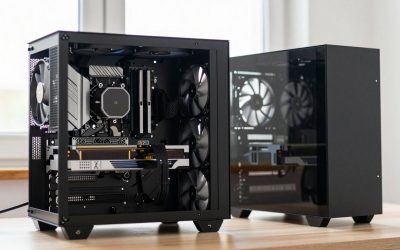
Good case airflow and a capable CPU cooler keep temperatures in a safe, quiet range.
Monitoring While Gaming
To see temperatures under real load, use an in-game overlay via MSI Afterburner with RivaTuner Statistics Server, which displays CPU temperature, usage and frame rate on screen. This reveals whether your CPU heats up or throttles during actual gameplay.
Record the maximum temperature after a long session to judge whether your cooling is adequate for sustained loads.
Why Temperatures Rise Over Time
If your CPU runs hotter than it used to, dust buildup on the cooler and fans is the usual cause, followed by thermal paste that has dried out. Both are easy, cheap fixes that restore original temperatures.
Ambient room temperature and poor case airflow also raise readings, so a hot summer or a cramped case can push temperatures up several degrees.
Laptop vs Desktop Readings
Laptops run hotter than desktops because cooling is compact, so 85-95C under gaming load is common and usually within spec. A cooling pad and cleaning the vents help keep a laptop in a comfortable range.
Desktops have far more thermal headroom, so sustained high temperatures there more often point to a cooling problem worth fixing.
Key Takeaways
To recap the essentials of this guide on how to check your cpu temperature: follow the official method, keep your software current, and change one thing at a time so you can tell what worked. The steps above are quick, safe and reversible.
If you take away one thing, it is that a little maintenance and the right free tools prevent most problems before they start, keeping your PC fast, stable and ready for the next game.
What Counts as Too Hot
Sustained temperatures in the mid-90s Celsius under normal gaming indicate a cooling problem worth addressing, while 60-80C is healthy. Brief spikes to the limit, especially on Ryzen, are normal and not a cause for concern.
Focus on the sustained temperature during a long session rather than momentary peaks when judging whether action is needed.
Simple Fixes for High Temperatures
Cleaning dust, improving case airflow, reapplying thermal paste and, if needed, upgrading the cooler are the standard fixes, in that order of effort. A light undervolt drops temperatures further with no performance loss.
Most overheating issues on desktops are solved cheaply by dust removal and better airflow rather than new hardware.
Final Thoughts and Quick Recap
How to Check Your CPU Temperature does not need to be complicated. Stick to the official tools and methods covered above, make one change at a time, and verify the result before moving on. That disciplined approach keeps your PC stable and avoids the trial-and-error that causes most headaches, and it applies whether you are a first-time builder or a seasoned enthusiast.
The key points are simple: use trusted sources, keep your software current, and let real data rather than guesswork guide your decisions about how to check your cpu temperature. A few minutes of care here saves hours of troubleshooting later, and the habits pay off across every game and application you run.
The payoff is a system that stays fast, quiet and reliable, ready for whatever you play next. Bookmark this guide and revisit the steps whenever you upgrade a component or run into a new issue, and use the related guides below to keep the rest of your build in equally good shape. Consistent, small maintenance beats occasional big fixes every time.
A Note on Keeping Your PC in Shape
Whatever prompted you to read about how to check your cpu temperature, the same principle applies across your whole system: small, regular attention prevents big problems. Update drivers and firmware on a sensible schedule, keep an eye on temperatures, leave some free space on your drives, and enable your memory profile so the hardware you paid for runs at full speed.
None of this requires deep technical knowledge or expensive tools. The free utilities and official software mentioned throughout this guide are all you need to keep a gaming PC running smoothly for years, and building these habits now means fewer surprises down the line when you are in the middle of a game you love.
Frequently Asked Questions
What tool should I use to check CPU temperature?
HWiNFO, Core Temp or HWMonitor are all free and reliable; HWiNFO is the most detailed.
What is a normal CPU temperature?
Around 30-45C at idle and 60-80C under gaming load; heavy all-core work can reach the high 80s.
Can I check CPU temperature without software?
Yes, in the BIOS/UEFI hardware-monitor page, though this only shows idle temperatures.
Why is my CPU so hot?
Common causes are dust, poor airflow, old thermal paste or an inadequate cooler; cleaning and better cooling usually fix it.
Related Guides
- What Is a Safe CPU Temperature for Gaming?
- Best Free CPU Temperature Monitor Tools
- How to Stress Test Your CPU Safely
- Best CPU Coolers for Gaming in 2026