

- Top Pick: Kingston NV3 1TB M.2 2280 NVMe SSD | PCIe 4.0 Gen 4×4 | Up to 6000 MB/s | SNV3S/1000G
- Best Value: Western Digital 2TB WD Green SN350 NVMe Internal SSD Solid State Drive – Gen3 PCIe, QLC, M.2 2280, Up to 3,200 MB/s – WDS200T3G0C
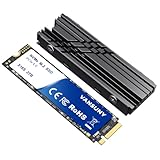
- Premium Choice: Vansuny 2TB NVMe M.2 SSD,M2 2280 PCIe 4.0 Internal Solid State Drive,Read Up to 7300MB/s with Heatsink and Screwdrivers for PS5 Consoles PC Gaming Design
These three terms get thrown around like they’re all competing for the same job, but they’re really describing two different things. “Hard drive” and “SSD” describe the storage technology. “NVMe” describes the connection method an SSD uses. A lot of confusion in buying guides comes from treating NVMe as if it’s a separate tier from SSD, when really every NVMe drive is an SSD, just a specific flavor of one.
Here’s the practical breakdown: you’ve got mechanical hard drives (HDD), SATA SSDs, and NVMe SSDs. Each has a real place depending on budget and what you’re storing.
As an Amazon Associate we earn from qualifying purchases at no extra cost to you.




How each one actually works
A hard drive stores data on spinning magnetic platters, read by a physical arm that moves across the surface. That mechanical motion is why HDDs are slower and why they can fail from physical shock, bearing wear, or motor failure. They’re also why HDDs are cheap per terabyte: the technology is decades old and manufacturing is mature.
An SSD stores data in flash memory chips with no moving parts. A SATA SSD uses the same physical connector and data protocol as a hard drive, which caps its speed at roughly 550 MB/s even though the flash memory inside could go faster. NVMe SSDs skip that bottleneck by connecting straight to the PCIe bus, the same high-bandwidth lane your graphics card uses. That’s why NVMe drives can hit 3,500 MB/s to 7,000+ MB/s depending on PCIe generation.
Real-world speed differences
Benchmarks are one thing, but what you’ll actually feel day to day is boot time, game load screens, and how long a large file copy takes.
| Drive type | Typical sequential speed | Boot to desktop | Copying 50GB game folder |
|---|---|---|---|
| 7200 RPM HDD | ~150-200 MB/s | 30-45 sec | ~5-6 minutes |
| SATA SSD | ~500-550 MB/s | 10-15 sec | ~90 seconds |
| NVMe SSD (Gen3) | ~3,000-3,500 MB/s | 8-12 sec | ~20-25 seconds |
| NVMe SSD (Gen4/5) | ~5,000-7,500 MB/s | 8-10 sec | ~10-15 seconds |
Notice boot time doesn’t scale linearly with raw speed. Past the SATA SSD tier, Windows itself becomes the bottleneck, not the drive. This matters for buying decisions: paying extra to go from SATA to Gen4 NVMe mostly helps large file transfers and game load times, not how fast your desktop appears.
How they actually fail
Hard drives fail mechanically. Common signs are clicking or grinding noises, slow degradation where files start taking longer to open, or sudden total failure after being bumped or dropped. Average lifespan in steady use is 3-5 years, though plenty run 8+ years in low-vibration environments. When they fail, it’s often total and recovery requires a cleanroom service, which can cost hundreds of dollars.
SSDs fail differently. Flash memory cells wear out after a finite number of write cycles, but for typical desktop use that limit is so high (hundreds of terabytes written) that it’s rarely the real cause of death. More often, SSDs fail from a controller chip defect or firmware bug, and failure tends to be sudden rather than gradual, no warning clicks, the drive just stops showing up. There’s also no fragile moving parts, so drops and vibration don’t matter.
Neither technology is “safe.” Both need backups. SSDs just tend to fail less often and give you less warning when they do.
When a hard drive is still the right call
If you’re storing a large media library, backup archive, or anything you don’t need to load quickly, a hard drive is still the better dollar-per-terabyte option. An 8TB hard drive costs a fraction of an 8TB SSD, and for cold storage or NAS use, the speed difference barely matters. A lot of people buy an all-SSD setup and regret not having a cheap bulk drive for backups. If you’re filling out a build, it’s worth browsing internal hard drives for the bulk storage role specifically, not as your main drive.
SATA SSD vs NVMe: which to actually buy
If your motherboard has an M.2 slot that supports NVMe (check the manual, don’t assume), there’s rarely a reason to buy a SATA SSD for your main drive anymore. Prices have converged enough that NVMe drives often cost close to the same per gigabyte. The exception is older systems that only have SATA ports or M.2 slots wired for SATA signaling, in which case a SATA SSD is still the upgrade that’ll make an old laptop feel new again.
For a fresh build, a 1TB NVMe SSD as your boot drive is the standard recommendation right now. Don’t overspend on Gen5 drives unless you’re doing video editing or moving huge files regularly; Gen4 covers gaming and everyday use without the heat and price premium Gen5 carries. Gen5 drives also run hot enough that they often need a heatsink to avoid throttling, which is an extra cost and installation step a lot of buyers don’t account for.
What to actually buy
For a boot drive: NVMe if your board supports it, SATA SSD if it doesn’t. For bulk storage, backups, or a media server: hard drive, no contest. The mistake to avoid is buying one drive to do both jobs. A 500GB NVMe boot drive paired with a 4TB hard drive for everything else will serve most people better, and cheaper, than a single 2TB NVMe trying to be both.














