An external GPU (eGPU) is a desktop graphics card in an enclosure that connects to a laptop or mini PC through a fast cable, and in 2026 it is still worth it only in a narrow set of cases: you already own a laptop with a Thunderbolt, USB4 or OCuLink-capable port that you want to keep, and you accept losing a share of the card’s performance to the connection. For most buyers a gaming laptop or a small desktop gives more speed for less hassle.
The decision comes down to three things: how much bandwidth your port can really deliver, whether your operating system and laptop support the setup, and how the total cost compares with simply buying a system with a stronger built-in GPU. This guide explains each so you can decide before spending anything.
How an eGPU Works
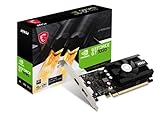
An eGPU enclosure holds a standard desktop graphics card, a power supply and a controller that exposes the card to the host computer over a cable. The laptop sees it as a PCI Express device. Rendered frames can go to a monitor plugged straight into the card or back to the laptop’s own screen.
The bottleneck is the cable. A desktop slot normally has 16 PCI Express lanes; Thunderbolt and USB4 connections carry roughly the equivalent of four lanes, and other overhead eats some of that. The result is that a card runs below what it would in a desktop, with the gap varying by game, resolution and card class.
Where the performance loss comes from
Games that stream a lot of data to the card, or that run at very high frame rates, are affected most. Heavy graphics at higher resolutions are usually affected less, because the card spends more time rendering than waiting for data. Check recent reviews of your exact enclosure and card pairing instead of assuming a single percentage.
Internal screen versus external monitor
Sending frames back to the laptop’s built-in display uses part of the same cable and generally costs more performance. Plugging a monitor directly into the card avoids that, which is why most eGPU setups assume an external display.
Connection Types and What They Offer
The port on your computer decides the ceiling, so verify it before anything else.
| Connection | Approximate link | Things to know |
|---|---|---|
| Thunderbolt 3 / 4 | 40 Gbps, PCIe x4 tunneled | Widely supported on Windows laptops; the usual entry point |
| USB4 (40 Gbps) | Similar to Thunderbolt 3/4 | eGPU support varies by implementation; check the maker’s spec sheet |
| Thunderbolt 5 | Higher bandwidth than earlier generations | Needs a matching port and enclosure; confirm current support |
| OCuLink | Direct PCIe x4 link, no protocol tunneling | Less overhead, but no hot-plug and requires an OCuLink port or adapter |
Not every USB-C port is a Thunderbolt or USB4 port. Look for the lightning-bolt symbol or an explicit statement in the laptop’s specifications, and note that some ports share bandwidth with each other.
Specs That Matter When Choosing
Enclosure power supply
The built-in power supply must cover the card’s rated board power with headroom, and it needs the right power connectors. Check the card’s required wattage and connector type against the enclosure’s listed capacity. Some enclosures cannot fit very large or very power-hungry cards.
Card size and cooling clearance
Enclosures list the maximum card length and thickness. Many modern cards occupy three slots or more, so compare the physical dimensions on the spec sheet rather than assuming a fit.
Laptop charging and USB hub features
Some enclosures pass power to the laptop over the same cable, and some add USB ports and Ethernet. That convenience matters if you want one-cable docking, but verify the wattage delivered is enough for your laptop.
Operating system and driver support
eGPUs are best supported on Windows with a compatible laptop. Apple Silicon Macs do not support external graphics cards, and Linux support varies by hardware and driver, so check the current documentation for your setup. Updating firmware and drivers on both the enclosure and the laptop is often necessary.
Hot-plugging behavior
Thunderbolt and USB4 setups are designed for connecting while the system runs, but results vary. OCuLink typically expects the enclosure to be powered on before the computer starts. Read the manufacturer’s connection steps carefully.
Spec Targets by Budget Tier
| Tier | Port | Card class | Notes |
|---|---|---|---|
| Budget | Thunderbolt 3/4 or USB4 | Entry or mid-range card | Reuse an older laptop for 1080p gaming; the connection limit matters less with modest cards |
| Mid-range | Thunderbolt 4 or OCuLink | Upper mid-range card | Balanced pairing; external monitor strongly advised |
| Premium | OCuLink or Thunderbolt 5 | High-end card | Only makes sense if the host CPU and port can keep up; the enclosure can cost as much as a laptop upgrade |
Who Should and Should Not Buy One
Owners of a thin laptop they love
If your laptop has a strong CPU and a fast port but weak graphics, an eGPU lets you game at a desk and keep the portability for travel. Accept that the setup is not as tidy as a built-in GPU.
Mini PC and small-form-factor users
Small machines without a graphics slot can use OCuLink or Thunderbolt to gain a desktop-class card. Check that the CPU can keep up with the card you add.
Buyers who want the most frames for the money
A gaming laptop with a built-in GPU, or a compact desktop, usually delivers more performance per unit of cost and fewer compatibility quirks. If you are starting from scratch, compare the total cost of enclosure plus card against these alternatives.
Mac users
Apple Silicon Macs do not support external GPUs, so this is not an option for them. Older Intel Macs had limited support that depends on the macOS version, which you should verify with Apple’s documentation.
Cost, Noise and Practical Trade-Offs
The enclosure itself is a significant purchase on top of the graphics card, and it adds nothing to performance by itself. Once you add both, compare the total with a laptop that already has a comparable built-in GPU, or with a small desktop you could pair with a monitor. The eGPU only wins when you value keeping a specific laptop, or when you want one portable machine for travel and one dock for home.
Desk space and noise also matter. An enclosure is a box with a power supply and fans, so it is often louder and bulkier than people expect, and the cable must be good quality and a suitable length. Short, certified cables are the safer choice, because long or poor cables can cause dropouts. Heat is usually manageable in a well-ventilated enclosure, but check the cooling notes if you plan to use a very large card.
Finally, think about how long you will keep the laptop. A processor that is already old may limit newer games regardless of the card inside the enclosure, and a future laptop might use a different port standard. An external card can often move to a new machine if the ports match, which is a point in its favor, but confirm compatibility rather than assuming it.
Common Mistakes
- Assuming every USB-C port supports an eGPU when only Thunderbolt, USB4 or OCuLink connections can do it
- Buying the most powerful card without checking enclosure wattage, connectors and clearance
- Running games on the laptop’s internal display and then wondering why performance falls short
- Pairing a high-end card with a weak laptop CPU that cannot feed it
- Ignoring total cost, then discovering a gaming laptop or compact desktop was the better deal
Before You Buy Checklist
- Confirm your port type and eGPU support in the laptop’s official specifications
- Compare enclosure power and connector support with the card you plan to use
- Check card length, thickness and cooling clearance
- Plan to use an external monitor on the card
- Verify operating system, driver and firmware support
- Compare the full cost against a laptop or desktop with a stronger built-in GPU
Related guides
- Aio Liquid Coolers For High Performance Gaming
- Wireless Gaming Headsets Under 100 For Pc
- Ssds For Large Video And Raw Photo Files
Frequently Asked Questions
How much performance will I lose with Thunderbolt?
The loss varies by game, resolution and card class, and there is no single reliable number. Heavier graphics at higher resolutions generally lose less, while very high frame rates lose more, so look at reviews for your exact setup.
Is OCuLink better than Thunderbolt?
OCuLink gives a more direct connection with less overhead, which usually means better performance. The trade-offs are the lack of hot-plugging and the need for a compatible port or adapter.
Can I use an eGPU for work and not just games?
Yes, many creative and compute applications can use an external card, depending on software and driver support. Check the application’s documentation for external GPU compatibility before buying.
Will an eGPU make my old laptop run new games?
It can help if the laptop’s CPU and memory are still decent, since the graphics card is only part of what a game needs. A very old processor may become the limit, so read about CPU bottlenecks before committing.