

- Top Pick: Apple Mac mini with M4 Chip (16GB Unified Memory, 512GB SSD)
- Runner-up: Xbox Wireless Controller (Carbon Black)
- Also consider: Samsung T7 Portable SSD 1TB
An Apple Silicon Mac looks ideal for emulation on paper: fast ARM cores, a capable integrated GPU and near-silent cooling. But macOS decides what that hardware is allowed to do. Apple deprecated OpenGL years ago, never adopted Vulkan natively, and is retiring Rosetta 2, the translator Intel apps still depend on. So the real question is not how fast an M-series chip is. It is which emulators were built for the platform it lives on.
As an Amazon Associate, we earn from qualifying purchases.
The answer splits three ways. A strong top tier of emulators ships native Apple Silicon builds and runs superbly. A middle tier arrives as Intel code or an experimental port and works with asterisks. And a few headline systems have no Mac build at all, whatever the spec sheet promises. This guide maps all three tiers from each project’s own documentation. Throughout, games and BIOS files mean dumps from consoles and discs you own.
This article contains affiliate links, and we may earn a commission if you buy through them.
Quick Answer
Emulation on Apple Silicon Macs is excellent for the systems with native builds: RetroArch, Dolphin, DuckStation, PPSSPP, melonDS and Azahar all run natively, and RPCS3 publishes an ARM build with the M1 in its minimum tier. PS2 still runs through Rosetta 2, Cemu calls its Mac build experimental, and Xbox 360 emulation does not exist on macOS.
Three Layers Decide Everything
Every Mac emulator sits in one of three layers, and the layer predicts the experience better than the chip does. Native builds are compiled for ARM and run at full speed. Behind most of them sits graphics translation: macOS has no native Vulkan, so emulators written for Vulkan route rendering through MoltenVK, which translates Vulkan calls into Metal. Native CPU code with translated graphics is the normal pattern, and it works well. The third layer is Rosetta 2, Apple’s translator for Intel apps. It works today, but Apple has signalled that Rosetta 2 will be scaled back after macOS 27, which gives every Intel-only emulator a shelf life. Dolphin is the exception: it skips translation entirely with a true Metal backend, and it shows.
The Native Tier: What Works
RetroArch is the depth option. Libretro’s own install guide describes the macOS download as a Universal binary for Intel and Apple Silicon, with dozens of cores covering everything from the 8-bit era up. One nuance from that documentation: most users are steered to the Vulkan driver, which on macOS means MoltenVK underneath, or the OpenGL-based glcore driver, while the bundled Metal driver is labelled experimental. It is the broadest native library on the platform.
Dolphin is the standout. Its download page lists a macOS (ARM/Intel Universal) build, its Metal backend is the macOS graphics path, and it needs no BIOS file for GameCube or Wii games. The ARM64 recompiler plus native Metal rendering makes an M-series Mac one of the best Dolphin machines anywhere, with internal resolutions far beyond the original hardware.
DuckStation ships Universal macOS builds through its GitHub releases. Its README is candid that Mac builds get less testing attention, because the developer has limited access to Mac hardware. It needs a PS1 BIOS image dumped from your own console.
PPSSPP has an official Mac build on ppsspp.org as a standard DMG install, for Intel and Apple Silicon alike. It needs no BIOS at all, and PSP games upscale cleanly from the original 480×272 in multiples.
For Nintendo’s handhelds, melonDS and Azahar both publish Universal macOS builds. melonDS works best with BIOS and firmware dumped from your own DS, and needs them to boot into the DS menu itself. Azahar, the 3DS emulator that succeeded Citra, offers universal and Apple Silicon builds, requires macOS 13.4 or later, and plays games decrypted using your own 3DS.
RPCS3 is the pleasant surprise. The project now publishes a separate ARM64 macOS build, and its requirements page lists the Apple M1 in its minimum tier. You install Sony’s PS3 firmware file, and from there the project’s compatibility database, not the platform, decides each game. PS3 stays per-title on every operating system, Mac included, and its Vulkan graphics reach Metal through a translation layer the team keeps reworking.
The Translated Tier: Works, With Asterisks
PS2 is the biggest name here. PCSX2’s own requirements and build documentation are clear that its macOS build is an Intel build, so Apple Silicon Macs run it through Rosetta 2, rendered through its Metal graphics path. It still needs a PS2 BIOS dumped from your own console. The same documentation lists M-series chips in its heavy CPU tier, so translated PS2 is genuinely usable, but it carries an expiry date if Apple’s Rosetta roadmap holds.
OpenEmu is the friendly face of Mac emulation, a drag-and-drop library covering systems up to the PS1, N64, DS and PSP class. The honest catch is in its own release notes: the official app, version 2.4.1 from December 2023, is Intel-only, so it also runs through Rosetta 2. Community forks exist, but the documented official build is the Intel one.
Cemu covers Wii U, after a fashion. The project’s own README calls the native macOS build “purely experimental” and not ready for issue-free gameplay, citing degraded performance from MoltenVK and Rosetta on ARM Macs. Treat Wii U on a Mac as something to try per game, not a promise.
The Missing Tier
Xbox 360 emulation simply is not on macOS. Xenia’s documentation specifies 64-bit Windows, full stop: no Mac build, no project-supported workaround. If your library centres on the 360, you need a Windows machine.
Nintendo Switch is the other gap. The emulators that defined Switch emulation were shut down in 2024, and no Mac-native successor carries the documented footing of the projects above. For Switch games, original hardware remains the honest answer.
Controllers, Gatekeeper and Your Library
Controllers are the easy part. Apple’s own support pages document pairing Xbox Wireless Controllers and PlayStation DualShock 4 and DualSense controllers with a Mac over Bluetooth, with button customisation in System Settings on macOS Ventura 13 and later. Third-party Bluetooth pads such as the 8BitDo Pro 2 pair the same way.
Setup has one Mac-specific wrinkle: Gatekeeper. Several projects ship builds that are not signed or notarised, DuckStation’s README explains its package is unsigned because certificates are expensive, so the first launch often means right-clicking the app and choosing Open, or approving it under Privacy and Security. So the download source matters: take these apps only from each project’s own site or GitHub, never from a mirror.
Storage is painless. A library of your own dumps lives happily on a fast external SSD, which doubles as the backup target. Battery and memory-card saves travel cleanly between machines and builds; save states are sensitive to the emulator version that made them, so keep the card saves as your permanent record.
Gear That Fits a Mac Emulation Desk
Apple Mac mini with M4 Chip (16GB Unified Memory, 512GB SSD)
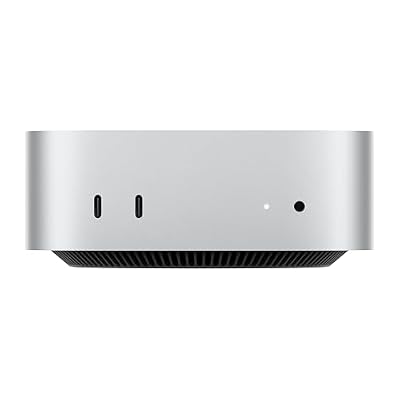
The reference machine for this guide: a current Apple Silicon desktop above every documented floor in the native tier.
Specs:
- Chip: Apple M4, 10-core CPU (4 performance, 6 efficiency cores)
- Graphics: 10-core GPU, hardware-accelerated ray tracing
- Memory: 16GB unified memory, 120GB/s bandwidth
- Storage: 512GB SSD
- Networking: Gigabit Ethernet, Wi-Fi, Bluetooth
- Item model number: MU9E3LL/A
8BitDo Pro 2 Bluetooth Controller
The flexible pad for a Mac desk: pairs over Bluetooth as a standard controller, covers everything from 8-bit platforms to GameCube.
Specs:
- Connectivity: Bluetooth, wired USB-C
- Sticks: Hall Effect analog sticks
- Compatibility: Switch, Windows, macOS, Android, Raspberry Pi, as listed by the maker
- Battery: built-in rechargeable pack
- Extras: remappable back buttons, profile switching
Xbox Wireless Controller (Carbon Black)

The controller Apple’s own support pages document for Mac pairing, and the default shape most emulators’ default mappings assume.
Specs:
- Connectivity: Bluetooth, USB-C wired
- Compatibility: Xbox Series X|S, Windows PC, mobile devices, Mac via Bluetooth
- Power: 2 AA batteries; rechargeable packs sold separately
- Features: hybrid D-pad, share button, 3.5mm stereo headset jack
- Colour: Carbon Black
Samsung T7 Portable SSD 1TB

Where the library lives: fast enough that loading a disc image never feels like an optical drive, small enough to move between Mac and Windows machines.
Specs:
- Capacity: 1TB
- Model: MU-PC1T0T/AM
- Interface: USB 3.2 Gen 2, up to 10Gbps
- Read speed: up to 1,050MB/s
- Write speed: up to 1,000MB/s
- Security: AES 256-bit hardware encryption
Anker 341 USB-C Hub (7-in-1)

One desk cable becomes power, display and storage, which matters on Macs whose ports are few and all USB-C.
Specs:
- Model: A8346
- Video: HDMI output up to 4K at 30Hz
- Charging: USB-C power delivery pass-through
- Card slots: microSD and SD
- Data ports: USB-A and USB-C
How to Choose
Start from your games list, not your chip. If your library is the PS1 era and below plus GameCube, Wii, PSP, DS and 3DS, the native tier covers it completely on any M-series Mac. If PS3 is the draw, check your specific games in RPCS3’s compatibility database before counting on them. If PS2 dominates, the Mac route works today through Rosetta 2, but weigh Apple’s stated plan to scale Rosetta back. And if Xbox 360 or a no-asterisks Wii U matters most, choose a Windows machine instead and let the Mac be the computer it is. For the frontend, pick OpenEmu if you want a library you browse, RetroArch if you want shaders, run-ahead and netplay, or the standalones if you live on one system.
Who Should Skip
Skip the Mac route if your library centres on Xbox 360 games, since no Mac build exists. Skip it if you want Wii U emulation without the word experimental attached. Skip it if you are buying a computer purely for emulation, because a Windows machine covers more of the map for the same role. And skip this guide’s conclusions if your Mac is Intel-based: the native tier described here is an Apple Silicon story, and an Intel Mac lives mostly in the translated layer.
FAQ
Do I need a powerful Mac for emulation?
For the native tier, no. RPCS3’s own requirements page puts the base M1 in its minimum tier, and the cartridge-era and handheld emulators ask for far less than that. Stronger chips buy headroom in the demanding systems, PS3 and high-resolution GameCube and Wii, rather than unlocking the library.
Is emulation legal on a Mac?
The emulators themselves are legal software, and the projects are explicit about the rest: games and BIOS files should be dumped from consoles and discs you own. Downloading games, or a BIOS for a console you do not own, is downloading copyrighted material, on macOS exactly as on Windows.
Why do some emulators ask for a BIOS file?
Some consoles will not boot without their own firmware, so DuckStation needs a PS1 BIOS and PCSX2 needs a PS2 BIOS, each dumped from your own console by the project’s documented method. Others, including PPSSPP and Dolphin, reimplement that layer and need no BIOS at all.
Will the end of Rosetta 2 break my setup?
Only the translated tier is exposed. Apple has said Rosetta 2 will be scaled back after macOS 27, and the Intel-only builds, PCSX2 and the official OpenEmu app, depend on it. Everything in the native tier is compiled for Apple Silicon and is unaffected whenever that change lands.
Final Verdict
Judged emulator by emulator, an Apple Silicon Mac is two machines at once. For the native tier, RetroArch, Dolphin, DuckStation, PPSSPP, melonDS, Azahar and a documented RPCS3 build, it is one of the best emulation platforms anywhere: quiet, efficient and strong on the single-core speed emulators prize. For PS2 and OpenEmu it is a good machine borrowing time from Rosetta 2, and for Xbox 360 it is not a machine at all. Buy or keep the Mac for the native map, and it will not disappoint you.







