

- Top Pick: Xbox Series X 1TB Console, Carbon Black
- Runner-up: Seagate Storage Expansion Card 1TB for Xbox Series X|S
- Also consider: WD_BLACK C50 Storage Expansion Card 1TB
The Xbox Series X is the strongest console Microsoft sells, and it shares a trait with its smaller sibling: a documented Developer Mode that turns a retail console into a machine for sideloaded UWP apps, including Libretro’s official RetroArch build. Its hardware differs from the Series S in ways that matter here — and in one way that does not.
As an Amazon Associate, we earn from qualifying purchases.
This guide is the Series X version of that route: the activation steps exactly as Microsoft documents them, the RetroArch install, what the extra hardware does and does not change, and the safe way back out. Nothing here is a mod or an exploit.
This article contains affiliate links, and purchases made through them may earn a commission at no extra cost to you.
Quick Answer
Yes — the same documented route as the smaller console. Microsoft’s Developer Mode plus Libretro’s official RetroArch UWP build turns a retail Series X into an emulation machine for your own game dumps. The X adds a faster GPU, higher CPU clocks and double the storage, but the rules, steps and budgets are identical.
What the Series X Adds — and What It Does Not
The Series X runs its eight Zen 2 cores at 3.8 GHz, or 3.66 GHz with simultaneous multithreading on, against the Series S at 3.6 and 3.4 GHz. Its RDNA 2 GPU has 52 compute units at 1.825 GHz, rated at 12 teraflops, where the S has 20 compute units and 4 teraflops. Memory is 16 GB of GDDR6 — 10 GB at 560 GB/s, 6 GB at 336 GB/s — against 10 GB in the S, and internal storage is a 1 TB NVMe SSD: double the smaller console’s drive. The X also carries a 4K UHD Blu-ray drive the S lacks.
None of that raises the ceiling Microsoft sets inside Developer Mode. The UWP budgets are platform policy, the same on both consoles — a title running as a game gets up to 5 GB of foreground memory either way. What the X buys is comfort inside that budget: GPU headroom for cores that render in 3D, faster CPU clocks for cores that emulate, and storage that stops being a weekly negotiation.
Why Developer Mode Is the Only Documented Route
Microsoft documents two modes for every retail Xbox. In Retail Mode the console is in its normal state: you play games and run apps from the Microsoft Store. In Developer Mode you can develop and test software, but you cannot play retail games or run retail apps.
That split is why the retail dashboard is closed to emulators. Emulator apps briefly reached the retail Store years ago; policy enforcement removed the listings, and copies installed that way were later blocked from opening. What Microsoft documents is a program letting developers sideload UWP apps onto their retail hardware — the only route this guide uses.
Activating Dev Mode on the Series X
Microsoft’s activation page lays out the sequence:
- Start the console, search the Microsoft Store for the Xbox Dev Mode app, and install it.
- Launch the app and note the activation code it displays.
- On a PC or phone, register an app developer account in Microsoft Partner Center — a one-time developer registration.
- Sign in to Partner Center and open the Xbox device management page (partner.microsoft.com/xboxconfig/devices).
- Enter the code and choose Agree and activate. Each account carries a limited number of activations.
- Back in the app, choose Switch and restart. The console reboots into Developer Mode; Microsoft notes this switch takes longer than usual.
Installing RetroArch Through the Device Portal
Libretro publishes an official RetroArch build for Xbox on its downloads page, as a UWP app bundle with the Visual C++ runtime dependency files it needs. The install runs through Developer Mode’s built-in management page:
- Download the Xbox build and its runtime files from Libretro’s downloads page onto a PC on the same network.
- In Dev Home, open the Remote Access address in a PC browser on the same network — the Xbox Device Portal, Microsoft’s documented management page for the mode.
- Choose Add, select the RetroArch bundle, then add each dependency file when prompted; they install one at a time.
- In Dev Home, highlight RetroArch, open its options, and set its app type to Game.
Step four is not housekeeping. Microsoft’s documented UWP budgets differ sharply by type: a title running as an app is capped at 1 GB of foreground memory, a share of two to four CPU cores, and a share of the GPU, while a title running as a game gets up to 5 GB of foreground memory, four exclusive plus two shared CPU cores, and full GPU access. Leave RetroArch set to App and the heaviest cores feel it immediately.
Storage, Games and BIOS Files
Dev Mode apps and their data live on the internal drive, so the 1 TB SSD is the biggest quality-of-life difference from the S: a full RetroArch install, its cores and a working library fit without evicting games as aggressively. A Storage Expansion Card in the rear slot plays Series X|S retail titles at internal speed — the right home for a large retail library while the internal drive carries Dev Mode. Setting RetroArch’s app type to Game also lets it read a USB drive.
The Device Portal doubles as the file manager. Its File Explorer reaches RetroArch’s local folders: game files go in the Downloads folder inside the LocalState area, BIOS files in the System folder.
The legal framing is strict, and the disc drive does not change it. The drive plays retail discs in Retail Mode; it is not a ripping tool for Dev Mode, and RetroArch cannot read your discs directly. Add only dumps of games you own, made from your own discs and cartridges, and only BIOS files dumped from consoles you own.
What the Extra Headroom Actually Buys
The honest tiers look like this. Cartridge-era cores — 8-bit, 16-bit and the classic handhelds — are effortless on either console. The early 3D generation, PlayStation and Nintendo 64 class cores, sits comfortably inside the Game budget on both. The demanding tier is where the X earns its keep more narrowly than the spec sheet suggests: GameCube and PlayStation 2 class cores are bound first by the shared 5 GB memory ceiling, but cores leaning on GPU rendering have three times the documented graphics throughput to work with, and the higher CPU clocks help cores that emulate rather than render.
Leaving Dev Mode and Deactivating Safely
Day-to-day switching is safe and deletes nothing. To return to normal gaming, open Dev Home and under Quick Actions choose Leave Dev Mode; the console restarts in Retail Mode with your library intact. To go back, open the Xbox Dev Mode app in Retail Mode and choose Switch and restart.
Microsoft documents three routes to deactivate: the Deactivate option inside the Xbox Dev Mode app, which it calls the preferred method; removal of the console from the list in Partner Center; or a console reset. The reset route carries the sharpest warning in the documentation: RESET AND REMOVE EVERYTHING resets the console to its original retail state, and all of your apps, games, and local save data will be deleted. The other reset choice, Reset and keep my games & apps, will not remove your console from the developer program at all.
Gear That Fits the Setup
Xbox Series X 1TB Console, Carbon Black

The host itself, for readers choosing between the two consoles: the disc-drive model with double the storage and the stronger hardware.
Specs:
- CPU: 8x Zen 2 cores at 3.8 GHz (3.66 GHz with SMT)
- GPU: 12 TFLOPS, 52 CUs at 1.825 GHz, custom RDNA 2
- Memory: 16 GB GDDR6 (10 GB at 560 GB/s, 6 GB at 336 GB/s)
- Storage: 1 TB custom NVMe SSD
- Model: RRT-00001; includes an Xbox Wireless Controller
Seagate Storage Expansion Card 1TB for Xbox Series X|S

Park the retail library here and protect the internal drive’s room for Dev Mode.
Specs:
- Capacity: 1 TB NVMe SSD expansion card
- Model: STJR1000400
- Interface: Xbox Storage Expansion slot, matched to the Xbox Velocity Architecture
WD_BLACK C50 Storage Expansion Card 1TB
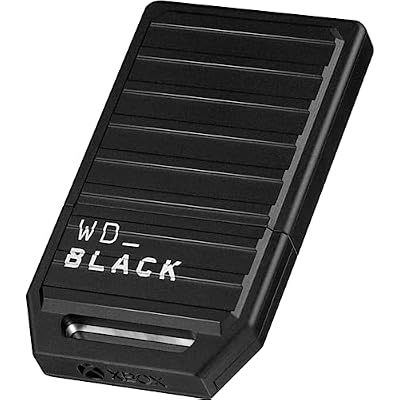
Western Digital’s officially licensed alternative.
Specs:
- Capacity: 1 TB NVMe SSD expansion card
- Model: WDBMPH0010BNC-WCSN
- Interface: Xbox Expansion Slot
- Features: officially licensed for Xbox; Quick Resume compatible
Samsung T7 Portable SSD 1TB

The PC-side archive: keep the master copy of your dump library here, and copy working sets across as your rotation changes.
Specs:
- Capacity: 1 TB
- Model: MU-PC1T0T/AM
- Interface: USB 3.2 Gen 2, up to 10 Gbps
- Speeds: read up to 1,050 MB/s; write up to 1,000 MB/s
Xbox Wireless Controller, Carbon Black

The second pad for two-player sessions — the same layout and pairing as the controller the console shipped with.
Specs:
- Model: QAT-00001
- Connectivity: Bluetooth and USB-C
- Controls: hybrid D-pad, Share button, textured grip on triggers and bumpers
- Power: 2 AA batteries
How to Choose
Choose the Series X for this route if you are buying a console anyway, own a physical library the disc drive can keep playing in Retail Mode, or want the bigger internal drive. If you already own a Series S, the honest advice is to keep it: the Dev Mode steps, the RetroArch build and the resource ceilings are the same, and the X improves comfort inside the sandbox rather than enlarging it.
Who Should Skip
Skip this if you want emulators inside the normal retail dashboard, because Microsoft does not offer that and no documented route provides it. Skip it if the restart between modes would grate daily, if your library depends on the most demanding 3D cores running beyond what a documented UWP budget allows, or if the console is a shared family machine. And skip the X upgrade if emulation is your only reason: the gains are real but bounded by budgets both consoles share.
FAQ
Is Developer Mode a mod, and can it get my console banned?
No. Developer Mode is Microsoft’s own documented program for retail consoles, activated through its Store app and Partner Center with a developer account in your own name. Nothing is opened, flashed or exploited.
Can the Series X disc drive read my old game discs for RetroArch?
No. The drive plays retail discs in Retail Mode. In Developer Mode, RetroArch works from files you supply — dumps of your own games, added through the Device Portal or USB.
Does the Series X run heavier cores than the Series S in Dev Mode?
Within limits. Microsoft documents the same UWP budgets on both consoles — up to 5 GB of foreground memory for a title set as a Game — so the ceiling is shared.The X brings a stronger GPU and higher CPU clocks inside that ceiling, but it does not unlock a new tier of systems.
What happens to my games if I deactivate Developer Mode?
Switching modes deletes nothing, and deactivating through the app or Partner Center leaves your retail library alone. The destructive route is a reset: Microsoft warns that RESET AND REMOVE EVERYTHING deletes all apps, games and local save data — treat it as a last resort.
Final Verdict
The Series X is the better emulation host of Microsoft’s two consoles. The Dev Mode program, the RetroArch build and the resource budgets are identical; what the X adds is a 1 TB drive that ends the storage squeeze, a GPU with three times the documented throughput for the cores that can use it, and a disc drive that keeps your physical retail library alive on the same box. If that box already sits under your TV, Developer Mode turns it into one of the tidiest emulation setups available — through doors Microsoft itself documents.










