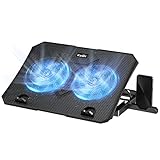
- Top Pick: Kootek Laptop Cooling Pad Cooler Stand with 5 Quiet Fans for 12"-17" Laptop | 5 Quiet & High‑Performance Laptop Fan for 360° Full Coverage, USB‑Powered, 2 Extra USB Hubs, 6 Adjustable Height, Blue LED
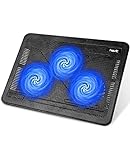
- Best Value: havit HV-F2056 Laptop Cooling Pad for 15.6-17 Inch Laptops, Black | Three quiet USB-powered fans circulate air below the laptop, two height settings improve viewing and typing comfort
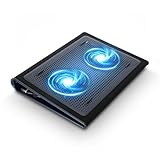
- Premium Choice: KeiBn Laptop Cooling Pad, Gaming Laptop Cooler 2 Fans for 10-15.6 Inch Laptops, 5 Height Stands, 2 USB Ports (S039)
A laptop cooling pad is the better pick for a gaming laptop that throttles under load, and a USB desk fan is the better pick for a hot room or a desktop setup; neither will fix poor airflow inside the machine, so match the cooler to the problem. Reviewers report typical temperature drops of roughly 6 to 16 degrees Celsius with a cooling pad, but those numbers come from affiliate-style roundups rather than lab tests and vary by laptop. This guide explains the types, the models named in 2026, and the limits.
As an Amazon Associate we earn from qualifying purchases at no extra cost to you.

Cooling Pad vs Desk Fan
| Feature | Laptop cooling pad | USB desk fan |
|---|---|---|
| Where air goes | Blows or pulls air at the laptop underside and intake vents | Moves room air across the user or the device |
| Best for | Thin or portable gaming laptops running hot | Warm rooms, desktops with cases that need airflow near the desk, and personal cooling |
| Power | USB from the laptop, which may use up a port | USB from a port or adapter |
| Limits | Blocked or bottom-less vents reduce benefit; added noise | Does not directly cool internal components |
Do Cooling Pads Really Work?
The honest answer is that they help modestly. One roundup reports drops of 6 to 16 degrees Celsius using temperature monitoring software. Another lists mainstream pads like the Cooler Master NotePal X3 and Thermaltake Massive at about a 10 to 14 degree drop under gaming load, with premium pads at 15 to 25. These figures vary because they depend on room temperature, the laptop’s vent layout and the load. Thin laptops with bottom intake vents tend to benefit most. Laptops with rear or side intake vents may see little change from a pad.
A cooling pad helps only if airflow can reach intake vents. Placing the laptop on a flat desk reduces airflow beneath it, and a raised pad provides a gap. Part of the benefit comes from the tilt itself, which lifts the laptop and lets air in. Reviewers note that a pad cannot fix dust-clogged fans or old thermal paste, and cleaning the vents with compressed air in short bursts, with the laptop powered off and unplugged, can matter as much. For repairs or repasting, follow the maker’s service guidance, since opening a laptop may void the warranty.
Models Named by Reviewers
| Model | Best for | Reported specs | Limits |
|---|---|---|---|
| Cooler Master NotePal X-Slim | Portable, quiet cooling | One roundup describes a single 160 mm fan, lightweight design and no extra USB port used | Lower airflow than large pads |
| Cooler Master NotePal X3 | Mainstream laptops | Reviewers report a comfortable typing angle, durable mesh surface and quieter fan; one site lists 21 dBA | Not as strong as sealed high-pressure designs |
| Thermaltake Massive 20 RGB | Large gaming laptops up to 19 inches | One roundup lists a 200 mm fan, RGB, stepless speed control, three height settings and 30 dBA at maximum | Louder and larger |
| IETS GT600 and Llano V12 | High-performance and large workstation laptops | Roundups describe sealed chambers with foam gaskets that create high static pressure | Bulky, louder, and needs a compatible vent position |
| Razer Laptop Cooling Pad | Gaming-focused style | One site names it best overall for gaming | Premium tier |
| Havit HV-F2056, Klim Wind | Budget | Named as budget options by reviewers | Fewer features; noise varies |
Specs like fan size and noise come from roundups and may differ from the maker’s own listing; compare against the maker’s data sheet for the exact variant.
Fan Count, RPM, Noise and Airflow Design
Fan count and size
More fans do not always mean better cooling. A single large, slower fan can move as much air with less noise than several small fast fans. Where the fans sit matters too. The fan should line up with the laptop’s intake vents, so check the vent layout before choosing a pad. Pads with adjustable fan positions or large mesh surfaces make alignment easier.
RPM and noise
Higher RPM raises airflow and noise. Noise figures from makers are measured in decibels (dBA), and reviewers describe the difference between a 21 dBA pad and a 30 dBA pad as noticeable in a quiet room. Speed controls let you pick a lower setting for browsing and a higher one for gaming.
Sealed foam designs
Sealed designs with foam gaskets press against the laptop and force air into the intake. Roundups report larger drops than open mesh pads, at the cost of noise and weight. They work best when the laptop’s intake vents are on the bottom and fit the pad’s opening.
USB power
Most pads draw power from a USB port. Some include a pass-through port. If the laptop has few ports, a pad that does not use up a port, as one roundup says of the X-Slim, is helpful. Check the maker’s stated power draw if you use a low-power port.
USB Desk Fans
USB desk fans are small clip-on or stand fans that cool a user or move air near the equipment. For a desktop, an extra fan near the case does little compared to proper case airflow, but a fan blowing across the desk can reduce the ambient temperature around the user. Some people point a desk fan at the side of an open laptop to keep air moving. Choose a fan with a stable base or clamp, a quiet speed setting and a safe guard around the blades. Keep fingers and cables clear of moving blades and follow the maker’s manual.
What Really Lowers Temperatures
- Keep the vents clear and elevated so the laptop can draw air.
- Clean dust from vents and fans, with the system powered off and unplugged.
- Use the laptop’s performance or fan profile in its own software if available.
- Cap the frame rate, lower graphics settings or use a power limit if the maker’s software allows it.
- Add a cooling pad if temperatures stay high after those steps.
- Improve room cooling, since a hot room limits any cooler.
Avoid placing a laptop on a bed or blanket while gaming, as soft surfaces block vents. If the laptop shuts down from heat or fans run at maximum all the time, contact the maker or a technician.
Pick X If You Want Y
| Pick | If you | Tier |
|---|---|---|
| Cooler Master NotePal X-Slim | carry the laptop and want a quiet, slim pad | Budget to mid-range |
| Cooler Master NotePal X3 | want a balanced pad for a typical gaming laptop | Mid-range |
| Thermaltake Massive 20 RGB | use a large 17-inch or 19-inch laptop on a desk | Mid-range |
| Sealed pad such as IETS or Llano | need the most airflow and accept noise | Mid-range to premium |
| USB desk fan | want to cool the room or user | Budget |
Alternatives
- Laptop stand. A simple aluminum stand lifts the laptop and improves air gaps without fans.
- External keyboard and mouse with an elevated laptop. Raising the laptop improves airflow and ergonomics together.
- Maker’s cooling software or profiles. Many gaming laptops include fan modes in their own utility.
Fit and Compatibility Notes
Match the pad to the laptop size. Pads list a maximum laptop size, such as the 19-inch support that one roundup lists for the Thermaltake Massive 20 RGB, and a pad that is too small leaves part of the laptop unsupported. Check where the laptop’s intake vents are by looking at the underside: a pad whose fan sits under the vents helps, while a pad whose fan sits under a solid panel does little. Rubber stops or a front lip keep the laptop from sliding when the pad is tilted. Height settings help the typing angle, and wrist comfort matters on long sessions.
Weight and portability also differ. A slim pad like the NotePal X-Slim suits a backpack, whereas large sealed pads are better left on a desk. If the laptop uses a single USB port for a mouse or headset, a pad with a pass-through port or a separate power option is practical.
Noise and Comfort Trade-Offs
Every cooler trades airflow for noise. A pad running at full speed can drown out a quiet room and may be heard in a voice chat, so players who stream or talk often prefer a quieter pad or a lower fan setting. Reviewers describe the sound of larger fans as a low, broad tone rather than a high whine, but taste differs. Keep the pad on a hard, level surface, since vibration on thin or soft surfaces adds noise. Dust gathers on fan blades and mesh over time, so wipe the pad with the power disconnected.
Frequently Asked Questions
Is a cooling pad better than a desk fan for a laptop?
A pad is aimed at the laptop’s underside intake, so it usually helps more. A desk fan helps with room warmth and is useful if the laptop has no bottom vents.
How much cooler will my laptop run?
Roundups report drops of around 6 to 16 degrees Celsius for typical pads. Results depend on the laptop and room, and many gains are modest.
Are cooling pads noisy?
Some are. One roundup lists 21 dBA for the NotePal X3 and 30 dBA for the Thermaltake Massive 20 RGB. Speed controls reduce noise at lighter loads.
Can a cooling pad damage a laptop?
Not normally, but a pad that blocks vents or applies pressure can harm airflow. Follow the maker’s guidance and make sure the laptop sits securely.
Do I need a cooling pad for a desktop PC?
No. A desktop’s cooling depends on case fans, filters and cable routing. A desk fan helps only with room warmth.
When should I see a technician about heat?
If the laptop shuts down, throttles heavily at idle or smells hot, stop using it and contact the maker or a technician.