The real decision is not which monitor carries the longest spec sheet, but which combination matches the games you play and the graphics card you already own. A screen chosen for competitive shooters prioritises speed above all else, while one chosen for story games puts contrast and fine detail first. Resolution, panel type, and refresh rate pull against each other, so optimising any single number in isolation usually leaves another part of the picture disappointing.
This guide serves competitive players, all-round PC gamers, console players sharing a desk, and people who work and play at the same screen. It works from published monitor specifications and established display standards, covering panel technologies, resolutions, refresh rates, variable refresh rate, connection versions, and HDR tiers, so you can compare any model on the same terms before narrowing your shortlist.
As an Amazon Associate we earn from qualifying purchases
How to Choose
Panel Type: IPS vs VA vs OLED vs TN
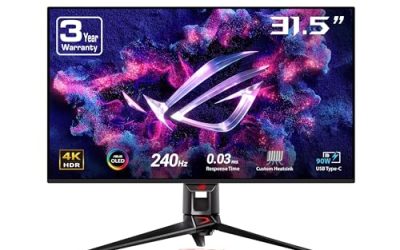
IPS gives accurate, consistent colours and wide viewing angles, making it a safe all-rounder for varied genres, shared screens, and everyday work, though blacks can look dark grey in a dim room. VA counters with much stronger contrast and deeper shadows, suiting cinematic games, but viewing angles narrow and some models smear dark transitions in fast motion. OLED turns each pixel off individually for perfect blacks, exceptional contrast, and very fast pixel response, with burn-in risk from static elements as the main caution. TN remains a narrow esports niche, now that IPS and OLED have largely caught up on speed while offering better colour.
Resolution and Size for Your GPU
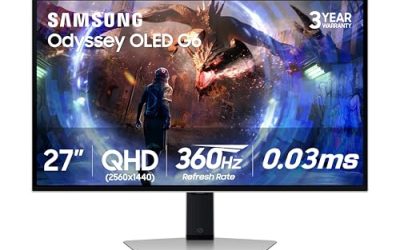
Start with the pairing your hardware can actually feed. At 24 inches, 1920 x 1080 stays sharp and is easiest to drive at high frame rates. At 27 inches, 2560 x 1440 is the sweet spot for many PC gamers, noticeably sharper yet far less demanding than 3840 x 2160, which suits 32 inches and above with a powerful card. A 34-inch ultrawide at 3440 x 1440 sits between 1440p and 4K in GPU demand. If stepping up means a new graphics card, first check what power supply your gaming PC needs so the upgrade runs reliably.
Refresh Rate, Response Time and VRR
Refresh rate, measured in hertz, caps the frames per second the screen can show, and your game must produce those frames for a higher rate to help. A range of 144 to 165Hz is the mainstream sweet spot, clearly smoother than 60Hz and reachable by mid-range cards at 1080p and 1440p in many titles, while 240Hz and above serves competitive players whose systems sustain very high frame rates. Response time affects ghosting behind moving objects, so headline figures alone do not guarantee clean motion. Variable refresh rate, through AMD FreeSync or NVIDIA G-Sync, matches the display to your frame rate, preventing tearing and smoothing stutter when rates vary.
Ports, HDR and Extras That Matter
DisplayPort is the standard PC connection, with version 1.4 handling high refresh rates at 1440p and 4K for most monitors, while HDMI 2.1 is the version to seek for high-refresh 4K from a PC and the full feature set of current consoles, including VRR over HDMI where supported. Check the limit for the specific port you will use, because some monitors reach their maximum rate only over DisplayPort. USB-C with DisplayPort Alt Mode can drive and charge a laptop over one cable, and a USB hub or KVM helps when switching machines. For HDR, DisplayHDR 400 often differs modestly from SDR; DisplayHDR 600, Mini LED, and OLED, including its True Black tiers, deliver the clearer step up.
Which One Fits Your Situation
Competitive Shooters
Choose a 24- to 27-inch monitor at 1080p or 1440p with a refresh rate of 240Hz or above, a fast IPS or OLED panel, and VRR enabled. Keeping the whole image in easy view matters more here than extra size or resolution. This combination only pays off if your system consistently reaches those frame rates in the titles you play.
Story Games on a Mid-Range GPU
Pick a 27-inch 1440p IPS or VA monitor at 144 to 165Hz with FreeSync or G-Sync Compatible support. That pairing stays sharp for exploration and dialogue, smooth enough for action scenes, and realistic for a mid-range card to feed without constant compromises. VA adds deeper contrast for darker scenes, while IPS suits brighter rooms and mixed desktop use.
Console on the Same Desk
Look for HDMI 2.1, VRR over HDMI, and a low-latency game mode, then confirm the specific high-refresh modes your console offers. Choose 4K for a larger screen or 1440p for a desk-sized one, remembering that 1440p support varies by console and title. Two HDMI inputs make life considerably easier when a PC shares the same monitor.
Work by Day, Games at Night
An IPS panel, or a text-friendly OLED, at 1440p or 4K balances sharp text with strong gaming performance. Add USB-C if you dock a laptop, a hub or KVM if peripherals move between machines, and a stand with height adjustment for long sessions. Flicker-free backlights and low-blue-light modes are also worth having when the screen serves both jobs daily.
Common Mistakes
- Buying 4K for its sharpness alone, then discovering your graphics card cannot sustain smooth frame rates at that resolution.
- Chasing 240Hz or above while your system rarely reaches those frame rates, so the extra speed goes unused.
- Assuming every port performs equally, when the maximum refresh rate may be available only over DisplayPort, not HDMI.
- Treating any HDR label as meaningful, although entry tiers can look barely different from SDR without brightness and local dimming behind them.
- Ignoring desk depth and stand adjustment, leaving a large screen placed too close or fixed at an uncomfortable height.
Frequently Asked Questions
Is 1440p or 4K the Better Choice for Most PC Gamers?
For most PC gamers, 1440p at 27 inches is the better balance. It looks noticeably sharper than 1080p for games and desktop work, yet demands far less from the graphics card than 4K. Choose 4K when you sit at 32 inches or above, own a powerful card, and favour detail in slower, cinematic titles over maximum frame rates.
Do I Need a 240Hz Monitor?
Only if you play competitive titles and your system consistently produces frame rates near that level. Refresh rate caps what the screen can display, so unused headroom brings no benefit. Most players gain more from moving to 144 or 165Hz, where motion already feels clearly smoother than 60Hz and mid-range hardware can keep up in many games.
Should I Choose IPS, VA, or OLED?
Choose IPS for versatility, accurate colour, and wide viewing angles across gaming and work. Choose VA when contrast matters most and you play mainly single-player games in a dimmer room, accepting narrower angles. Choose OLED for the strongest contrast, perfect blacks, and excellent HDR, provided your use is varied rather than one static screen shown for long periods.
Does HDMI 2.1 Matter if I Only Game on PC?
It matters less on a PC, where DisplayPort is usually the primary connection and handles high refresh rates at 1440p and 4K. HDMI 2.1 becomes important when a current console shares the monitor, or when you specifically want high-refresh 4K over HDMI. Either way, check the rated limit for the exact port and cable you plan to use.