

- Top Pick: SIX 1TB SATA 2.5 SSD Internal Solid State Hard Drive Read up to 560MB/s
- Best Value: Patriot P210 512GB Internal SSD – SATA 3 2.5" – Solid State Drive – P210S512G25
- Premium Choice: SANDISK SSD Plus 1TB Internal Solid State Drive – SATA III 6 Gb/s, 2.5"/7mm, Read/Write Speeds of up to 545MB/s / 515MB/s – SDSSDA-1T00-G28
“SSD memory” is a bit of a misnomer that gets typed into search bars constantly, but it usually means one thing: should you buy a solid state drive or a traditional hard disk drive for your next PC build or upgrade. The honest answer depends on what you’re storing and how much you want to spend, not on which technology is “better” in the abstract. Here’s what actually matters when you’re choosing between the two.
As an Amazon Associate we earn from qualifying purchases at no extra cost to you.


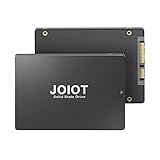

How SSDs and hard drives actually differ
A hard drive stores data on spinning magnetic platters, read and written by a mechanical arm. An SSD has no moving parts at all. It stores data in flash memory chips, the same basic technology (though far more durable and faster) as a USB stick. That mechanical difference is the root cause of nearly every practical difference between the two.
Because an SSD has nothing to physically move, it can locate and retrieve data almost instantly. A hard drive’s read/write head has to physically travel across the platter and wait for the right sector to spin into position, which takes real time, measured in milliseconds rather than microseconds. Multiply that delay across thousands of small file operations, which is exactly what happens when an OS boots or a program loads, and the difference becomes very noticeable in daily use.
Speed, in real numbers
A 7200 RPM desktop hard drive typically delivers sequential read/write speeds of 80-160 MB/s. A SATA SSD, using the same connector as most hard drives, runs 500-550 MB/s. An NVMe SSD on the PCIe bus goes much further, with budget drives around 2,000-3,500 MB/s and high-end PCIe 4.0 drives exceeding 7,000 MB/s.
Sequential speed matters for copying large files, but random read/write performance is what you feel day to day, and that’s where SSDs separate from hard drives most dramatically. A hard drive might manage a few hundred random IOPS (input/output operations per second). A mid-range SSD does tens of thousands. That’s the difference between a Windows boot taking 30-45 seconds versus 8-12 seconds, or a game level loading in 20 seconds versus 4.
| 7200 RPM HDD | SATA SSD | NVMe SSD | |
|---|---|---|---|
| Sequential speed | 80-160 MB/s | 500-550 MB/s | 2,000-7,500 MB/s |
| Typical boot time | 30-45 sec | 10-15 sec | 8-12 sec |
| Cost per TB (approx.) | $18-25 | $40-60 | $50-90 |
| Moving parts | Yes | No | No |
| Typical lifespan | 3-5 years | 5-10 years | 5-10 years |
| Noise/vibration | Audible, can vibrate | Silent | Silent |
Durability and failure modes
Hard drives fail mechanically. Bearings wear out, read heads can crash into platters, and physical shock (dropping a laptop, a hard bump during shipping) can cause immediate damage. They also tend to give warning signs: clicking noises, slow response, bad sectors showing up gradually. That’s genuinely useful, because it gives you a window to back up data before total failure.
SSDs fail differently. Flash memory cells have a finite number of write cycles, rated in TBW (terabytes written), and modern consumer drives are rated for hundreds of terabytes to a few petabytes of writes, which translates to many years of normal use. SSDs are far more resistant to physical shock since nothing moves. But when they do fail, it’s often sudden and total, with no clicking or slow degradation to warn you. Controller failure is the more common real-world cause of SSD death, not actually hitting the write limit.
Neither drive type is an excuse to skip backups. RAID and redundancy protect against drive failure, not against deleted files, ransomware, or house fires. That’s a separate conversation from which drive to buy.
Price and capacity trade-offs
This is where hard drives still win outright. A 4TB hard drive costs roughly $70-90. A 4TB SSD costs $200-300 or more. If you need to store 10TB of video footage, security camera archives, or a media server library, hard drives remain the only sensible option per dollar. Capacities also go higher on the HDD side, with 18-22TB drives available for bulk storage in a way SSDs can’t match economically.
For a primary boot drive, though, raw capacity matters less than speed, and this is where SSDs are worth the premium even on a budget build. A 500GB-1TB SSD is enough for Windows or macOS plus your most-used applications and games, and the price gap at that capacity has narrowed enough that there’s little reason to put an OS on a hard drive anymore, even in a budget build. If you’re shopping, it’s worth comparing current NVMe SSD pricing against internal hard drives for bulk storage before deciding how to split your budget.
What to actually buy
For most people building or upgrading a PC today, the right setup is a smaller SSD for the operating system and frequently used programs, paired with a hard drive for bulk storage if you need more than a few terabytes of space. If your budget only stretches to one drive, buy the SSD. The performance difference affects everything you do on the machine, while a lack of storage space only affects you when you actually run out.
If you’re upgrading an older laptop and can only add one drive, swapping the hard drive for a SATA SSD is still one of the highest-value PC upgrades available, often making a five-year-old laptop feel genuinely responsive again for under $50. Check your laptop’s drive bay size and interface first, since 2.5-inch SATA is the common format for older machines, while newer thin laptops often use M.2 slots that require a different form factor entirely. A quick look at 2.5-inch SATA SSDs will show you current options if that’s your situation.
Skip the SSD only if you’re building a dedicated storage box, a NAS for backups, or a budget machine where the entire drive budget is under $40 and raw capacity matters more than how it feels to use. In every other common scenario, the SSD is the drive doing the actual work, and the hard drive, if present at all, is just where you put things you’re not actively using.














