

If you’re trying to decide between a solid state drive and a hard drive for a laptop, the short version is: SSD, almost every time. The longer version is worth knowing because there are still a handful of cases where a hard drive makes sense, and because “SSD” covers a range of speeds and prices that matter once you start spending real money.
As an Amazon Associate we earn from qualifying purchases at no extra cost to you.

How they actually differ
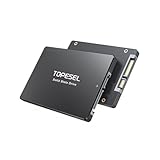
A hard drive stores data on spinning magnetic platters, read by a physical arm that moves across the surface. That mechanical process is why hard drives are slower, louder, more power-hungry, and vulnerable to drops and shocks. A solid state drive has no moving parts; it stores data in flash memory chips, which is why it’s faster and more durable, but also why it costs more per gigabyte.
In a laptop specifically, the difference shows up in boot time, how fast apps launch, how your system handles being moved around, and battery life. A laptop with an HDD can take 30-60 seconds to boot into Windows. The same laptop with an SSD typically boots in 10-15 seconds. That’s not a marginal improvement, it’s the difference that makes an old laptop feel usable again.
Real speed numbers
Specs get thrown around a lot, so here’s what they mean in practice. A 5400 RPM laptop hard drive reads and writes at roughly 80-160 MB/s. A SATA SSD, which fits in the same physical slot as a laptop hard drive, hits 450-550 MB/s. An NVMe SSD, which uses the faster PCIe interface, ranges from about 2,000 MB/s on budget drives to 7,000+ MB/s on high-end PCIe 4.0 drives.
| Drive type | Typical sequential speed | Boot time (fresh OS) | Price per TB (2024-range) |
|---|---|---|---|
| 5400 RPM HDD | 80-160 MB/s | 30-60 sec | $25-35 |
| SATA SSD | 450-550 MB/s | 10-15 sec | $50-70 |
| NVMe SSD (budget) | 1,800-2,500 MB/s | 8-12 sec | $55-80 |
| NVMe SSD (PCIe 4.0) | 5,000-7,500 MB/s | 7-10 sec | $70-110 |
Notice that past the jump from HDD to SATA SSD, the returns diminish fast for everyday use. Going from a SATA SSD to a fast NVMe drive won’t make Chrome or Word open noticeably faster. It matters for large file transfers, video editing, and loading big game levels, not for general productivity.
Durability and failure modes
Hard drives fail mechanically. Drop a laptop with a spinning HDD while it’s running and you risk a head crash, where the read/write arm contacts the platter and gouges it. That’s often unrecoverable without a data recovery service costing hundreds of dollars. HDDs also degrade with age and heavy use; a drive running 24/7 for 4-5 years is well into its risk window.
SSDs fail differently. Flash memory cells wear out after a finite number of write cycles, but for a typical laptop used normally, that limit is measured in years to decades, not months. The more common SSD failure mode is sudden controller failure, which gives little warning and can happen even in month one. Both drive types fail eventually. Neither is a substitute for backups, but SSDs tolerate the physical abuse of laptop life (drops, bag jostling, temperature swings) far better.
When a hard drive is still the right call
Honestly, for a primary laptop drive in 2024, there’s no good reason to choose a hard drive. SSD prices have dropped enough that even budget laptops ship with them. The one legitimate use case left is bulk storage: if you have an older laptop with both an M.2 slot and a 2.5″ bay, or an external drive for backups and media libraries, a hard drive still makes sense there. You get far more capacity per dollar for data you don’t need to access quickly, like a video archive or backup target. For that purpose, a 2.5″ laptop hard drive is still a reasonable buy.
Upgrading an old laptop
If you’re reviving a laptop that currently has a spinning hard drive, swapping in an SSD is one of the best money-to-performance upgrades available for an older machine. Most laptops from the last 10-12 years that take a 2.5″ drive can accept a SATA SSD as a drop-in replacement, no other changes needed. Check your laptop’s drive bay type first; newer thin-and-light models often only have an M.2 slot, in which case you’d want an NVMe M.2 SSD instead, assuming the slot supports it.
Cloning your existing drive to the new SSD with free software (most SSD manufacturers provide their own cloning tool) saves you from a clean install. Budget an hour for the clone itself, plus physically swapping the drive, which on most laptops takes removing a few screws and a back panel.
For a general-purpose laptop upgrade, a 500GB-1TB SATA SSD is the sweet spot: cheap enough to not think twice about, and enough capacity that you won’t be deleting files to make room within a year.
What to actually buy
For a laptop you use daily, an SSD isn’t a luxury upgrade anymore, it’s the baseline expectation. Spend the extra $20-30 over a hard drive and you’ll feel it every single time you open the lid. Reserve hard drives for secondary bulk storage, not for the drive your operating system boots from. If you’re choosing between SATA and NVMe and your laptop supports both, go NVMe if the price gap is small; otherwise SATA SSD performance is more than enough for browsing, office work, and most games.














