

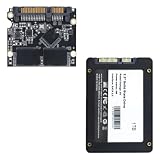
- Top Pick: fanxiang S101 256GB SSD 2.5" SATA III Internal SSD Read Speed Up to 500MB/s
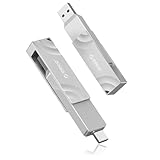
- Best Value: ORICO External SSD 1TB Read/Write Speeds up to 1050MB/s Dual-Port USB 3.2 Gen 2 USB C Portable External Hard Drive with 90° Click-Stop Rotating for iPad Laptop Phone,Match Your Device
- Premium Choice: TICOWTEK Internal SSD SATA III 6Gb/s 2.5” Solid State Drive 3D NAND TLC Flash Advanced SSD Hard Drive Read Speed Up to 560MB/s Upgrade Performance for Laptop,Desktop,All-in-one PC (256, GB)
Read/write speed is the number people fixate on, and it’s also the one most likely to be misread. A hard drive and an SSD aren’t competing on the same scale. One tops out around 150-250 MB/s if you’re lucky. The other starts around 500 MB/s and climbs past 7,000 MB/s on the right motherboard. But raw throughput is only part of the story, and for a lot of real-world tasks it’s not even the part that matters most.
As an Amazon Associate we earn from qualifying purchases at no extra cost to you.


The actual numbers
A 7200 RPM mechanical hard drive, the kind still shipping in budget desktops and NAS boxes, does sequential reads and writes in the 120-250 MB/s range. That’s sequential, meaning large files copied in one continuous stream. Random read/write performance, which is what happens when your OS loads a hundred small files during boot or a game streams textures, is where hard drives fall apart: often under 2 MB/s and latency measured in milliseconds rather than microseconds.
A SATA SSD flattens that gap immediately. Sequential speeds sit around 500-560 MB/s, capped by the SATA III interface itself, and random performance is dramatically better because there’s no spinning platter or moving head to wait on. An NVMe SSD on PCIe 3.0 pushes 2,000-3,500 MB/s sequential. PCIe 4.0 drives run 4,000-7,500 MB/s. PCIe 5.0 drives are now hitting over 10,000 MB/s, though at that point you’re mostly paying for benchmark bragging rights rather than anything you’ll feel day to day.
| Drive type | Sequential read/write | Random 4K (typical) | Latency |
|---|---|---|---|
| 7200 RPM HDD | 120-250 MB/s | 0.5-2 MB/s | ~10-15 ms |
| SATA SSD | 500-560 MB/s | 40-90 MB/s | ~0.1 ms |
| NVMe PCIe 3.0 | 2,000-3,500 MB/s | 100-300 MB/s | ~0.02-0.05 ms |
| NVMe PCIe 4.0/5.0 | 4,000-10,000+ MB/s | 200-400 MB/s | ~0.02 ms |
Why the difference feels bigger than the spec sheet
Boot time is the clearest example. A hard drive boots Windows in 25-40 seconds because it’s hunting across the platter for hundreds of scattered system files. A SATA SSD does the same job in 10-15 seconds. An NVMe drive shaves that to 7-10 seconds, but the jump from HDD to any SSD is the one you actually notice. Going from SATA SSD to NVMe saves you a couple of seconds at boot and maybe a few seconds loading a large game level. It’s real, but it’s not transformative the way ditching a hard drive is.
Game load times follow the same pattern. Open-world titles that take 45-60 seconds to load from a hard drive drop to 10-15 seconds on a SATA SSD and 6-10 seconds on NVMe. The HDD-to-SSD jump is the one worth paying for. The SATA-to-NVMe jump mostly matters if you’re loading multi-gigabyte levels repeatedly, like a level designer testing builds, or you want the fastest possible asset streaming in a handful of titles built around it, like certain PS5-ported games on PC.
Failure modes, not just speed
Hard drives fail mechanically. Bearings wear out, read heads can crash into the platter, and you’ll often get warning signs: clicking, grinding, slow degradation over months. Mean time between failures is typically rated around 1-2 million hours, but that’s a statistical average across a fleet, not a promise for your specific drive. Vibration, heat, and age are the real enemies. A hard drive sitting in a hot, poorly ventilated case will die years before its rated life.
SSDs fail differently. NAND flash has a finite number of write cycles, so endurance is rated in TBW (terabytes written), typically 150-600 TBW for consumer drives. For a normal desktop user doing office work and gaming, you will not hit that limit before the drive is obsolete for other reasons. SSD failure, when it happens, is often sudden and total rather than gradual. There’s usually no clicking noise to warn you. This is the real argument for backups regardless of which drive you buy: hard drives give you more warning, SSDs give you less, and neither is a substitute for a second copy of your data.
When a hard drive is still the right call
Pure capacity per dollar is the one place hard drives still win clearly. An 8TB hard drive costs roughly what a 1-2TB SSD costs. For bulk media storage, video archives, backups, or a NAS where you’re not doing random access workloads, that price-per-gigabyte advantage is real and the speed penalty barely matters because you’re mostly doing large sequential transfers anyway. If you’re building a storage pool, browsing a internal hard drive for cold storage alongside a fast boot drive is a sensible, cheap setup.
What to actually buy
For a boot drive and your OS, there’s no real debate left: get an SSD. The question is SATA versus NVMe. If your motherboard has an open M.2 slot and the drive isn’t drastically more expensive, go NVMe, since pricing has converged enough that it’s often not a meaningful premium. Browsing a NVMe SSD in the 1TB range covers most people’s OS-plus-a-few-games needs without overspending on PCIe 5.0 speeds you won’t use. If you’re upgrading an older laptop or desktop limited to SATA, a SATA SSD still delivers the transformative jump over a hard drive for a lot less money than forcing NVMe through an adapter.
Don’t buy PCIe 5.0 speed hoping to feel it in everyday use. It helps in sustained large-file workloads like video editing scratch disks or scientific datasets, not in opening a browser or loading a save file. Spend the savings on more capacity instead, since running an SSD above 80-90% full slows it down regardless of its rated speed.














