

“M2 hard drive” is a phrase that gets typed into search bars constantly, and it causes real confusion when people shop. M.2 is a physical connector and form factor, not a technology. There’s no such thing as an M.2 hard drive in the spinning-platter sense. What people usually mean is one of two things: comparing an M.2 SSD to a traditional 3.5″ or 2.5″ hard drive, or trying to figure out which type of M.2 SSD to buy. This article covers both, because the buying decision depends on which question you’re actually asking.
As an Amazon Associate we earn from qualifying purchases at no extra cost to you.
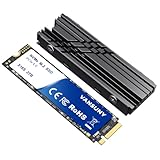

What M.2 actually is
M.2 is a slot on your motherboard, shaped like a stick of gum, about 22mm wide and anywhere from 30mm to 110mm long (80mm is the common length for desktops and most laptops). It replaced the older mSATA format around 2013. An M.2 slot can carry two very different types of storage depending on the motherboard: SATA SSDs that just use the M.2 shape for a connector, or NVMe SSDs that talk directly over the PCIe bus. These two are not interchangeable in terms of speed, even though the drives look identical and often fit the same slot.
A SATA-based M.2 SSD tops out around 550 MB/s, the same ceiling as a 2.5″ SATA SSD, because it’s limited by the SATA III interface. An NVMe M.2 SSD on a PCIe 3.0 x4 link can hit 3,000-3,500 MB/s. PCIe 4.0 drives push 5,000-7,400 MB/s, and PCIe 5.0 drives go past 10,000 MB/s on paper, though real-world gains past PCIe 4.0 are marginal for anything outside video editing and large file transfers. Before buying, check your motherboard manual for which M.2 slots support NVMe versus SATA-only, because plugging an NVMe drive into a SATA-only M.2 slot simply won’t work, and some boards share bandwidth between M.2 slots and SATA ports.
M.2 SSD vs traditional hard drive
This is the comparison most people actually want. A hard drive (HDD) stores data on spinning magnetic platters with a mechanical read/write head. An M.2 SSD stores data in flash memory chips with no moving parts. That mechanical difference drives almost every practical trade-off between them.
| Factor | M.2 NVMe SSD | 3.5″ HDD |
|---|---|---|
| Sequential speed | 3,000-7,400 MB/s | 150-250 MB/s |
| Random access (small files, OS boot) | Near-instant, microseconds | Slow, 5-15ms seek time |
| Price per TB (2024) | $40-80 | $15-25 |
| Max common capacity | 4-8TB (expensive above 2TB) | 22TB+ |
| Failure mode | Sudden, often total, no warning clicks | Gradual, often with warning signs (clicking, slowdowns) |
| Power draw | 2-6W under load | 6-9W under load |
| Physical durability | Shock resistant, no moving parts | Vulnerable to drops and vibration |
For an operating system drive, there’s no real argument left for a hard drive. Windows boot times drop from 30-60 seconds on an HDD to 8-12 seconds on NVMe, and the system just feels more responsive because random reads (loading program files scattered across the drive) are what hard drives are genuinely bad at. If you’re building or upgrading a PC in 2024, put the OS on an NVMe M.2 SSD and don’t look back.
Where hard drives still make sense is bulk, cold storage: media libraries, backups, archives, security camera footage. At $15-25 per TB versus $40-80 for SSD, a 4TB hard drive costs roughly what a 1TB SSD costs. If you’re storing 10TB of video files you access occasionally, a 3.5″ hard drive is still the economically sane choice. Nobody needs NVMe speeds to play back a movie.
Failure modes worth knowing
Hard drives usually give some warning before they die: clicking noises, SMART errors, bad sectors that show up in disk checks, gradual slowdowns. It’s not guaranteed, but you often get a window to back up data. SSDs tend to fail more abruptly. Flash memory wears out from write cycles, but consumer NVMe drives rated for 300-600 TBW (terabytes written) will outlast most users’ actual usage by years. The more common SSD failure is a controller or firmware fault that takes the whole drive offline instantly, with no clicking, no warning, just gone. This is why “SSDs are more reliable” is only half true. They fail less often, but when they fail, recovery is harder and sometimes impossible without professional data recovery services, versus a stuck hard drive platter which specialists can sometimes still read.
Practical takeaway: run backups regardless of which drive type you use. RAID 1 or a cloud backup matters more than which storage technology you picked.
Which to buy
If you’re asking “M.2 or hard drive” for a boot drive, get the M.2 NVMe SSD, 500GB to 1TB depending on budget, and don’t overspend on PCIe 5.0 unless you’re doing 8K video work. If you’re asking about bulk storage for files you don’t need fast access to, a hard drive still wins on cost per terabyte and nothing about that math has changed much in the last five years. Most desktop builds end up with both: a fast M.2 drive for the OS and games, and a cheap hard drive for everything else. That combination, not picking one winner, is usually the right answer.














