

Why Storage Is the Upgrade That Actually Matters
Swap a laptop’s hard drive for an SSD and it feels like a new machine. Swap its CPU and you’ll be lucky to notice. Storage is the one component where the jump from mechanical to solid-state changes almost everything about how a laptop feels to use day to day: boot time, app launches, file copies, even battery life. If you’re deciding between an SSD and HDD for a laptop upgrade, there isn’t much of a real debate left, but it’s worth knowing exactly where the differences show up and where they don’t.
The Raw Numbers
A 5400RPM laptop hard drive reads and writes at roughly 80-160MB/s sequentially, with random read/write performance (the kind that matters for loading an OS or opening apps) often under 1MB/s in real-world terms once you factor in seek time. A SATA SSD does 500-550MB/s sequential and is 20-50x faster on random access. An NVMe SSD on a PCIe 3.0 or 4.0 interface pushes 2,000-7,000MB/s sequential, though in a laptop doing everyday tasks you rarely see that ceiling matter as much as the random access gains.
As an Amazon Associate we earn from qualifying purchases at no extra cost to you.
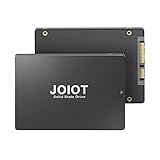

| Metric | HDD (5400RPM) | SATA SSD | NVMe SSD |
|---|---|---|---|
| Sequential read/write | 80-160MB/s | 500-550MB/s | 2,000-7,000MB/s |
| Random 4K read (typical) | 0.5-1MB/s | 30-50MB/s | 40-80MB/s+ |
| Boot time (cold) | 30-60s | 10-15s | 8-12s |
| Access latency | 10-15ms | 0.1ms | 0.02-0.05ms |
| Typical cost per TB (2024) | $25-35 | $50-70 | $60-90 |
The gap between SATA SSD and NVMe looks dramatic on paper, but for a laptop used for browsing, office work, or even light photo editing, you’ll feel the HDD-to-SSD jump far more than the SATA-to-NVMe jump. Random access latency, not sequential throughput, is what makes a laptop feel instant instead of sluggish.
Where You’ll Actually Feel It
Boot time is the obvious one: 45 seconds down to 10. But the bigger everyday win is in things like opening a browser with 20 tabs restored, launching Photoshop, or searching through files with Windows indexing running in the background. On an HDD, these moments cause the drive to thrash, the laptop to feel frozen for a few seconds, and the fan to spin up because the CPU is waiting on I/O. On an SSD, that stutter mostly disappears because there’s no mechanical seek time involved.
Multitasking is where the difference compounds. An HDD can really only do one thing efficiently at a time, since the read head has to physically move between locations on the platter. If you’re compiling code while a backup runs in the background, an HDD will crawl. An SSD handles concurrent I/O requests without the same penalty.
How They Fail, and What That Means for You
HDDs fail mechanically: bearing wear, head crashes, or the classic click-of-death failure mode, often with warning signs like unusual noises or slow degradation over months. Backblaze’s drive stats, which track tens of thousands of drives in production, put annual failure rates for HDDs around 1-2% in year one, climbing after year 3-4.
SSDs fail electrically, usually without warning. A controller failure or NAND wear-out can take a drive from fine to completely dead in one session, with no clicking or scraping to tip you off beforehand. SSDs do have a write endurance limit (rated in TBW, terabytes written), but for a typical laptop user doing normal daily use, that limit is practically a non-issue. You’d need to write dozens of gigabytes a day for years to approach the rated endurance of even a budget consumer SSD.
Practically, this means: back up either drive type regularly, but don’t assume an SSD is immune to failure just because it has no moving parts. The difference is less “if” and more “warning or no warning.”
Heat, Noise, Battery, and Durability
HDDs draw more power (2-5W active vs 0.5-2W for most SSDs), run warmer, and are the only one of the two with moving parts to damage if you drop the laptop while it’s running. If you’ve ever had a laptop randomly freeze briefly after being bumped, that was likely the HDD’s heads parking defensively. SSDs don’t care about physical shock in the same way, which matters more than people think for anyone working on a laptop outside a desk, like on a train or in the field.
Battery life differences are modest but real, often 15-45 minutes depending on workload, since the drive isn’t a huge power draw compared to the display and CPU. It’s a nice bonus, not a reason on its own to upgrade.
When a Hard Drive Is Still the Right Call
Despite all this, HDDs aren’t dead. If you need bulk storage for a media archive, backups, or large video files and cost per terabyte is the priority, a 2TB or 4TB external hard drive is still a third to half the price of equivalent SSD capacity. For that use case, speed barely matters since you’re not booting an OS off it. Browsing external hard drives for cold storage or backup makes more financial sense than paying SSD prices for capacity you’ll rarely touch at high speed.
What to Actually Buy
If your laptop still has a spinning HDD as its primary drive, upgrading to an SSD is close to the highest value-per-dollar change you can make to an aging machine, often more noticeable than a RAM upgrade. For most laptops, a SATA SSD is the budget-friendly swap and plenty fast for everyday use. If your laptop supports NVMe (check the manual or run a quick lookup on the model, since not all laptops do) and you do heavier work like video editing or large file transfers, an NVMe SSD is worth the modest price premium. Either way, clone your existing drive rather than doing a clean install if you want to avoid reinstalling everything from scratch, and keep the old HDD around as a backup drive rather than tossing it, since it’s still useful for exactly the kind of bulk, low-speed storage it was always good at.














