

Corsair’s iCUE suite has no Linux version, so a K70 or a Scimitar plugged into a Linux gaming PC keeps its factory lighting and default DPI stages, with no way to change either. ckb-next is the community-built answer: an open-source driver and GUI, developed independently of Corsair, that speaks the same USB protocols and exposes the settings iCUE normally owns.
This guide explains what ckb-next controls, how to read its supported-devices list before you buy, and where its limits sit. Keyboards, mice, mouse pads and one headset stand are covered in real depth, while firmware updates and Corsair’s headsets remain outside the project — and the difference between a fully supported device and an asterisked one matters more than the brand on the box.
As an Amazon Associate, we earn from qualifying purchases.
Quick answer
ckb-next is an open-source daemon and GUI that replaces iCUE for Corsair gear on Linux. For devices on its supported list it sets per-key lighting and animations, key bindings and macros, and mouse DPI stages, saving profiles to the hardware where the model allows. Firmware updates, Corsair headsets and unlisted devices still need iCUE on Windows.
What ckb-next does
The project splits into two parts. A background daemon, ckb-next-daemon, owns the USB connection to your devices and keeps running whether or not you open the interface. The ckb-next application is the graphical front end where you change settings; closing it does not stop the daemon, so lighting and bindings stay active. Small animation programs ship alongside, applied per device or per key.
For a supported keyboard, the GUI offers per-key RGB lighting with layered animated effects, a brightness control, and a binding editor that can remap keys, assign macros and launch actions. Multiple modes can be stored and switched from the keyboard itself on models that support mode keys. For a supported mouse, it exposes editable DPI stages, button bindings and lighting zones. On devices with full support, profiles can be written to the hardware’s own memory, which is what makes settings survive reboots and trips to other machines.
Two status marks in the project’s device tables decide how complete that picture is. A plain “Supported” entry means full control including hardware saving. An entry marked with an asterisk is supported except for saving settings to the device: everything works while the daemon runs, but the hardware cannot store the profile. An experimental mark means the device only appears after you enable experimental devices in the settings.
Which devices are supported
Support is per exact model, never per product family, and the project’s wiki is the authority. It lists keyboards from the legacy K65, K70 and K95 lines through the Strafe series, the MK.2 revisions and the current Bragi-generation boards such as the K100 and K70 RGB PRO. Mice run from the original M65 and Sabre RGB through the Harpoon, Glaive, Ironclaw and Nightsword to the Dark Core RGB Pro SE. It also covers the MM700 and MM800 mouse pads and the ST100 RGB headset stand.
The reliable way to check your own hardware is the one the project documents: list your USB devices, find the entry with Corsair’s 1b1c vendor ID, and match the four-character product ID against the wiki tables. That ID check matters because Corsair reuses names across revisions with different internals.
The gaps are just as clearly documented. Every Corsair headset on the list — Virtuoso, Void and HS80 models alike — sits at requested status, which means nobody has added support yet and ckb-next cannot control them. Recent flagships such as the K70 MAX and the M65 RGB Ultra are likewise still requests, not supported devices. If a model is absent from the tables or marked requested, treat it as unsupported, however similar it looks to a listed sibling.
What still needs iCUE on Windows
Firmware is the hard boundary. ckb-next does not perform firmware updates at all, and the project directs users to iCUE on Windows for them; a device that ships with buggy early firmware will need a Windows session, a dual boot or a borrowed machine at least once.
The second boundary is the asterisk described above: devices such as the K95 RGB Platinum XT and the Scimitar RGB Elite are fully configurable, but their settings cannot be saved to the hardware, so the daemon must be running for your settings to exist. The third boundary is the iCUE ecosystem itself. Cross-device scenes that span Corsair coolers, fans and LINK hardware, and integrations with other product lines, belong to iCUE and have no equivalent here; ckb-next is a peripheral driver, not a system-wide lighting suite.
Installing ckb-next
The project publishes pre-built packages for several distribution families; take that route first. Ubuntu, Mint and Pop!_OS users install from the project’s PPA. Arch and Manjaro have packages in the AUR, including a git variant that tracks the development branch — relevant because a device whose entry shows a commit but no version exists only in that branch, not in the last release. Fedora carries a package, and builds also exist for Void, Solus, Gentoo, Alpine and openSUSE. Everyone else builds from source using the project’s quickinstall script.
After installation the daemon starts as a system service. Plug a device in, open the GUI, and a supported model appears with its lighting, binding and performance pages. If a device you expected is missing, the usual causes are an experimental model needing the settings toggle, or one that exists only in the development branch. The project also builds for macOS, with the same daemon, GUI and device list.
Five supported devices to build around
Corsair K70 RGB PRO Mechanical Gaming Keyboard (Cherry MX Red)
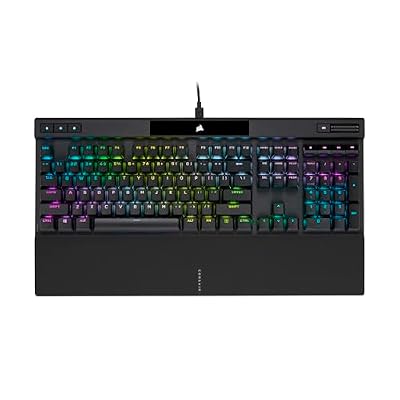
The full-size flagship is the cleanest case on the list: the K70 RGB PRO carries a plain Supported status in ckb-next since version 0.6.2, hardware saving included. Per-key lighting, bindings and modes are all reachable from the GUI.
- Switches: Cherry MX Red linear mechanical
- Lighting: per-key RGB backlighting
- Polling: up to 8,000 Hz via AXON processing (maker-stated)
- Keycaps: PBT double-shot
- Extras: tournament switch, detachable USB-C cable, on-board storage for up to 50 profiles
- ckb-next status: Supported, full control including saving to hardware
- Model: CH-9109410-NA
Corsair K95 RGB Platinum XT Mechanical Gaming Keyboard (Cherry MX Speed)

The macro-heavy flagship is supported with one honest caveat: its table entry is asterisked, so ckb-next controls everything but cannot save settings to the keyboard itself.
- Switches: Cherry MX Speed Silver mechanical
- Lighting: per-key RGB plus a 19-zone LightEdge top bar
- Macro keys: 6 dedicated G keys
- Keycaps: PBT double-shot
- Extras: USB passthrough port, detachable palm rest, on-board profile storage for iCUE use
- ckb-next status: *Supported — full control, no saving settings to the device
- Model: CH-912A01L-NA family (NA layout)
Corsair Nightsword RGB Gaming Mouse

A fully supported wired mouse whose tunable weight system is physical, so it works identically on Linux; ckb-next handles its DPI stages, ten programmable buttons and four-zone lighting, with profiles saved to the mouse.
- Sensor: PixArt PMW3391 optical, up to 18,000 DPI in 1 DPI steps (maker-stated)
- Buttons: 10 programmable
- Weight: tunable system, roughly 119 g to 141 g with the included weights
- Switches: Omron, rated for 50 million clicks (maker-stated)
- Lighting: four-zone RGB
- ckb-next status: Supported, full control including saving to hardware
- Model: CH-9306011-NA
Corsair Scimitar RGB Elite Gaming Mouse
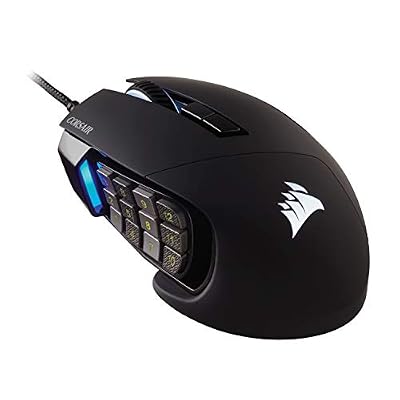
The MMO mouse of the range, with a 12-button side panel on a repositionable Key Slider rail. Like the K95 XT it is asterisked in the table: bindings, macros, DPI and lighting are configurable, but settings are not saved to the device.
- Sensor: PixArt PMW3391 optical, up to 18,000 DPI in 1 DPI steps (maker-stated)
- Buttons: 17 programmable, including the 12-button Key Slider side panel
- Switches: Omron, rated for 50 million clicks (maker-stated)
- Lighting: four-zone RGB
- Extras: on-board profile storage for iCUE use
- ckb-next status: *Supported — full control, no saving settings to the device
- Model: CH-9304211-NA
Corsair MM700 RGB Extended Mouse Pad

The desk-sized entry on the list: the MM700 appears in the project’s Other Devices table as plain Supported, so the same GUI drives its three lighting zones, and its two-port USB hub keeps working as ordinary USB hardware.
- Surface: extended cloth, 930 mm by 400 mm
- Lighting: three-zone RGB around the edge
- Hub: two USB ports built in
- Base: 4 mm thick rubber construction
- ckb-next status: Supported (listed as MM700 POLARIS), full lighting control
- Model: CH-9417070-WW
How to choose
Start with the device list, not the store page. Find the exact model — ideally the USB product ID — in the project’s tables and note which of the three states it is in: supported, asterisked, or experimental. If hardware saving matters to you because you move between machines or operating systems, restrict yourself to plain Supported entries such as the K70 RGB PRO, the Nightsword RGB and the MM700. If the device never leaves one Linux desk, an asterisked model like the K95 Platinum XT or Scimitar RGB Elite loses very little, because the daemon is always running there anyway.
Then plan the firmware question. A new device may need one iCUE session on Windows for a firmware update before it settles; if you have no Windows access at all, that is a real cost to weigh. Finally, ckb-next makes most sense at the centre of an all-Corsair setup, paired with OpenRGB for any non-Corsair lighting in the same machine.
Who should skip this
Skip ckb-next if your Corsair gear is a headset. Virtuoso, Void and HS80 owners get nothing from it, because every headset entry is still a request. Skip it if the device you want is a recent flagship that has not landed in the tables yet, such as the K70 MAX or M65 RGB Ultra, and you are not willing to wait for support or run a development build. Skip it if your setup depends on iCUE’s cross-product scenes and integrations rather than per-device settings, and skip it if you need firmware updates often and have no Windows machine for them.
FAQ
Is ckb-next an official Corsair product?
No. It is an independent open-source project written by community developers, and it is not affiliated with or endorsed by Corsair. Its device support comes from the project’s own wiki tables, which this guide treats as the source of truth.
Can ckb-next update my keyboard or mouse firmware?
No. Firmware updates are outside the project’s scope. Updates still require iCUE running on Windows, so most Linux users keep a dual boot, a spare Windows install or a borrowed machine for the occasional update.
My device has an asterisk in the support list. What does that mean?
It means the device is supported except for saving settings to the hardware itself. Lighting, bindings, macros and DPI all work, but they are held by the software: the daemon must be running, and the profile does not travel with the device to another computer.
Does ckb-next work with Corsair headsets like the Virtuoso or HS80?
Not at the time of writing. Every headset in the project’s tables — Virtuoso, Void and HS80 models — is marked as requested, which means support has been asked for but not implemented. The ST100 headset stand is supported, but the headsets themselves are not.
Final verdict
For Corsair keyboards and mice, ckb-next is the difference between stranded hardware and a configured desk on Linux: per-key lighting, bindings, macros and DPI are all there for listed models, with the daemon keeping settings alive in the background. Its limits are documented rather than hidden — no firmware updates, no headsets, no hardware saving on asterisked models, and no support for devices the tables have not caught up with. Check your exact model first, and a Corsair setup is entirely viable without iCUE.










