Marking up a contract or grading a paper benefits from a pen on a real screen. A Windows detachable tablet handles that job well because it runs full desktop software, so a PDF editor, a word processor, and a note app all work the way they do on a laptop, while the keyboard detaches and the screen becomes a sheet of paper. The best Windows detachable tablets for document annotation combine a precise stylus, a sharp touchscreen, and a light body that is comfortable to hold for a long reading session.
The three tablets below all run Windows 11, all work with an active stylus, and all separate from their keyboards. They differ in size, weight, and processor, which decides which one fits a particular annotation workflow.
What to Look For
Pen accuracy and feel. Look for an active stylus with pressure sensitivity and tilt support, plus a screen with palm rejection so the hand can rest on the display while writing. A pen that attaches magnetically and charges while stored is easier to keep track of.
Screen quality. A sharp, bright display makes small text legible and keeps eye fatigue down during long documents. A 3:2 or similar tall aspect ratio shows more of a page at once than a wide 16:9 screen.
Weight and balance. Annotation often happens away from a desk, holding the tablet in one hand. A tablet near 520 grams feels very different from one near 900 grams after an hour.
Full Windows software. The advantage of a Windows detachable over a simple e-reader is the software catalog: desktop PDF editors, Word with ink markup, OneNote, and browser-based tools all run natively.
Battery life and connectivity. Long sessions away from an outlet need a battery that lasts a working day, and Wi-Fi 6 or better keeps large documents syncing quickly.
The 3 Best Picks
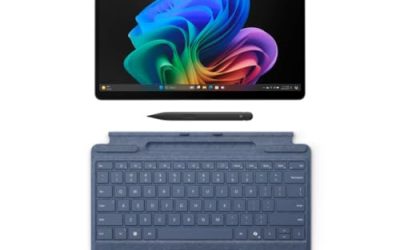
1. Microsoft Surface Pro 11 Copilot+ PC Bundle

ASIN: B0DLF2Y9FZ
Amazon: https://www.amazon.com/dp/B0DLF2Y9FZ
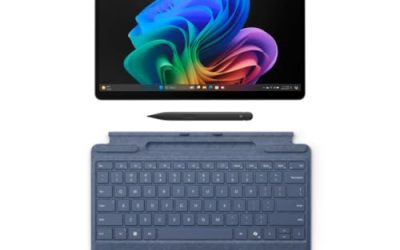
The Surface Pro 11 bundle is the most complete annotation setup of the three, because it ships with the Pro Keyboard and the Slim Pen in the box. The tablet has a 13-inch 2.8K PixelSense touchscreen at 2880 x 1920 with a 120 Hz refresh rate, a Qualcomm Snapdragon X Plus processor with 10 cores, 16 GB of RAM, and a 512 GB SSD, running Windows 11 Pro. Microsoft lists up to 14 hours of video playback, and the tablet weighs 895 grams on its own.
The Slim Pen stores and charges in the keyboard, so it is always at hand when a document needs a note, and it supports pressure sensitivity and tilt for natural handwriting. The kickstand adjusts to a low angle for writing, and the detachable keyboard turns the tablet back into a laptop.
This tablet suits someone who annotates all day and wants the pen and keyboard included rather than bought separately, such as a lawyer, teacher, or editor working through long documents. Considerations include its 895-gram weight, the heaviest here, and the Snapdragon ARM processor, so check that any specialist desktop software used daily runs on Windows on ARM before choosing it.
2. Microsoft Surface Go 4

ASIN: B0CTB6SWBM
Amazon: https://www.amazon.com/dp/B0CTB6SWBM
The Surface Go 4 is the lightest annotation tablet here and the easiest to carry everywhere. It has a 10.5-inch touchscreen at 1920 x 1280, an Intel N200 processor, 8 GB of RAM, and 128 GB of storage, running Windows 11 Pro. The tablet weighs 521 grams, and Microsoft lists up to 12.5 hours of battery life. It works with the Surface Slim Pen 2 and the Surface Go Type Cover, both sold separately, and the built-in kickstand adjusts for reading and writing angles.
The small size is a strength for annotation: the tablet fits in a small bag, holds comfortably in one hand, and the 3:2 display shows a full page without much scrolling. Its Intel processor runs standard Windows desktop software without compatibility concerns.
This tablet suits someone who annotates on the move and values light weight above screen size, such as a student between classes or a field worker marking up forms on site. Considerations include the 10.5-inch screen, which feels cramped for side-by-side documents, and the 128 GB of storage, which fills quickly with large document libraries unless cloud storage is used.
3. Microsoft Surface Pro 9

ASIN: B0B9Q7VDG4
Amazon: https://www.amazon.com/dp/B0B9Q7VDG4
The Surface Pro 9 is the Intel-powered pick for annotation, for full desktop software compatibility. It has a 13-inch PixelSense Flow touchscreen at 2880 x 1920 with a 120 Hz refresh rate, a 12th Gen Intel Core i5 processor, 8 GB of RAM, and a 256 GB SSD, running Windows 11. Microsoft lists up to 15.5 hours of battery life, the longest of the three, and the tablet weighs 879 grams. Two Thunderbolt 4 ports support external displays and docks.
The Pro 9 works with the Surface Slim Pen 2 and the Surface Pro Type Cover, both sold separately, and the pen supports haptic feedback for a more paper-like feel. The Intel Evo platform handles desktop PDF editors, Office with ink, and browser-based tools, and the 256 GB SSD leaves room for a large local document library.
This tablet suits someone who annotates inside demanding desktop software and wants the longest battery life of the three, such as an academic working with large PDFs. Considerations include the pen and keyboard being sold separately, and its 879-gram weight, close to the Pro 11 bundle.
Comparison Table
| Tablet | Display | Processor | Memory and storage | Weight | Battery life |
|---|---|---|---|---|---|
| Microsoft Surface Pro 11 Bundle | 13-inch, 2880 x 1920, 120 Hz | Snapdragon X Plus, 10 cores | 16 GB RAM, 512 GB SSD | 895 g | Up to 14 hours video playback |
| Microsoft Surface Go 4 | 10.5-inch, 1920 x 1280 | Intel N200 | 8 GB RAM, 128 GB storage | 521 g | Up to 12.5 hours |
| Microsoft Surface Pro 9 | 13-inch, 2880 x 1920, 120 Hz | Intel Core i5, 12th Gen | 8 GB RAM, 256 GB SSD | 879 g | Up to 15.5 hours |
Frequently Asked Questions
Do I need a special pen for document annotation on these tablets?
Yes, an active stylus is what makes handwriting and markup feel natural. The Surface Pro 11 bundle includes the Slim Pen, while the Go 4 and Pro 9 work with the Surface Slim Pen 2, sold separately. A passive capacitive stylus will work for tapping, but it lacks pressure sensitivity and palm rejection.
Is a 10.5-inch screen big enough for annotating documents?
It is enough for reading and marking up one document at a time, and the light weight is a real advantage for long sessions. A 13-inch screen is better when two documents sit side by side, or when handwriting needs more room.
Can these tablets run desktop PDF editors?
Yes. All three run Windows 11, so desktop PDF editors, Word, OneNote, and browser-based document tools all run natively. The one check is the Snapdragon processor in the Pro 11: most common apps run well on Windows on ARM, but a rare specialist tool may need an Intel model instead.
Conclusion
The Surface Pro 11 bundle is the pick for an all-in annotation setup with the pen and keyboard included, the Surface Go 4 is the pick for the lightest carry and one-handed reading, and the Surface Pro 9 is the pick for Intel software compatibility and the longest battery life. All three run full Windows 11 and work with an active stylus, so the decision comes down to weight, screen size, and whether a pen and keyboard should arrive in the box. Pair any of them with a good PDF editor and cloud sync so marked-up documents are never stranded on one device.
Disclosure: As an Amazon Associate, we earn from qualifying purchases.