Choosing a gaming laptop for art is really a decision about trust: can you believe the reds, skin tones, and shadow detail on this screen when a client, a printer, or a storefront will judge the finished file later? Plenty of gaming machines chase refresh rate alone, leaving illustrators with washed-out panels that hide banding and shift hues. The right pick pairs a wide-gamut, well-calibrated display with a genuine discrete GPU, so the same machine that previews color honestly also renders, exports, and plays without complaint.
This guide serves illustrators and painters who game after work, design students carrying one machine to class and home, and 3D artists who sculpt, texture, and render on the move. Every pick below was chosen from the names and specifications printed on its Amazon product page, with display coverage, memory type, and storage checked against the exact configuration listed, rather than a different variant sharing the same model name.
Quick Picks
As an Amazon Associate we earn from qualifying purchases.
| Product | Best for | Key spec from title |
|---|---|---|
| ASUS ROG Zephyrus G14 (2025) | Portable painting and gaming in one bag | 14-inch 3K OLED 120Hz display |
| Razer Blade 14 | Upgradeable memory in a compact gaming chassis | 14-inch QHD+ 240Hz display |
| GIGABYTE AERO 16 OLED | Color-critical work on a large canvas | 16-inch 4K UHD+ OLED display |
How to Choose
Color Gamut, Calibration, and Delta E
Gamut coverage decides which colors the panel can even show, so start there before resolution or refresh rate. For print and client work, look for full sRGB coverage as a floor and full DCI-P3 coverage when you grade video, paint richly saturated illustrations, or proof work destined for wide-gamut displays. Factory calibration matters just as much, because two panels with identical coverage can still drift apart in accuracy. Where a maker publishes a Delta E figure or a Pantone or X-Rite validation for the exact model, treat that as a stronger signal than a generic wide-gamut claim, and still plan on a colorimeter for paid work.
GPU Model, Wattage, and CPU Pairing
An RTX badge alone tells you little, because the same laptop GPU runs at very different power limits in different chassis. A slim machine may cap its graphics well below what a thicker rival allows, which changes frame rates, Blender render times, and how smoothly large brushes respond on huge canvases. Check the wattage the maker publishes for the exact configuration, and match it with a CPU that will not bottleneck exports or shader compiles. If AMD processors are on your shortlist, our guide to the best gaming laptops with AMD Ryzen explains how those chips compare for mixed creative and gaming loads before you commit to one platform.
RAM, Storage, and Whether You Can Upgrade
Layered illustration files, reference boards, a browser full of tutorials, and a game launcher can consume memory faster than most buyers expect, so treat sixteen gigabytes as a working minimum and thirty-two as the comfortable target. Then check how that memory is fitted. Soldered LPDDR5X, common in thin OLED models, can never be upgraded, which makes the capacity you order on day one permanent. Socketed DDR5 in SO-DIMM slots, by contrast, lets you grow later. Storage follows the same logic: confirm whether the SSD sits in a replaceable M.2 slot, whether a second slot exists, and how much room your game library and project archive truly need.
Ports, Pen Workflow, and Warranty
Most gaming laptops have no pen layer on the internal screen, so your drawing tablet or pen display becomes part of the purchase, and ports decide how cleanly it connects. A full-size HDMI port suits a second monitor, USB-C with DisplayPort output suits a pen display, and a microSD or SD reader saves dongles when you pull photo references from a camera. Count USB-A ports for older tablets and dongles before ordering. Warranty terms deserve the same attention as ports, since a machine that earns money needs a clear repair path, and battery coverage in particular varies widely between brands and regions.
The 3 Best Options
ASUS ROG Zephyrus G14 (2025)
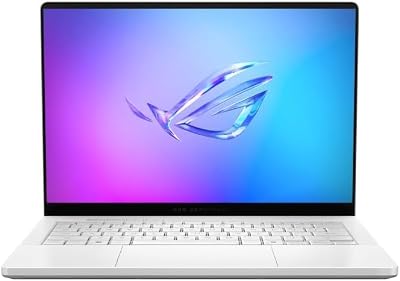
Painters who travel light get the strongest all-round package here. The G14 pairs a sharp 3K OLED panel, which ASUS rates for full DCI-P3 coverage on this Nebula display family, with an RTX 5070 Ti that has enough headroom for GPU-accelerated brushes, 3D work in Blender, and modern games at reduced settings where the native resolution demands too much. Thirty-two gigabytes of memory suits layered files and multitasking, while the compact fourteen-inch chassis and low weight make it the easiest of these three to carry daily between studio, classroom, and home.
Specs
- Display: 14 inches, 2880 x 1800 OLED, 120Hz, 500 nits
- Processor: AMD Ryzen AI 9 HX 370
- Graphics: NVIDIA GeForce RTX 5070 Ti, 12GB
- Memory: 32GB LPDDR5X RAM
- Storage: 1TB SSD
- Operating system: Windows 11 Home
- Color: Platinum White
- Weight: 3.31 pounds
Best for: Artists who want one portable machine for painting, light 3D, and gaming, with a wide-gamut OLED screen.
Watch out for: The LPDDR5X memory is an onboard configuration, so the 32GB fitted at purchase cannot be expanded later; confirm the exact GPU and memory in the listing title before ordering, because G14 variants differ.
ASIN: B0FC4T1R3K
Razer Blade 14

The Blade 14 suits artists who value an upgrade path almost as much as the screen. Its QHD+ panel runs at 240Hz, giving fast-paced games a fluidity the two OLED picks cannot match, while the Ryzen 9 processor and RTX 4070 handle illustration, photo work, and video timelines comfortably. Unlike the soldered designs around it, this generation of Blade 14 uses replaceable memory modules, so a buyer who starts with sixteen gigabytes can add capacity later instead of replacing the whole laptop. The vapor chamber cooling and metal chassis also fit desk setups where the machine stays plugged in for long sessions.
Specs
- Display: 14 inches, 16:10 QHD+ 240Hz
- Processor: AMD Ryzen 9 7940HS
- Graphics: NVIDIA GeForce RTX 4070
- Memory: 16GB DDR5 RAM
- Storage: 1TB SSD
- Operating system: Windows 11
- Cooling: Vapor chamber cooling
- Keyboard: Chroma RGB
- Model: RZ09-0482XEH3-R3U1
Best for: Gamers who draw and paint, want a very fast panel, and plan to upgrade memory during the life of the machine.
Watch out for: The listing configuration ships with 16GB of RAM, which fills quickly with large layered files; budget for a memory upgrade, and confirm the panel and GPU variant in the title, because Blade 14 configurations span several generations.
ASIN: B0C361JQJN
GIGABYTE AERO 16 OLED

Illustrators who proof color for clients should look hardest at the AERO 16 OLED. Its 4K UHD+ panel is the largest and sharpest canvas here, and GIGABYTE positions this BSF model around factory color calibration, with X-Rite calibration and Pantone validation published for the AERO 16 OLED line alongside full DCI-P3 coverage. That makes it the natural desk anchor for poster work, book covers, and product illustration where a hue shift is expensive. The RTX 4070 still games well at lower resolutions, although the sixty-hertz panel clearly prioritizes accuracy and detail over fast motion.
Specs
- Display: 16 inches, 3840 x 2400 OLED, 60Hz, 16:10
- Processor: Intel Core i7-13700H
- Graphics: NVIDIA GeForce RTX 4070 GPU, 8GB GDDR6
- Memory: 16GB DDR5 RAM
- Storage: 1TB SSD
- Operating system: Windows 11 Home
- Model: AERO 16 OLED BSF-73US994SH
Best for: Color-critical illustration, print proofing, and design work on a large, detailed screen, with gaming as a secondary use.
Watch out for: The panel refreshes at 60Hz, so competitive players will feel the difference immediately; also verify the processor in the listing, because AERO 16 OLED BSF listings exist with different Intel chips and memory amounts.
ASIN: B0BVRF9XKS
Which One Fits Your Situation
You paint on the move and game at night
Take the ASUS ROG Zephyrus G14. Its fourteen-inch OLED screen gives you wide-gamut color for client sketches anywhere, the thirty-two gigabytes of memory keep big files responsive in transit, and the RTX 5070 Ti still delivers a proper gaming session once you reach a desk. Nothing else here combines this display quality, this memory capacity, and this carrying weight in a single purchase, which is exactly what a one-machine routine demands.
You want a machine that can grow with you
Choose the Razer Blade 14, because its memory can be replaced rather than soldered. Starting with sixteen gigabytes is workable for illustration and gaming, and a later upgrade extends its life when your files, reference libraries, and game installs outgrow the configuration. The fast QHD+ panel rewards players who split their evenings between ranked matches and finishing commissions, even if its color story is less specialized than the AERO.
You proof artwork for print and paying clients
The GIGABYTE AERO 16 OLED belongs on your desk. Its 4K OLED canvas shows line work and subtle gradients at a size that suits poster and cover layouts, while the factory calibration story for this line gives you a starting point for color work. You accept a sixty-hertz panel and a heavier bag, treat it as a studio anchor that can game, not as a travel-first or competition-first machine.
You split time between 3D sculpting and 2D painting
Start with the G14 if your sculpting happens in cafes, classrooms, and studios, because its stronger GPU and memory travel well. Move to the AERO 16 OLED when rendering and texturing happens at one desk and you would rather judge color and detail on a 4K screen. Either way, keep projects on the internal SSD rather than an external drive, because texture sets and autosaves punish storage bottlenecks during sessions.
Common Mistakes
- Buying by refresh rate alone, then discovering the panel covers too little of the sRGB or DCI-P3 gamut for client color work.
- Assuming every laptop with the same GPU name performs alike, without checking the wattage limit of the exact chassis.
- Ordering a soldered-memory model with sixteen gigabytes, then finding layered files and reference apps exhaust it within a year.
- Expecting to draw directly on the screen, when most gaming laptops have no pen input and need a separate tablet or pen display.
- Ignoring variant names in listing titles, so the delivered CPU, memory, or storage differs from the configuration you researched.
Frequently Asked Questions
Do I need an OLED screen for digital art on a gaming laptop?
OLED helps because each pixel produces its own light, giving deep blacks, strong contrast, and usually wide DCI-P3 coverage that suits painting and grading. It is not mandatory, though. A well-calibrated IPS panel with full sRGB coverage can serve print work reliably, especially in bright rooms where reflections on glossy OLED glass become distracting during long sessions.
How much RAM should a gaming laptop for art have?
Sixteen gigabytes is the practical floor for illustration apps, a browser, and a game launcher running together, but thirty-two is the safer choice for large layered files, 3D sculpting, and video timelines. Check whether the memory is soldered before buying, because an onboard configuration cannot be upgraded when your projects outgrow the original capacity.
Can I draw directly on these laptop screens with a pen?
Generally no. These three models are conventional clamshell gaming laptops without a pen digitizer in the display, so drawing happens on a separate graphics tablet or pen display connected over USB-C or HDMI. Factor that accessory into your setup, and confirm the laptop has the ports your tablet needs before ordering either device.
Is an RTX 4070 enough for both art software and gaming?
For most illustrators, yes. An RTX 4070 accelerates brush engines, filters, 3D viewport work, and exports while still playing modern games well, especially below the native resolution of a 4K panel. Wattage matters, though: the same GPU in a thin chassis with a lower power limit will render and play more slowly than in a thicker design.