- Top Pick: SteelSeries USB Apex 5 Hybrid Mechanical Gaming Keyboard – Per-Key RGB Illumination – Aircraft Grade Aluminum Alloy Frame – OLED Smart Display (Hybrid Blue Switch)
- Best Value: CHONCHOW Gaming Keyboard and Mouse Led Backlit USB Wired with Light Up 104Key 3600DPI 2 Side Button Mouse Keyboard Mechanical Feeling Compatible with PC Mac OS Xbox Ps4 Ps5 with Mousepad
- Premium Choice: AULA F75 Pro Wireless Mechanical Keyboard,75% Hot Swappable Custom Keyboard with Knob,RGB Backlit,Pre-lubed Reaper Switches,Side Printed PBT Keycaps,2.4GHz/USB-C/BT5.0 Mechanical Gaming Keyboards
If you game on a Mac, you already know the frustration: you find a gorgeous mechanical gaming keyboard, plug it in, and discover the RGB software is Windows-only, the keycaps say “Alt” instead of “Option,” and the macros never sync. In 2026, the good news is that Mac gaming is no longer an afterthought. Apple Silicon (M-series) chips are genuinely capable game machines, cloud gaming through GeForce NOW, Xbox Cloud, and Amazon Luna runs beautifully in Safari and native apps, and a growing number of AAA titles ship native Apple builds. That means the keyboard you type on all day can also be the keyboard you frag on all night — if you pick one that treats macOS as a first-class citizen. This guide covers the best Mac-compatible gaming keyboards for 2026, what actually makes a board “Mac-friendly,” and how to choose between wired and wireless for your setup.
- What Makes a Gaming Keyboard “Mac-Friendly” in 2026?
- Wired vs. Wireless/Bluetooth for Mac Gaming
- Mechanical Switch Choices for Mac Gamers
- Gaming on Apple Silicon and Cloud Gaming Context
- Keyboards That Double for Work
- Top Picks: Best Gaming Keyboards for Mac in 2026
- Related Guides
- Frequently Asked Questions
- Related Articles
As an Amazon Associate we earn from qualifying purchases. Prices and availability are accurate as of the date/time indicated and are subject to change.
As an Amazon Associate we earn from qualifying purchases at no extra cost to you.





🛒 Best Price Today on Amazon
Prime members get fast, free shipping on everything above, plus member-only deals. New members get a 30-day free trial — cancel anytime.
What Makes a Gaming Keyboard “Mac-Friendly” in 2026?
A keyboard being “Mac-compatible” is not the same as being “Mac-optimized.” Almost any USB or Bluetooth keyboard will register keystrokes on macOS, but a true Mac gaming keyboard goes further. Here are the four things that genuinely matter, and why so many mainstream gaming brands fall short.
1. macOS Driver and Software Support for RGB and Macros
This is the single biggest gotcha, and it deserves the most attention. Many popular gaming keyboard brands ship configuration software — for per-key RGB lighting, macro recording, actuation tuning, and onboard profiles — that runs only on Windows. Razer’s Synapse, for years, had no full-featured macOS build; Corsair’s iCUE has historically been Windows-first; SteelSeries and others vary by model. If you buy one of these boards for your Mac, the keyboard will type fine, but you may be locked out of customizing lighting or programming macros unless you save those settings on a Windows PC first and rely on the keyboard’s onboard memory.
The workaround that smart Mac gamers use: choose a keyboard with onboard memory (settings stored in the keyboard itself, not the app) or, better yet, a keyboard built on open firmware like QMK/VIA. VIA is a cross-platform configurator that runs in a browser or app on macOS, letting you remap every key, build layers, and program macros directly from your Mac — no Windows machine required. Keychron’s mainstream mechanical boards are the poster child here: they are QMK/VIA-native, so RGB and remapping “just work” on macOS. Logitech’s G HUB software also has a genuine, maintained macOS version, which is why Logitech gaming boards remain a reliable Mac pick.
2. Mac-Layout Keycaps or Remappable Command/Option Keys
On a Windows keyboard, the bottom row reads Ctrl / Win / Alt. On macOS, you want Control / Option / Command, and the physical positions matter for muscle memory — Command sits where a Windows keyboard puts the Alt/Win key. The best Mac gaming keyboards ship with a Mac mode and include extra Command/Option keycaps in the box, or they let you flip a switch (or software toggle) to reassign the modifier row correctly. If a keyboard is remappable via VIA, you can fix the layout yourself in about thirty seconds even if it came labeled for Windows.
3. USB-C and Bluetooth Pairing With Multiple Macs
Modern Macs are USB-C (and Thunderbolt) machines, so a keyboard with a USB-C receptacle and a USB-C-to-C cable saves you dongle hassle. For wireless, look for Bluetooth boards that store multiple device profiles — this lets you pair a MacBook, a Mac mini, and an iPad, then switch between them with a key combo. That multi-device flexibility is a huge quality-of-life win if your gaming rig and your work machine are different Macs.
Wired vs. Wireless/Bluetooth for Mac Gaming
For competitive gaming, wired (or a low-latency 2.4GHz USB dongle) is still the gold standard. A USB-C wired connection gives you the lowest, most consistent input latency and no battery to worry about mid-match. Many Mac-friendly boards are “tri-mode,” offering wired, 2.4GHz dongle, and Bluetooth — the best of all worlds. Use the dongle or cable when you are gaming and Bluetooth when you are couch-typing or working.
Bluetooth is perfectly good for cloud gaming, turn-based and strategy titles, and everyday productivity, and it is essential if you want to roam between multiple Apple devices. Its slightly higher latency rarely matters for GeForce NOW or Xbox Cloud sessions, where your internet round-trip is the dominant factor anyway. If you play fast-paced shooters natively on an M-series Mac, prefer wired or 2.4GHz for those sessions.
Mechanical Switch Choices for Mac Gamers
Switch choice is personal, but here is the quick framework. Linear switches (like reds) are smooth with no bump, favored for fast repeated key presses in gaming. Tactile switches (browns) add a bump that many people prefer for the typing-plus-gaming crossover this guide is all about. Clicky switches (blues) are loud and satisfying but disruptive on calls. Increasingly popular are low-profile switches, which feel closer to a MacBook’s built-in keyboard and suit Mac users who want a slim desk footprint. Many Keychron and other Mac-first boards are now hot-swappable, meaning you can pull switches out and try different feels without soldering — a great hedge if you are unsure what you like.
Gaming on Apple Silicon and Cloud Gaming Context
Why does any of this matter more in 2026 than it did a few years ago? Because Apple Silicon changed the equation. M-series Macs run a growing library of native games, and Apple’s Game Porting Toolkit has made it far easier to run Windows titles. On top of that, cloud gaming has effectively removed the “Macs can’t game” argument entirely — with GeForce NOW, Xbox Cloud Gaming, and Amazon Luna, your Mac becomes a thin client streaming high-end titles, and the keyboard becomes your primary input. In every one of these scenarios, a keyboard that fully cooperates with macOS — correct modifiers, working lighting, programmable macros for MMOs and productivity — is the difference between a clunky experience and a seamless one. If you are building out a full Mac battlestation, it is worth pairing your keyboard choice with the rest of your Mac gaming setup guide so your mouse, monitor, and audio all play nicely too.
Keyboards That Double for Work
One underrated advantage of Mac-first keyboards is that they are excellent productivity tools. The same board that handles your gaming macros can drive Final Cut, Xcode, spreadsheets, and Slack. Multi-device Bluetooth means you can toggle from your gaming Mac to your work MacBook without swapping hardware, and programmable layers let you assign app shortcuts, emoji, and text expansion. This crossover is exactly why so many Mac users gravitate to boards that are equally at home in a game and in a document — you buy one keyboard instead of two. For more on optimizing an M-series machine for both play and work, see our deeper dive on Apple Silicon gaming performance.
Top Picks: Best Gaming Keyboards for Mac in 2026
Below is our comparison of five best-selling, Mac-compatible gaming keyboards, spanning a full mechanical flagship, a productivity-crossover board, a compact option, a budget entry, and a premium wireless pick. Our number one, the Keychron, earns Best Overall because it is genuinely Mac-first: VIA/QMK software runs on macOS, Mac keycaps and a Mac toggle are included, and it offers wired plus wireless connectivity.
| Keyboard | Best for | Connection | Price range | Rating |
|---|---|---|---|---|
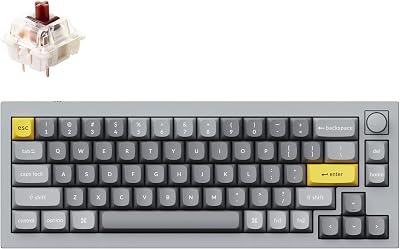
| Keychron K8 Pro (QMK/VIA, hot-swap) — Best Overall | Mac-first mechanical gaming + typing crossover | Wired USB-C + Bluetooth 5.1 (tri-device) | $$ | 4.8 / 5 |
| Logitech MX Mechanical | Work-and-play crossover with macOS G HUB/Options+ support | Bluetooth + Logi Bolt USB receiver | $$ | 4.7 / 5 |
| Keychron K6 / V4 (65%) | Compact 65% desks and small-footprint setups | Wired USB-C + Bluetooth | $$ | 4.6 / 5 |
| Keychron C3 Pro (wired budget) | Budget pick that still runs VIA on macOS | Wired USB-C | $ | 4.5 / 5 |
| Logitech G915 X / MX-tier low-profile | Premium slim wireless with low latency | Wired + Lightspeed 2.4GHz + Bluetooth | $$$ | 4.7 / 5 |
A quick note on the Logitech and Razer options: Logitech gaming boards are a safe Mac bet because G HUB and Logi Options+ both have maintained macOS versions, so lighting and remapping work natively. Razer keyboards are excellent hardware and will type flawlessly on a Mac, but historically Razer Synapse macOS support has been limited — if you want a Razer board for its switches or form factor, confirm current macOS Synapse availability before buying, and lean on onboard profiles saved from a Windows PC if needed. When in doubt, the VIA-based Keychron boards remove the software question entirely. If you are still weighing form factors, our breakdown of mechanical vs. membrane keyboards can help you decide before you commit.
Frequently Asked Questions
Can you use a gaming keyboard on a Mac?
Yes. Virtually any USB or Bluetooth gaming keyboard will connect to a Mac and register every keystroke, since macOS supports standard keyboard input out of the box. The catch is customization: the keyboard’s advanced features — RGB lighting, macros, and actuation settings — depend on the manufacturer’s software also running on macOS. Choose a board with native Mac software (like Keychron’s VIA or Logitech’s G HUB) or one that stores settings in onboard memory, and you will get the full experience. For the smoothest result, pick a keyboard advertised as Mac-compatible with included Command/Option keycaps.
Do gaming keyboards’ RGB and macros work on macOS?
It depends entirely on the software. If the keyboard uses a configurator with a real macOS build — QMK/VIA (Keychron and many custom boards) or Logitech G HUB — then RGB lighting and macros are fully programmable from your Mac. If the keyboard relies on Windows-only software, such as some Razer Synapse and Corsair iCUE configurations, you may be unable to customize lighting or record macros on the Mac itself, though onboard profiles saved from a Windows PC will still function. This is why we recommend VIA-based boards for Mac users who care about customization. Check our guide on gaming keyboard software compatibility for a current rundown.
Are Keychron keyboards good for Mac gaming?
Keychron is arguably the best mainstream choice for Mac gamers. The boards ship with a dedicated Mac mode, include Command and Option keycaps in the box, and run on QMK/VIA firmware that is fully configurable on macOS — so remapping, layers, macros, and RGB all work natively without a Windows machine. Many models are hot-swappable and offer both wired USB-C and Bluetooth, and higher-end lines add low-latency 2.4GHz connections for competitive play. For most people gaming and working on a Mac, a Keychron delivers the best balance of Mac compatibility, build quality, and price.
Should I get a wired or Bluetooth keyboard for my Mac?
For competitive, fast-paced native gaming on Apple Silicon, choose wired USB-C or a 2.4GHz dongle for the lowest, most consistent latency. For cloud gaming, strategy titles, and everyday productivity, Bluetooth is more than fast enough and adds the huge benefit of multi-device pairing across your MacBook, Mac mini, and iPad. The ideal solution is a “tri-mode” keyboard that offers wired, 2.4GHz, and Bluetooth, so you can plug in for ranked matches and go wireless the rest of the time.