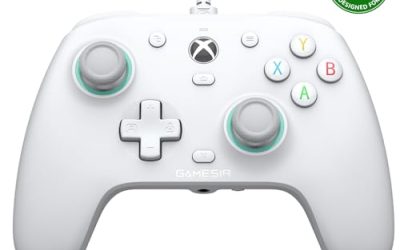
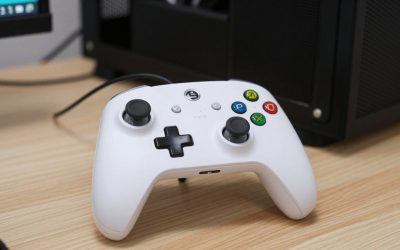
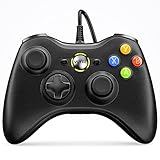
- Top Pick: Mocagen MC1 Phone Controller for iPhone & Android – Ergonomic Grip, Low Latency, Case Friendly, Bluetooth Mobile Controller with Hall Effect Joysticks, Turbo, Portable Travel Companion for Car/Leisure
- Best Value: BACKBONE One Mobile Gaming Controller, USB-C, 2nd Gen | For Android & iPhone 18/17/16/15, 2nd Gen, Play Xbox, Fortnite, Call of Duty, & More
- Premium Choice: 8Bitdo Ultimate Mobile Gaming Controller for iPhone, Apple, Android & Xbox Cloud Gaming, Bluetooth Gamepad with Hall Effect Joysticks, 2 Pro Back Buttons, Officially Licensed (Black)
The best gaming controller for iPhone is the Backbone One or the Backbone Pro for the simplest plug-in fit, the Razer Kishi V3 Pro for the most performance in a clip-on design, and the GameSir G8 Plus for the best value, while a standard Xbox Wireless Controller or DualSense remains the best choice if you prefer a full-size pad on a stand. Which one you want depends on how you play on the iPhone: native App Store games, cloud streaming such as Xbox Cloud Gaming and GeForce Now, or remote play from your own gaming PC and console.
As an Amazon Associate we earn from qualifying purchases at no extra cost to you.


Quick picks
- Best overall plug-in controller: Backbone Pro.
- Best for cloud gaming and simplicity: Backbone One.
- Best performance clip-on: Razer Kishi V3 Pro.
- Best premium feel: Razer Kishi Ultra.
- Best value clip-on: GameSir G8 Plus.
- Best full-size pad: Xbox Wireless Controller with a phone clip.
- Best for PlayStation Remote Play: DualSense.
- Best customizable full-size pad: Xbox Elite Series 2 over Bluetooth.
How we chose
This guide is based on research: manufacturer specification pages, platform support notes from Apple, and the way current buyer guides group iPhone controllers. No controller was physically used for this article. We kept a model only if it is sold in 2026, can connect to a current iPhone, and fits a gaming use: native iOS games, cloud streaming or remote play from a gaming PC or console. Where a specification could not be confirmed, we describe the feature by class rather than guessing.
What to look for in an iPhone controller
1. Connector: USB-C or Bluetooth
iPhone 15 and later models use USB-C, so plug-in controllers with a USB-C connector can pass power and data directly. Older iPhones use Lightning, and many controllers are sold in both versions. Always check the connector before you buy. Bluetooth controllers work with any iPhone that supports Bluetooth gamepads, but they depend on battery life and add a small delay.
2. Clip-on or separate pad
A clip-on controller holds the phone between two grips like a handheld console. It is portable, has the lowest delay and charges the phone. A separate pad, either a standard console controller or a third-party model, is more comfortable for long sessions but needs a phone clip or a stand.
3. Phone size and case compatibility
Controllers with an adjustable bridge fit different phone widths and thicknesses. Check the maximum phone thickness, since a thick case may need removal. Larger phones, such as Pro Max sizes, need a model that lists support for them.
4. Passthrough charging
Passthrough charging lets you plug the phone’s power in through the controller, so long sessions do not drain the battery. This is essential for cloud gaming and remote play, which use the screen and Wi-Fi heavily.
5. Stick and trigger quality
Look for Hall-effect or TMR sticks on pricier pads, because they avoid the drift that comes with wear. Analog triggers matter for racing and shooters. Digital-only triggers are acceptable for platformers and fighting games.
6. App and game support
Some controllers have a companion app that lists compatible games, captures clips and manages streaming. Others rely on iOS system support. The App Store has a growing list of games that support controllers, and cloud streaming services work with most pads.
Spec comparison table
| Controller | Type | Connection | Sticks | Passthrough charging | Tier |
|---|---|---|---|---|---|
| Backbone Pro | Clip-on and wireless | USB-C and Bluetooth | Hall-effect class | Yes (clip-on mode) | Premium |
| Backbone One | Clip-on | USB-C or Lightning version | Standard | Yes | Mid-range |
| Razer Kishi V3 Pro | Clip-on | USB-C | TMR | Yes | Premium |
| Razer Kishi Ultra | Clip-on | USB-C | Hall-effect class | Yes | Premium |
| GameSir G8 Plus | Clip-on | Bluetooth and USB-C | Hall-effect class | Yes | Mid-range |
| Xbox Wireless Controller | Full-size | Bluetooth | Standard | Not applicable | Mid-range |
| DualSense | Full-size | Bluetooth | Standard | Not applicable | Mid-range |
| Xbox Elite Series 2 | Full-size | Bluetooth | Adjustable tension | Not applicable | Premium |
The best gaming controllers for iPhone
1. Backbone Pro
Spec line: clip-on and wireless modes · USB-C and Bluetooth · Hall-effect class sticks · companion app · headphone jack in clip-on mode.
Best for: players who want one controller to use on an iPhone and also with other devices.
Skip if: you want the cheapest option or only play offline with no streaming.
Pros: versatile; polished app; passthrough charging; strong cloud gaming support.
Cons: premium tier; the app’s extra features may push a subscription.
2. Backbone One
Spec line: clip-on · USB-C or Lightning variants · passthrough charging · headphone jack · app with game library.
Best for: cloud gaming on Xbox Cloud Gaming, GeForce Now and PlayStation Remote Play.
Skip if: your iPhone has a thick rugged case, or you want a Bluetooth pad.
Pros: proven design; fits many iPhones; easy to use.
Cons: the older design is being replaced by the Pro model in many shops; buy the connector that matches your phone.
3. Razer Kishi V3 Pro
Spec line: clip-on · USB-C · TMR sticks · extra remappable buttons · haptic feedback · supports large phones.
Best for: shooters and action games on a recent iPhone, where stick accuracy matters.
Skip if: you want a lightweight pocket device or a low price.
Pros: high-end sticks; strong build; an XL fit for big phones.
Cons: premium tier; bulky in a pocket.
4. Razer Kishi Ultra
Spec line: clip-on · USB-C · Hall-effect class sticks · passthrough charging · adjustable fit.
Best for: buyers who want a premium feel and a good fit with newer phones.
Skip if: you need to save money.
Pros: solid build; comfortable grips.
Cons: premium tier; some features depend on the Razer app.
5. GameSir G8 Plus
Spec line: clip-on · Bluetooth and USB-C · Hall-effect class sticks · passthrough charging.
Best for: value-focused players who want a handheld-style grip.
Skip if: you want deep app features and long-term support.
Pros: good price; flexible connection; strong feature list for the tier.
Cons: software less polished than the Backbone app; check fit for your phone model.
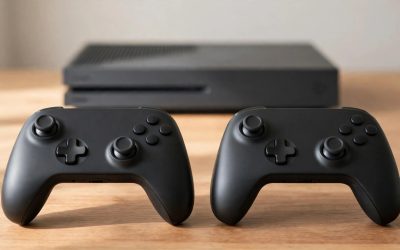
6. Xbox Wireless Controller
Spec line: Bluetooth · hybrid D-pad · textured grips · around 40 hours on AA cells · works with Xbox Cloud Gaming, Steam Link and Moonlight.
Best for: couch players who want a full-size controller and already own one for their gaming PC.
Skip if: you need a portable device, because a phone clip is required.
Pros: comfortable; reliable; same pad works on a PC, Xbox and phone.
Cons: no phone mount in the box; Bluetooth adds some delay.
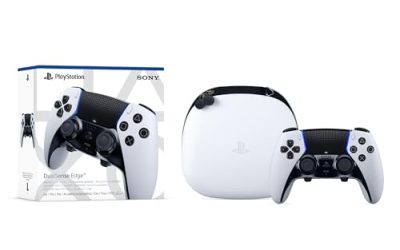
7. DualSense
Spec line: Bluetooth · haptics and adaptive triggers on PS5 · works with PlayStation Remote Play on iPhone.
Best for: PS5 owners who stream games to the iPhone.
Skip if: you want a portable clip-on.
Pros: comfortable; broad app support; rich input.
Cons: battery drain from the pad’s features; no phone mount.
8. Xbox Elite Series 2
Spec line: Bluetooth · four removable paddles · adjustable-tension sticks · up to 40 hours of battery.
Best for: players who already own the pad for PC and want to reuse it on iPhone.
Skip if: this would be your first purchase for iPhone only; it is overkill.
Pros: extremely customizable; long battery life.
Cons: premium tier; no phone mount.
Decision matrix: how you play on iPhone
| How you play | Best match | Why |
|---|---|---|
| Cloud gaming on the go | Backbone One or Backbone Pro | Plug-in fit, passthrough charging, no pairing |
| Remote play from a gaming PC (Steam Link, Moonlight) | Xbox Wireless Controller or Kishi V3 Pro | Native Xbox layout, low delay |
| PS5 Remote Play | DualSense or Backbone | PlayStation layout and button prompts |
| Native App Store games | GameSir G8 Plus or Kishi Ultra | Low delay and good grips |
| Home use on a stand | Xbox Wireless Controller, Elite Series 2 | Full-size comfort |
Step-by-step: picking the right controller
- Check your iPhone model and connector. A USB-C iPhone can use USB-C clip-ons. An older Lightning iPhone needs a Lightning version or a Bluetooth pad.
- Measure your phone with its case. If it is thicker than the maximum listed, use a case-less fit or a Bluetooth pad.
- Decide whether you play on the move or at home. A clip-on suits the move, and a full-size pad suits home.
- Choose your streaming source. Cloud services suit a Backbone-style pad, while a gaming PC remote play suits an Xbox layout.
- Pick your tier, then confirm passthrough charging if you plan to play for more than an hour.
Latency and network tips for streaming
- Use a 5 GHz Wi-Fi network or Wi-Fi 6 for remote play, and put the host PC or console on a wired Ethernet connection.
- Keep the iPhone close to the router. Walls and distance raise delay more than any controller choice.
- Use a plug-in controller for the lowest delay, since Bluetooth adds a small delay on top of the stream.
- Set the stream bitrate and resolution to match your network. A steady lower setting beats a high one that stutters.
- Close other apps on the phone, and turn off Low Power Mode while playing, since it can reduce performance.
Gaming PC and console compatibility
If your gaming PC runs Steam, the Steam Link app on iPhone accepts Xbox and DualSense controllers over Bluetooth. Moonlight, which streams from an NVIDIA GPU, supports plug-in controllers and Bluetooth pads. PlayStation Remote Play accepts the DualSense on iPhone and some licensed clip-ons. Xbox Cloud Gaming and the Xbox app support Xbox controllers and Backbone-style clip-ons. Always pair the controller before launching the app, and update iOS and the controller firmware first.
Common mistakes to avoid
- Buying a Lightning controller for a USB-C iPhone, or the reverse.
- Assuming every clip-on fits every case. Remove thick cases if the controller does not list support.
- Ignoring passthrough charging, which leaves you with a hot, empty phone after an hour.
- Choosing an old model that is no longer supported on newer phones.
- Expecting full console features, such as adaptive triggers, over a generic iOS connection.
Frequently asked questions
Do iPhones support PS5 and Xbox controllers?
Yes. iOS supports the DualSense and Xbox Wireless Controller over Bluetooth, and many games and streaming apps recognize them.
Is a clip-on or a full-size controller better for iPhone?
A clip-on is better for portability and low delay. A full-size pad is better for comfort at home, but it needs a clip or stand.
Does an iPhone 15 or later need a USB-C controller?
It can use USB-C clip-ons directly. Lightning versions will not fit, so check the connector before buying.
Can I charge my iPhone while using a clip-on controller?
Yes, most clip-ons have a passthrough charging port. This is important for long sessions or streaming.
Do controllers add input delay?
Plug-in controllers add almost none. Bluetooth pads add a little, and the network stream adds more delay than either.
Can I play my gaming PC library on iPhone with a controller?
Yes, with Steam Link or Moonlight over your home network. Use 5 GHz Wi-Fi and a wired host PC for the best results.
Are Hall-effect sticks worth it on a mobile controller?
They are a good long-term investment because they reduce drift. Clip-ons with them tend to cost more, so choose them if you play often.
Will an older Razer Kishi work on a newer iPhone?
Not always. Older Lightning versions will not fit a USB-C iPhone, and some older designs do not fit newer phone sizes. Choose a current model.
Worked example: battery and session length
Streaming is hard on a phone. As a rough example, a phone with a 4,000 mAh battery that drains about 1,000 mAh per hour of streaming lasts about four hours on its own. A clip-on with passthrough charging, fed by a power bank that supplies at least that much current, holds the phone near full charge for the whole session. A Bluetooth pad adds its own battery: a pad rated for about 40 hours on two AA cells covers roughly a dozen three-hour sessions before the cells need replacing. Count both batteries when you plan a long trip, and bring a short USB-C cable for the phone.
Which buyer should skip a clip-on
Players with rugged cases
Thick protective cases often exceed the supported thickness of a clip-on. If you will not remove the case, choose a Bluetooth pad and a phone clip.
Players who mostly stay at a desk
If your iPhone mostly sits on a desk beside your gaming PC, the portability of a clip-on is wasted. A full-size pad you already own is more comfortable and costs nothing extra.
Players with an older iPhone
If your phone uses Lightning, check that the model you want is sold in a Lightning version. Several current clip-ons are USB-C only, and a Bluetooth pad is the safer route.
Players of fast shooters
If you rely on tight aim, prefer a wired clip-on or a model with accurate sticks. Wireless streaming adds network delay that no controller can remove, so keep expectations realistic for competitive modes.
Final recommendation
If you want the easiest high-quality setup, buy the Backbone Pro, or the Backbone One for cloud gaming. If you want the best sticks and performance for fast games, the Razer Kishi V3 Pro is the pick. If you want a lower cost, the GameSir G8 Plus delivers the handheld feel for less. If you already own an Xbox Wireless Controller or DualSense for your gaming PC, pair it with a phone clip and you have a comfortable iPhone setup without spending more. Confirm your connector, case thickness and streaming service first, then choose accordingly.