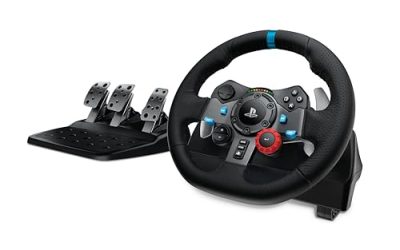
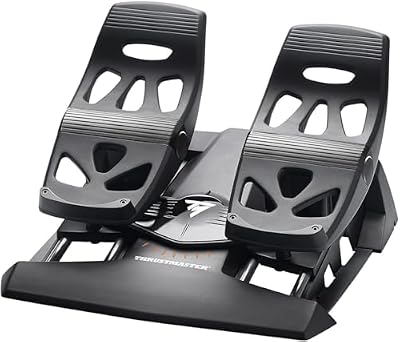
- Top Pick: Logitech G PRO Flight Yoke System Professional Simulation – Black | Professional simulation, 3 modes, 75 programmable controls, configurable knobs, USB connection
- Best Value: Logitech G Pro Flight Yoke System + Pro Flight Rudder Pedals Bundle
- Premium Choice: Thrustmaster TCA SKY YOKE – Flight Yoke and Throttle for PS5 and PC | Flight simulation controller for beginners, first PS5 yoke, 7 axes, built-in trim wheel, rudder control
The best flight simulator yoke for most PC pilots is the Honeycomb Alpha, usually paired with the Honeycomb Bravo throttle quadrant for general aviation in Microsoft Flight Simulator and X-Plane. For airliner flying, the Thrustmaster TCA Yoke Boeing Edition is the strongest pick, the Turtle Beach VelocityOne Flight is the best all-in-one for a desk, and the Logitech G PRO Flight Yoke is the easiest entry for new sim pilots. This guide is written for PC gamers: it covers compatibility, desk fit, axes, and how to build a setup that does not need a second table.
As an Amazon Associate we earn from qualifying purchases at no extra cost to you.


Quick picks
- Best overall for general aviation: Honeycomb Alpha, with its yoke-and-switch-panel layout.
- Best complete pair: Honeycomb Alpha plus Bravo throttle quadrant bundle.
- Best for airliners: Thrustmaster TCA Yoke Boeing Edition with its quadrant.
- Best all-in-one for a desk: Turtle Beach VelocityOne Flight.
- Best entry-level: Logitech G PRO Flight Yoke with an included throttle quadrant.
- Best for Xbox and PC players: Honeycomb Alpha XPC variant, or the Thrustmaster TCA yoke and Turtle Beach VelocityOne, which list Xbox support.
- Best long-standing budget classic: CH Products Flight Sim Yoke.
How we chose
This is research, not bench work. We compared manufacturer specification pages, published buyer guides, and community discussions in flight sim forums. We weighed travel and rotation, sensors, number of axes and switches, throttle and rudder expansion, platform support, desk or table fit, and how well each yoke feels in light aircraft versus airliners. We flag any spec we could not verify.
What matters in a flight yoke
Sensors and travel
Hall-effect sensors track position magnetically, so they do not wear like old potentiometers and stay accurate over time. Rotation of about 180 degrees, as reported for the Honeycomb Alpha and VelocityOne, is typical for a modern consumer yoke. Pitch travel is the in-and-out motion. The Thrustmaster Boeing Edition is reported to have an 8.3 inch motion range, and its pendular motion mimics a Boeing 787 yoke.
Throttle and rudder expansion
A yoke controls only pitch and roll. Throttle, mixture, propeller, flaps, and rudder need other axes. A full general aviation setup needs about 6 axes beyond the yoke, which is why most buyers add a quadrant and rudder pedals.
Switches and panels
The Honeycomb Alpha includes an integrated switch panel with a magneto selector and key positions for general aviation. The Logitech G PRO yoke reports 75 programmable controls. More switches reduce the number of keyboard keys you reach for mid-flight.
Desk fit
Yokes clamp to the desk edge or use table mounts. Check the desk edge thickness and depth. Larger quadrants may need space on your desk next to the keyboard, so measure before you buy.
Worked example: counting axes for a Cessna-style setup
Suppose you want to fly a four-seat single-engine aircraft in MSFS with minimal keyboard use.
- Yoke: pitch and roll, 2 axes.
- Throttle quadrant: throttle, propeller, mixture, 3 axes.
- Rudder pedals: yaw, 1 axis, plus 2 toe brake axes, 3 axes total.
- Trim: 1 axis, usually a wheel on the quadrant.
- Flaps and gear: switches or levers, no axis needed.
That is about 9 axes. The Honeycomb Alpha supplies 2, the Bravo throttle quadrant supplies 6 (including trim), so the pair covers 8, and rudder pedals complete the setup. A single-engine pilot with only the Alpha and a keyboard would need to assign throttle to keys or sliders, which is slow. Result: pick a yoke plus a quadrant, or an all-in-one such as the VelocityOne Flight if your desk is small, and add rudder pedals later.
Best flight simulator yokes for PC
1. Honeycomb Alpha
Spec line: about 180 degrees rotation · Hall-effect sensors · integrated switch panel · PC and Mac · plug-and-play with MSFS 2024 · modular, pairs with the Bravo throttle quadrant.
Best for: general aviation pilots who want authentic feel in light aircraft and a clean cockpit layout.
Skip if: you mostly fly airliners, because the yoke’s shape and motion are more general aviation oriented, or you need Xbox support on the standard model.
- Pros: widely recommended, modular, good feel, integrated switches.
- Cons: throttle and rudder are separate purchases, cost rises once you add a quadrant, PC and Mac only on the standard version.
2. Honeycomb Alpha and Bravo bundle
Spec line: Alpha yoke plus Bravo throttle quadrant · quadrant adds levers, flap and trim controls, and an annunciator panel · PC · plug-and-play with MSFS 2024.
Best for: pilots who want the complete general aviation and light twin setup in one purchase.
Skip if: your desk cannot hold a yoke and a wide quadrant, or you prefer a single combined unit.
- Pros: complete control set, modular, strong community support.
- Cons: in the premium tier of cost, takes desk space, the quadrant needs profile setup for some aircraft.
3. Thrustmaster TCA Yoke Boeing Edition
Spec line: all-metal structure · Boeing licensed · reported 8.3 inch motion range · pendular motion inspired by the 787 · quadrant included in the pack · PC and Xbox support.
Best for: airliner fans who want the Boeing look and feel in Microsoft Flight Simulator.
Skip if: you fly Cessnas and other light aircraft. Movement and layout feel less natural there.
- Pros: sturdy build, quadrant in the pack, console and PC support, strong airliner feel.
- Cons: larger and heavier, less tailored to general aviation, higher cost.
4. Turtle Beach VelocityOne Flight
Spec line: all-in-one yoke and throttle quadrant · about 180 degrees rotation · 12 axes · PC and Xbox support · display panel on the unit.
Best for: gamers who want everything in one unit that fits on a single desk.
Skip if: you want to place the yoke and throttle independently, because the all-in-one design is less modular.
- Pros: complete in one box, compact for what it includes, console and PC support.
- Cons: less modular, you cannot reposition the throttle independently, and the single unit limits growth.
5. Logitech G PRO Flight Yoke
Spec line: 75 programmable controls · stainless steel shaft · throttle quadrant included over USB · works with MSFS, X-Plane, and Prepar3D · Windows.
Best for: new sim pilots who want a complete, lower-cost starting set from a mainstream brand.
Skip if: you want a rich throttle with many levers. Reviewers note limited yoke rotation, a noticeable centre feel, and fewer throttle axes than the Bravo.
- Pros: a lot of controls, quadrant included, broad sim support.
- Cons: fewer throttle axes, limited rotation, a noticeable centre feel.
6. Honeycomb Alpha XPC
Spec line: Xbox and PC variant of the Honeycomb Alpha · designed for Microsoft Flight Simulator on both platforms. We could not verify its current specs, so treat it as the Alpha design with Xbox support.
Best for: Xbox pilots who want the Alpha layout.
Skip if: you play only on PC. The standard Alpha is the simpler purchase.
- Pros: Alpha layout on Xbox and PC.
- Cons: availability may vary, details need confirmation on the maker’s page.
7. CH Products Flight Sim Yoke
Spec line: long-running USB yoke · all-metal design reported by owners · PC · basic button and axis layout. We could not verify its current specs, so confirm availability and layout before purchase.
Best for: budget pilots who want a durable, simple yoke and are comfortable with older design.
Skip if: you want integrated switch panels or an up-to-date plug-and-play setup with MSFS 2024.
- Pros: long track record, durable reputation, simple layout.
- Cons: older design, fewer integrated controls, availability can be inconsistent.
Comparison table
| Yoke | Rotation and sensors | Throttle included | Platforms | Best use |
|---|---|---|---|---|
| Honeycomb Alpha | About 180 degrees, Hall effect | No, Bravo sold separately | PC, Mac | General aviation |
| Alpha and Bravo bundle | About 180 degrees, Hall effect | Yes, Bravo | PC | Complete setup |
| Thrustmaster TCA Boeing | 8.3 inch motion range | Yes, quadrant | PC, Xbox | Airliners |
| Turtle Beach VelocityOne | About 180 degrees, 12 axes | Yes, built in | PC, Xbox | Compact desk |
| Logitech G PRO | Limited rotation | Yes, USB quadrant | Windows | Entry level |
| Honeycomb Alpha XPC | Alpha design, details unverified | No | Xbox, PC | Xbox pilots |
| CH Flight Sim Yoke | Details unverified | No | PC | Budget classic |
Pick by aircraft and desk
Light aircraft and general aviation
Choose the Honeycomb Alpha. Add the Bravo for throttle, mixture, and trim. This is the most common setup for Cessna, Piper, and Diamond aircraft in MSFS.
Airliners
Choose the Thrustmaster TCA Yoke Boeing Edition. Its design copies Boeing yoke motion, and the included quadrant helps with throttle management for twin-engine jets. Add rudder pedals for taxi steering.
Small desk
Choose the Turtle Beach VelocityOne Flight. It is the only one here with the yoke and throttle in one unit. Check the clamp depth on your desk before ordering.
Tight budget
Choose the Logitech G PRO Flight Yoke, which includes a quadrant, or the CH Flight Sim Yoke if you can verify availability. Expect compromises in throttle axes and feel.
Compatibility checklist
- Confirm the platform. PC, Mac, and Xbox support differ by model.
- Check the sim. MSFS 2024, MSFS 2020, X-Plane, and DCS each have their own profiles.
- Check that the sim recognises the device without third-party tools, especially in MSFS 2024, where plug-and-play support is listed for Honeycomb and Thrustmaster.
- Confirm a USB port. Large setups often need a powered USB hub.
- Measure the desk edge and the clamp depth.
- Plan rudder pedals. A yoke alone does not control yaw.
Setting up your yoke in the sim
Most problems after unboxing come from software, not hardware. Install the maker’s driver or profile tool first, then start the sim and let it detect the device. Run the calibration screen so that pitch and roll reach their full range, and set a small dead zone of a few percent so that sensor noise near center does not move the aircraft. Then adjust sensitivity curves: a gentle curve near center lets you make small corrections in light aircraft, while a linear curve suits airliners that move slowly anyway. Bind trim, flaps, and gear to switches you can reach without looking, and save a separate profile for each aircraft family. If the sim does not see the device after an update, unplug it, close the sim, and reconnect the USB cable before you reinstall anything.
Desk and room tips
- Use a stable desk or a flight sim stand. A wobbling desk spoils precise control.
- Leave room for the yoke to travel fully. Pull it out before you tighten the clamp.
- Keep cables away from the yoke shaft.
- If you stream, place the quadrant to one side so your camera shows hands and the yoke clearly.
- Use a USB hub with its own power for panels with lights.
Safety
Yokes are low-force devices, but keep cables tidy, avoid pinch points near the clamp, and keep liquids away from switch panels. Do not force a yoke past its travel. If you use a desk clamp, check it periodically, and take regular breaks to avoid wrist strain in long flights.
Common mistakes
- Buying a yoke without a throttle plan, then reassigning everything to the keyboard.
- Choosing an airliner yoke for light aircraft, or the reverse.
- Ignoring platform differences between PC and Xbox versions.
- Forgetting rudder pedals, which makes taxiing and crosswind landings harder.
Frequently asked questions
What is the best flight simulator yoke for PC?
The Honeycomb Alpha is the most recommended for general aviation. For airliners, the Thrustmaster TCA Yoke Boeing Edition is stronger.
Pair it with a throttle quadrant for a complete setup.
Do I need a yoke or a joystick?
A yoke suits airliners and general aviation aircraft. A joystick suits fighters and some helicopters.
Choose the control type that matches the aircraft you fly most.
Is the Honeycomb Alpha compatible with MSFS 2024?
Yes. Reviews list the Alpha and the Thrustmaster TCA as plug-and-play with MSFS 2024.
Check the maker’s page for current profile support and firmware updates.
Do I need rudder pedals with a yoke?
You can fly without them, but rudder pedals give you yaw and toe brakes. They improve taxiing and landings.
Many pilots add them after they own a yoke and a throttle.
Does the Turtle Beach VelocityOne Flight work on Xbox and PC?
Yes, published specs list Xbox and PC support. It is an all-in-one yoke and throttle.
Check the sim you use, since not every title supports every device.
Is the Logitech G PRO Flight Yoke good for beginners?
Yes, it is a cost-effective starter set with a quadrant. It has limited rotation and fewer throttle axes than the Bravo.
It suits pilots who want to learn first and upgrade later.
How many axes do I need?
For a single-engine setup you want about 9 axes: yoke pitch and roll, three throttle axes, rudder and brakes, and trim.
A yoke and a Bravo quadrant cover about eight, and rudder pedals fill the rest.
Will a yoke fit on my desk?
Most yokes clamp to the desk edge and need space to move. Check clamp depth and desk thickness.
If space is tight, use an all-in-one such as the VelocityOne Flight or a dedicated flight sim stand.
Final verdict
For general aviation on PC, the Honeycomb Alpha with the Bravo is the best complete setup. For airliner flying, the Thrustmaster TCA Yoke Boeing Edition is the right choice, and the Turtle Beach VelocityOne Flight is the best for a compact desk. The Logitech G PRO Flight Yoke is an easy starter. Count your axes, confirm platform support, and plan for rudder pedals before you buy.