- Top Pick: Samsung 990 PRO 2TB NVMe SSD
- Runner-up: Crucial P3 Plus 2TB NVMe SSD
- Also consider: Samsung 870 EVO 1TB SATA SSD
Most Linux gaming PCs end up with more than one drive: a fast NVMe stick bought with the build, a SATA SSD carried over from an older machine, and a big mechanical drive that quietly fills with everything else. The question that follows is rarely which drive to buy. It is which games deserve the fast one. Not every title reads storage the same way, and putting a slow-paced indie game on your best NVMe while a streaming-heavy open-world game sits on a spinning drive is exactly backwards. This guide sorts games into tiers by how they actually load data, then matches each tier to its drive.
Two boundaries are worth stating up front. This is a placement guide, not a migration guide: moving an existing Steam library between drives is a separate job. It is also not about filesystem choice, and it assumes your drives are inside the machine rather than on a network share. What follows is only the per-game decision: given the drives you already own, where should each game live?
As an Amazon Associate, we earn from qualifying purchases.
Quick answer
Put the games you are actively playing on your fastest NVMe drive, especially large open-world titles that stream assets as you move through them. Keep older and smaller games on a SATA SSD, where they lose almost nothing. Archive finished or rarely played games on a big hard drive, and keep Proton prefixes and shader caches on solid-state storage rather than on the mechanical tier.
What a faster drive actually changes for a game
A drive does not make a game render faster. Once a scene is loaded and the assets are in memory and video RAM, frame rates are set by the GPU and CPU, and no SSD tier changes that. What storage speed changes is everything around the rendered scene: load times, fast-travel jumps, and whether the game can pull in new textures, geometry and audio fast enough as you cross the world. Games built around seamless streaming treat storage as part of the rendering pipeline. When the drive cannot keep up, the symptom is not a lower frame rate counter but visible pop-in, blurry textures that sharpen late, and short hitches as new areas load.
That distinction is why a single rule like “install everything on the fastest drive” wastes money. A turn-based strategy game reads its data in short bursts at load screens and then barely touches the disk. A modern open-world title reads constantly. Placement is really a question about each game’s reading pattern, and once you sort by that, the tiers fall out naturally.
The three tiers and the games that belong on each
The top tier is your fastest NVMe drive, and it should hold the games you are playing now that stream data continuously: large open-world games, big action RPGs with seamless zones, racing games with long streamed tracks, and any title whose world loads around you instead of behind a loading screen.
The middle tier is a SATA SSD or an entry-level NVMe drive. Solid-state latency is so much lower than a mechanical drive’s that most games cannot tell this tier apart from the top one. Older AAA titles built around discrete loading screens, indie games, and multiplayer games whose matches load from a fixed map pool all belong here.
The bottom tier is the big mechanical hard drive, and its job is archive storage: finished games you may replay someday, backlog titles, and games kept installed only to avoid a long re-download. A hard drive is a poor place to actively play a streaming-heavy game, but it is a perfectly good warehouse, and Steam makes moving a game between tiers a built-in operation, so the archive works best as a parking lot rather than a graveyard.
The Proton wrinkle: prefixes and shader caches
Linux adds a placement question Windows does not have. Every game run through Proton gets a prefix, the per-game folder that holds the simulated Windows environment, and Steam builds a shader cache for each title so graphics shaders are compiled ahead of time instead of during play. By default, both live in the same library folder as the game itself, so when you park a game on the mechanical archive drive, its prefix and shader cache usually go with it.
For an archived game that is fine. The wrinkle appears when a game you play regularly sits on the hard drive: its cache reads happen on the slowest tier, even though the cache is exactly the kind of small, scattered data solid-state storage handles best. The practical takeaway is simple. Games in active rotation should sit on solid-state storage whole, game files, prefix and cache together, rather than being split across tiers. Splitting a game’s files from its prefix with symbolic links is possible, but it adds fragility for little gain.
Placement by game class, in plain terms
Think of it as four questions asked of each game. Does the world stream around you as you move? It goes on the NVMe. Does it load through discrete screens and then run from memory? It goes on the SATA SSD tier, where it loses nothing. Is it small, old, or turn-based, with loads you barely notice? Either solid-state tier suits it, and the SATA drive is the natural home. Are you done with it for now but unwilling to delete it? It goes on the hard drive, and Steam can promote it back in minutes when the mood returns.
How to choose
Start by sizing the tiers against your library’s shape. If your active rotation is three or four big games, a mid-size premium NVMe covers the top tier and the rest of the budget does more work in the other tiers. If you hoard, and most of us do, reverse the emphasis: a large archive drive matters more than a flagship NVMe, because the warehouse is where most of your library actually lives.
Spend on the top tier only when your motherboard and the games justify it. A PCIe Gen4 NVMe is the sweet spot for a current gaming build; the drive’s rated sequential speed matters less than having the streaming-heavy games on solid-state at all. For the middle tier, an honest SATA SSD in a larger capacity usually beats a small premium NVMe, because this tier’s job is volume.
Who should skip this
Skip the whole exercise if your PC has a single drive; placement needs at least two tiers to mean anything. Skip it if your library is small enough that everything fits on the fast drive with room to spare, because then the fastest tier is simply the only tier. Skip it, too, if you mostly play one game for months at a time: your placement is already decided. And if your storage problem is actually a network library or a drive shared with another operating system, those setups have their own rules and these tiers do not map onto them cleanly.
The drives, tier by tier
Samsung 990 PRO 2TB NVMe SSD

The flagship pick for the top tier. Samsung rates this Gen4 drive for sequential reads up to 7,450 MB/s, headroom aimed squarely at streaming-heavy games. In a placement setup it holds the operating system and the handful of big titles in current rotation.
Specs:
– Capacity: 2TB
– Interface: PCIe Gen4 x4, NVMe, M.2 2280
– Maker-rated sequential read: up to 7,450 MB/s
– Model: MZ-V9P2T0B/AM
Crucial P3 Plus 2TB NVMe SSD

The value NVMe for the boundary between the top and middle tiers. Maker-rated reads of up to 5,000 MB/s are well beyond what loading-screen games can use, which makes it a sensible second M.2 drive for solid-state-worthy titles that do not fit on the flagship.
Specs:
– Capacity: 2TB
– Interface: PCIe Gen4 x4, NVMe, M.2 2280
– Maker-rated sequential read: up to 5,000 MB/s
– Model: CT2000P3PSSD8
Samsung 870 EVO 1TB SATA SSD
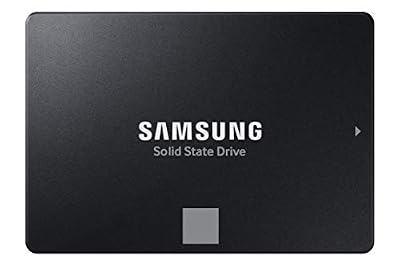
The middle-tier workhorse. SATA limits it to maker-rated reads up to 560 MB/s, but its access latency is still in a different world from any mechanical drive, which is what loading-screen games actually feel. It is also the easiest tier to add to a case with spare 2.5-inch bays.
Specs:
– Capacity: 1TB
– Interface: SATA III, 2.5-inch
– Maker-rated sequential read/write: up to 560/530 MB/s
– Model: MZ-77E1T0B/AM
Seagate IronWolf 8TB NAS Hard Drive

The archive tier, sized for hoarders. Eight terabytes of CMR mechanical storage holds a large parked library with room for mod archives alongside it. Its 7,200 RPM spindle and NAS-class rating suit a drive that lives powered on inside a desktop case.
Specs:
– Capacity: 8TB
– Interface: SATA 6Gb/s, 3.5-inch
– Spindle speed: 7,200 RPM, CMR recording, 256MB cache
– Maker-rated sustained transfer: up to 210 MB/s
– Model: ST8000VNZ04/N004
Samsung T9 Portable SSD 2TB

The shuttle between tiers and machines. A fast portable SSD earns its place as the transfer drive: moving a parked game from the archive tier to a laptop, or staging a big install without tying up the internal drives. Its USB 3.2 Gen 2×2 interface is rated by Samsung for transfers up to 2,000 MB/s on hosts that support it.
Specs:
– Capacity: 2TB
– Interface: USB 3.2 Gen 2×2, USB-C
– Maker-rated transfer speed: up to 2,000 MB/s
– Model: MU-PG2T0B/AM
FAQ
Does moving a game to a faster drive improve its frame rate?
No. Frame rates are set by the GPU and CPU once assets are loaded. A faster drive shortens load screens, speeds up fast travel, and reduces streaming pop-in and hitching in games that load the world as you move. If a game already loads quickly, moving it will change very little.
Should Proton prefixes and shader caches stay on the SSD even if the game is archived?
They follow the game by default, since Steam keeps the prefix and cache in the same library folder. For archived games that is fine. For games you play often, keep the whole installation on solid-state storage rather than splitting files across drives; the simplicity is worth more than the space saving.
Is a hard drive really that bad for modern games?
For games built around discrete loading screens, a hard drive is merely slow. For games that stream the world continuously, it can mean visible pop-in, late-sharpening textures and hitches that no graphics setting fixes, because the bottleneck is data delivery rather than rendering. That is why the archive tier is for parking games, not for playing the streaming-heavy ones.
How often should games move between tiers?
As often as your rotation changes, and no more. Steam’s built-in move function makes a transfer a local copy, far quicker than re-downloading a large game. A sensible rhythm is to promote a game to the fast tier when you start playing it and demote it to the archive when you finish.
Final verdict
Placement is the cheapest performance decision in a Linux gaming PC, because it costs nothing but a few minutes of moving files. The rule that covers almost every library is short: actively played streaming-heavy games on the fastest NVMe, everything with a loading screen on any solid-state drive you own, and everything else parked on the biggest mechanical drive you have. Keep each active game’s prefix and shader cache on the same solid-state tier as the game itself, and the tiers will quietly take care of the rest.