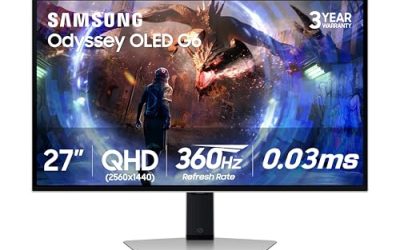
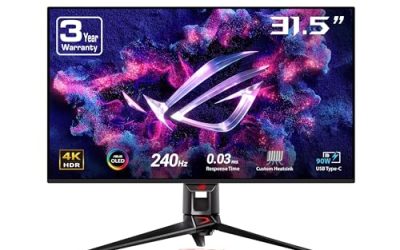
Enough is not the highest number on the box. It is the refresh rate your games, graphics card and panel can actually use together, without paying for frames you never see. A shooter player chasing ranked wins, a story-game player at 1440p and a console player sharing a desk all need different answers, even though shops rank monitors as if one ladder fits everyone.
This guide serves those three groups, plus mixed office-and-gaming users who want one screen to do both jobs well. It works from published panel specifications, console output limits and frame-rate ranges you can check in your own games, across refresh rate, resolution and connectivity rather than headline claims alone, and it names a source wherever a measured figure would otherwise be needed.
As an Amazon Associate we earn from qualifying purchases.
How to Choose
Start With the Games You Actually Play
Fast competitive titles reward extra refreshes because targets cross the screen quickly and camera turns happen constantly. Valorant, Counter-Strike 2 and Apex Legends stay readable at 240Hz when frame rates stay high. Slower games behave differently. Turn-based strategy, city builders and most story adventures update calmly, so moving from 60Hz to 144Hz feels clear, while jumping beyond that changes little. Racing and sports titles sit between those extremes. List your three most-played games first, note how fast their action moves, and let that pace set your ceiling before resolution or size enters the discussion.
Match the Monitor to What Your GPU Can Feed
A monitor cannot display frames the graphics card never produced. Check average frame rates, and the dips in busy scenes, at the resolution you intend to run. If your card holds 90 to 140 frames per second at 1440p, a 144Hz or 165Hz panel fits. If it regularly passes 200 frames per second at 1080p in shooters, 240Hz has something to show. Resolution matters: the same card that flies at 1080p will work harder at 4K, so a higher resolution means accepting a lower, realistic refresh target. For example, a card averaging 130 frames per second in 1440p shooters but 75 in story titles makes 144Hz the match.
Weigh Panel Response, Size and Resolution Together
Refresh rate says how often the picture updates; pixel response says how cleanly each update arrives. A slow panel can smear moving objects even at a high Hz figure, so check the panel type alongside the headline number. Fast IPS suits most desks, VA brings stronger contrast for darker rooms, and OLED brings very fast pixel changes. Size interacts too. At 24 to 25 inches, 1080p looks fine and is easy to drive. At 27 inches, 1440p is sharper and more demanding. At 32 inches, 4K needs viewing distance and serious GPU power.
Check the VRR Range, Ports and Cable Limits
Variable refresh rate lets the display match each frame as it arrives, smoothing dips without tearing. Look at the full VRR window, not just the badge: a range that starts low covers menu pauses and heavy scenes better. FreeSync and G-Sync Compatible both do this job on PC, while consoles rely on HDMI VRR. Ports can quietly cap you. If you are new to the basics, our plain-English explainer of what refresh rate means covers the definition first. Use DisplayPort for high refresh on PC, confirm the HDMI version supports your target at your resolution, and keep the supplied cable.
Which One Fits Your Situation
Competitive Esports Player
Aim for 240Hz at 1080p or 1440p, provided your PC holds frame rates near that level in your main titles. You gain clearer target tracking during fast turns, and the smaller step beyond 240Hz matters only at the highest ranks. Prioritise panel response and a wide VRR range over extra size or 4K sharpness you cannot feed.
Story-Game Player on a Mid-Range GPU
A 144Hz or 165Hz monitor at 1440p is enough, and the smartest balance. Your games spend their budget on lighting, textures and resolution, so frame rates often sit below 200. That headroom feels far smoother than 60Hz, especially when panning across landscapes, without forcing settings down to chase an unused refresh ceiling. Turning on VRR lets those varying rates display cleanly when a busy town scene pulls performance below the average.
Console Gamer on PS5 or Xbox Series X|S
Target 120Hz, because consoles cap games at 120 frames per second and many titles run lower. Choose a monitor or TV input with HDMI VRR so dips stay smooth, and check that the HDMI port, not the panel, accepts a 120Hz signal at your resolution. Anything above 120Hz adds nothing for console play. Performance modes reach that ceiling, while quality modes in titles target 30 or 60 frames.
Office-Plus-Gaming Desk
Pick 144Hz at 1440p on a 27-inch panel for a single-screen desk. Text stays sharp for documents and spreadsheets, scrolling feels calmer than at 60Hz, and the same display handles evening gaming without swapping cables. Look for height adjustment and a USB-C or extra HDMI input if a work laptop shares the screen during the day.
Common Mistakes
- Buying a 240Hz or 360Hz monitor for a GPU that averages around 70 frames per second, leaving most of the refresh range permanently unused.
- Leaving the new display set to 60Hz in the operating system or game settings, then judging high refresh by a picture that never changed.
- Ignoring the bottom of the VRR range, so frame-rate dips below the window bring back tearing or stutter the badge promised to remove.
- Choosing 4K and maximum refresh together without checking whether the port, cable and GPU can deliver both at the same time.
- Judging motion by the Hz figure alone while overlooking slow pixel response, which can leave trails behind moving objects.
Frequently Asked Questions
Is 144Hz enough for most gamers?
Yes, for most players it is the practical answer. It covers mixed libraries, works at 1080p and 1440p on mid-range cards, and leaves headroom above 60 frames per second without demanding flagship hardware. Only competitive shooter players whose systems sustain far higher frame rates gain a clear, repeatable reason to move beyond it.
Can you see a difference between 240Hz and 360Hz?
Some competitive players notice slightly clearer motion, but the step is much smaller than the jump from 60Hz to 144Hz. Frame intervals shrink by simple arithmetic as Hz rises, so each further step buys less time than the last. Unless your PC sustains frame rates above 300 and you play ranked shooters seriously, 240Hz is enough.
Does a higher refresh rate help if my frame rate is low?
Not much on its own. The screen can only show new frames when the GPU or console sends them, so a low frame rate stays low on any panel. Variable refresh rate helps here instead, matching the display to uneven delivery and reducing tearing. Raising settings headroom or lowering resolution usually improves the picture more.
Should I choose 1440p at 144Hz or 1080p at 240Hz?
Choose by game type and GPU strength. Shooter-focused players who sustain very high frame rates get more from 1080p at 240Hz, where motion clarity comes first. Players with mixed libraries usually prefer 1440p at 144Hz, gaining sharper text and detail in every game while keeping a refresh rate their card can actually reach.