- Top Pick: DELL Optiplex 7060 SFF Desktop Computer PC | Intel 8th Gen i7-8700 (6 Core) | 32GB DDR4 Ram 512GB NVMe M.2 SSD | Built-in WiFi & Bluetooth | Windows 11 Pro | Wireless Keyboard & Mouse(Renewed)
- Best Value: Dell Optiplex 7050 SFF Desktop PC Intel i7-7700 4-Cores 3.60GHz 32GB DDR4 1TB SSD WiFi BT HDMI Duel Monitor Support Windows 11 Pro Excellent Condition(Renewed)
- Premium Choice: Dell Tower Desktop, Intel Core Ultra 7-265, 32GB RAM, Windows 11 Home
A desktop PC is built from eight essential pieces of computer hardware — the CPU, motherboard, RAM, storage, graphics card, power supply, case, and cooler — and everything else, from RGB fans to capture cards, is an optional add-on. If you’ve never opened a case and terms like “DIMM” and “PCIe” sound like alphabet soup, this is computer hardware for beginners explained piece by piece: what each part does, whether you actually need it, and how hard it is to swap out later.
As an Amazon Associate we earn from qualifying purchases at no extra cost to you.


The Must-Have Pieces of Computer Hardware
CPU (Processor)
The CPU is the brain: it runs the operating system, game logic, and every calculation that isn’t graphics. In 2026 you’re choosing between two families — AMD’s Ryzen chips on the AM5 socket (like the Ryzen 7 9800X3D, the current gaming favorite) and Intel’s Core Ultra chips on the LGA1851 socket (like the Core Ultra 7 265K). For pure gaming, a mid-range chip is enough; the graphics card matters far more.
Graphics Card (GPU)
The GPU is the artist: it renders every frame you see. It’s the single biggest factor in gaming performance and usually the most expensive piece of computer hardware in the box — anywhere from about $250 to $2,000+. Current options include NVIDIA’s RTX 50 series (RTX 5060 through 5090) and AMD’s RX 9000 series (like the RX 9070 XT). One beginner trap: a CPU with integrated graphics can run the desktop and light games with no dedicated card at all, which is a legitimate budget strategy.
Motherboard
The motherboard is the nervous system: every other component plugs into it, and it decides what you’re allowed to use. It determines your CPU socket (AM5 vs. LGA1851), your RAM type (DDR5 on all current platforms), how many M.2 SSD slots you get, and whether you have built-in Wi-Fi. Budget boards start around $120; there’s rarely a reason for a first-time builder to spend over $250.
RAM (Memory)
RAM is your desk space: the bigger the desk, the more work you can spread out at once. It holds whatever the PC is actively using — game assets, browser tabs, Discord — and empties when you power off. In 2026, 16GB of DDR5 is the floor for gaming and 32GB is the comfortable standard, usually $80–$150 for a two-stick kit. Always buy two sticks (2×16GB), not one: dual-channel mode can add 10–15% to frame rates on some systems.
Storage (SSD/HDD)
Storage is the filing cabinet: permanent home for Windows, games, and files. The standard is now an NVMe SSD — a gum-stick-sized drive that slots straight into the motherboard. A 1TB PCIe 4.0 drive runs roughly $60–$100 and loads modern games in seconds; PCIe 5.0 drives are faster on paper but make almost no difference to load times yet. Mechanical hard drives still exist for cheap bulk storage, but no gaming build should boot from one in 2026.
Power Supply (PSU)
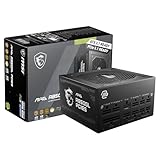
The PSU is the heart: it converts wall power into the voltages every component needs. It’s the one piece you should never cheap out on — a bad unit can take other parts down with it. Look for an 80 Plus Gold rating or better from a known brand, typically $70–$150, and check the worked wattage example below before picking a size.
Case and Cooler
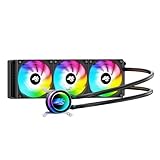
The case holds everything and, more importantly, controls airflow. A $70–$120 mid-tower with a mesh front panel outperforms a sealed glass showpiece every time. For cooling, a $35–$50 tower air cooler handles most CPUs; 240mm liquid coolers ($100–$150) make sense for high-end chips. Some CPUs include a stock cooler, though flagship chips like the 9800X3D and Core Ultra K-series do not.
Optional Add-Ons (You Can Skip All of These)
- Wi-Fi/Bluetooth card — only if your motherboard lacks it and Ethernet isn’t an option ($20–$40).
- Sound card or DAC — onboard audio is good enough for 95% of gamers.
- Extra case fans / RGB — most cases ship with enough fans; lighting is purely cosmetic.
- Secondary HDD — add cheap bulk storage later if the SSD fills up.
- Optical drive — genuinely obsolete; most modern cases don’t even have a bay.
- Capture card — only for streamers recording console gameplay.
Every Piece at a Glance
| Piece | Plain-language job | Required? | DIY upgrade difficulty | Typical 2026 price |
|---|---|---|---|---|
| CPU | Brain — runs everything | Yes | Medium (socket swap) | $150–$700 |
| GPU | Artist — renders game frames | Yes* | Easy (one slot, 2 screws) | $250–$2,000+ |
| Motherboard | Nervous system — connects all parts | Yes | Hard (full disassembly) | $120–$400 |
| RAM | Desk space — active workspace | Yes | Very easy (clip in) | $80–$150 (32GB) |
| SSD | Filing cabinet — permanent storage | Yes | Very easy (one screw) | $60–$200 |
| PSU | Heart — delivers power | Yes | Medium (cable rerouting) | $70–$180 |
| Case + cooler | Skeleton + lungs — structure and airflow | Yes | Easy–medium | $100–$270 combined |
*Unless your CPU has integrated graphics and you only play light games.
Worked Example: Sizing Your Power Supply
This is the calculation most spec sheets never show you. Add up peak power draw, then buy a PSU rated so that peak lands at 60–80% of its capacity — that’s where units run coolest and quietest:
- CPU (Ryzen 7 9800X3D under gaming load): ~120W
- GPU (RTX 5070, 250W TGP): ~250W
- Motherboard, 2× DDR5, NVMe SSD, 4 fans, cooler pump: ~100W
- Peak total: ~470W
470W ÷ 0.70 ≈ 670W, so round up to a 750W unit. Building around an RTX 5080 (360W) instead? That’s ~580W peak → 580 ÷ 0.70 ≈ 830W → buy an 850W. One more 2026-specific detail: RTX 50-series cards use the 12V-2×6 power connector, so look for a PSU labeled ATX 3.1 — it ships with that cable natively instead of a fiddly adapter.
The Easiest Pieces to Upgrade Yourself, Ranked
The best news for anyone learning computer hardware for dummies-style basics: the upgrades with the biggest impact are also the simplest.
1. RAM — 5 minutes, no tools
Power off, flip the PSU switch, press the clips on the DIMM slots, align the notch on the stick with the slot, and press until both clips click. Then the critical step everyone forgets: boot into BIOS and enable XMP (Intel) or EXPO (AMD). Without it, your DDR5-6000 kit runs at the fallback speed of 4800 MT/s and you paid for performance you never see.
2. SSD — 10 minutes, one screwdriver
An M.2 drive slides into a slot under a heatsink on the motherboard and is held by a single screw. Use a free M.2 slot and Windows sees it instantly — no cables, no reinstall. Check your manual: on some boards the second or third slot shares lanes and drops to slower speeds.
3. GPU — 15 minutes, two checks first
Before buying, measure case clearance (cards now run 300mm+) and confirm your PSU has the wattage and connectors from the calculation above. The swap itself is one PCIe slot, two screws, and the power cable. A new GPU is the single biggest FPS upgrade you can buy.
4. Everything else — plan, don’t improvise
CPU swaps mean checking socket compatibility and possibly a BIOS update; motherboard swaps mean rebuilding the whole PC. Doable, but not beginner territory.
Compatibility Traps That Catch First-Time Builders
- Socket mismatch: an AMD chip physically cannot fit an Intel board. AM5 and LGA1851 are the current sockets — verify before you buy either half.
- DDR4 vs. DDR5: they’re keyed differently and won’t fit the wrong slot. New builds should be DDR5 only.
- RAM slots matter: two sticks go in slots 2 and 4 (A2/B2), not side by side — check the manual, as it affects speed.
- Front-panel connectors: the fiddliest step in any build is the tiny power/reset pins; the motherboard manual has the diagram.
FAQ
What’s the bare minimum to get a PC to turn on?
Six pieces: CPU, motherboard, one stick of RAM, storage with an OS, PSU, and a cooler. If the CPU has integrated graphics, you don’t even need a graphics card to reach the desktop.
Which piece should I upgrade first?
For gaming: GPU first (biggest FPS gain), then storage if you’re still on a hard drive, then RAM if you’re under 16GB. Rule of thumb — upgrade whatever is at 100% usage in Task Manager while your game runs.
Is modern computer hardware really plug-and-play?
Almost. Every connector is keyed so it only fits one way, and nothing requires soldering. The two genuinely intimidating steps — mounting the CPU and wiring front-panel pins — are both covered by diagrams in the motherboard manual. A first build takes a patient afternoon, not a computer science degree.