The fastest way to fix FPS drops is to find out which part is the limit before changing settings: open a monitoring tool, watch CPU, GPU, temperature and VRAM while the drop happens, then work through the safe steps in order, starting with a clean driver update, closing background apps and lowering the setting that matches the bottleneck. Most drops come from a short list of causes: overheating, running out of VRAM, background tasks, outdated drivers or a storage or shader-compilation hitch.
- Quick reference: symptom, likely cause, first fix
- Step 1: Measure before you tweak
- Step 2: Safe software fixes first
- Step 3: Heat and throttling
- Step 4: VRAM and graphics settings
- Step 5: Shader cache and storage
- Step 6: Settings to treat with care
- When to stop and get help
- A simple testing routine
- Frequently Asked Questions
Quick reference: symptom, likely cause, first fix
| Symptom | Common cause | First fix |
|---|---|---|
| FPS falls after 10-30 minutes, fans loud | Thermal throttling | Clean dust (powered off and unplugged), improve airflow, check fan curves |
| Big drops only at high or ultra textures | VRAM full | Lower texture quality one step, use DLSS or FSR |
| Short freezes every few seconds in a new area or new game | Shader compilation or slow storage | Let the game finish compiling, move it to an SSD, keep the shader cache enabled |
| Random dips while idle apps run | Background tasks (updates, scans, browser, overlays) | Close apps, pause updates and scans while playing |
| Low FPS from the start, GPU usage low | CPU limit or wrong GPU in use | Check which GPU the game uses, lower CPU-heavy settings |
| Stutter after a driver or Windows update | Driver or setting change | Reinstall the driver cleanly or roll back |
| Laptop only: low FPS on battery | Power limits | Plug in and select a performance power mode |
Step 1: Measure before you tweak
You need to see what is happening. Free tools such as MSI Afterburner with RivaTuner, HWiNFO, or the performance overlay in the GPU maker’s app can show frame rate, frame time, CPU and GPU usage, temperatures and VRAM use. Guides commonly point to these signs:
- GPU usage near 99% and FPS low: the GPU is the limit, so lower graphics settings or use upscaling.
- GPU usage low and one CPU thread near maximum: the CPU is the limit, so lower CPU-heavy settings such as crowd density, view distance and physics.
- Clocks that fall as temperatures climb: thermal throttling.
- VRAM usage at the card’s limit: texture settings are too high for the memory.
- Spikes in the frame-time graph with smooth averages: stutter, usually from shader compilation, storage or background tasks.
Step 2: Safe software fixes first
- Update the graphics driver. Download the current driver from the GPU maker (NVIDIA, AMD or Intel). Most installers offer a clean or custom install option. If problems started right after an update, try the previous driver version instead.
- Update the game and Windows. Many drops are fixed by game patches. Restart after updates so background installation does not run while you play.
- Close background apps. Browsers with many tabs, launchers, recording tools and overlays use CPU, memory and sometimes GPU. Use Task Manager to see what is consuming resources, and keep one overlay at a time.
- Turn on Windows Game Mode. It is found under Settings, then Gaming, then Game Mode. Guides report that it reduces background interruptions such as update installs, though gains are small. If the game bar’s background recording is running, switching it off under the Captures settings may help on some systems.
- Select a suitable power mode. Windows’ Balanced plan is fine for many PCs, but if clocks stay low, switch to a Performance power mode in the Windows power settings or the PC maker’s utility. Plug in laptops.
- Check the game is using the right GPU. On laptops and PCs with integrated graphics, open Settings, then System, then Display, then Graphics, and set the game to use the high-performance GPU.
Step 3: Heat and throttling
If frame rate starts well then falls, overheating is a prime suspect. Sources describe throttling beginning when a CPU or GPU gets near the 90 degree C range, although each chip has its own limits listed by its maker. HWiNFO can show throttling flags directly.
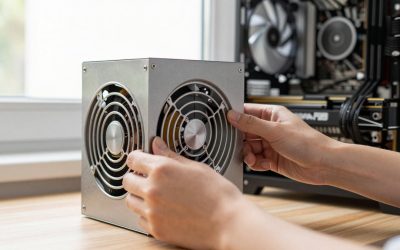
- Power the PC off and unplug it before opening the case. Never open a power supply, even when unplugged.
- Clean dust from filters, fans and heatsinks with short bursts of compressed air, holding fans still so they do not overspin.
- Make sure the case has clear intake and exhaust paths, and cables are not blocking airflow.
- Confirm the CPU cooler is firmly mounted and its fan or pump is spinning. If a PC is several years old and temperatures remain high, reapplying thermal paste may help, but only if you are comfortable doing it; otherwise ask a technician.
- Avoid blocking laptop vents and consider a stand for better airflow.
Step 4: VRAM and graphics settings
When video memory is full, the game spills data into slower system memory and frame time spikes. This is more likely on cards with 8GB or 12GB at high resolution. Reviewers of mid-range cards such as the RTX 5070 report that heavy path tracing combined with frame generation can exhaust 12GB in the newest games.
- Lower texture quality by one step first.
- Reduce ray tracing or shadow quality, which cost both speed and memory.
- Turn on DLSS (NVIDIA), FSR (AMD) or XeSS (Intel) at Quality or Balanced to lower the internal resolution.
- Close other apps that use video memory, such as browsers with hardware acceleration and capture tools.
- Cap the frame rate slightly below your monitor’s refresh rate and use variable refresh rate if your monitor supports it, which smooths perceived drops.
Frame generation raises the displayed frame rate but cannot fix low base performance, and it adds latency, so use it when the base frame rate is already healthy.
Step 5: Shader cache and storage
Games compile shaders when they meet new effects. A short stutter the first time an effect appears is common, and it usually fades as the cache fills. Practical points:
- Keep the game on an SSD. Hard drives can cause texture pop-in and hitching in large open-world games.
- Leave the driver’s shader cache enabled. NVIDIA’s control panel and app include a Shader Cache Size setting, and a driver install normally clears the cache, so the first sessions after an update can stutter more.
- Let games that offer a shader pre-compile step finish it before playing.
- Keep at least 10-15% of the SSD free, since a nearly full drive can slow down.
Step 6: Settings to treat with care
Some changes are optional and can backfire, so make one change at a time and test the result in the same scene.
- Hardware-accelerated GPU scheduling: Sources disagree about its effect. It is required for DLSS Frame Generation on RTX 40 and 50 cards, so only turn it off if you have a reason and no need for frame generation.
- Memory profiles (XMP or EXPO) and overclocking: These live in the BIOS, where menu names vary by motherboard, so use the manual. They can cause crashes or instability and may void warranties. Return to defaults if you see errors.
- Disabling Windows security features: Some guides suggest turning off virtualization-based security for a few percent more speed. This reduces protection, so weigh it carefully.
- Registry tweaks and “booster” apps: Skip them. They rarely help and can create new problems.
When to stop and get help
Contact the PC or component maker, or a technician, if the system shuts down from heat, fans fail, you see crashes or artifacts on screen, or you spot discolored or melted parts on a power connector. For the 12VHPWR or 12V-2×6 connector, follow the GPU and power supply makers’ guidance and stop using the card if there is heat damage. A failing drive or power supply can also look like a performance problem, so error logs or SMART warnings are a reason to seek help.
A simple testing routine
To avoid guessing, pick one repeatable scene, such as a loading area or built-in benchmark, and note the average and lowest frame rate. Change one thing, repeat the scene, and compare. If nothing improves after drivers, background apps, temperatures and settings have been addressed, the bottleneck is likely the hardware itself. Keep notes of what changed so you can undo anything that made matters worse, and return any BIOS or driver setting to its default if stability suffers.
Frequently Asked Questions
Why does my FPS drop suddenly in games?
Common reasons are thermal throttling, a full VRAM buffer, background tasks and shader compilation. Watching CPU, GPU, temperature and VRAM in an overlay while the drop occurs will show which one applies.
Does Windows Game Mode help?
It can reduce interruptions from background activity, but guides describe the gain as small. It is safe to leave on and worth trying early.
Should I update my graphics driver?
Usually yes, because maker releases include game-specific fixes. If a problem began right after an update, roll back to the previous version and wait for the next release.
Is 8GB of VRAM enough?
For 1080p it often is, but newer games at high texture settings can exceed it, causing stutter. Lowering textures or using upscaling usually helps.
Will a faster SSD stop stutter?
It helps with loading and streaming hitches, particularly versus a hard drive. It does not fix a CPU, GPU or thermal bottleneck.
When is it time to upgrade hardware?
If the monitoring tool shows your GPU or CPU at full usage in most games at your target settings, and lowering settings gives poor visuals, an upgrade of the limiting part is the logical next step.