Knowing how to choose CPU for streaming is less about buying the biggest chip on the shelf and more about matching the processor to the way you actually broadcast. A stream asks a PC to do two demanding jobs at once: run the game smoothly and compress live video in real time. The right choice depends on your encoder, your games, your platform, and the rest of the system around it. This guide walks through each decision in order, so you can spend where it changes the broadcast.
As an Amazon Associate we earn from qualifying purchases.
Begin with your streaming setup, not the CPU. Write down the facts of your broadcast. Which platform do you stream to, Twitch or YouTube? What resolution and frame rate do you target: 1080p60 or 720p60? Which games fill most of your schedule, and do they lean on the CPU or the GPU? Do you run a single PC, or do you plan a second PC with a capture card? A competitive shooter at 1080p on a single PC is a different workload from a slow-paced simulation at 1440p, and a dual-PC setup barely asks the gaming PC to encode. List the software you run during a broadcast too: OBS Studio, a browser, Discord, and music all consume processor time. When the workload is clear, the choice becomes a short list.
Cores and threads: the numbers that matter most. Streaming is one of the few gaming workloads where core count has a direct effect. Each core is a worker, and each thread is a line of work a core can handle. Gaming alone keeps a handful of threads busy, but a live broadcast adds encoding, scene compositing, audio mixing, and background apps on top. For a single PC, six cores with twelve threads is a sensible floor for modern titles. Eight cores with sixteen threads is the comfortable middle ground for most streamers, leaving headroom for the encoder and background software. Twelve or sixteen cores make sense for software encoding at demanding presets or CPU-heavy simulation and strategy games. Beyond that, extra cores add little for most broadcasts, and the money is better spent on the GPU, RAM, or cooling. Check the thread count, not just the core count: a chip with simultaneous multithreading handles twice as many threads as its core count, which matters when OBS Studio, the browser, and the game all want time at once. Intel hybrid chips add efficiency cores beside performance cores, and the smaller cores suit background tasks while the performance cores carry the game.
Software encoding vs hardware encoding. The first decision is how the video gets compressed. Software encoding with x264 runs entirely on the CPU. It can deliver excellent picture quality at a given bitrate, especially at slower presets, but it consumes cores and can pull frames from the game. Hardware encoding moves the work to a dedicated media block: NVENC on NVIDIA cards, Quick Sync on Intel processors with integrated graphics, and AMF on AMD cards. A hardware encoder frees the CPU almost completely, which is why many single-PC streamers use one. The trade is control: software encoding gives fine-grained quality settings, while hardware encoding gives low CPU usage with quality set by the encoder generation. Modern hardware encoders have narrowed the quality gap, and the newest generations support AV1, a codec that squeezes more quality from the same bitrate where platforms accept it. That choice decides how much CPU you need. Encode on the GPU with NVENC or a similar block, and a strong gaming CPU with six or eight cores is plenty. Encode on the CPU with x264, and core count moves to the top of the priority list. There is no universal winner, only the encoder that fits your games and hardware.
x264 presets, explained in plain language. With software encoding, OBS Studio offers a ladder of x264 presets, from ultrafast to veryslow. Each step down spends more CPU time squeezing better quality from the same bitrate. Ultrafast and superfast ask little of the processor but produce a softer image. Veryfast is a common middle ground for single-PC streaming. Faster and fast need a strong multi-core chip to hold frame rate steady. Medium is where software encoding shines visually, but it demands a high core count. Slow and slower suit only dedicated streaming PCs with many cores. A useful rule: pick the slowest preset that holds your frame rate steady during a busy scene, then step back one notch for safety. Dropped frames in the game and skipped frames in the encoder both mean the preset is too demanding for the chip. These presets are settings inside the encoder, not promises on the processor box; judge them by watching frame delivery during a real broadcast.
Clock speed, cache, and single-core performance. Core count is not the whole story. Games still depend on how quickly a single core can finish its work, so clock speed and instructions per clock matter for frame rate. A chip with fewer, quicker cores can outplay a chip with many slower cores in games that split poorly across threads. Cache matters too: a large pool of fast cache keeps game data close to the cores, and stacked-cache designs have earned a strong reputation among gamers. Boost clocks on the box are manufacturer figures measured under ideal conditions, so treat them as a ceiling, not a promise. Sustained clocks during a long broadcast depend on cooling, power limits, and the motherboard. When you compare two processors, look at independent frame rate measurements for the games you play, not boost numbers alone. The gap between two chips in a benchmark table is often smaller than the gap between a well-cooled system and a hot one.
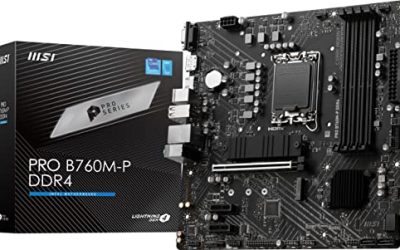
AMD vs Intel: what actually differs for streamers. Both vendors make excellent streaming CPUs; the differences are about platform features, not a simple ranking. AMD Ryzen chips on AM5 use DDR5 memory and offer strong multi-core value, with some models carrying extra stacked cache for gaming. Intel Core chips on the LGA1700 and LGA1851 platforms offer hybrid core designs, and non-F models include integrated graphics with Quick Sync, a capable hardware encoder in its own right. That matters: an Intel chip with integrated graphics gives a hardware encoding option even if your graphics card is busy or older. An AMD chip without integrated graphics leans on the discrete GPU or on x264. Socket and chipset decide your upgrade path, so check them first. If you are still picking parts, this guide to choosing a CPU walks through sockets, chipsets, and compatibility in more detail: guide to choosing a CPU. Match the motherboard to the chip: a budget board with weak power design can hold back a high-end processor under sustained load, while a mid-range board with solid power delivery is the smarter pairing. Memory support follows the platform: AM5 and LGA1851 use DDR5, while some LGA1700 boards still accept DDR4.
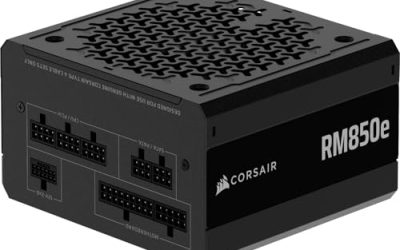
RAM, motherboard, and cooling. A streaming PC is a multitasking PC, and the supporting parts decide whether the CPU can do its job. Thirty-two gigabytes of RAM is the practical target for gaming plus streaming, since the game, OBS Studio, a browser, and chat tools add up quickly. Two matched sticks in dual-channel mode beat a single stick of the same total size, since dual-channel doubles memory bandwidth. The motherboard needs enough M.2 slots, enough USB ports for microphone, webcam, and capture devices, and power delivery that stays cool under a long broadcast. Cooling is not a luxury: a hot processor lowers its clocks to protect itself, and that shows up as stutter in the game and skipped frames in the encoder. A capable air cooler or closed-loop liquid cooler, good case airflow, and a sensible fan curve keep clocks steady through a multi-hour session. The power supply needs headroom above the combined draw of the CPU and GPU, since one near its limit runs hotter and louder.
Microphone, audio, and the streaming chain. The CPU does not decide how your voice sounds, but the audio chain around it shapes the broadcast. A USB microphone is the simplest path: it connects directly and works with OBS Studio. An XLR microphone needs an audio interface or mixer, which adds cost and desk space but gives finer control over gain. Keep the microphone close to your mouth and away from keyboard and fan noise. For codecs, Twitch and YouTube both accept AAC audio, typically at 160 kilobits per second, while Discord voice uses Opus. Noise suppression is where the CPU feels audio work: OBS Studio includes noise filters that run on the processor, and running several at once adds load. GPU-based noise removal moves that work to the graphics card instead. Audio processing is part of the CPU budget, so count noise suppression, a virtual audio mixer, and browser alerts when sizing the processor. A quiet room and a well-placed microphone do more for audio quality than any filter.
Match the CPU to your games. Different games ask different questions of the processor. Fast-paced competitive shooters reward high single-core speed and are often played at 1080p, where the CPU carries more of the load. Open-world and simulation games with many characters and systems on screen reward core count and cache. Strategy games with large maps and many units keep a processor busy regardless of graphics settings. Resolution changes the balance: at 1080p the CPU is more often the limit, while at 1440p and 4K the GPU takes on more work and the CPU matters less for raw frame rate, though it still handles encoding, audio, and background tasks. Your frame rate target matters too. A 60 frame-per-second broadcast is far easier on the processor than a 144 frame-per-second competitive session with a 60 frame-per-second stream beside it. Set the goal first, then choose the chip that holds it.
A simple decision framework. Work through these steps in order. First, name your platform and its limits: Twitch caps video bitrate near 6,000 kilobits per second, while YouTube allows higher bitrates, so the platform shapes what your encoder settings can deliver. Second, choose your encoder: hardware encoding points to a six- or eight-core gaming CPU, while software encoding with x264 points to eight cores or more. Third, list your games and note the CPU-heavy ones. Fourth, set your resolution and frame rate targets. Fifth, count the background software you run. Sixth, pick the platform and motherboard with the socket, memory type, and upgrade path. Seventh, budget for cooling and RAM before spending the rest on a faster chip. A balanced system with a mid-range processor, 32 gigabytes of RAM, solid cooling, and a capable hardware encoder produces a smoother broadcast than a flagship processor in a system with weak cooling and a single stick of memory.
Mistakes to avoid. The most common error is buying cores you will never use while ignoring the encoder. Another is trusting boost clock numbers without checking cooling and power delivery, since a chip that cannot hold its clocks will not perform as its box suggests. A third is pairing a strong processor with a budget motherboard whose power stages overheat in long sessions. A fourth is forgetting that a capture card is only needed for console or dual-PC streaming; a single-PC creator gains nothing from it. A fifth is copying a creator’s settings: a preset that works on a sixteen-core streaming PC can choke a six-core gaming PC. Finally, do not judge a processor by its spec sheet alone: manufacturer figures describe the chip in isolation, while a broadcast is a whole system under load, and the honest measure is steady frame delivery.
How many cores do I need for streaming?
Six cores with twelve threads is a workable floor for gaming and streaming on one PC, and eight cores with sixteen threads is the comfortable middle ground. More cores help with x264 at slower presets or CPU-heavy games. Beyond sixteen cores, the benefit for a typical broadcast is small.
Is software encoding or hardware encoding better for streaming?
Neither is better in every case. Software encoding with x264 offers fine control and strong quality at slower presets, but it consumes cores. Hardware encoding with NVENC, Quick Sync, or AMF frees the CPU and suits most single-PC setups. Choose the encoder first, then size the CPU around it.
Can I stream and game on the same PC?
Yes, and most creators do. A single PC needs enough cores for the game plus encoding, enough RAM for background tools, and cooling that holds clocks steady. Hardware encoding makes it easier by moving compression to the GPU. A second PC only makes sense when you want the gaming PC untouched by encoding.
Do I need a separate capture card to stream?
No, not for PC gaming on a single machine: OBS Studio captures the game directly from the GPU. A capture card is needed when the game runs on a console or a second PC, because it carries the video signal to the capture software.