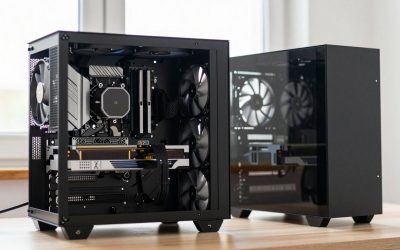
RGB Fusion is Gigabyte’s lighting software that controls and synchronises RGB across compatible motherboards, graphics cards, RAM, fans and peripherals. Set up well, it makes a build look cohesive; set up poorly, colours clash.
- Where RGB Fusion Lives Now
- Syncing Components
- Effects and Customisation
- Integrating Non-Gigabyte Parts
- Troubleshooting RGB Sync
- Keeping It Simple
- Avoiding RGB Software Conflicts
- Designing a Clean Look
- Final Thoughts and Quick Recap
- Keeping Your PC in Good Shape
- A Quick Checklist
- Where to Go From Here
- Frequently Asked Questions
- Related Guides
This guide explains how to use RGB Fusion (now part of Gigabyte Control Center) to sync your RGB lighting.
Where RGB Fusion Lives Now
RGB Fusion was a standalone app but is now integrated into Gigabyte Control Center on current systems. If you have an older setup you may still run RGB Fusion 2.0 separately; on new boards, use the RGB module inside Control Center.
Download it only from Gigabyte’s official site for your model.
Syncing Components
Within the RGB module, you can apply a single colour and effect across all compatible components at once, or control each device individually. Syncing everything to one effect is the quickest way to a clean, unified look.
Compatible RAM, fans and peripherals appear automatically; each can follow the global effect or run its own.
Effects and Customisation
RGB Fusion offers effects like static colour, breathing, cycle, wave and music-reactive modes. Start with a simple static colour or slow breathing for an elegant look, or use cycling effects for a livelier build.
You can set different zones, such as matching your GPU and RAM while contrasting the case fans, for a more designed result.
Integrating Non-Gigabyte Parts
RGB Fusion controls Gigabyte components and addressable RGB headers on the board. Third-party RGB devices connected to those headers can be controlled too, though some peripherals need their own software running alongside.
For a fully unified look, connect RGB parts to the motherboard’s headers where possible.
Troubleshooting RGB Sync
If lighting will not sync, ensure Control Center and its RGB module are updated, that components are on supported headers, and that no competing RGB app is fighting for control. Running two RGB apps at once is the most common cause of glitches.
A reboot after changing settings often resolves devices that fail to update.
Keeping It Simple
RGB is best used sparingly for a premium look. A single accent colour across components usually looks better than many clashing effects, and static or slow effects are less distracting during gaming.
Save flashy music-reactive modes for showing the build off rather than everyday use.
Avoiding RGB Software Conflicts
The most common RGB headache is two apps fighting for control, causing flickering or ignored settings. Run only one RGB controller where possible. If a peripheral needs its own app, let it manage only that device while RGB Fusion handles the rest.
Closing competing RGB software and rebooting resolves most sync glitches.
Designing a Clean Look
A cohesive build usually uses one or two colours rather than a rainbow of clashing effects. Match your GPU, RAM and fans to a single accent colour, use static or slow breathing effects for elegance, and save reactive modes for showing the build off.
Restraint with RGB almost always looks more premium than maximum brightness and motion.
Final Thoughts and Quick Recap
Gigabyte RGB Fusion comes down to a few simple habits: use trusted, official sources, change one thing at a time, and confirm the result before moving on. That keeps your PC stable and saves hours of guesswork, whether you are a first-time builder or a seasoned enthusiast.
The guidance above on gigabyte rgb fusion is quick, safe and reversible, so there is little risk in following it. A little care now pays off across every game and task you run, and it keeps the rest of your build healthy too.
Bookmark this guide and revisit it whenever you upgrade a part or hit a new issue, and use the related guides below to keep the whole system in top shape. Consistent small maintenance always beats occasional big fixes.
Keeping Your PC in Good Shape
Whatever brought you to this guide on gigabyte rgb fusion, the same principle applies across your whole system: small, regular attention prevents big problems later. Keep drivers and firmware current on a sensible schedule, watch your temperatures, leave some free space on your drives, and enable your memory profile so the hardware you paid for runs at full speed.
None of this needs deep technical knowledge or costly tools; the free utilities and official software mentioned here are enough to keep a gaming PC fast and reliable for years. Building these habits now means fewer nasty surprises when you are in the middle of a game you love.
A Quick Checklist
Before you finish with gigabyte rgb fusion, run through the essentials one more time: use official software and sources, apply changes one at a time, verify each result, and keep a note of what you changed. This simple discipline turns a fiddly task into a repeatable, low-stress routine.
If something does not work as expected, undo the last change rather than piling on more, and re-check from a known-good state. Most problems around gigabyte rgb fusion come from changing too much at once rather than from the change itself.
Where to Go From Here
With gigabyte rgb fusion handled, it is worth giving the rest of your system the same quick attention: confirm drivers and firmware are current, temperatures are healthy, drives have free space, and your memory profile is enabled. A balanced, well-maintained PC performs better and lasts longer than one where a single part has been over-tuned.
The related guides below cover these neighbouring topics, so you can keep the whole build in good shape rather than fixing one thing while another quietly holds you back.
Frequently Asked Questions
What is Gigabyte RGB Fusion?
Gigabyte’s RGB lighting software, now part of Gigabyte Control Center, that syncs lighting across compatible components.
How do I sync RGB with RGB Fusion?
Open the RGB module in Gigabyte Control Center, choose a global colour and effect, and apply it to all compatible components at once.
Why won’t my RGB sync?
Usually a competing RGB app, outdated software, or components on unsupported headers; close other RGB apps, update, and reboot.
Can RGB Fusion control non-Gigabyte parts?
It controls addressable RGB on the board’s headers, so many third-party parts work, though some peripherals need their own software too.
Related Guides
- Gigabyte Control Center: Guide and Download
- How to Update Gigabyte BIOS Safely
- What Is AORUS? Gigabyte’s Gaming Brand Explained
- Best CPU Coolers for Gaming in 2026