Gaming on Linux Mint has come a long way, and in 2026 it is genuinely one of the most approachable ways to leave Windows behind without sacrificing your Steam library. Linux Mint pairs a familiar, Windows-like Cinnamon desktop with the rock-solid Ubuntu LTS base, so you get stability, long-term support, and a gentle learning curve. Thanks to Valve’s Proton compatibility layer, thousands of Windows-only titles now run on Linux with little more than a single click. This guide walks you through the complete setup: installing Steam and Proton, sorting out NVIDIA and AMD GPU drivers, adding Lutris and Heroic for games outside Steam, and squeezing out extra frames with GameMode and MangoHud. We will also weigh honestly whether Mint is the right gaming distro for you, or whether a purpose-built option makes more sense.
- Why Consider Gaming on Linux Mint in 2026?
- Step 1: Installing Steam and Proton on Linux Mint
- Step 2: GPU Drivers for Gaming on Linux Mint (NVIDIA vs AMD)
- Step 3: Lutris and Heroic for Non-Steam Games
- Step 4: Performance Tuning with GameMode and MangoHud
- Comparison: Key Tools for Gaming on Linux Mint
- Hardware Tips for a Smooth Experience
- Is Linux Mint the Right Gaming Distro for You?
- Related Guides
- Frequently Asked Questions
- Related Articles
As an Amazon Associate we earn from qualifying purchases. Prices and availability are accurate as of the date/time indicated and are subject to change.
Related guide: Nobara linux
As an Amazon Associate we earn from qualifying purchases at no extra cost to you.








Prime
Editor's Pick
V-one Wired USB Gaming Controller Gamepad Joystick for PC (Windows XP/7/8/10/11) & Steam & Android & PS3 – Red

Prime
Limited Time
Logitech G F310 Wired Gamepad Controller Console Like Layout 4 Switch D-Pad PC – Blue/Black

Quick answer: For most people in 2026, the best way to game on Linux Mint is the Steam + Proton — our top overall pick below. See the full ranked comparison, budget alternatives and buying advice in the guide.
🛒 Best Price Today on Amazon
Prime members get fast, free shipping on everything above, plus member-only deals. New members get a 30-day free trial — cancel anytime.
Why Consider Gaming on Linux Mint in 2026?
Linux Mint is not a “gaming distro” in the marketing sense, and that is precisely why many people like it. It is a general-purpose desktop that happens to game extremely well once configured. The Cinnamon edition feels immediately familiar to anyone coming from Windows 10 or 11, with a taskbar, start menu, and system tray in all the expected places. Because Mint is built on Ubuntu LTS, driver support and package availability are excellent, and the system rarely breaks on updates. For a gaming rig you want to actually play on rather than constantly maintain, that stability is worth a lot.
The trade-off is that Mint ships with older kernel and Mesa graphics-stack versions than bleeding-edge distros, which occasionally matters for brand-new GPUs. The good news is that this gap is easy to close with a few extra steps, which we cover below. If you are still comparing options, our guide to the best linux distro for gaming lays out the full landscape.
Step 1: Installing Steam and Proton on Linux Mint
Steam is the heart of gaming on Linux Mint. Open the Software Manager, search for Steam, and install it, or grab the official .deb from Steam’s website for the most current client. Once Steam is running and you have logged in, enable Proton by going to Steam > Settings > Compatibility and ticking “Enable Steam Play for all other titles.” Select the latest Proton version, or better yet, install Proton GE (GloriousEggroll’s community build) for improved compatibility with tricky titles.
Understanding Proton and ProtonDB
Proton is a compatibility layer that translates Windows game calls into something Linux understands, bundling Wine, DXVK, and VKD3D under the hood. Before buying or launching a game, check ProtonDB.com, a community database that rates how well each title runs. Games rated “Platinum” or “Gold” typically work flawlessly. Many players report that the majority of their single-player library runs identically to Windows once Proton is enabled.
Step 2: GPU Drivers for Gaming on Linux Mint (NVIDIA vs AMD)
Getting your graphics drivers right is the single biggest factor in performance. Mint makes this refreshingly simple through its Driver Manager tool.
NVIDIA on Linux Mint
Open Driver Manager and select the recommended proprietary NVIDIA driver (the 500-series or newer in 2026). Proprietary NVIDIA drivers now offer strong Vulkan performance and support technologies like DLSS through Proton. After installing, reboot. If you own an RTX card and want the latest features, you may add the graphics-drivers PPA to get newer driver releases than the ones in Mint’s default repositories.
AMD on Linux Mint
AMD is the smoother path for many Linux gamers because its drivers are open-source and baked directly into the kernel and Mesa. In most cases AMD Radeon GPUs work out of the box with no installation required. To get the best performance from newer Radeon cards, however, you will want a more recent Mesa version. Adding the kisak-mesa PPA upgrades your graphics stack and can meaningfully boost frame rates. This is why many first-time switchers prefer AMD for a hassle-free experience.
Step 3: Lutris and Heroic for Non-Steam Games
Your library is not limited to Steam. Two tools extend gaming on Linux Mint to virtually every storefront.
Lutris is an open-source game manager that provides community-maintained install scripts for Epic Games, GOG, Battle.net, EA App, emulators, and standalone Windows games. It automates the fiddly Wine configuration so you can install and launch with minimal effort. Heroic Games Launcher is a clean, modern client specifically for the Epic Games Store, GOG, and Amazon Games, letting you claim free Epic games and manage your GOG catalog natively on Linux.
Step 4: Performance Tuning with GameMode and MangoHud
Once games are installed, two lightweight utilities help you optimize and monitor them.
Feral GameMode is a daemon that temporarily applies performance optimizations while a game runs, adjusting the CPU governor to performance mode, tweaking scheduling, and more. Install it and add gamemoderun %command% to a game’s Steam launch options. MangoHud is an on-screen overlay that displays FPS, frame times, CPU/GPU temperatures, and usage in real time, invaluable for diagnosing stutter or thermal throttling. Add mangohud %command% to your launch options, or combine both: gamemoderun mangohud %command%.
Comparison: Key Tools for Gaming on Linux Mint
| Tool/Method | What it does | Best for | Difficulty | Rating |
|---|---|---|---|---|
| Steam + Proton | Runs Windows games via compatibility layer | The core of your library; single-player titles | Easy | 5/5 |
| Lutris | Game manager with install scripts for many stores | Epic, GOG, Battle.net, EA, emulators | Moderate | 4.5/5 |
| Heroic Launcher | Native client for Epic, GOG, and Amazon Games | Free Epic games and GOG catalog | Easy | 4.5/5 |
| Feral GameMode | Applies CPU/system performance tweaks per game | Squeezing out extra frames automatically | Easy | 4.5/5 |
| MangoHud | On-screen FPS, temps, and usage overlay | Monitoring performance and diagnosing stutter | Easy | 5/5 |
Hardware Tips for a Smooth Experience
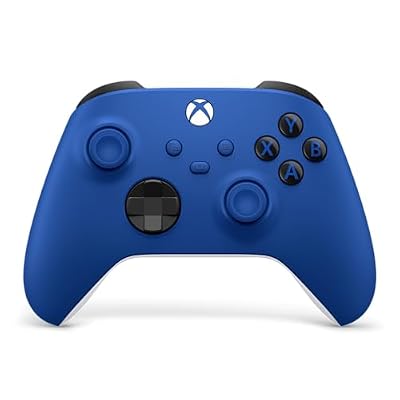
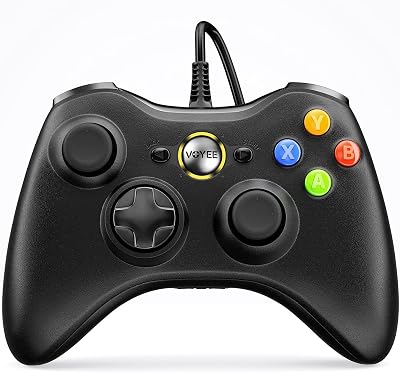
Software is only half the equation. For the best results gaming on Linux Mint, an AMD Radeon GPU generally offers the most trouble-free experience, while NVIDIA cards work well with the proprietary driver installed. On the peripheral side, a good wired or wireless gaming controller such as an Xbox controller pairs effortlessly with Steam Input, which handles remapping across nearly every game. A responsive gaming mouse with reliable Linux support rounds out the setup for competitive shooters. Steam’s built-in controller configuration is genuinely excellent and often works better than the equivalent on Windows, so do not overlook it.
Is Linux Mint the Right Gaming Distro for You?
Linux Mint is an outstanding choice if you value stability, a familiar desktop, and a system that doubles as a productive daily driver. It requires a few extra configuration steps for cutting-edge hardware, but nothing beyond the guidance above. If, however, you want a distro that ships pre-tuned for gaming out of the box, with newer kernels, drivers, and codecs already installed, you may prefer a gaming-first alternative. Explore our deep dives on nobara linux and bazzite, or see our full roundup of the best linux os for gaming to compare them side by side.
Frequently Asked Questions
Is Linux Mint good for gaming?
Yes. Linux Mint is a very capable gaming platform in 2026. With Steam and Proton, the vast majority of Windows games run well, and tools like Lutris, Heroic, GameMode, and MangoHud round out the experience. Its main limitation is slightly older graphics drivers by default, which is easily solved by adding a PPA for newer Mesa or NVIDIA releases.
Should I use NVIDIA or AMD on Linux Mint?
AMD is generally the smoother choice because its open-source drivers are built into the kernel and often work with zero setup. NVIDIA works well too, but requires installing the proprietary driver through the Driver Manager. If you are building a new rig specifically for Linux gaming, AMD tends to deliver a more plug-and-play experience.
Can you play anti-cheat games on Linux Mint?
It depends on the title. Many games with EasyAntiCheat or BattlEye have enabled Proton support and run fine. However, some competitive multiplayer games, notably certain kernel-level anti-cheat titles like Valorant and some Call of Duty releases, deliberately block Linux and will not run. Always check ProtonDB and the Area (Anti-cheat) compatibility list before purchasing a multiplayer game.
Is Linux Mint better than Bazzite or Nobara for gaming?
They serve different priorities. Bazzite and Nobara are gaming-first distros that ship with newer kernels, drivers, and gaming tweaks preconfigured, which is ideal for the latest hardware or a console-like setup. Linux Mint prioritizes stability and a familiar, versatile desktop, requiring a little manual tuning for gaming. If you want the least maintenance for cutting-edge gaming, Bazzite or Nobara may edge ahead; if you want a reliable all-rounder, Mint is hard to beat.
Ready to decide? Our #1 pick for 2026 is the Steam + Proton.
Live price & availability on Amazon.