- Top Pick: BOBOVR M3 Pro Battery Pack Head Strap Accessories, Compatible with Meta Quest 3/Quest 3S,Reduce Facial Stress,Magnetic Battery Swap Design
- Best Value: 8Bitdo Ultimate 2C Wireless Controller for Windows PC and Android, with 1000 Hz Polling Rate, Hall Effect Joysticks and Triggers, and Remappable L4/R4 Bumpers (Transparent Black)
- Premium Choice: GameSir Cyclone 2 Wireless PC Controller,1000Hz,TMR Joysticks | Hall Effect & Micro 2-in-1 Triggers, PC Gaming Controller for PC/Android/Switch/Switch 2 with Charging Dock
Controller support on Linux has come a long way. Between the kernel’s xpad driver and Valve’s Steam Input, most modern gamepads now work plug-and-play on Ubuntu, Fedora, Bazzite, and the Steam Deck. But not every controller is equal — some pair instantly, others need a quick tweak. Here are the best controllers for Linux and Steam Deck gaming in 2026, plus how to get them working.
- Best Controllers for Linux and Steam Deck: Quick Answer
- How Controller Support Works on Linux
- What to Look For
- Choosing the Right Controller for Your Linux Setup
- Our Top Controller Picks for Linux & Steam Deck
- Wired vs. Wireless on Linux
- Troubleshooting Controllers on Linux and SteamOS
- Getting Your Controller Working on Linux
- Related Guides
- More Controllers Worth Buying for Linux and Steam Deck
- Also Consider
- Best Controller for Linux: Quick Answers
- Frequently Asked Questions
- Related Articles
- Related Guides
Disclosure: As an Amazon Associate we earn from qualifying purchases, at no extra cost to you.
As an Amazon Associate we earn from qualifying purchases at no extra cost to you.

Updated October 2026 – controller picks and Linux notes rechecked against maker pages and current Steam Input behavior.
Best Controllers for Linux and Steam Deck: Quick Answer
Looking for the beste controller linux players recommend (German: “best controller for Linux”)? The safest picks are the 8BitDo Ultimate 2 for a premium wireless pad, the 8BitDo Ultimate 2C for a budget 2.4 GHz pad, and the Xbox Wireless Controller for plug-and-play support through the kernel xpad driver. Choose a wired Logitech G F310 if you only want zero setup.
Top Picks at a Glance
- Best premium wireless: 8BitDo Ultimate 2 · TMR sticks · 2.4G dongle · charging dock
- Best budget wireless: 8BitDo Ultimate 2C · Hall Effect sticks and triggers · 1000 Hz polling · under $50
- Best Xbox-layout pad: Xbox Wireless Controller · Bluetooth and USB-C · hybrid D-pad
- Best wired and cheap: Logitech G F310 · wired USB · 4-switch D-pad · under $30
- Best with back paddles: 8BitDo Pro 2 · Bluetooth · two pro back paddle buttons
How we chose: this guide is research-based and does not claim personal use of every pad. We compared maker specifications, listing details, published Steam Input and Linux documentation, and recurring buyer feedback.
🛒 Best Price Today on Amazon
Prime members get fast, free shipping on everything above, plus member-only deals. New members get a 30-day free trial — cancel anytime.
How Controller Support Works on Linux
The Linux kernel natively supports Xbox controllers via xpad, while Steam Input (built into Steam) adds configurable support for PlayStation, Switch Pro, and many third-party pads. On the Steam Deck and SteamOS, this is all handled automatically. For desktop Linux, plugging in an Xbox controller usually ‘just works’; Bluetooth pads pair through your desktop’s Bluetooth settings. The key thing to understand is that there are two layers at play: the kernel driver that exposes the controller to the system, and Steam Input, which remaps and standardizes that input for games. When a game is launched through Steam, Steam Input can make almost any pad behave like a standard controller.
What to Look For
- Xbox-layout controllers have the best out-of-the-box Linux support.
- Wired connections are the most reliable; Bluetooth/2.4GHz dongles add convenience.
- Steam Input compatibility means full remapping even for non-Xbox pads.
- Build quality & battery life matter for long sessions on a Deck or HTPC.
Choosing the Right Controller for Your Linux Setup
Your ideal pad depends on how you play. If you’re gaming at a desk or on an HTPC and want zero hassle, an Xbox-layout wired controller is the safest choice — it’s recognized by the kernel immediately and needs no configuration in or out of Steam. If you play on the couch with a Steam Deck docked to a TV, a low-latency wireless pad with a 2.4GHz dongle or solid Bluetooth is worth the small premium for freedom of movement. Competitive players who want extra buttons should look at pads with rear paddles, since Steam Input can bind those to any action.
Battery life and grip comfort matter more the longer your sessions run. A controller that feels great for a 30-minute test can become tiring over a three-hour session, so weigh ergonomics and weight alongside raw compatibility. For handheld-to-TV players, also consider whether the pad supports gyro aiming, which Steam Input exposes on many modern controllers for finer aim in shooters.
Our Top Controller Picks for Linux & Steam Deck
These are all popular, highly-rated controllers that play nicely with Linux and the Steam Deck. Check the latest prices below:


Wired vs. Wireless on Linux
Wired controllers are the gold standard for reliability on desktop Linux — plug in, and the kernel handles the rest with essentially zero latency and no pairing to lose. Wireless adds convenience but introduces two considerations: pairing method and latency. A dedicated 2.4GHz dongle typically delivers lower, more consistent latency than Bluetooth and pairs more predictably across distributions, which is why many Deck players prefer a dongle for docked play. Bluetooth is the most flexible since it needs no extra port, but occasional pairing quirks can appear on desktop Linux depending on your Bluetooth stack. When in doubt, a wired connection is the fastest way to rule out driver or pairing problems.
Troubleshooting Controllers on Linux and SteamOS
Most controller problems on Linux come down to a handful of causes, and they’re usually quick to fix. If a pad isn’t detected at all, switch to a wired connection first — this instantly rules out Bluetooth pairing issues and confirms whether the controller itself is recognized by the kernel. If a controller works on the desktop but not in a specific game, the culprit is often that the game bypasses Steam Input; launching it through Steam (adding it as a non-Steam game if needed) lets Steam translate the inputs. On the Steam Deck, if a paired Bluetooth controller acts erratically, re-pairing it from Settings → Bluetooth and keeping it close to the Deck resolves most dropouts. For desktop Linux, occasional Bluetooth quirks trace back to the system’s Bluetooth stack rather than the controller, so a 2.4GHz dongle is the more reliable wireless option when you need consistency. Finally, keep Steam and your distribution updated, since controller compatibility improvements land regularly in both.
Getting Your Controller Working on Linux
For Steam games, just enable the controller in Steam Settings → Controller and Steam Input handles the rest, including remapping and profiles you can save per game. For non-Steam games, an Xbox-layout pad is the safest bet because it’s recognized directly by the kernel without Steam in the loop. On the Steam Deck, external controllers pair via Settings → Bluetooth for big-screen/docked play. If a pad isn’t detected, a wired connection almost always resolves it — and if you need a non-Xbox controller to work outside Steam, launching the game through Steam as a “non-Steam game” lets Steam Input translate the inputs for you.
More Controllers Worth Buying for Linux and Steam Deck
The picks above cover the classics. These additional pads fill the budget, back-paddle and low-latency 2.4 GHz gaps, and each is listed with specs taken from the maker’s product title.
8BitDo Ultimate 2C – Best Budget 2.4G Controller

The 8BitDo Ultimate 2C suits Steam Deck owners who dock to a TV and want a wireless pad without a premium price. Its included 2.4 GHz receiver avoids Bluetooth pairing quirks, and Steam Input can remap everything.
- Windows PC and Android listed; works as a standard gamepad in Steam
- 1000 Hz polling rate
- Hall Effect joysticks and triggers
- Remappable L4/R4 bumpers
Pros: low cost, no-drift sensors, dongle connection. Cons: no charging dock, no listed Linux certification. Skip it if you want Bluetooth multi-device pairing or motion controls.
GameSir Cyclone 2 – Best for Feature Seekers

The GameSir Cyclone 2 is the most feature-packed pad here and suits players who switch between a PC, a Deck and a Switch.
- 1000 Hz polling
- TMR joysticks
- Hall Effect and micro 2-in-1 triggers
- PC, Android, Switch and Switch 2 compatibility
- Charging dock included
Pros: premium sensors, dock, multi-platform. Cons: pricier than the 8BitDo Ultimate 2C; extra features need setup in Steam Input. Skip it if you just want a basic gamepad.
Xbox Wireless Controller – Best Plug-and-Play Pad

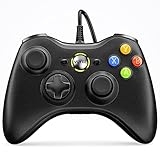
The standard Xbox Wireless Controller is the lowest-risk choice for desktop Linux because the kernel xpad driver recognizes Xbox-layout pads over USB.
- USB-C cable included in this bundle
- Bluetooth and USB connection
- Textured triggers and bumpers
- Hybrid D-pad
Pros: broad game support, familiar layout, easy replacement. Cons: no rear paddles, no dock. Skip it if you want back buttons or a dock.
Logitech G F310 – Best Wired Budget Pad

The Logitech G F310 is a simple wired gamepad for HTPCs, older desktops and anyone who wants a backup controller that never needs charging or pairing.
- Wired USB connection
- Console-like layout
- 4-switch D-pad
Pros: very low cost, no battery, no pairing. Cons: basic sticks, no back buttons, no wireless. Skip it if you play long sessions or want premium sticks.
8BitDo Pro 2 – Best for Back Paddles on a Budget
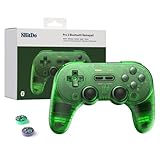
The 8BitDo Pro 2 is a classic-style Bluetooth pad that the maker lists for Steam Deck use, with extra back buttons that Steam Input can bind to any action.
- Hall Effect joysticks
- Two pro back paddle buttons
- Bluetooth connection
- Works with Switch, PC, Android, Apple, Steam Deck and Raspberry Pi
Pros: flexible layout, paddles, wide compatibility. Cons: Bluetooth only, no dongle. Skip it if you want a 2.4 GHz connection.
GameSir Nova Lite 2 – Best Low-Cost Hall Effect Pad

The GameSir Nova Lite 2 gives budget buyers Hall Effect sticks and triggers with a choice of 2.4G or wired connection.
- Hall Effect sticks and triggers
- 2.4G and wired modes
- 1000 Hz polling
- Remappable buttons
- PC, Switch, Steam and Android compatibility
Pros: affordable, anti-drift sensors, two connection options. Cons: lighter build than premium pads. Skip it if you want a charging dock.
8BitDo Pro 3 – Best Premium Bluetooth Pad

The 8BitDo Pro 3 targets players who want premium parts and SteamOS support listed by the maker.
- TMR joysticks
- Swappable ABXY buttons
- Pro back buttons
- Charging dock
- Hall Effect triggers; SteamOS and Apple support listed
Pros: premium build, dock, customization. Cons: highest price among these picks. Skip it if you are on a tight budget.
Also Consider
EasySMX X15 – Budget Wireless Steam Pad

The EasySMX X15 is a Steam-compatible wireless pad with Hall Effect joysticks, two back buttons, RGB lighting and a 1000mAh battery listed at 20 hours of playtime.
GuliKit ES PRO – Low-Latency Compact Pad

The GuliKit ES PRO lists 3.25 ms latency, magnetic TMR joysticks and a tactile-switch D-pad, with Windows and Steam Deck support.
Best Controller for Linux: Quick Answers
What is the best controller for Linux?
An Xbox-layout pad such as the Xbox Wireless Controller is the safest choice because the kernel xpad driver supports it. For wireless, the 8BitDo Ultimate 2 adds a 2.4G dongle and charging dock.
What is the best cheap controller for Steam Deck?
The 8BitDo Ultimate 2C and GameSir Nova Lite 2 are the low-cost wireless options here, both with Hall Effect sticks and 2.4G connections.
Are Hall Effect and TMR sticks worth it?
Both sensor types avoid the potentiometer wear that causes stick drift, so they help most for long sessions and heavy use.
Can Switch Pro and 8BitDo pads work without Steam?
Often yes over USB, but button mapping outside Steam varies by game, so launching through Steam Input is the dependable path.
Frequently Asked Questions
Do Xbox controllers work on Linux?
Yes — they’re natively supported via the kernel’s xpad driver and work plug-and-play in most games, whether you launch them through Steam or not. This makes an Xbox-layout pad the most hassle-free choice for desktop Linux, since there’s nothing to configure before it starts working.
Does the PS5 DualSense work on Linux and Steam Deck?
Yes, through Steam Input, including gyro and most features when used with Steam. Outside of Steam, support varies by game and distribution, so the most reliable path is to launch your games through Steam so Steam Input can standardize the DualSense’s buttons, triggers, and motion controls.
Wired or wireless for Linux gaming?
Wired is the most trouble-free, offering the lowest latency and no pairing to manage. Bluetooth and 2.4GHz dongles work well too and add freedom of movement, with a dedicated dongle generally providing steadier latency than Bluetooth. If you hit detection issues with a wireless pad, temporarily switching to wired usually confirms whether the problem is pairing or the game itself.
Do I need to install drivers for controllers on Linux?
In most cases no — modern distributions ship with the kernel drivers needed for Xbox-style pads, and Steam Input covers the rest for PlayStation and Switch controllers. You typically only need extra tools for niche or older third-party pads, and even then Steam’s built-in controller support handles the majority of gamepads without manual driver installation.
Can I use rear paddles and extra buttons on Linux?
Yes, provided the controller exposes those inputs and you configure them through Steam Input. Steam lets you bind paddles, back buttons, and gyro to any action on a per-game basis, so a pad with extra controls becomes far more capable once you set up a profile. Outside of Steam, extra-button support depends on the specific controller and game.
As an Amazon Associate we earn from qualifying purchases.
Related: Best 4K Gaming PC & TV Setup to Stream the 2026 World Cup
Related reading: Bazzite Linux review.