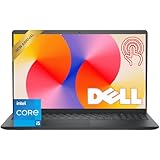
Running Windows 10 on a laptop with a second screen is one of the few upgrades that actually changes how you work, not just how things look. Whether you’re pulling spreadsheets on one panel while writing emails on the other, or keeping Discord open while you game, a second display adds real desk space without buying a second computer. The tricky part is picking the right setup for your laptop, your desk, and your budget.
This isn’t really about buying a “dual screen laptop” as a single product (those exist, but they’re a narrow niche). For most people, it means pairing a solid Windows 10 laptop with either a portable monitor, a standard desktop monitor, or a built-in second-screen laptop like the ones Asus and Lenovo have shipped in small numbers. Let’s go through what actually works.
Your Three Real Options
There are three practical paths to dual-screen computing on Windows 10, and they suit different people.
Standard laptop + external monitor. This is the default move and it’s the default for a reason. Any Windows 10 laptop with an HDMI or USB-C port can drive an external display, and Windows handles extending or mirroring the desktop natively through Settings > Display. No special hardware, no gimmicks, just more pixels.
Standard laptop + portable USB-C monitor. Same idea, but the second screen folds up and travels with you. Good for people who work from coffee shops, hotel rooms, or client sites and still want two screens without hauling a monitor arm around.
Dual-screen laptop (built-in second display). A small number of laptops, like Asus’s ZenBook Duo line, ship with a second screen built into the chassis, usually above the keyboard. It’s clever but it’s also a compromise machine: smaller keyboard, higher price, and you’re locked into whatever screen size the manufacturer chose.
How They Stack Up
| Setup | Cost | Portability | Best for |
|---|---|---|---|
| Laptop + desktop monitor | Low to moderate | Stays at desk | Home office, gaming setups, anyone who doesn’t move around |
| Laptop + portable monitor | Moderate | High | Remote workers, students, people who travel often |
| Built-in dual-screen laptop | High | Moderate (heavier, bulkier) | Creative pros who want a second screen always available, no setup required |
Picking the Laptop
If you’re going the laptop-plus-monitor route, the laptop itself doesn’t need anything exotic. What matters is the graphics output. Check for at least one USB-C port with DisplayPort alt mode, or an HDMI port, before buying anything. Some budget laptops only support a single external display and nothing more, which becomes a problem the moment you want three screens total (laptop panel plus two monitors).
For work-focused use, a mid-range laptop with a Ryzen 5 or Core i5 chip and 16GB of RAM handles two displays fine, since driving a second monitor at 1080p or 1440p isn’t demanding on the GPU. If gaming is part of the mix, you’ll want a dedicated GPU, and that’s where you start caring about which port is wired to the discrete graphics chip versus the integrated one. Browsing a gaming laptop listing, check the spec sheet for “supports dual external displays” if you want three screens total.
Picking the Second Screen
For a desk setup that doesn’t move, a standard 24-inch monitor is the easiest and cheapest way to go. 1080p is fine for office work and browsing; 1440p is worth the small premium if you’re doing anything with fine text or image detail. You can look through 24 inch monitors and expect to spend less than you think, since this category has gotten cheap.
If you need the screen to travel, a portable USB-C monitor is the move. These run off a single USB-C cable in most cases (power and video together, if your laptop’s port supports it), which keeps your bag light. The catch: cheaper ones have mediocre brightness and wash out near windows or under office lighting, and some need two cables (power plus video) if your laptop’s USB-C port doesn’t deliver enough power. Look at portable USB-C monitors and check the brightness spec (300 nits or higher is noticeably better indoors near natural light) before buying.
Setting It Up in Windows 10
Once you’ve got the hardware, Windows 10 makes the actual setup simple. Plug in the display, go to Settings > System > Display, and choose “Extend these displays” instead of “Duplicate.” From there you can drag the display order to match your physical desk layout, set each monitor’s resolution and scaling independently, and choose which one is your main display (where the taskbar and Start menu live). If the second screen shows up blurry or at the wrong resolution, it’s almost always a cable or port issue, not a software one. Try a different USB-C or HDMI cable before assuming the monitor is faulty.
Where This Goes Wrong
The most common complaint with portable monitors is insufficient power delivery. If your laptop’s USB-C port doesn’t support enough wattage, the monitor flickers or won’t turn on, and you’ll need the included power brick instead of relying on a single cable. With built-in dual-screen laptops, the complaints are usually about the cramped keyboard (pushed down to make room for the second panel) and the fact that repairs or screen replacements are expensive since it’s a proprietary part. And with desktop monitor setups, people underestimate how much desk space two monitors plus a laptop actually take up, so measure your desk before you buy.
FAQ
Does Windows 10 support more than two displays on a laptop?
Yes, as long as the laptop’s graphics hardware and ports support it. Many laptops can drive the built-in screen plus two external monitors, but budget laptops sometimes cap out at one external display. Check the manufacturer’s spec sheet before assuming.
Can I use my laptop’s screen and an external monitor at the same time?
Yes, this is the default “Extend” mode in Windows 10 and it’s what most people want. “Duplicate” mode mirrors the same image on both screens instead, which is less useful for productivity but handy for presentations.
Do I need a graphics card to run two monitors?
No. Integrated graphics on modern laptops handle two 1080p or 1440p displays without trouble for office work and browsing. A dedicated GPU only matters if you’re gaming or doing GPU-heavy creative work across those screens.
Is a built-in dual-screen laptop worth it over a laptop plus a separate monitor?
For most people, no. A separate monitor is cheaper, easier to repair, and gives you a bigger second screen. Built-in dual-screen laptops make sense mainly for people who need a second screen available anywhere, with zero setup, and are willing to pay for that convenience.