

- Top Pick: GameSir G8 Galileo Type-C Controller
- Runner-up: SanDisk 256GB High Endurance microSDXC Card
- Also consider: Anker 341 USB-C Hub (7-in-1)
An Android handheld full of separate emulator apps works, but it never feels like a console. Daijisho is the free retro launcher by TapiocaFox that fixes that layer: it gathers the games you dumped from your own cartridges and discs into one controller-friendly library, launches each one through the emulator you choose, and wraps the result in wallpapers and widgets.
As an Amazon Associate, we earn from qualifying purchases.
This walkthrough follows the setup order the project itself recommends: emulators first, then platforms and paths, then syncing and scraping, then the cosmetic layer. By the end your phone or handheld should boot into a single library instead of an app drawer.
This article contains affiliate links, and purchases made through them may earn this site a commission at no extra cost to you.
Quick Answer
Daijisho is a free Android frontend that turns a phone or handheld into a console-style library: install your emulators first, download ready-made platform presets inside its settings, point each platform at your own game folders, sync to scrape box art, then finish with wallpaper packs, widgets and default-launcher mode.
What Daijisho Is, and What It Is Not
Daijisho is a library manager and launcher, not an emulator. The project’s own documentation is blunt about this: it does not come with emulators, and it contains no games. Every title on its shelves is a file already on your device, dumped from media you own, and every launch hands that file to a separate emulator app you installed yourself.
It is also not a fork of Pegasus, despite the similar job, although it can import some emulator configuration from Pegasus, which becomes useful later in this guide. The app is closed-source but free, and the author says it will always be free; its GitHub repository hosts assets and issues rather than source code.
Step 1: Install Emulators First, Then Daijisho
The author’s own checklist starts with a step people skip: install your preferred emulator apps before touching the frontend. Daijisho can only launch what exists, so put RetroArch and whichever standalone emulators you use, such as DuckStation or PPSSPP, on the device first and confirm each one opens.
Then install Daijisho itself from Google Play, or from the releases on its GitHub project page if the handheld lacks Play services. Once it opens, set up the navigation hotkeys early; the project recommends this because switching hotkeys behave differently in different sections of the app, and learning them on an empty library is painless.
Step 2: Learn the Two Building Blocks, Players and Platforms
Everything in Daijisho is built from two objects, and setup gets much easier once they click. A player is a set of launch arguments tied to an emulator or a RetroArch core. It decides which app opens a file and which files it accepts, filtered by regular expressions matched against file names and extensions.
A platform is the shelf a system sits on. It holds one or more players, accepts files from the sync paths you select, and can be configured to scrape box art and other preview media. Platforms also carry the appearance settings, so each system can look different from the next. One platform can hold several players, which is how a single system can offer both a RetroArch core and a standalone app at launch time.
Step 3: Add Platforms and Set Their Paths
You rarely build platforms from scratch. Inside Daijisho’s settings there is a downloadable platform list maintained on the project’s GitHub page: pick the systems you own, import them, and the players for common emulators and RetroArch cores arrive preconfigured. The same import path accepts platform files shared by other users, and Pegasus configuration files, which is the fastest route if you are migrating from that frontend.
After importing, open each platform and set its game path to the folder holding your own dumps for that system, granting folder access when Android asks. Keep one folder per system with consistent naming, because player filters and the scraper both work from file names. Manual setup remains available: you can add players yourself and build a platform from them, which suits unusual emulators the preset list does not cover.
Step 4: Sync, Scrape and Fix Missing Art
With paths set, run a sync for the platform. Daijisho scans the folders, matches files against the player filters, and populates the library. Because the platform was configured to scrape, it also fetches box art and preview media for matched games, and the library view gains the detailed pages, genres and search that make a large collection navigable.
When art is missing, the usual cause is a file name the matcher cannot recognise, so renaming the dump to a standard, clean name and syncing again fixes most gaps. Platforms are living documents too: you can re-download and re-import an updated platform from the list without losing your records, the safe way to pick up improved player definitions.
Step 5: Wallpapers, Theme Colour and Widgets
The cosmetic layer is a headline feature here, not an afterthought. On the settings page you can download wallpaper packs, community-made sets browsable in the project’s online gallery, and pick a theme colour that retints the interface. Each platform can present its own look against those wallpapers, so the library reads as a set of places rather than one long list.
The widget page is the home screen you build yourself. Documented widgets include an activity view, an RSS feed and pinned games, so favourites sit one press away. If you sign in with a RetroAchievements account, Daijisho can also surface your achievement records there. Long-pressing items throughout the app opens further details.
Step 6: Make Daijisho the Home Launcher
On a dedicated handheld, the final step is promoting Daijisho to the device’s default home app in Android’s settings, so the machine boots straight into the library and the stock launcher disappears from daily use. Controller navigation carries the whole interface, and the hotkeys you set in step one become the way you jump between platforms and sections.
On a phone you share with the rest of your life, treat launcher mode as optional: Daijisho works perfectly well as an app you open when it is time to play. Either way, per-platform settings stay independent, so you can reorder systems, hide ones you rarely touch and adjust each shelf’s appearance.
Step 7: Back Up Before You Switch Devices
Daijisho gained a backup feature as the project matured, and it belongs in any setup routine: once a library is tuned, export or back up your configuration from the settings before changing phones or handhelds. Platform definitions are portable by design, since they travel as importable files, so a new device can be rebuilt by installing emulators, importing your platforms and pointing the paths at the copied folders.
Gear That Suits a Daijisho Library
GameSir G8 Galileo Type-C Controller

A frontend built around controller navigation deserves a real controller, and the G8 Galileo clamps a phone between full-size grips with a movable USB-C connector that plugs straight in, with no Bluetooth pairing step before a game launches.
Specs:
- Connection: wired USB-C with movable connector
- Sticks and triggers: Hall Effect sensors
- Charging: USB-C pass-through while playing
- Audio: 3.5 mm headphone jack
- Phone fit: 110 to 185 mm long, up to 13 mm deep
- Extras: two mappable back buttons, 252 g weight
SanDisk 256GB High Endurance microSDXC Card

Most Android handhelds and many phones take a microSD card, which is where a Daijisho library usually lives. This card’s endurance rating suits a folder that gets rescanned and rewritten often, and its speed class keeps big disc images responsive.
Specs:
- Model: SDSQQNR-256G-GN6IA
- Capacity: 256 GB
- Speed class: Class 10, U3, V30
- Read speed: up to 100 MB/s
- Write speed: up to 40 MB/s
- Endurance: rated for up to 20,000 hours of Full HD recording
- Adapter: full-size SD adapter included
Anker 341 USB-C Hub (7-in-1)

Copying a library onto a handheld, or out to a TV for the couch, is hub work. The Anker 341 reads the SD and microSD cards your dumps live on, passes power through so the device charges while it copies, and adds HDMI for a bigger screen.
Specs:
- Model: A8346
- HDMI: 4K output at 30 Hz
- Power: USB-C pass-through charging up to 85 W
- Data ports: USB-C plus two USB-A at 5 Gbps
- Card slots: SD and microSD
Samsung T7 Portable SSD 1TB

When a collection outgrows a memory card, a portable SSD is the staging post for the master copies of your dumps. The T7 is pocket-sized and fast enough that a full library copy is a short job.
Specs:
- Model: MU-PC1T0T/AM
- Capacity: 1 TB
- Interface: USB 3.2 Gen 2
- Read speed: up to 1,050 MB/s
- Write speed: up to 1,000 MB/s
- Security: AES 256-bit hardware encryption
Lamicall Foldable Phone Stand
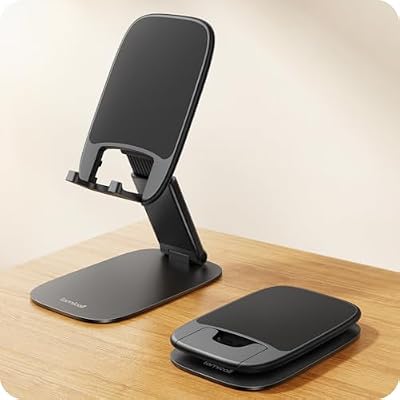
On a phone rather than a handheld, a stand turns Daijisho into a small console screen while a Bluetooth controller does the playing. The Lamicall folds flat for a bag, has a weighted base that stays put, and adjusts in height for desk or bedside use.
Specs:
- Model: STDP03
- Folded size: 4.41 x 2.76 x 0.59 in
- Base: weighted metal
- Adjustment: height adjustable
- Fits: devices from 4 to 8 inches
How to Choose
Choose the preset route if your systems are mainstream: download the platform list, import, set paths and sync, and you are playing within the hour. Choose manual players only when an emulator or core you rely on is missing from the presets, or when you want a specific launch argument the preset does not use.
Choose launcher mode if the device is a dedicated handheld; choose app mode if it is your everyday phone. Choose wallpaper packs and widgets based on how you browse: pin widgets for favourites if your library is huge, and keep the home page plain if you always enter through one or two platforms.
Who Should Skip
Skip Daijisho if you only play one or two systems, where opening the emulator directly is faster than maintaining a frontend. Skip it if you want a frontend that supplies or configures emulators for you, since Daijisho deliberately launches apps you install and set up yourself. And skip launcher mode on a work phone, where the stock home screen and its notifications matter more than a game library.
FAQ
Is Daijisho free?
Yes. The author states the app will always be free. It is closed-source, and the GitHub repository hosts its assets, platform files and issue tracker rather than the app code.
Does Daijisho come with emulators or games?
No. The documentation says plainly that it does not come with emulators. You install emulator apps yourself, and the library is built from game files you dumped from your own cartridges and discs.
Can Daijisho replace my Android home screen?
Yes. Set it as the default home app in Android settings and the device opens into the library. On a shared phone you can simply run it as a normal app instead.
Why is some box art missing after a sync?
The scraper matches by file name, so an unusually named dump often misses its match. Rename the file to a clean, standard title, then sync the platform again to pick up the art.
Final Verdict
Daijisho earns its popularity by respecting the order of operations: emulators you chose, platforms built from documented players, paths pointed at your own folders, then art, wallpapers and widgets on top. Set it up in that order and an Android handheld stops feeling like a phone with emulators on it and starts feeling like a console.










