- Top Pick: JSAUX 6-in-1 Docking Station (HB0603)
- Runner-up: Samsung T9 Portable SSD 2TB (MU-PG2T0B/AM)
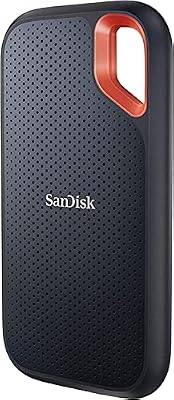
- Also consider: SanDisk Extreme Portable SSD 2TB (SDSSDE61-2T00-G25)
A Steam Deck quietly accumulates far more than games: Proton prefixes tuned per title, non-Steam shortcuts added by hand, emulator installs, Decky plugins, Desktop Mode files, and save data for the games Steam Cloud never touches. When an SSD fails or you swap in a larger drive, none of that rebuilds itself. Two very different tools both get called a backup: a full clone of the drive, and Valve’s factory recovery image. Picking the wrong one is how people lose a setup they spent months building.
This guide is the Deck-specific imaging playbook: how to capture the whole drive before anything goes wrong, and how to bring it back. It does not repeat this site’s recovery guide, which covers Valve’s options after a Deck is already broken, or the general Linux save-backup guide, which covers save files across a desktop library.
As an Amazon Associate, we earn from qualifying purchases.
Quick answer
To back up a Steam Deck completely, clone the whole internal drive to an external SSD of equal or larger size using a bootable imaging tool, and keep a separate copy of your save folders. Valve’s recovery image is not a backup: it rebuilds a factory SteamOS and cannot restore your setup, your non-Steam games, or your settings.
What actually needs backing up: three layers
A backup plan starts with knowing what lives where, because the Deck’s storage splits into three layers of very different value. The first is SteamOS itself: the read-only system partitions Valve updates in A/B pairs, so a failed update can fall back to the previous slot. It is the least precious layer, because Valve gives it away free in the recovery image; a clone captures it anyway.
The second layer is the home partition, and it is the one that matters. It holds your Steam library under the steamapps folder, the compatdata folders where every Proton prefix lives, your Steam configuration, Desktop Mode files, non-Steam installs and shortcuts, and most emulator setups. Recreating it by hand means reinstalling every game and re-tuning every prefix; a clone exists to protect it.
The third layer is the microSD card. Games installed to the card live in a Steam library folder on the card itself, a separate device, so a clone of the internal SSD never touches it in either direction: the card survives an internal drive failure untouched, and it is equally untouched by your internal backup. Copy it separately, or accept the risk.
The clone route, in words
Cloning means booting the Deck into a separate imaging environment and copying the internal drive, partition structure and all, to somewhere safe. The long-standing free tool for this is Clonezilla, written to a USB stick and booted through the Deck’s boot manager. Because the system drive is not running during the copy, the image is consistent in a way that copying files from inside SteamOS can never be.
There are two shapes of clone. Disk-to-image writes the whole drive into an image file on an external SSD: one big drive can hold images of several machines. Disk-to-disk writes straight onto a new SSD in a USB enclosure, the natural route when the clone exists because you are about to swap drives. Either way, the practical setup is a dock or hub, because you need the boot stick, the target drive, and power connected at once, and the Deck should stay on its charger throughout.
Two habits separate a real backup from a false sense of security: let the imaging tool verify the image after capture, because an unchecked image is a hope rather than a backup, and store the image somewhere that is not the Deck.
The factory-image route, honestly
Valve’s recovery image is a rebuild tool. Booted from a USB stick, it offers options that include reinstalling SteamOS while attempting to keep your home content, clearing local user data, and a full re-image that returns the drive to factory state. The re-image option is genuinely useful: the documented way to hand a Deck to a new owner, or to recover a system too damaged to repair. But every option starts from Valve’s side of the drive, not yours.
Nothing in the recovery image knows about your prefixes, non-Steam games, plugins, or Desktop files. A factory restore followed by signing in gets you a working Deck and an empty library, and Steam Cloud quietly returns the saves it happens to hold. In a backup plan, its real role is the fallback: what you reach for when a clone restore fails, or when the only clone you made came from an already broken system.
Saves and shader caches: the layer people misjudge
Saves are where backup plans quietly succeed or fail. Steam Cloud covers a large share of the catalogue, but far from all of it, and the saves for uncovered games live inside each game’s compatdata prefix on the home partition. A full clone captures every one of them without you needing to know which games are covered. A factory restore captures none. Emulator and non-Steam saves live in their own home folders and follow the same rule: inside the clone, gone in the factory route.
Shader caches are the opposite case. The shadercache folder can grow surprisingly large, but it is disposable by design: Steam rebuilds shader data as needed, so after a factory restore the Deck spends its first sessions re-fetching it, which is normal and not a sign anything was lost. In a file-level copy you can leave the caches out and save real space and time; a full-disk clone takes them along, costing storage but keeping the restore faithful.
Restore day, honestly: what a backup cannot carry
A clone restores your drive, but it does not freeze time. Expect Steam to ask for a fresh sign-in in some cases, and expect Steam Cloud to raise a conflict prompt if the cloud copy of a save is newer than the one in your image; read that dialog carefully, because choosing the older side overwrites progress. An image made months ago also restores the SteamOS of months ago, which will then update itself, so budget time for that first long update.
There are also things no clone can do. It cannot protect against losing the Deck itself if the image never left the device. It cannot make an undersized target fit: restoring onto a smaller SSD than the source is the classic failure, so the target must match or exceed the original. And it cannot rescue data from a drive that has already failed.
How to choose
Choose the route by the job in front of you. Upgrading the internal SSD: clone disk-to-disk, or image and restore onto the new drive, so the Deck wakes up exactly as it was, only roomier. Insurance against a bad update: image to an external SSD after any big setup change, and refresh it when the setup changes again. If only save progress matters, skip imaging and keep a lighter file-level copy of the save folders. And if the Deck is being sold, wiped, or recovered from a serious failure, the factory image is the right tool.
Who should skip this
Skip the imaging routine if your Deck is completely stock, you have never added anything in Desktop Mode, and every game you play syncs to Steam Cloud; a factory restore plus a sign-in genuinely rebuilds that Deck. Skip it if your library is small and your connection fast, because re-downloading can beat maintaining images. And skip it if you would never realistically perform a restore: an untested image you dread using is shelf decoration.
The gear that makes it practical
Samsung T9 Portable SSD 2TB
The image target. A full Deck clone needs a drive at least as large as the internal SSD, and the 2TB T9 holds a 1TB Deck’s image with room to spare. Its headline speed assumes a faster port than the Deck offers, so treat capacity, not speed, as the point.
- Specs: Capacity 2 TB
- Specs: Model MU-PG2T0B/AM
- Specs: USB 3.2 Gen 2×2 interface, maker-stated speeds up to 2,000 MB/s
SanDisk Extreme Portable SSD 2TB
The second copy. Backup discipline says an image that exists once barely exists, and this rugged drive is the natural home for the duplicate, kept somewhere different from the primary.
- Specs: Capacity 2 TB
- Specs: Model SDSSDE61-2T00-G25
- Specs: USB-C, USB 3.2 Gen 2 interface, maker-stated speeds up to 1,050 MB/s
JSAUX 6-in-1 Docking Station (HB0603)

The wiring solution. Cloning needs the boot stick, the target drive, and power attached at once, and this dock’s USB-A ports, charging input, and Ethernet port turn that tangle into one stable desk setup.
- Specs: Model HB0603
- Specs: 3 USB-A 3.0 ports, HDMI 2.0 output
- Specs: Gigabit Ethernet port
- Specs: USB-C charging input rated by the maker at 100 W pass-through
SanDisk 1TB Extreme microSDXC
The card-layer answer. If your library lives on a microSD card, this is the class of card to copy it to or standardise on, so the card layer of the backup is as deliberate as the internal one.
- Specs: Capacity 1 TB
- Specs: Model SDSQXAV-1T00-GN6MA
- Specs: UHS-I, U3 and V30 speed classes, A2 app performance class
SanDisk Extreme PRO USB 3.2 Flash Drive 128GB
The boot stick. The imaging environment needs a fast, reliable USB drive to boot from, kept aside for exactly this job rather than borrowed and reformatted.
- Specs: Capacity 128 GB
- Specs: Model SDCZ880-128G-GAM46
- Specs: USB 3.2 interface, maker-stated speeds up to 420 MB/s
FAQ
Can I restore a clone onto a larger SSD?
Yes, and it is the most common reason to clone at all. Imaging tools restore the partition layout onto the bigger drive, and the home partition can then use the extra space. The reverse is the problem: a clone generally will not restore onto a smaller drive than the source.
Does cloning the internal drive also back up my microSD games?
No. The card is a separate device with its own Steam library folder, and an image of the internal SSD contains nothing from it. Copy the card’s library folder to a drive separately, or accept that those games need downloading again if the card fails.
How often should I take a fresh clone?
Whenever the setup changes in ways you would hate to redo: a run of new installs, a batch of non-Steam games configured, an emulator library built. Saves change far more often than setups, so pair an occasional full image with a frequent, light copy of the save folders.
Can I clone from Desktop Mode while SteamOS is running?
It is the unreliable way to do it. Imaging a live system drive copies partitions while they are changing, which can produce an image that restores imperfectly or not at all. The documented route is to boot a separate imaging environment from USB, so the internal drive sits idle and consistent during the copy.
Final verdict
Backing up a Steam Deck means cloning the drive, not trusting the recovery image to be something it is not. Take a verified disk image to an external SSD, keep a second copy somewhere else, and let Valve’s factory image play its proper role as the last resort. Done while the Deck is healthy, a dead drive becomes an afternoon’s errand instead of a lost library.