

- Top Pick: Elgato HD60 S
- Runner-up: Elgato HD60 S Plus
- Also consider: AVerMedia Live Gamer Mini
Cloud gaming moves the heavy work to a remote server. The game itself never runs on the machine in front of you. That changes what a capture card is for. You are not capturing a local game engine at work.
The usual setup is a console, a streaming stick, a mini PC, or a laptop running a cloud service. The picture goes to a television or monitor. A hardware capture card sits in that chain.
As an Amazon Associate, we earn from qualifying purchases.
Quick Answer
A capture card records or streams the video output of the device that plays your cloud game, not the cloud server itself. Connect the playback device to the card input, connect the card output to your display for passthrough play, and connect the card to a recording computer over USB or install it inside that computer. Match the card capture resolution to the stream you watch.
How a Capture Card Fits a Cloud Session
A cloud session has three parts, and only one lives in your room. The server runs the game and encodes the picture. Your network carries that picture to your device. Your device decodes it and sends it to a screen. A capture card works on that last step.
A capture card cannot fix a slow connection or a distant server. If the cloud picture stutters before it reaches your device, the card will record that stutter faithfully. What it can do is separate playing from recording. The common chain is simple: the playback device sends its picture over HDMI to the card input, the card sends the same picture onward to the television, and it sends a copy over USB to the recording computer.
Passthrough Versus Capture Only
Passthrough and capture are two different numbers on the same box. Passthrough is the picture that continues to your television or monitor while you play. Capture is the picture the recording computer receives. A card can pass through a higher resolution or frame rate than it captures, and that split is normal. You play at passthrough quality and record at capture quality.
A typical split is a card that passes through a 4K60 picture while capturing at 1080p60. For cloud gaming that split is often a good trade, because most cloud streams arrive at 1080p anyway. Your display still shows the full picture from the playback device, while the recording computer handles a smaller file. Problems start when the passthrough ceiling is lower than the picture your playback device sends.
Latency has two layers here. Cloud latency is the delay between your input and the picture the server sends back. Capture latency is the delay between the picture leaving your playback device and the same picture appearing in the recording software. Passthrough keeps the second kind out of your hands, because you watch the passthrough picture, not the capture preview.
Elgato HD60 S

The Elgato HD60 S is the straightforward starting point for cloud capture. It is an external USB card that captures at 1080p60, which matches the picture most cloud services deliver. It connects over USB 3.0 and works with PC and Mac. The card is small, draws power over USB, and needs no separate power adapter. It suits a player who streams cloud games from a console or streaming device to a second computer.
Specs
| Specification | Detail |
|---|---|
| Max capture | 1080p60 |
| Passthrough | 1080p60 |
| Connection | USB 3.0 |
| Compatibility | PC and Mac |
Elgato HD60 S Plus

The Elgato HD60 S Plus, sold as the HD60 S+, is the step up for players who want HDR in the recording. It captures at 1080p60 with HDR10 and passes through a 4K60 picture with HDR10. HDR10 capture preserves a wider range of brightness and colour than a standard recording. It only works when the source picture, the display, and the recording settings all support it. A cloud stream that arrives without HDR will not gain HDR because the card supports it.
Specs
| Specification | Detail |
|---|---|
| Max capture | 1080p60 with HDR10 |
| Passthrough | 4K60 with HDR10 |
| Connection | USB-C 3.0 |
| Compatibility | PC and Mac |
AVerMedia Live Gamer Mini

The AVerMedia Live Gamer Mini, model GC311, is the compact budget pick in this guide. It captures at 1080p60 and offers HDMI pass-through. It uses hardware encoding to turn the incoming picture into an H.264 recording without asking the recording computer to do the heavy work. It is small enough to fit in a pocket, measuring about 100 by 57 by 18.8 millimetres. Its connection is USB 2.0, which is slower than the USB 3.0 links on the Elgato cards in this guide.
Specs
| Specification | Detail |
|---|---|
| Max capture | 1080p60 |
| Passthrough | HDMI pass-through |
| Connection | USB 2.0 |
| Encoding | Hardware encoding |
| Compatibility | Windows 11 and macOS 12 |
AVerMedia Live Gamer Ultra 2.1
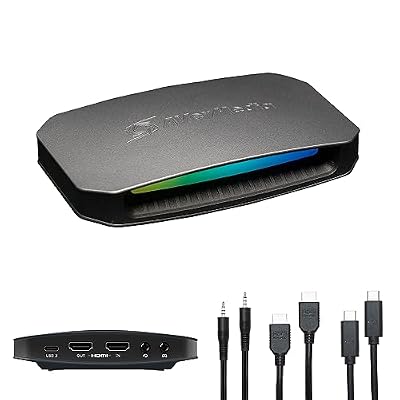
The AVerMedia Live Gamer Ultra 2.1, model GC553G2, is the premium external card in this guide. It captures at 4K60 and passes through up to 4K at 144 frames per second, with support for variable refresh rate and HDR. That combination matters less for the cloud stream itself, which rarely arrives at those ceilings. A high refresh display keeps its smooth picture while the card records, instead of dropping to the card limit. The card connects over USB 3.2 Gen 2 Type-C, which gives it the bandwidth to carry the larger capture. A party chat feature lets voice chat from a connected controller reach the recording.
Specs
| Specification | Detail |
|---|---|
| Max capture | 4K60 |
| Passthrough | Up to 4K144 |
| Video input | HDMI 2.1 |
| Connection | USB 3.2 Gen 2 Type-C |
| HDR | HDR capture and passthrough |
| Weight | 115 grams |
Elgato 4K Pro

The Elgato 4K Pro is the only internal card in this guide. It installs into a PCIe slot inside a desktop computer and captures at up to 4K60, with passthrough up to 8K60. It uses HDMI 2.1 and supports VRR and true 10-bit HDR. It needs a desktop with a free PCIe slot, and it works with Windows only, so it is useless for a laptop streaming setup. Its system requirements call for Windows 10 64-bit or higher, an eighth generation Intel Core i5 processor or an AMD Ryzen 5 processor or better, and an NVIDIA GeForce GTX 10 series graphics card or better.
Specs
| Specification | Detail |
|---|---|
| Max capture | 4K60 |
| Passthrough | Up to 8K60 |
| Video input | HDMI 2.1 |
| Connection | PCIe x4, x8, or x16 slot |
| HDR | HDR10 passthrough and recording |
| Operating system | Windows 10 64-bit or higher |
How to Choose
Start with the playback device, not the card. If it has an HDMI output, a capture card can work. If it only has a USB video output or no video output at all, a capture card is probably the wrong tool. Software recording on the device is the better route in that case. Then note the picture the cloud service actually delivers. Most cloud streams arrive at 1080p.
Next, match the passthrough to the display. The passthrough ceiling should be at least as high as the picture the playback device sends. Then match the connection to the recording computer. An external USB card works with a laptop or a desktop. An internal PCIe card works only with a desktop that has a free slot and runs Windows.
Who Should Skip
Skip a capture card entirely if your cloud gaming happens only on a phone or a tablet with no HDMI output. There is no signal for the card to capture, and no adapter will create one reliably. Skip the premium cards if your cloud stream arrives at 1080p and your display is 1080p. A 4K capture card will record a 1080p stream at 1080p quality, because the card cannot add detail that the cloud server never sent. Skip an internal PCIe card if your recording computer is a laptop, or if it runs macOS. Finally, skip a capture card if you only want short clips.
Frequently Asked Questions
Does a capture card make cloud gaming faster?
No. A capture card works on the video signal after it leaves your playback device, so it cannot change the delay between your input and the cloud server. It can keep capture delay out of your hands by letting you watch the passthrough picture instead of the capture preview. If the stream stutters, the card records the stutter.
Can I use a capture card with a phone or tablet for cloud gaming?
Only when the phone or tablet has a real video output that the card can accept. Many phones and tablets have no HDMI output, and wireless casting is not a capture card input. When no such output exists, software recording on the device is the practical option, and a capture card will not help.
Do I need a second computer to use a capture card?
For most external cards, a second computer is the normal setup. The card sends its feed to a recording computer while you play on a separate display. A dedicated recording computer keeps the two jobs apart and is the cleaner setup for regular streaming.
Will a capture card record the cloud stream in 4K?
Only when the cloud stream itself arrives in 4K and the card can capture at 4K. Most cloud streams arrive at 1080p, so a 1080p capture card records everything the stream carried. A 4K capture card cannot add detail that the server never sent.
Final Verdict
A capture card is a useful tool for cloud gaming when the setup has a real HDMI signal to capture and a second computer to do the recording. It separates playing from broadcasting and preserves the picture that arrives. It lets you stream or save cloud sessions with the same workflow used for local console play. It does not speed up the cloud, it does not sharpen a 1080p stream into 4K, and it does not work where no video output exists.
For most cloud players, the sensible starting point is a 1080p external card with passthrough. The Elgato HD60 S and the AVerMedia Live Gamer Mini cover that role from different angles, one with a USB 3.0 link and one with hardware encoding in a pocket sized case. Players who want HDR in the recording or a higher passthrough ceiling should look at the Elgato HD60 S Plus. Choose the card that matches the signal you have, not the signal you wish you had.










