The best Call of Duty Warzone settings for PC come down to three moves: render at or near your monitor’s native resolution with an upscaler if you need extra frames, keep texture quality as high as your video memory allows, and turn down the expensive shadow and effects options that add little to what you actually see in a firefight. Do that, cap your frame rate sensibly, and most systems get a much smoother game without the picture falling apart.
Warzone is a large, constantly updated shooter, so menu names, defaults and available upscalers can shift with seasons and patches. Treat this guide as a framework for 2026 rather than a list of exact slider values: check each option in-game, change one thing at a time, and judge the result in a live match, not only on the lobby screen.
What Actually Costs Frames in Warzone

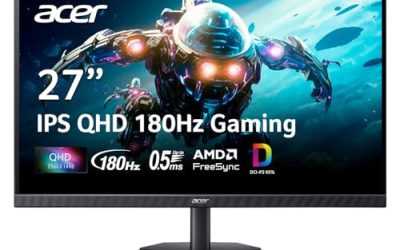
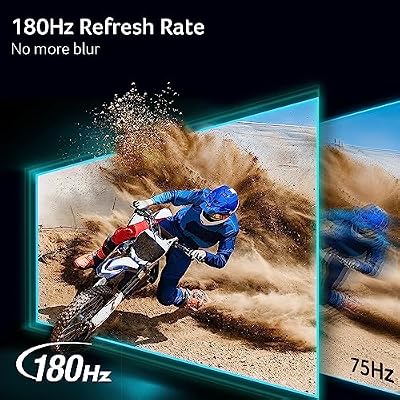
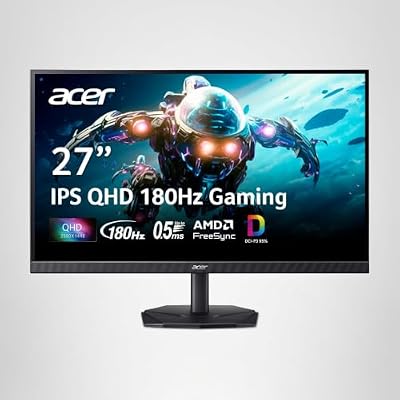
Acer Nitro 27in QHD 2560x1440 IPS 180Hz Gaming Monitor KG271U N3bmiipx | 0.5ms, AMD FreeSync, DCI-P3 95%, 2xHDMI, DisplayPort, Speaker, VESA Mountable, Bluelight Filter, Flickerless Technology




As an Amazon Associate we earn from qualifying purchases. Product prices and availability are accurate as of the date/time indicated.

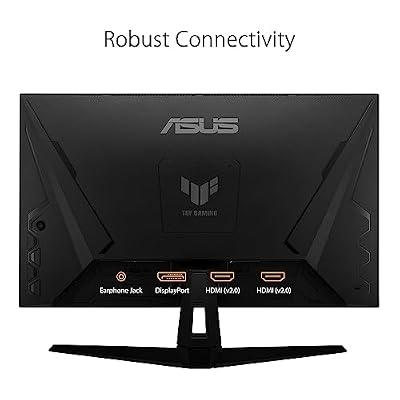
ASUS TUF Gaming VG27AQ3A 27 Inch 1440p 180Hz G-SYNC Gaming Monitor | Fast IPS, ELMB Sync, 1ms, 130% sRGB, Built-In Speakers, FreeSync Premium, HDR10, for PS5 and Xbox, 3yr warranty




As an Amazon Associate we earn from qualifying purchases. Product prices and availability are accurate as of the date/time indicated.

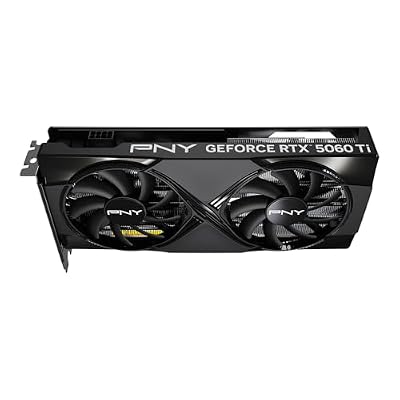
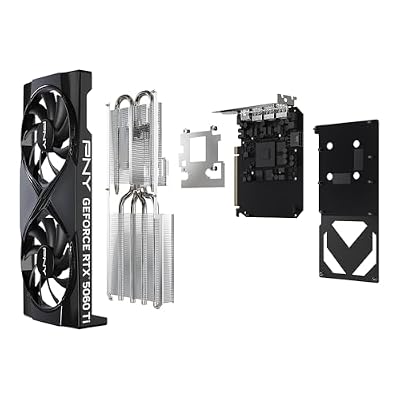
PNY NVIDIA GeForce RTX™ 5060 Ti 16GB OC Dual-Fan Graphics Card | 16GB G7, 128-bit, Boost Speed: 2692 MHz, SFF-Ready, PCIe® 5.0, HDMI®/DP 2.1, 2-Slot, NVIDIA Blackwell Architecture, DLSS 4.5





As an Amazon Associate we earn from qualifying purchases. Product prices and availability are accurate as of the date/time indicated.

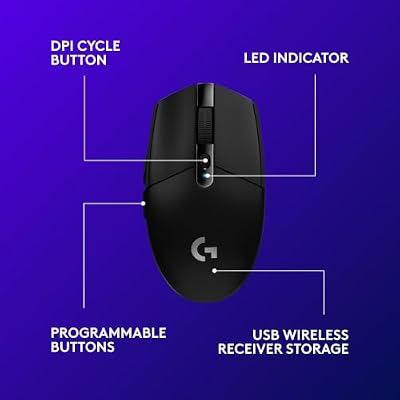
Logitech G305 LIGHTSPEED Wireless Gaming Mouse, Hero 12K Sensor - Black | 12,000 DPI, lightweight, 6 programmable buttons, 250h battery life, on-board memory, PC/Mac, lightweight gaming mouse



As an Amazon Associate we earn from qualifying purchases. Product prices and availability are accurate as of the date/time indicated.
Understanding which settings are expensive saves hours of trial and error. In a battle royale with long sightlines, many players and plenty of particle effects, the load is not spread evenly across the menu.
Resolution and render scale
Resolution is the single biggest lever. Rendering fewer pixels raises frame rate almost in proportion when your graphics card is the bottleneck. Many players keep the display at native resolution and lower the internal render resolution slightly, then let an upscaler or sharpening filter clean up the result. That looks far better than dropping the whole display to a non-native mode.
Shadows and lighting
Shadow options, including shadow map resolution, spot shadow caching and screen-space shadows, are usually among the heaviest settings relative to what they add. On a busy match, reducing these gives a clear boost, and the visual loss is mostly soft edges on distant objects. Ambient occlusion also costs more than it looks like it should.
Effects, particles and volumetrics
Explosions, smoke, dust and weather effects can spike load exactly when a fight gets chaotic, which is when you need smooth frames most. Lowering particle quality and volumetric or weather effects helps the worst-case moments rather than just the average.
Textures and video memory
Texture quality mostly consumes VRAM rather than raw GPU speed. If your card has enough memory, high textures are close to free. If you exceed your VRAM, you get stutter and pop-in, which feels worse than a lower average frame rate. Watch the in-game memory estimate if the menu provides one.
CPU-heavy options
Draw distance, population-type effects and some physics-style options lean on the processor. In a large lobby, an older quad-core or six-core chip can become the limit before the GPU does, so lowering graphics quality does little if the CPU is already maxed.
Display and Upscaling Settings
Start here before touching the quality sliders, because these choices set the ceiling for everything else.
- Display mode: exclusive fullscreen or the game’s fullscreen option generally gives the most consistent frame pacing. Borderless is convenient for multitasking but check whether it adds delay on your setup.
- Refresh rate: set the game to your monitor’s highest refresh rate. A common mistake is leaving a 144 Hz panel running at 60 Hz in the game menu.
- Upscaler: Warzone has offered options such as NVIDIA DLSS and AMD FidelityFX approaches depending on version and hardware. Pick the one your GPU supports best, start on a quality-focused mode, and only move to a more aggressive mode if you still need frames.
- Sharpening: upscaled images can look soft. A small amount of sharpening helps, but too much creates shimmering edges that distract in long-range fights.
- Low-latency mode: if the game offers NVIDIA Reflex or a similar option, enabling it reduces the delay between your click and the screen, especially when the GPU is fully loaded.
Settings by PC Tier
The table gives a starting approach, not exact numbers. Your results depend on your CPU, memory speed, driver version and how busy the match is.
| Setting area | Low-end PC | Mid-range PC | High-end PC |
|---|---|---|---|
| Render resolution | Lowered, with upscaler on a performance-leaning mode | Native or slightly lowered, upscaler on a quality mode | Native, upscaler optional |
| Textures | Low to medium, match VRAM | Medium to high | High |
| Shadows | Lowest options, cached shadows if offered | Low to medium | Medium; high only if frames are plentiful |
| Particles and effects | Low | Low to medium | Medium |
| Ambient occlusion and reflections | Off | Off or low | Low to medium |
| Motion blur and film grain | Off | Off | Off |
| Frame cap | Match what the system holds steadily | Slightly above refresh rate or at refresh rate | Refresh rate or a few frames under with VRR |
Competitive Visibility Versus Looks
Warzone rewards clarity. Open terrain, long sightlines and distant players mean a cleaner image often beats a prettier one.
Settings that help you see enemies
Turn off motion blur and film grain, which only smear detail. Reduce depth-of-field effects if present. A moderately higher field of view widens your awareness, but very high values shrink distant targets and can cost frames, so adjust in small steps.
Settings that cost little but add polish
Texture filtering is usually cheap on a modern GPU and keeps ground and wall detail sharp at an angle. If you have headroom, keep it high even on an otherwise reduced profile.
Interface and audio
Clean up the HUD elements you rarely use, and set up your audio mix so footsteps stand out. These are not graphics settings, but they affect how readable the game feels.
Storage, Streaming and Background Load
Warzone’s install is very large, and a lot of what you see is streamed in from storage during play. That makes the drive and the background environment part of your settings strategy, not an afterthought.
Texture streaming options
Some versions of the game include on-demand texture streaming or similar caching controls. These can reduce install size or memory use, but they may rely on your internet connection or add pop-in when the connection is slow. Read the in-game description before enabling anything, and compare behavior on a fast, stable connection.
Background programs
Browsers with many tabs, recording software, RGB control suites and overlay tools all compete for CPU time and memory. In a CPU-limited shooter, closing them can improve frame consistency more than any single graphics slider. If you stream or record, expect a performance cost and plan to lower a few effects to compensate.
Power and thermal behavior
A laptop on battery power or a balanced power plan may cap clock speeds. Use the high-performance mode while plugged in, and make sure vents are clear. A system that throttles from heat will show rising frame-time spikes over a long session even when the first match felt fine.
A Practical Tuning Routine
- Update your graphics driver and let the game finish any shader preparation after a patch, since the first launch afterward can stutter.
- Set display mode, resolution and refresh rate to native and choose your upscaler.
- Apply the tier settings from the table as a starting point.
- Join a real match and watch frame rate and frame-time stability with an overlay, noting where it dips: hot drops, big fights or vehicles.
- If dips happen when the GPU is fully loaded, lower shadows and effects. If the GPU has headroom but frames still dip, the CPU is the likely limit, so reduce distance-related options.
- Restore one quality setting at a time until you find the point where smoothness begins to slip, then back off one step.
Before You Change Anything
- Close overlays and background launchers you do not need.
- Confirm the game is installed on an SSD to reduce streaming hitches.
- Check that your monitor is actually set to its top refresh rate in the operating system.
- Note your current settings so you can revert if a change makes things worse.
- Verify your RAM is running at its rated speed, since memory settings affect CPU-bound shooters.
Common Mistakes
- Dropping the whole display to a lower non-native resolution instead of using the in-game render scale and an upscaler.
- Maxing textures on a card that does not have the VRAM, which creates stutter and pop-in.
- Leaving shadows and ambient occlusion high because they sound important, while they quietly cost the most frames.
- Judging settings in the menu or a quiet lobby instead of in a busy match.
- Chasing a very high frame cap that the system cannot hold, instead of a steady frame rate that feels consistent.
Related guides
- Aio Liquid Coolers For High Performance Gaming
- How To Lower Input Delay In Competitive Shooters
- Wireless Gaming Headsets Under 100 For Pc
Frequently Asked Questions
Should I use the lowest graphics settings for competitive play?
Not necessarily. Lowest settings can raise frame rate, but they also remove useful detail and can make distant targets harder to read. A balanced profile with low shadows and effects but decent textures is often the better compromise.
Is an upscaler worth using if my PC is fast?
If you already hit your monitor’s refresh rate at native resolution, you may not need one. If you want extra headroom for busy fights or a higher refresh rate, a quality-oriented upscaler mode can help with little visible loss.
Why does the game stutter after a patch?
Updates often trigger shader and cache rebuilds, so the first session afterward can feel rougher. Let any preparation step finish and play a match or two before changing settings in response.
Do these settings apply to every season of the game?
The principles hold, but menu names and options can change with patches. Check the in-game descriptions and the official support pages for current details.
{“@context”: “https://schema.org”, “@type”: “FAQPage”, “mainEntity”: [{“@type”: “Question”, “name”: “Should I use the lowest graphics settings for competitive play?”, “acceptedAnswer”: {“@type”: “Answer”, “text”: “Not necessarily. Lowest settings can raise frame rate, but they also remove useful detail and can make distant targets harder to read. A balanced profile with low shadows and effects but decent textures is often the better compromise.”}}, {“@type”: “Question”, “name”: “Is an upscaler worth using if my PC is fast?”, “acceptedAnswer”: {“@type”: “Answer”, “text”: “If you already hit your monitor’s refresh rate at native resolution, you may not need one. If you want extra headroom for busy fights or a higher refresh rate, a quality-oriented upscaler mode can help with little visible loss.”}}, {“@type”: “Question”, “name”: “Why does the game stutter after a patch?”, “acceptedAnswer”: {“@type”: “Answer”, “text”: “Updates often trigger shader and cache rebuilds, so the first session afterward can feel rougher. Let any preparation step finish and play a match or two before changing settings in response.”}}, {“@type”: “Question”, “name”: “Do these settings apply to every season of the game?”, “acceptedAnswer”: {“@type”: “Answer”, “text”: “The principles hold, but menu names and options can change with patches. Check the in-game descriptions and the official support pages for current details.”}}]}