

1440p at 144Hz on an IPS panel is the sweet spot most gamers settle on once they get past the novelty of 1080p and before they talk themselves into a 4K panel they can’t actually drive. The resolution is sharp enough to matter, the refresh rate is high enough to feel the difference in competitive games, and IPS fixes the color and viewing-angle complaints that plagued the first wave of high-refresh monitors, which were almost all TN or early VA panels.
That said, “1440p 144Hz IPS” is now a crowded category spanning $220 budget panels and $600 OLED-adjacent flagships, so the spec sheet alone won’t tell you much. Here’s what actually separates them.
As an Amazon Associate we earn from qualifying purchases at no extra cost to you.


Why IPS, specifically
At 1440p/144Hz, your three realistic panel choices are IPS, VA, and (increasingly) OLED. VA gets you deeper blacks and better contrast (often 3000:1+ vs IPS’s typical 1000:1) but suffers from black smearing in fast dark scenes, which is a real problem in horror games and anything with a lot of night-time environments. IPS trades that contrast for consistent color and near-zero smearing, plus wider viewing angles if you ever share the screen or sit off-center.
The historical IPS weakness, slow response times, is mostly solved. Most current 1440p 144Hz IPS panels post real-world gray-to-gray response times in the 1-4ms range with overdrive enabled, which is close enough to VA and TN that you won’t notice a practical difference in motion clarity. The remaining IPS downside is IPS glow, a faint brightening in the corners when viewing dark content at an angle. It’s cosmetic, not a defect, but it’s worth knowing before you buy so you don’t mistake it for a bad unit.
What to check before buying
Refresh rate and resolution are table stakes now. The things that actually differentiate monitors in this category:
- Native refresh vs overclocked. Some panels are sold as “144Hz” but ship at 165Hz when you enable an OC mode in the OSD. That’s fine, but check whether the panel is factory-rated or whether you’re relying on a user-enabled overclock, which can introduce overshoot artifacts on some units.
- Response time behavior at your actual refresh rate. Review sites that only quote the fastest overdrive setting are misleading, because the fastest setting often causes visible overshoot (dark or light trailing halos). Look for reviews showing response time at the panel’s native 144Hz, not just a cherry-picked number.
- Variable refresh range. Confirm the FreeSync or G-Sync Compatible range actually covers low frame rates. A VRR window of 48-144Hz is common and fine; some budget units only kick in above 60fps, which means stutter in demanding games where you dip below that.
- HDR labeling. Most sub-$400 IPS monitors in this category carry VESA DisplayHDR 400, which is really just “HDR signal compatible,” not meaningfully better HDR. Peak brightness on these panels usually sits around 350-400 nits, nowhere near what HDR content is mastered for. Don’t pay a premium chasing HDR 400; it’s marketing, not a real HDR experience.
Budget vs premium: what you’re actually paying for
The price gap in this category (roughly $230 to $600) isn’t about resolution or refresh rate anymore, since those are now standard even at the low end. It’s about panel uniformity, factory calibration, build quality of the stand, and extras like USB-C with power delivery or built-in KVM switching.
| Tier | Price range | What you get | What you give up |
|---|---|---|---|
| Budget | $220-$280 | 144Hz IPS, 1440p, basic VRR, decent out-of-box color | Weaker stand, no USB-C, less consistent factory calibration unit-to-unit |
| Mid-range | $300-$400 | 165Hz+ panels, better VRR range, USB-C or KVM, tighter factory calibration | Still DisplayHDR 400 only, no real local dimming |
| Premium | $450-$600 | Fast IPS or IPS-adjacent (Fast IPS, Nano IPS), higher peak brightness, better stands, sometimes mini-LED backlighting | Diminishing returns unless you have a GPU that can push 144+ fps at 1440p consistently |
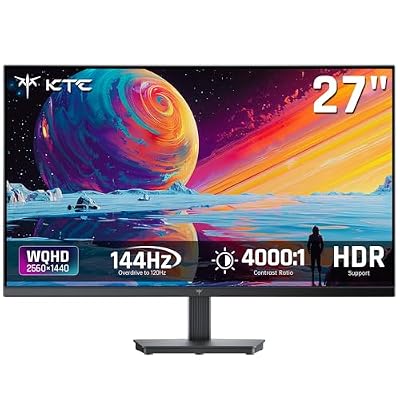
If your GPU is a mid-tier card like an RTX 4060-class part, the budget tier is genuinely fine. You won’t be hitting 144fps in demanding titles anyway, so the mid-range monitor’s extra headroom goes unused. The upgrade only pays off once you’re running a card that can reliably push 1440p past 100fps in the games you actually play. Browsing a current 1440p 144Hz IPS monitor selection will show you the spread firsthand, since prices shift often enough that naming specific models in an article is a bad idea.
Size: 27-inch vs 32-inch
At 1440p, 27 inches gives you about 109 pixels per inch, which is the density most people find sharp without needing scaling. Stepping up to 32 inches at the same resolution drops that to around 92 PPI, noticeably softer, especially for text and UI elements. If you want a bigger screen without the softness, you’re looking at a 1440p-at-27-inch panel or stepping up to 4K at 32 inches, which demands a lot more GPU to hit 144fps. For most desks and most GPUs, 27 inches is the better match; 32 inches makes more sense as a couch-gaming or multi-purpose display where sharpness matters less than size.
When to skip this tier entirely
If you mostly play competitive shooters and care more about raw motion clarity than color accuracy, a 1080p or 1440p TN or fast-VA panel at 240Hz+ will serve you better for less money, and IPS’s color advantages won’t matter much in CS2 or Valorant. Conversely, if you’re doing color-sensitive work alongside gaming, or you want the best motion handling available, it’s worth looking past IPS entirely at 1440p 144Hz OLED monitors, which have come down in price and solve both the contrast and motion-blur issues IPS can’t fully fix, at the cost of long-term burn-in risk with static UI elements. IPS remains the safest all-rounder, but it’s not automatically the right answer for every use case.














