- Top Pick: MEKO Universal Stylus 2-in-1, 2 Pack
- Runner-up: SanDisk 1TB Ultra microSDXC Card
- Also consider: JSAUX 6-in-1 Docking Station HB0609
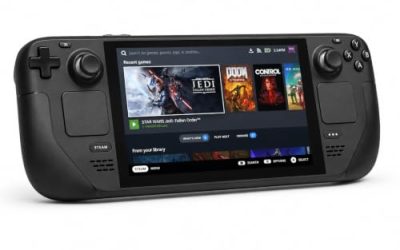
Most handheld PCs make 3DS emulation awkward, because the 3DS is a two-screen machine and everything else has one panel. The ROG Ally and Ally X soften that problem: their single screen is a 10-point touchscreen, so the emulated bottom screen is not just visible, it is tappable. Add a native Windows build of Azahar, the maintained successor to Citra, and the Ally becomes a natural home for a 3DS library.
As an Amazon Associate, we earn from qualifying purchases.
This walkthrough covers the Ally-specific work: the Windows install, dumps and system files from your own 3DS, layouts for a 7-inch panel, finger and stylus touch, and resolution and power for handheld play.
This article contains affiliate links, and purchases made through them may earn us a commission at no extra cost to you.
Quick Answer
Install Azahar from the project’s official site, choosing the MSYS2 Windows build if you are unsure, then add decrypted game dumps from your own 3DS. Use the Vulkan renderer, set Large Screen as your default layout and adjust it per game, tap the bottom screen directly on the touch panel, and keep internal resolution modest for the small panel and finite battery.
Why the Ally Hardware Fits Azahar
Azahar’s published floor is modest: a 64-bit x86-64 processor, OpenGL 4.3 or Vulkan 1.1 graphics, and 2 GB of memory (4 GB recommended). The Ally clears it easily: ASUS fits the Z1 Extreme, an eight-core Zen 4 processor boosting up to 5.10 GHz, RDNA 3 graphics and 16 GB of LPDDR5 memory. The Ally X raises that to 24 GB of LPDDR5X and doubles the battery.
The screen is the real argument: a 7-inch IPS touchscreen at 1920×1080 with a 120Hz refresh rate and 10-point multi-touch. That dwarfs the 3DS’s 400×240 top screen, and touch is what the setup revolves around. Windows also means Azahar runs natively, with no sandbox or compatibility layer.
Step 1: Install Azahar on Windows
Download Azahar only from the project’s official site or its GitHub releases page. Windows users get two builds. The MSVC build needs the Microsoft Visual C++ Redistributable installed, and the project FAQ calls out the missing DLL error that appears without it; the MSYS2 build is the recommended one if you are unsure.
Run Azahar once after installing. The first launch shows an empty game list, which is expected: double-clicking the list registers your games folder. Then open Emulation, then Configure, and set the renderer to Vulkan, the better default on current hardware; recent Azahar releases give it a disk shader cache, so first-playthrough shader stutter does not repeat. OpenGL remains the fallback for a game that misbehaves.
Step 2: Games and System Files From Your Own 3DS
Azahar ships with no games, no keys and no system files, and does not support encrypted files. Everything it plays comes from your own console, in decrypted form:
- Decrypted .3ds or .cci files, the standard cartridge dump formats
- Decrypted .cia packages, installed through File, then Install CIA (also how updates are added)
- Decrypted .cxi files, the raw executable format
- .3dsx files, which are homebrew programs
An encrypted file refusing to load is the most common first-run failure, with no workaround inside the emulator. Keep your dumps in a permanent folder and point Azahar at it; the emulator remembers the path rather than copying the files.
The second misconception is that Azahar needs console firmware first. Most games run with no system files at all; some titles use the 3DS system font for text, plus data unique to your console. The documented route is a pair of tools on a 3DS with Luma3DS custom firmware: the Artic Setup Tool copies your console’s system files and unique data to the PC over your local network, while Artic Base streams a game directly from the console.
Step 3: Layouts on One 7-Inch Screen
The layout setting, under Graphics, decides how the two screens share the panel: Default, Single Screen, Large Screen, Side by Side, Separate Windows, Hybrid Screen and Custom Layout, with Swap Screens, Upright Screen and a Screen Gap control beside them.
On a 7-inch handheld, three do most of the work. Large Screen is the sensible default: the top screen takes most of the panel while the bottom stays visible at a smaller size, for map-and-status games. Default stacks the two screens nearer their original proportions and suits touch-heavy games where the bottom screen is a real playfield. Single Screen shows one display at a time and pairs with the Swap Screens command for games that barely use the second panel. Side by Side and Separate Windows are for televisions and second monitors; leave them for docked play.
Treat layout as a per-game decision: right-click a game in the library, open its Properties, and set its layout and resolution. Two hotkey habits help. The Swap Screens command flips which display is primary in Single Screen mode, and the layout hotkey cycles through the layouts selected in the Layouts to Cycle option; trim that list to the two or three you use. Both bindings live in Configure, then Controls, on the hotkey tabs.
Step 4: Touch, With a Finger or a Stylus
This is where the Ally earns its place. In any layout showing the bottom screen, tap it directly on the touch panel and Azahar treats the tap as a stylus press.
A finger is a blunt instrument, though. For handwriting, drawing games or small targets, a passive capacitive stylus is the closest match to the original 3DS stylus: a fine disc tip lands where you intend instead of where your fingertip covers. Azahar also accepts mouse input as touchscreen input, which matters when docked. Keep the layout’s bottom screen large enough to touch accurately: shrunk to a thumbnail, every tap becomes guesswork.
Step 5: Controls on the Built-In Pad
Azahar detects the Ally’s built-in controls as a standard gamepad, so face buttons, shoulders and sticks map across with little manual work. Open Emulation, then Configure, then Controls to adjust: the left stick serves as the Circle Pad, and the right stick covers the C-Stick the New 3DS added, which a small set of games expects.
Keep the handheld in gamepad mode while playing, so Armoury Crate passes the controls through as a controller, not desktop input; if a button seems dead, check that mode first.
Step 6: Resolution Restraint and Battery
Internal resolution renders the 3D scene at a multiple of the 3DS’s native resolution. On a desktop monitor, high multiples earn their cost; on a 7-inch panel at arm’s length, they mostly do not. A middle setting already looks far cleaner than the original hardware, and pushing further spends GPU power and battery on sharpness the screen cannot show. Set a moderate global value and raise it per game only for titles that hold full speed.
Turn stereoscopic 3D off: its side-by-side, anaglyph and interlaced modes target displays or glasses the Ally does not have. With 3D off, also disable right eye rendering; the emulator otherwise still renders the second viewpoint, and skipping it saves real power.
Power differs by model: a 40Wh battery in the original Ally, 80Wh in the Ally X. 3DS emulation is light work next to modern PC games, so sessions run to hours on either, and ASUS’s lower operating modes in Armoury Crate stretch that further for an emulator that does not need the chip’s full 30W envelope.
Step 7: Saves, States and the User Folder
Azahar keeps everything in its user folder, reached from inside the app: the File menu has an Open Azahar Folder command. Two subfolders matter. The sdmc folder is the emulated 3DS SD card, where in-game saves live in the same title-folder structure a real 3DS uses; the states folder holds save states.
That structure makes moving saves painless. Saves exported from a real 3DS with a tool such as Checkpoint copy into the matching title folders inside sdmc; our separate 3DS save transfer guide covers that workflow. Back up the whole user folder, and saves, states and configuration are protected in one copy.
Gear That Supports 3DS Play on the Ally
MEKO Universal Stylus 2-in-1, 2 Pack

The closest equivalent to the 3DS stylus for drawing and handwriting games, with a disc tip for a precise contact point.
Specs:
- Type: passive capacitive, no battery or pairing
- Tips: disc tip and fiber tip, replaceable
- Bundle: 2 pens with 6 replacement tips
- Dimensions: 5.5 x 0.35 x 0.35 inches
MEKO Universal Stylus on Amazon
SanDisk 1TB Ultra microSDXC Card

The Ally’s microSD slot takes a full 3DS library plus save backups, keeping the internal SSD free for PC games.
Specs:
- Capacity: 1TB
- Model: SDSQUAC-1T00-GN6MA
- Read speed: up to 150MB/s as stated by the maker
- Speed class: UHS-I, Class 10, U1, A1 app performance
SanDisk 1TB Ultra microSDXC Card on Amazon
tomtoc Arccos G47 Carrying Case
A hard travel case sized for the ROG Ally, so the handheld and its touchscreen survive a bag.
Specs:
- Model: G47M1D1
- Dimensions: 12.8 x 5.91 x 5.12 inches
- Fit: ROG Ally and ROG Ally X
tomtoc Arccos G47 Carrying Case on Amazon
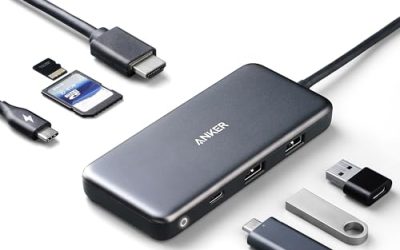
JSAUX 6-in-1 Docking Station HB0609

For docked play, where the Side by Side layout makes sense: television output, wired network and charging passthrough.
Specs:
- Model: HB0609
- Video output: HDMI, up to 4K at 120Hz as listed by the maker
- Network: Gigabit Ethernet
- USB: two USB-A and one USB-C 3.2 Gen 1 ports
- Charging: USB-C power delivery input up to 100W as listed by the maker
JSAUX 6-in-1 Docking Station HB0609 on Amazon
Samsung T7 Portable SSD 1TB

A shuttle drive for the emulation library: dumps, save backups and the Azahar user folder, copied at SSD speed.
Specs:
- Capacity: 1TB
- Model: MU-PC1T0T/AM
- Interface: USB 3.2 Gen 2 over USB-C
- Transfer speeds: up to 1,050MB/s read and 1,000MB/s write as stated by the maker
Samsung T7 Portable SSD 1TB on Amazon
How to Choose
Choose layout by game type, not once for the library: Large Screen for action games where the bottom panel is a map, Default for touch-heavy games, Single Screen with a swap binding for games that ignore the second display. Choose touch input by precision: a fingertip covers menus, a stylus covers drawing and handwriting. Choose storage by habit: microSD keeps the library in the handheld, a portable SSD suits readers who also manage dumps on a desktop.
Who Should Skip
Skip this setup if your 3DS library exists only as encrypted dumps and you cannot produce decrypted images from your own console, because Azahar will not load them. Skip it if your games are built entirely around two equal screens used at once; a single 7-inch panel always compromises one of them. And skip the Ally route if you want stereoscopic 3D, which a flat screen cannot reproduce.
FAQ
Why does my game file refuse to load?
The usual cause is encryption. Azahar needs decrypted dumps from your own 3DS, and no setting inside the emulator changes this.
Can I play touch games without a stylus?
Yes. The touch panel accepts fingertip taps directly on the emulated bottom screen, and menus work fine that way. A stylus matters only for handwriting, drawing and small targets.
Can I play online with other Azahar users?
Azahar supports rooms, letting games that used the 3DS local wireless mode be played with other Azahar users over a network. It is emulator-to-emulator only: Azahar cannot link to a physical 3DS, and Nintendo’s 3DS online services shut down in 2024.
Final Verdict
Azahar on the ROG Ally is a strong pairing for one reason: the touchscreen. Plenty of devices run a 3DS emulator, but the Ally lets you tap the bottom screen where it sits, with a stylus when precision matters, removing the clumsiness that defines 3DS emulation elsewhere. The setup is an ordinary Windows install, and per-game layouts turn the two-screen compromise into a per-title choice.