

- Top Pick: fanxiang S500 Pro 256GB NVMe SSD M.2 PCIe 3.0, Gen 3×4 2280 Internal Solid State Drive, SLC Cache 3D NAND TLC, Up to 3000MB/s, Compatible with Laptop and PC Desktops(Black)
- Best Value: Silicon Power 256GB NVMe M.2 PCIe Gen3x4 2280 SSD (SP256GBP34A60M28)
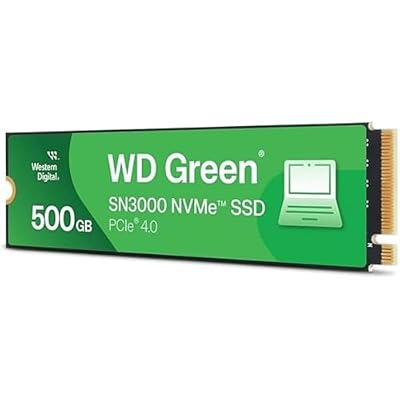
- Premium Choice: Western Digital 500GB WD Green SN3000 NVMe Internal SSD – Solid State Drive – Gen4 PCIe, M.2 2280, Up to 5,000 MB/s – WDS500G4G0E
This comparison comes up constantly in budget laptop and prebuilt listings, where manufacturers pair a small SSD with a large HDD and let you assume bigger means better. It doesn’t, and the two drives aren’t really competing on the same axis. One is about speed, the other is about cheap capacity. Here’s how to actually decide.
As an Amazon Associate we earn from qualifying purchases at no extra cost to you.


The core difference
A 256GB SSD uses flash memory with no moving parts. A 500GB HDD stores data on spinning magnetic platters read by a physical arm. That mechanical difference is why a 10-year-old laptop with an HDD feels sluggish booting Windows while a budget SSD from the same era still feels snappy. Capacity isn’t the variable that matters most here; access speed is.
Typical SATA SSD read/write speeds land around 500-550 MB/s. A 7200RPM HDD manages 80-160 MB/s sequential, and that number falls off hard with random access, which is most of what an operating system does: loading hundreds of small files on boot, pulling in DLLs, indexing. This is why a $40 SSD upgrade feels more dramatic than almost any other single PC upgrade you can make.
Side by side
| Factor | 256GB SSD | 500GB HDD |
|---|---|---|
| Capacity | 256GB (usable ~238GB) | 500GB (usable ~465GB) |
| Boot time (Windows 10/11) | 8-15 seconds | 35-90 seconds |
| Sequential read/write | ~500 MB/s | 80-160 MB/s |
| Random 4K performance | Fast, low latency | Slow, high latency (seek time) |
| Noise | Silent | Audible clicking/spinning |
| Shock resistance | High (no moving parts) | Low, risk of head crash if dropped |
| Typical price (2024) | $18-30 | $35-45 |
| Cost per GB | ~$0-0.12 | ~$0-0.09 |
| Lifespan concern | Write endurance (rarely hit in practice) | Mechanical wear, bearing/motor failure |
Notice the cost-per-GB rows are close. HDDs used to win big on price-per-gigabyte, but SSD pricing has dropped enough that a 500GB HDD and a 256GB SSD often cost about the same amount of money for very different amounts of usable space.
Where 256GB falls short
256GB sounds workable until you install an OS. Windows 11 alone takes 20-30GB, more after updates accumulate. Add a couple of modern games (many single titles now exceed 60-100GB), a photo library, or a few VMs, and 256GB fills up in weeks, not years. If your use case is primarily documents, browsing, and streaming, 256GB is genuinely fine. If you game, edit video, or hoard files, it isn’t.
Where the 500GB HDD falls short
Capacity isn’t the problem with the HDD, speed is. Beyond slow boots, HDDs struggle with anything involving lots of small random reads: loading game levels, searching through file systems, running a database, or even just having too many browser tabs that hit swap/pagefile. They’re also mechanically fragile. Drop a laptop with a spinning HDD and there’s a real chance of a head crash that destroys data instantly. SSDs don’t have that failure mode; they wear out gradually through write cycles instead, which is predictable and rarely an issue for normal use.
The practical answer
Don’t treat this as either/or if you can avoid it. The best setup for most people is a small-to-midsize SSD for the OS and applications, paired with a larger HDD for bulk storage like media libraries, backups, and archives. That’s effectively how prebuilt systems with “256GB SSD + 1TB HDD” configurations are designed, and it’s a good split: fast boots and app launches, cheap bulk capacity for stuff you don’t need instant access to.
If you’re stuck choosing just one drive for a budget build or a laptop upgrade, take the SSD almost every time, even at lower capacity. A 256GB SSD as your only drive will outperform a 500GB HDD as your only drive in every way that affects daily use. You’ll manage storage more carefully, but you won’t be staring at a spinning cursor every time you open a program.
The exception is pure archival storage: external backup drives, NAS boxes, or secondary bulk storage where speed doesn’t matter and you just need gigabytes per dollar. There, HDDs still make sense, and you can look at external hard drives for cheap backup capacity.
If you’re upgrading an old PC
Replacing a stock HDD with an SSD is one of the highest-impact, lowest-cost upgrades you can do on a machine that’s otherwise still usable. For a budget boot drive, a 256GB or 500GB SATA SSD is a safe, inexpensive choice, and if your motherboard supports it, an NVMe SSD will be noticeably faster still for not much more money. Clone your existing drive or do a clean install, and keep the old HDD as secondary storage rather than tossing it. It still has a job to do, just not as your main drive.














