DLSS is not one feature. It is a family of NVIDIA technologies, and each one is locked to a different generation of GeForce RTX graphics card. Two gaming PCs can both advertise DLSS support and deliver very different experiences: one may only offer AI upscaling, while the other can also generate extra frames. The single most important check is the exact GPU model, because the GPU generation decides which DLSS features you can ever use. Everything else — the driver, the game, the monitor, and the supporting hardware — decides whether you can use those features well.
As an Amazon Associate we earn from qualifying purchases. This guide explains how to check DLSS support before you buy, so the disclosure sits up front where it belongs.
The short answer: match the DLSS feature to the RTX generation
NVIDIA ties each DLSS feature to specific hardware, and no driver update or settings change can move a feature to an older card. According to NVIDIA’s published requirements, the breakdown is as follows.
| DLSS feature | What it does | GPU requirement (per NVIDIA) |
|---|---|---|
| DLSS Super Resolution | Renders the game at a lower internal resolution and uses AI to reconstruct a sharp image at your display resolution | Any GeForce RTX GPU (RTX 20 series or newer) with Tensor Cores |
| DLSS Ray Reconstruction | Replaces hand-tuned denoisers with an AI model to improve ray-traced image quality | Any GeForce RTX GPU |
| DLSS Frame Generation | Inserts one AI-generated frame between two rendered frames | GeForce RTX 40 series (uses the Optical Flow Accelerator and fourth-generation Tensor Cores) |
| DLSS Multi Frame Generation | Inserts up to three AI-generated frames between rendered frames | GeForce RTX 50 series only |
| DLSS 4 transformer model | A newer AI architecture for Super Resolution and Ray Reconstruction that improves stability and detail | Available to all GeForce RTX GPUs, through games that adopt it or the NVIDIA app override |
Three practical consequences follow from that table.
First, a GTX card cannot run DLSS at all. DLSS Super Resolution runs on the Tensor Cores that only RTX cards carry, so a PC built around a GTX 16 series card, or around integrated graphics, is out.
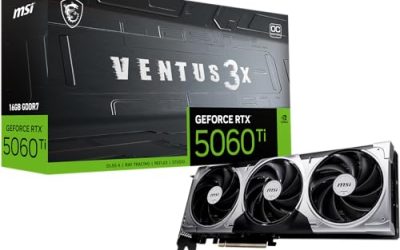
Second, frame generation features are generation-locked. An RTX 30 series card is a perfectly good DLSS Super Resolution card, but it will never offer DLSS Frame Generation. If frame generation is a reason you are buying, an RTX 40 series card is the minimum, and Multi Frame Generation means an RTX 50 series card specifically.
Third, older RTX cards still benefit from DLSS 4. NVIDIA built the transformer model for Super Resolution and Ray Reconstruction to run across the whole RTX line, so an RTX 20 or 30 series owner can often get better image quality from the same game, even though frame generation stays out of reach.
Check 1: the exact GPU model in the listing
Prebuilt listings sometimes hide behind vague wording such as “RTX graphics” or “AI-ready GPU.” For DLSS purposes, you need the full model name, because small differences change the feature set:
- Series decides features. RTX 4060 versus RTX 3060 is not just a speed difference — only the 40 series card supports DLSS Frame Generation.
- VRAM decides comfort at your resolution. DLSS lowers the rendering load, but textures and ray tracing still consume VRAM. A card adequate at 1080p can struggle at 1440p or 4K with high textures, and upscaling cannot fix a VRAM shortage.
- Laptop GPUs are different parts. A mobile RTX GPU shares a name with the desktop card but runs at lower power limits, so check the laptop’s GPU power rating as well as the model name.
If a seller cannot state the exact GPU model, treat the DLSS claim as unverified and move on.
Check 2: does your game actually support DLSS?
Hardware support is only half of the equation. DLSS works on a per-game basis: the developer has to integrate it, and each feature is integrated separately. A game can support DLSS Super Resolution without Frame Generation, and its Frame Generation support still gates Multi Frame Generation to RTX 50 series cards.
To check a specific game before you buy a PC around it:
- Search NVIDIA’s official list of DLSS-supported games and apps, which notes which DLSS features each title includes.
- Inside the game, open the graphics settings and look for separate toggles for DLSS Super Resolution (often a Quality, Balanced, Performance, or Ultra Performance mode) and for Frame Generation.
- Check the NVIDIA app. Its DLSS Override settings can, for supported titles, switch Super Resolution to the latest transformer model and enable features the game’s own menu may not expose yet.
Also note what DLSS cannot do: it cannot be added to a game that never integrated it, and the override only applies to titles NVIDIA lists as supported.
Check 3: driver and Windows settings
DLSS features ride on the graphics driver, so a prebuilt PC that arrives with an old driver can hide capabilities the hardware already has. After setup, update to a current GeForce Game Ready Driver through the NVIDIA app, and check again whenever a major game launches, since launch drivers often carry the DLSS profiles for new releases.
One Windows setting matters specifically for frame generation: NVIDIA states that DLSS Frame Generation requires Hardware-accelerated GPU scheduling to be enabled in Windows 10 or Windows 11. It is on by default in most current installs, but on a freshly imaged system it is worth confirming under Windows graphics settings before you troubleshoot a missing Frame Generation toggle.
Check 4: resolution and monitor match
DLSS is most useful when the GPU, the resolution, and the monitor are matched to each other.
- Super Resolution modes trade quality for speed. Quality mode renders at the highest internal resolution and suits 1080p and 1440p play. Balanced and Performance modes render lower internally and are aimed mainly at 1440p and 4K, where there are more pixels to reconstruct from. Ultra Performance is designed for very high output resolutions such as 8K and looks soft at 1080p.
- Frame generation needs a healthy base frame rate. Generated frames raise the displayed frame rate, but they do not reduce input latency the way genuinely rendered frames do. Frame generation feels best when the PC already renders a solid base frame rate before it is switched on, which is another reason the CPU still matters.
- The monitor caps the benefit. Multi Frame Generation can push displayed frame rates very high, but you only see the frames your monitor can refresh. Pairing an RTX 50 series card with a basic 60Hz display wastes much of what you paid for; a high-refresh-rate monitor is the natural partner for frame generation.
- VRR helps smoothness. A monitor with variable refresh rate support keeps motion smooth when frame rates move around, which complements DLSS well.
If you are still deciding what class of machine fits your desk and budget, start with our guide to choosing the best desktop computer and then apply the DLSS checks on this page to the models on your shortlist.
Check 5: the supporting hardware
DLSS is a GPU story, but the rest of the PC decides whether the GPU can do its job. Use this table as a light supporting check rather than the main event.
| Part | What to check | Why it matters for DLSS |
|---|---|---|
| CPU | A modern mid-range processor or better, matched to the GPU tier | The CPU sets the base frame rate that frame generation multiplies; a weak CPU caps the benefit |
| GPU | Exact RTX model and VRAM amount | Decides the DLSS feature set, as covered above |
| RAM | 16GB as a sensible gaming baseline, in dual channel | Single-channel or very low memory can cause stutter that upscaling cannot hide |
| SSD | An NVMe SSD with room for your library | Large games stream assets constantly; a nearly full or very slow drive shows up as hitching |
| Upgrade path | Spare PCIe power connectors, PSU headroom, case clearance | The cleanest DLSS upgrade later is a newer RTX card, and the case and power supply decide whether it fits |
Cooling belongs here too: a prebuilt with restricted airflow can throttle the GPU in long sessions, quietly erasing the gains you enabled DLSS to get.
Prebuilt DLSS checklist
Before you buy any prebuilt gaming PC with DLSS in mind, run through these questions:
- What is the exact GPU model and series, and which DLSS features does that series unlock?
- How much VRAM does the card have, and is that enough for your monitor’s resolution?
- Do the games you actually play support DLSS, and which DLSS features do they include?
- Will you update the Game Ready Driver through the NVIDIA app as part of setup?
- Is Hardware-accelerated GPU scheduling enabled in Windows?
- Does your monitor’s refresh rate justify frame generation, or would Super Resolution alone cover your needs?
- Is the CPU strong enough to feed the GPU a stable base frame rate?
- Can the case, motherboard, and power supply accept a future RTX upgrade?
Bottom line
What to check in a gaming PC for DLSS comes down to one gate and several supporting checks. The gate is the GPU generation: any RTX card runs DLSS Super Resolution, the RTX 40 series adds Frame Generation, and the RTX 50 series adds Multi Frame Generation, with the DLSS 4 transformer model improving image quality across the RTX line. The supporting checks — game-by-game support, a current driver, hardware-accelerated GPU scheduling, a monitor that can display the extra frames, and supporting hardware that does not bottleneck the card — decide whether the features you paid for actually show up in play. Verify the exact GPU model first, and the rest of the checklist takes only a few minutes.