

- Top Pick: GameSir G8 Galileo Type-C Controller
- Runner-up: SanDisk 256GB High Endurance microSDXC Card
- Also consider: Anker 341 USB-C Hub (7-in-1)
The Nintendo DS is the hardest classic handheld to move to a phone: the machine being emulated has two screens, one of them a touchscreen. melonDS, the accuracy-focused DS emulator, has an Android port that treats that as a layout problem to solve rather than a compromise to accept, and it is now the main way to play DS games on a phone.
As an Amazon Associate, we earn from qualifying purchases.
This walkthrough covers installation, BIOS and firmware from your own DS, two-screen layouts, controllers, the honest state of multiplayer, and moving saves between phone and desktop. Everything assumes games and system files dumped from hardware you own.
This article contains affiliate links, and purchases made through them may earn a commission at no extra cost to you.
Quick Answer
Install the melonDS port by Rafael V. Caetano from Google Play, point it at a folder of games dumped from your own cartridges, and play: most DS titles boot on the built-in replacement BIOS. Add real BIOS and firmware files from your own DS for firmware boot and DSi mode, and fit both screens with the layout editor.
The Android Port: Unofficial, Open-Source and Still Updated
melonDS itself is a desktop project, built for Windows, Linux and macOS. The Android version is a separate port maintained by Rafael V. Caetano, and its Play listing and GitHub repository both describe it honestly as an unofficial port. The source is public under the GPL and the project is actively maintained: the Play listing shows recent updates, with nightly builds published through GitHub.
That distinction matters for expectations: features arrive when the port’s maintainer implements them, and a few desktop capabilities are still missing here, as the multiplayer section explains. What the port adds is phone-first design: themes, per-game control layouts with custom backgrounds, fast-forward, save states and Action Replay cheat support. It also documents its launch activity so Android frontends can open games through it.
What You Need Before the First Boot
The app ships with no games, and its Play listing is explicit that you must extract ROM files from your own cartridges and systems. Dump your cartridges to .nds files, put them in one folder on the phone’s storage, and grant the app access to it. One folder matters later, because save files can live next to the ROMs. Games kept in ZIP or 7z archives are supported too.
One hardware note from the port’s own documentation: performance depends on the JIT recompiler, which needs a 64-bit device. The README says performance is solid on 64-bit devices with threaded rendering and JIT enabled, reaching full speed on flagship phones, while 32-bit devices perform very poorly for lack of JIT support.
BIOS and Firmware: Optional for Games, Required for the Full Console
melonDS carries a clean-room replacement BIOS, so most DS games boot with no system files at all. Start there: confirm your games run before worrying about dumps.
Real files from your own DS earn their place for booting into the DS system menu rather than straight into a game, for titles that behave better with the real BIOS, and for the experimental DSi mode. They are the same files the desktop emulator uses:
- bios9.bin, the 4KB ARM9 BIOS
- bios7.bin, the 16KB ARM7 BIOS
- firmware.bin, 128KB, 256KB or 512KB depending on the source machine
One trap catches many people: firmware dumped from a DSi or 3DS is only 128KB of settings data without boot code, so it works for direct game booting but cannot start the system menu. For firmware boot, dump from an original DS or DS Lite. DSi mode, described in the settings as experimental, additionally needs the DSi BIOS files and a NAND image from your own DSi. Keep everything in one folder and point the BIOS directory setting at it.
Two Screens on One Phone: The Layout Editor
The port’s signature feature is its layout editor: move and resize both screens and the touch controls, change the background behind them, and save different layouts for different games, which is what the DS catalogue demands.
Three patterns cover most of the library. Portrait stacking puts one screen above the other, closest to holding a real DS, and suits games that treat the pair as one tall display. A main-screen layout enlarges the action screen and shrinks the second to a corner, right for games where the bottom screen is mostly a map or menu. Side-by-side landscape works for titles that keep both screens busy, and is the natural arrangement on a foldable opened flat.
Touch games need a different thought: if the bottom screen is the game, keep it large, low and reachable by your thumbs, and shrink the top screen instead. Build layouts per game rather than fighting one global compromise.
Settings That Decide Whether Games Run Well
Two settings do most of the work. The JIT recompiler should simply be on; it translates DS code into native phone code and is the difference between full speed and a slideshow on mid-range hardware. Threaded rendering, paired with the JIT in the port’s performance notes, should be on as well. Round it out with fast-forward for slow RPG stretches and the microphone input for titles that ask you to blow or speak.
Controllers: Touch First, Gamepad When You Want It
The Play listing confirms support for wired and Bluetooth gamepads, and pairing one is the standard Android flow: connect over Bluetooth or USB-C and the app picks it up. Buttons can be remapped, and the on-screen controls can be hidden so the two screens get the full display.
Decide per game, not per library. A gamepad is strictly better for platformers, racers and action titles, and it frees the bottom screen from thumbs. But much of the DS catalogue is built around the stylus, and no controller replaces a fingertip on a touchscreen puzzle or adventure game. Most players end up hybrid: controller for console-style titles, touch for the rest.
Saves: The .sav File Is Your Bridge to the Desktop
In-game saves are the portable part of your progress. melonDS writes the same .sav format on Android as on desktop, and the port can keep each save next to its ROM file, the arrangement worth choosing, since a game and its save then travel as a pair. Without that option or a set save directory, the port falls back to its own app folder, under Android/data/me.magnum.melonds/files/saves, which is harder to reach on modern Android.
Moving progress to a PC is a file copy, not a conversion: put the .sav beside the matching game dump and desktop melonDS picks it up, in either direction. Match the game version and region, as the emulators expect. Save states are the exception: treat them as local to the build that made them, not a transfer format, and finish sessions on an in-game save before switching devices.
Multiplayer on Android: The Honest Answer
Desktop melonDS is famous for emulating the DS local wireless link between instances, and for reaching the community servers that replaced Nintendo Wi-Fi Connection. The Android port does neither. Its own README lists Local Multiplayer at the top of its Missing Features section, alongside DSi SD card support, and nothing in the port adds online play either.
So plan accordingly: two phones cannot link for a local race or a trade through this app today, and a phone cannot join the community online servers through it. If multiplayer is the point of a session, that session belongs on the desktop version. The port may close the gap eventually, but do not plan sessions around features that are not there yet.
Gear That Suits DS Play on a Phone
GameSir G8 Galileo Type-C Controller

A telescopic controller turns a phone into something closer to a handheld console, and for DS games that play on buttons it leaves the touchscreen clear for stylus moments. The G8 Galileo clamps around the phone and connects over USB-C rather than Bluetooth.
Specs:
- Hall Effect sticks and triggers
- Movable USB-C connector, pass-through charging
- 3.5mm audio jack
- Fits phones 110 to 185 mm long
SanDisk 256GB High Endurance microSDXC Card

A DS library grows quietly, and a high-endurance card is built for constant rewriting. This one holds games, saves and the BIOS folder in one place.
Specs:
- Model SDSQQNR-256G-GN6IA
- Class 10, U3 and V30 speed ratings
- Read speeds up to 100 MB/s
- microSDXC with adapter included
SanDisk 256GB High Endurance on Amazon
Anker 341 USB-C Hub (7-in-1)

A hub earns its place in a desk setup: wired controller, transfers from the PC where your dumps live, and a bigger screen, all through one USB-C port.
Specs:
- Model A8346
- HDMI output up to 4K
- 85W Power Delivery pass-through charging
- USB-C and USB-A data ports, SD and microSD slots
Samsung T7 Portable SSD 1TB

A fast portable SSD is the shuttle between desktop and phone for dumps and saves, and the backup copy of a library you dumped yourself.
Specs:
- Model MU-PC1T0T/AM
- USB 3.2 Gen 2, reads up to 1,050 MB/s and writes up to 1,000 MB/s
- AES 256-bit hardware encryption
- USB-C connection, Android compatible
Samsung T7 Portable SSD on Amazon
Lamicall Foldable Phone Stand
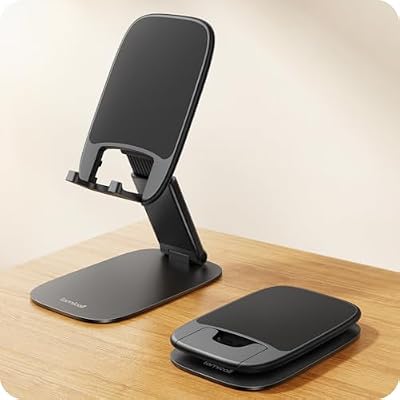
For touch-heavy games at a desk, a stand holds the phone at a reading angle, keeps both screens visible and leaves hands free for a stylus grip or a separate controller.
Specs:
- Model STDP03
- Foldable aluminium body with weighted base
- Height and angle adjustable
- Sized for phones from 4 to 8 inches
Lamicall Foldable Phone Stand on Amazon
How to Choose
Start with the free decisions. Install the port, enable JIT and threaded rendering, and play on the replacement BIOS before dumping anything; most readers never need more. Dump your real BIOS and firmware when you want the system menu, a stubborn game fixed, or the experimental DSi mode.
Choose layouts per game: stacked portrait for two-screen titles, a large main screen for map-below games, a big low touchscreen for stylus games. Add hardware only where it removes friction: a controller for button-led games, storage if the library outgrows the phone, a hub or SSD for frequent file moves.
Who Should Skip
Skip this port if local or online multiplayer is the reason you play DS games, because the Android version offers neither yet; use desktop melonDS instead. Skip it on a 32-bit-only phone, where missing JIT support makes performance poor. And skip it if you want DSi features beyond an experiment, since DSi mode here is exactly that.
FAQ
Does melonDS on Android need BIOS files to play games?
No. The built-in replacement BIOS boots most DS games on its own. Real dumps from your own DS are needed for the system menu and the experimental DSi mode, and can help stubborn titles.
Can two phones play DS multiplayer with this app?
Not today. The port’s documentation lists local multiplayer as a missing feature, and online play is not part of the app either. Multiplayer belongs on the desktop version for now.
Do my desktop melonDS saves work on Android?
Yes. Both versions use the same .sav format: copy the save next to the matching game dump and it loads. Save states are the exception, tied to the build that created them.
Is the Android port made by the melonDS team?
No. It is an unofficial port by a separate developer, Rafael V. Caetano, built on the open-source melonDS core and distributed through Google Play and GitHub.
Final Verdict
melonDS on Android is the DS emulator to install on a phone in 2026: actively maintained, honest about its limits, and designed around the two-screen problem. Set the layout editor up properly, keep saves beside your games, and it handles the catalogue as it should be handled. Just do not buy it a multiplayer partner yet.










