

- Top Pick: SanDisk 1TB Ultra microSDXC UHS-I Card
- Runner-up: JSAUX 6-in-1 Docking Station HB0609
- Also consider: Samsung T7 Portable SSD 1TB
The Steam Deck runs RetroArch well, but it offers three different ways to install it, and the choice you make on day one decides how your cores arrive, where your saves live and whether anything syncs to your desktop PC. The frontend itself is identical in every case: same menus, same shaders, same playlist system.
As an Amazon Associate, we earn from qualifying purchases.
This guide compares the three routes first, then walks the recommended one step by step. It assumes every game file and BIOS image comes from cartridges and discs you own and dumped yourself; no route includes any games.
This article contains affiliate links, and we may earn a commission when you buy through them at no extra cost to you.
Quick Answer
Install RetroArch from the Steam store if you want the least friction: it lives in Gaming Mode like any game and Steam Cloud carries your saves. Install the flatpak from Discover if you want every core through the built-in Core Downloader. Use EmuDeck only if you want a whole preconfigured emulation library, not just RetroArch.
Three Ways In, Three Different Trade-Offs
The Steam store build
Libretro publishes RetroArch on Steam for 64-bit Windows and Linux; on a Deck it installs from the store without leaving Gaming Mode. The one structural compromise is documented plainly in Libretro’s own launch notes: to stay compliant with Steam’s terms of service, the Steam build has no Core Downloader. Cores arrive as free DLC packages on the store, or you copy a core file into the build’s cores folder by hand. In exchange you get store-managed updates, an in-app core manager and Steam Cloud sync for save files.
The flatpak from Discover
The official Linux build is also distributed as a flatpak under the name org.libretro.RetroArch, and the Deck’s Discover store in Desktop Mode installs it in a couple of clicks. This is the complete application: the Online Updater works, the Core Downloader offers the full buildbot catalogue, and cores update independently of the frontend. The costs are procedural: you set it up in Desktop Mode, and to launch it from Gaming Mode you add it to Steam manually as a non-Steam game.
The EmuDeck route
EmuDeck is a third-party installer script that sets up RetroArch alongside standalone emulators, pre-maps the controls, builds a folder tree for games and BIOS files, and can add everything to your Steam library in one pass. It installs the flatpak build of RetroArch underneath, so the core situation matches the Discover route. Our dedicated EmuDeck guide on this site covers that route in full, so it gets no walkthrough here.
The Recommended Path: Steam Build, Step by Step
For a Deck-first player whose systems are covered by the DLC catalogue, the Steam build is the route that stays out of your way.
- In Gaming Mode, open the Store, search for RetroArch and install it like any free game.
- Before launching, open the game’s store page and find the DLC list. Tick the cores for your systems and let Steam install them alongside the app.
- Launch RetroArch and check Settings, Directory: the save and save-state folders should be the defaults inside the app’s own data, which is what Steam Cloud expects to find.
- Add your games. Copy your own dumps over your network, from a microSD card or an external drive in Desktop Mode, then browse to them with Load Content or scan a folder into a playlist via Import Content.
- Load a core, load a game, and open the Quick Menu to confirm the Deck’s controls respond.
- Play once, save in-game, and quit through the menu; that first clean exit triggers a Steam Cloud upload.
Where Your Files Actually Live
SteamOS keeps each route’s data in a different place, and knowing the address saves real frustration when you go looking for a save file.
The Steam build keeps its world under the Steam library’s app folder: Home, .local, share, Steam, steamapps, common, RetroArch. Config, saves, states, playlists and any hand-copied cores all sit in that tree, and it is the tree Steam Cloud watches.
The flatpak build is sandboxed into Home, .var, app, org.libretro.RetroArch. Its retroarch.cfg lives in the config folder inside that path, not in the plain .config folder a desktop Linux install would use, which is why desktop guides send Deck owners to a folder that does not exist. Games can live anywhere the sandbox can see, including the microSD card mounted under run, media.
EmuDeck creates an Emulation folder, on internal storage or the microSD card as you chose during setup, with roms and bios subfolders per system. One warning applies to all three routes: SteamOS updates do not touch your home folder, but a factory reset removes everything that is not on the microSD card.
Controllers in Gaming Mode
The Steam build is a Steam game, so Steam Input wraps it: the Deck’s sticks, trackpads and back buttons are configurable per game from the controller settings screen before you open RetroArch’s own input menu. Inside RetroArch, the built-in autoconfig profiles recognise the Deck’s pad, and the default bindings are sensible.
Two habits make life easier. First, set one menu-toggle combination in Settings, Input, Hotkeys; the Quick Menu is where core options, shaders and save states live. Second, use per-core and per-game remaps rather than rewriting the global mapping: a six-button Genesis layout and a four-button SNES layout can coexist as saved remap files that load with their content. The flatpak build added as a non-Steam game gets the same Steam Input treatment; only its in-app bindings are a separate copy.
Saves and Syncing: The Honest Picture
Steam Cloud is the Steam build’s headline feature, and Libretro’s launch notes confirm it covers save files. Battery saves follow your Steam account between the Deck and a desktop running the same build, which removes the most tedious chore in emulation.
It has limits worth knowing. Sync moves whole files, so playing the same game on two machines before a sync settles can produce a conflict that overwrites the newer save. Save states are riskier still: a state is tied to the exact core version that wrote it, and the Deck and desktop may update cores at different times. Treat states as local, battery saves as portable.
The flatpak and EmuDeck routes sync nothing by themselves. Your options are manual copies over the network or an external drive, or pointing the save directory at a folder you sync with a tool of your choice. That is more work and more control.
Display Settings for an 800p Screen
Both Deck models use a 1280 by 800 panel, and RetroArch’s defaults assume a television, so three changes pay off. Turn on integer scaling in Settings, Video, Scaling for handheld and 16-bit systems, so pixels stay even instead of shimmering. Set the aspect ratio to Core Provided rather than stretching anything to fill the screen. Then, if you use shaders, stay with the lightweight presets: the Deck’s integrated GPU handles the fast CRT and LCD-grid presets comfortably at this resolution, while the heaviest multi-pass CRT simulations are built for desktop graphics cards. Handheld systems look right with an LCD grid shader; home consoles suit a light CRT preset or none at all.
Gear That Completes a Deck Retro Setup
SanDisk 1TB Ultra microSDXC UHS-I Card

A library of your own dumps grows quietly; a 1TB card holds it all while leaving the internal drive to Steam games.
Specs:
- Capacity: 1TB
- Model: SDSQUAC-1T00-GN6MA
- Read speed: up to 150MB/s as stated by the maker
- Speed class: UHS-I, U1, Class 10, A1 app performance
- Includes a full-size SD adapter
JSAUX 6-in-1 Docking Station HB0609

File management, a wired network and a big screen all get easier docked with a stand built for the Deck’s shape.
Specs:
- Model: HB0609
- Video output: HDMI, 4K at up to 120Hz as listed by the maker
- Network: Gigabit Ethernet port
- USB: USB-A and USB-C 3.0 ports
- Charging: USB-C power delivery up to 100W as listed by the maker
Samsung T7 Portable SSD 1TB

The fast way to move a library between desktop PC and Deck, and a sensible home for a backup of your saves.
Specs:
- Capacity: 1TB
- Model: MU-PC1T0T/AM
- Interface: USB 3.2 Gen 2 over USB-C
- Transfer speeds: up to 1,050MB/s read and 1,000MB/s write as stated by the maker
Logitech K380 Multi-Device Bluetooth Keyboard

Renaming folders and editing config files in Desktop Mode are miserable on an on-screen keyboard; a compact Bluetooth board fixes that.
Specs:
- Model: 920-007558
- Connectivity: Bluetooth, pairs with up to three devices via Easy-Switch keys
- Power: two AAA batteries, up to 24 months of battery life as stated by the maker
- Size: 10.9 by 4.9 by 0.6 inches, 14.4 ounces
tomtoc Carrying Case for Steam Deck
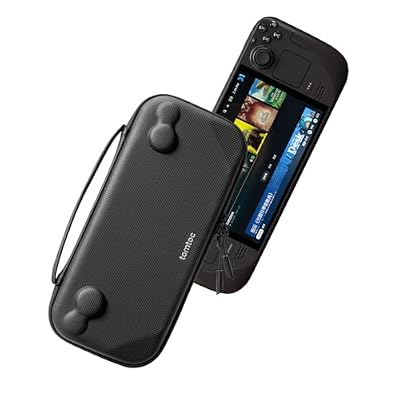
A slim hard case sized for the Deck and its OLED sibling.
Specs:
- Model: G38M1D1
- Shell: hard shell with zipper closure
- Dimensions: 12.52 by 5.51 by 2.36 inches
- Weight: 11.64 ounces
- Fit: Steam Deck and Steam Deck OLED as listed by the maker
How to Choose
Start with your systems list. Check the Steam store’s DLC page for RetroArch: if every core you need is published there, the Steam build gives you Gaming Mode citizenship and cloud saves. If one system you play regularly has no DLC core, take the flatpak from Discover and accept the manual non-Steam shortcut and manual save handling. Choose EmuDeck only when you want the wider package: standalone emulators beside RetroArch, prebuilt folders and library integration, maintained as one system. The routes are not exclusive, and the flatpak and Steam builds can coexist on one Deck.
Who Should Skip
Skip the Steam build if your library leans on systems whose cores have no store DLC, or if you already keep a synced saves folder and resent any service moving files for you. Skip the flatpak route if you will never open Desktop Mode again after setup day; an install whose config folder you cannot find will frustrate you eventually. Skip EmuDeck if you only want RetroArch: it installs and configures far more than you asked for. And skip all three in favour of a standalone emulator if you play exactly one system and prefer its native interface.
FAQ
Does the Steam build run every core the flatpak build does?
No. The Steam build has no Core Downloader, so its catalogue is the set of cores published as free DLC, plus any core file you copy in manually. The flatpak build downloads the full buildbot catalogue from the Online Updater.
Will a SteamOS update delete my flatpak install or my games?
No. Flatpaks and their data live in your home folder, which SteamOS updates do not replace. Your games, config and saves survive updates on either route.
Can I run the Steam build and the flatpak build side by side?
Yes. They install into separate folders with separate configs and do not share saves by default. Many owners keep the Steam build for cloud-synced favourites and the flatpak for systems the store catalogue lacks.
Why does my microSD card not appear inside the flatpak build?
The flatpak runs in a sandbox, so it only sees locations it has permission for. Cards mount under run, media in SteamOS; if the folder is missing from RetroArch’s file browser, grant the app access to removable storage in its permissions, then restart it.
Final Verdict
There is no universal best install, only a best match. The Steam build is RetroArch as a well-behaved Steam game: DLC cores, automatic updates and cloud saves, at the cost of the long tail of the core catalogue. The flatpak is the complete application with a Desktop Mode setup tax. Pick by your systems list first, your tolerance for file management second, and either way the games themselves play identically.










