

- Top Pick: Logitech G502 X Plus
- Runner-up: Razer Basilisk V3 Pro
- Also consider: SteelSeries Aerox 5 Wireless
DPI controls how far the cursor moves when you move the mouse, and the right setting changes completely between a spreadsheet and a shooter. A DPI value that feels calm and precise while you edit a document can feel slow in a fast game, while a value built for quick turns can make fine work feel jumpy.
The answer is not to pick the highest DPI number on the box. It is to match DPI to the task, your screen, and your desk space, then use a mouse that lets you switch between those settings in a second.
As an Amazon Associate, we earn from qualifying purchases.
Quick Answer
For most people, use 800 to 1600 DPI for office work and 800 DPI for competitive shooters, then raise it only if your monitor is large or your desk space is small. Keep one low DPI stage for precise aiming and editing, one medium stage for browsing and documents, and one higher stage for fast movement across multiple monitors. A mouse with a dedicated DPI button makes switching instant.
What DPI Actually Does
DPI, or dots per inch, describes how many counts a mouse sensor reports for each inch of movement. At 800 DPI, moving the mouse one inch moves the cursor 800 counts. At 3200 DPI, the same inch sends four times as many counts. Higher DPI is not automatically better. It is simply faster, and speed without control is a problem in both work and games.
Sensor quality matters more than the maximum DPI number. Leave Windows pointer speed at the middle notch, turn off Enhance pointer precision, and change DPI in mouse software or with the DPI button.
Productivity DPI: What Works at a Desk
On a single 1080p monitor, 800 to 1200 DPI is a comfortable starting point. The cursor moves far enough that you are not lifting the mouse constantly, but it stays slow enough for precise clicks on small buttons and links. On a 1440p monitor, 1200 to 1600 DPI often feels better. On a 4K monitor or an ultrawide, 1600 to 2400 DPI can make sense.
Multi-monitor setups push DPI higher still. The trade-off is precision: at very high DPI, selecting a single word or cell takes a steadier hand. Keep two work stages, a medium stage for general navigation and a low stage for detailed editing.
Gaming DPI: What Works in Play
In games, DPI is only half of the equation. The other half is in-game sensitivity, and the two multiply to form eDPI. A player at 800 DPI with a sensitivity of 1.0 has an eDPI of 800. A player at 1600 DPI with a sensitivity of 0.5 has the same eDPI of 800. Always think in eDPI when you compare settings.
Competitive shooters reward low to medium eDPI, because it makes small aim corrections easier. MOBA, strategy, and MMO players often go higher, because the cursor spends most of its time crossing a large screen. Start at 800 DPI and adjust in small steps.
eDPI and Why Work and Play Differ
Work and play pull eDPI in opposite directions. At work, you want the cursor to cross a large screen quickly and jump between monitors. In a shooter, you want the crosshair to move slowly enough to track a moving target without overshooting. One setting cannot serve both goals well.
A practical split is 1600 DPI for desktop work on a 1440p or larger screen, 1200 DPI for detailed editing, 800 DPI for competitive shooters, and 1200 to 1600 DPI for MOBA and strategy games.
On-the-Fly DPI Switching for a Dual Life
On-the-fly DPI switching is the feature that makes one mouse work for both jobs. A dedicated DPI button, usually behind the scroll wheel, cycles through DPI stages without opening software. Some mice also have a DPI clutch that temporarily drops DPI while you hold it, useful for scoped aiming and precise selection.
Set your stages before you need them. A useful layout is 800, 1200, 1600, and 2400 DPI, in that order. Profiles take this further: save a work profile and a gaming profile, each with its own DPI stages and button assignments.
Five Mice That Handle Both Jobs Well
The five mice below combine a strong sensor, a useful DPI range, and controls that suit both work and play. Each one has a dedicated DPI control and enough buttons for work shortcuts.
1. Razer Viper V3 Pro
The Viper V3 Pro is the lightest mouse here and the most focused on competitive play, yet it still works well as a daily driver. Its symmetrical shape suits claw and fingertip grips, and the Focus Pro 35K sensor tracks cleanly at low DPI. It has fewer work buttons than the heavier mice here.
Specs
- Sensor: Razer Focus Pro 35K Optical Sensor Gen-2
- Maximum DPI: 35,000
- Weight: 54 g in black
- Programmable buttons: 8
- Polling rate: Up to 8000 Hz
- Battery life: Up to 95 hours at 1000 Hz
- Connectivity: HyperSpeed Wireless and wired
2. Logitech G502 X Plus

The G502 X Plus is the workhorse of this list. It has the most programmable controls here, a DPI shift button for a temporary low DPI stage, and a dual-mode scroll wheel that switches between ratcheted scrolling and free-spinning scrolling for long documents. Its full right-handed shape suits palm and claw grips.
Specs
- Sensor: Logitech HERO 25K
- Maximum DPI: 25,600
- Weight: 106 g
- Programmable controls: 13
- Polling rate: Up to 1000 Hz
- Battery life: Up to 120 hours with lighting off
- Connectivity: LIGHTSPEED Wireless and wired
3. Razer Basilisk V3 Pro
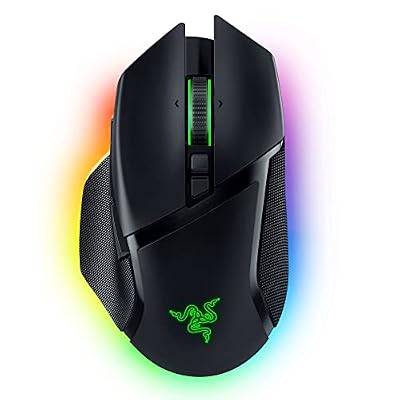
The Basilisk V3 Pro is the comfort pick, with a full ergonomic shape, a thumb rest, and a HyperScroll Tilt Wheel. Tilt to scroll sideways in spreadsheets, or switch to free-spin mode for long documents. The DPI clutch is a standout: hold it to drop to a low DPI stage, then release it to return to normal.
Specs
- Sensor: Razer Focus Pro 30K Optical Sensor
- Maximum DPI: 30,000
- Weight: 112 g
- Programmable controls: 13
- Polling rate: Up to 1000 Hz
- Battery life: Up to 90 hours
- Connectivity: HyperSpeed Wireless, Bluetooth, and wired
4. SteelSeries Aerox 5 Wireless

The Aerox 5 Wireless is the most button-rich lightweight mouse here, with nine programmable buttons including a five-button side panel with an up and down flick switch. At 74 g, it is light enough for fast flicks, yet its right-handed shape still supports the hand during a long day.
Specs
- Sensor: SteelSeries TrueMove Air
- Maximum DPI: 18,000
- Weight: 74 g
- Programmable buttons: 9
- Polling rate: Up to 1000 Hz
- Battery life: Up to 180 hours
- Connectivity: Quantum 2.0 Wireless 2.4 GHz, Bluetooth 5.0, and wired
5. Razer DeathAdder V3 Pro

The DeathAdder V3 Pro is the ergonomic classic here, refined into a light wireless shape. Its right-handed curve supports palm and claw grips, and at 63 g it is light enough for fast aim. It has five programmable buttons, enough for forward, back, DPI, and a couple of shortcuts.
Specs
- Sensor: Razer Focus Pro 30K Optical Sensor
- Maximum DPI: 30,000
- Weight: 63 g
- Programmable buttons: 5
- Polling rate: Up to 1000 Hz
- Battery life: Up to 90 hours at 1000 Hz
- Connectivity: HyperSpeed Wireless and wired
How to Choose
Start with your hand and your desk, not with the maximum DPI number. If you have medium to large hands and a palm grip, the DeathAdder V3 Pro and the Basilisk V3 Pro are the natural starting points. If you have smaller hands or a claw or fingertip grip, the Viper V3 Pro fits better. If you want the most buttons, the G502 X Plus and the Aerox 5 Wireless lead the list.
Next, count your monitors and measure your desk space. A single 1080p monitor and a large mousepad point toward 800 to 1200 DPI. A 1440p or 4K monitor, an ultrawide, or a two-monitor setup points toward a higher work DPI stage, with a separate low stage for games. Finally, check onboard memory if you cannot install software on your work laptop.
Who Should Skip These Mice
Skip this list if you want a dedicated office mouse with a vertical shape, a trackball, or a silent click design. The mice here are gaming mice first, and they are not silent or shaped for wrist strain relief in the way a vertical ergonomic mouse is. Skip them too if you play only slow, turn-based games and your work is mostly typing, or if you need a left-handed shape.
Frequently Asked Questions
What DPI should I use for office work?
Start at 800 to 1200 DPI on a 1080p monitor, 1200 to 1600 DPI on a 1440p monitor, and 1600 to 2400 DPI on a 4K or ultrawide monitor. Add a lower stage for detailed editing and a higher stage for multi-monitor work, then adjust in small steps.
What DPI should I use for gaming?
Start at 800 DPI for competitive shooters and tune your in-game sensitivity to reach your usual eDPI. Use 1200 to 1600 DPI for MOBA, strategy, and MMO games, where cursor speed matters more. Avoid the maximum DPI setting, because it makes small aim corrections harder.
Is higher DPI always better?
No. Higher DPI only means the cursor moves farther for the same hand movement. Above a certain point, extra DPI adds jitter and makes precise clicks harder. Sensor quality and shape matter far more than the highest number on the box.
How do I switch DPI quickly between work and games?
Use the DPI button to cycle through preset stages, or hold a DPI clutch button for a temporary low DPI stage. Save a work profile and a gaming profile in the mouse software, with different DPI stages in each, and switch profiles when you change tasks.
Final Verdict
The best mouse DPI for productivity vs gaming is not one number. It is a small set of numbers, each matched to a task: a low stage for aiming and detailed work, a medium stage for everyday browsing, and a higher stage for large screens and multi-monitor setups. The mice here all make that switching easy.
If you want the most versatile pick, the Logitech G502 X Plus covers the most ground, with its DPI shift button, free-spinning wheel, and 13 programmable controls. If you want the lightest competitive mouse that still works at a desk, choose the Razer Viper V3 Pro. If comfort is your priority, choose the Razer Basilisk V3 Pro or the Razer DeathAdder V3 Pro.










