

Undervolting means asking your graphics card to do its work at lower voltage, which cuts the power it draws and the heat and fan noise that come with it. It is the inverse discipline of overclocking: this site’s GPU overclocking guide covers raising clocks and power limits, while this guide covers the opposite direction — trimming voltage, capping power, and validating that the card stays stable while running cooler and quieter.
The catch is that Linux does not offer one undervolting method. What you can change depends entirely on your GPU vendor and driver. AMD cards expose genuine voltage control through the open amdgpu driver, NVIDIA cards expose power limits and clock offsets but no voltage curve editor, and Intel Arc cards expose very little at all.
As an Amazon Associate, we earn from qualifying purchases.
Quick answer
Undervolting on Linux depends on your GPU vendor. AMD cards accept genuine voltage reductions through LACT, CoreCtrl or the amdgpu sysfs interface, so the same clocks can run at lower voltage. NVIDIA cards expose no voltage curve editor on Linux; the equivalent result comes from lowering the power limit and adding a clock offset.
Two vendors, two different toolboxes
A modern GPU does not run at one fixed voltage. It follows a voltage-frequency curve defined by the vendor: for each clock state, the firmware requests a matching voltage. True undervolting edits that relationship, so a given clock is delivered at less voltage than the factory curve asks for. Whether Linux lets you touch that curve is a driver question, not a hardware one.
AMD’s amdgpu kernel driver exposes the curve on many generations. The sysfs performance interface lets users adjust clock and voltage points on older architectures and apply a voltage offset on newer ones, and tools such as LACT and CoreCtrl wrap that interface in sliders and profiles. The control is real and documented in the kernel’s amdgpu documentation.
NVIDIA’s proprietary driver takes the opposite approach. On Linux it exposes a board power limit you can raise or lower, plus fixed core and memory clock offsets, through nvidia-smi and the NVML library that front-ends such as GreenWithEnvy use. It does not expose any way to edit the voltage-frequency curve itself on consumer cards. The Windows curve-editor workflow has no Linux equivalent, and NVIDIA’s open kernel modules do not change this, because the tuning interface lives in the same user-space stack.
Before you change anything
Start by recording how the card behaves at stock — sustained clock, temperature and fan behaviour in a game you play often, watched through MangoHud. Without a baseline you cannot tell whether a change helped, hurt, or did nothing.
Three safety rails make the process low-risk. First, change one variable at a time, in the smallest steps the tool allows, and write down each step. Second, Linux GPU tuning is not persistent by itself: settings applied through sysfs or nvidia-smi reset at reboot unless a service reapplies them — LACT runs a daemon for this, CoreCtrl applies profiles at login, and NVIDIA power limits can be set by a boot service. That reset behaviour is a feature: a bad setting clears itself on restart. Third, understand the failure mode. Too little voltage causes instability — crashes, graphical corruption, a hung display — not damage, because the change reduces electrical stress rather than adding it. The realistic cost is lost work in whatever was open when it crashed, so validate before trusting a profile with anything important.
The AMD workflow: offsets through LACT or CoreCtrl
On a supported AMD card, install LACT or CoreCtrl and confirm the tool sees the GPU’s clocks, voltage and power readings. Manual sysfs control also requires the amdgpu feature mask that unlocks overdrive controls, which both tools document; newer RDNA generations expose a voltage offset rather than individually editable curve points, while older generations expose the fuller point-by-point table.
Work in small negative offset steps, running the validation routine below after each one before going further. Most players want the stock clock range held at reduced voltage, so leave clock targets alone at first and only trim voltage. When a step fails validation, back off one step and treat the last stable setting as your ceiling. Save it as a named profile, set the tool to apply it automatically, and re-validate after major driver or kernel updates, because a new driver can shift the stability boundary.
The NVIDIA workflow: power limits and clock offsets
On NVIDIA, forget the curve and work with the two levers that exist. The first is the power limit. Lowering it through nvidia-smi, or GreenWithEnvy’s graphical interface, tells the boost algorithm to sustain its clocks inside a smaller power budget. The card responds by choosing lower voltage-frequency points on its own curve — exactly the undervolting effect: less power, less heat, usually a modest reduction in peak clock. Persistence mode and a small boot service keep the limit applied across restarts.
The second lever is the clock offset. Adding a positive core clock offset shifts the whole curve upward, so at any voltage the card runs a higher clock; combined with a lowered power limit, the card settles near stock performance while drawing less power. That pairing — offset up, limit down — is the closest Linux equivalent of the Windows curve editor’s flatten-the-curve technique. Apply each change separately and validate between them, so you know which lever caused any instability. Laptop NVIDIA GPUs are typically more locked down, and some expose neither lever cleanly; there, the vendor’s own power profiles are the practical tool.
The Intel Arc position
Arc owners should set expectations honestly. The xe driver is still maturing, and its tuning surface on Linux is limited mainly to power-related controls where the kernel exposes them. There is no established LACT-style voltage workflow for Arc, and the tooling that exists for AMD and NVIDIA does not transfer. A power cap, where available, plus in-game frame-rate limits is the realistic Arc toolkit today.
Stability validation: the discipline that makes it stick
An undervolt that survives a menu screen proves nothing. Validation means sustained, varied load: a demanding game scene left running, a shader-heavy title that stresses the card differently, and ordinary desktop use in between, because some unstable settings only fail at light, transient loads when the card jumps between clock states. Watch for the quiet failures, not just hard crashes — visual artefacts, texture flicker, a game that closes without an error, or shader compilation errors in Proton titles all signal that the voltage is too low for that clock.
Validate in long sessions rather than short bursts, and again after driver updates. If a machine ever fails to reach the desktop after a change, the settings are applied by user-space tools, so booting without the service returns the card to factory behaviour.
What undervolting cannot do
It cannot repair a failing card; if a GPU is unstable at completely stock settings, that is a hardware or warranty matter, not a tuning problem. It cannot overcome a poor cooler installation — a wide gap between edge and hotspot temperatures on AMD cards points at mounting or thermal material, which no voltage setting fixes. It cannot create performance from nothing: the result is bounded by your individual chip, and two identical cards can settle at different stable offsets.
The hardware in this guide
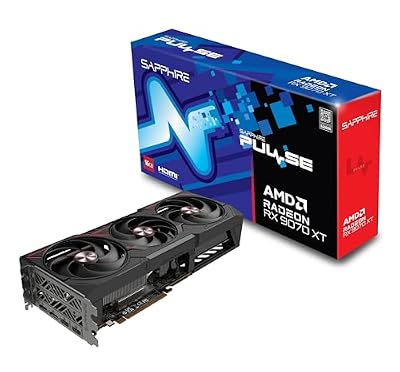
Sapphire Pulse Radeon RX 9070 XT
The RDNA 4 flagship of this list and the fullest undervolting subject here: the amdgpu voltage offset path in LACT and CoreCtrl applies directly.
Specs:
– GPU: AMD Radeon RX 9070 XT (RDNA 4)
– Memory: 16GB GDDR6
– Model: 11348-03-20G
– Outputs: 2x HDMI, 2x DisplayPort
Sapphire Pulse Radeon RX 9060 XT 16GB
The mid-range AMD option, with the same driver-level voltage offset controls as its bigger sibling and a smaller power budget to trim.
Specs:
– GPU: AMD Radeon RX 9060 XT (RDNA 4)
– Memory: 16GB GDDR6
– Model: 11350-03-20G
ASUS Prime GeForce RTX 5070 OC Edition
A current Blackwell card for the NVIDIA method: power limit plus clock offset through nvidia-smi or GreenWithEnvy, with no curve editor available.
Specs:
– GPU: NVIDIA GeForce RTX 5070
– Memory: 12GB GDDR7
– Model: PRIME-RTX5070-O12G
GIGABYTE GeForce RTX 5060 WINDFORCE OC 8G
The compact dual-fan NVIDIA entry, a common small-case card where the power-limit lever matters most for noise.
Specs:
– GPU: NVIDIA GeForce RTX 5060
– Memory: 8GB GDDR7
– Model: GV-N5060WF2OC-8GD
Sparkle Intel Arc B580 Titan OC
Included to represent the third vendor honestly: a capable budget card whose Linux tuning stops at power controls rather than voltage.
Specs:
– GPU: Intel Arc B580
– Memory: 12GB GDDR6
– Boost clock: 2760 MHz (maker-stated)
– Model: SB580T-12GOC
How to choose your method
Choose by vendor first, because the vendor decides the toolbox. AMD owners aiming for efficiency should use the voltage offset alone and keep stock clocks; those aiming for silence should add a power-limit trim and a calmer fan curve. NVIDIA owners should pair a lowered power limit with a small positive clock offset, which recovers much of the performance the limit gives up; those who only want quiet can use the limit alone and accept the peak-clock reduction. Intel Arc owners should use power controls where their kernel exposes them and frame-rate caps elsewhere, and skip any tool promising voltage control the driver does not provide.
Who should skip this
Skip undervolting if your card is already unstable at stock settings, if you cannot spare the time to validate properly, or if your laptop’s tuning controls are locked and its vendor utility already manages power well. Also skip it if your goal is maximum benchmark performance — that is the overclocking guide’s territory, and the two goals pull in opposite directions.
FAQ
Is undervolting safe for the card?
The mechanism itself reduces voltage and power, so it lowers electrical and thermal stress rather than raising it. The realistic risk is instability — crashes or corruption while a too-aggressive setting is active — not hardware damage.
Does undervolting void the warranty?
Policies differ between card makers and regions, and they generally distinguish software tuning from physical modification or modified firmware. This guide only uses interfaces the drivers themselves expose. If warranty coverage is a deciding factor, read your card maker’s terms before tuning.
Why is there no NVIDIA voltage curve editor on Linux?
Because NVIDIA’s Linux driver does not expose one. The proprietary stack offers power limits and clock offsets through nvidia-smi and NVML, and the open kernel modules feed the same user-space interface. Until NVIDIA publishes a curve interface for Linux, the power-limit-plus-offset method is the available substitute.
Do undervolt settings survive a reboot?
Not by themselves: sysfs and nvidia-smi changes reset at restart. LACT’s daemon, CoreCtrl’s profile system, or a small boot service for the NVIDIA power limit will reapply them automatically — the setup most people settle on once a profile has passed validation.
Final verdict
Undervolting on Linux is genuinely worthwhile, but it is two different crafts. AMD owners get the real thing — a documented voltage offset in LACT or CoreCtrl that trims power at stock clocks. NVIDIA owners get an effective approximation built from a lowered power limit and a clock offset. Either way, small steps and patient validation make it stick.

 find alternatives







