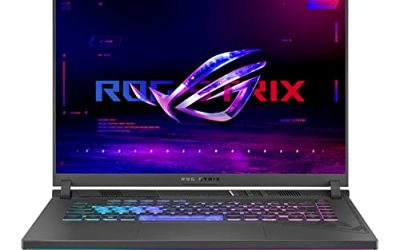
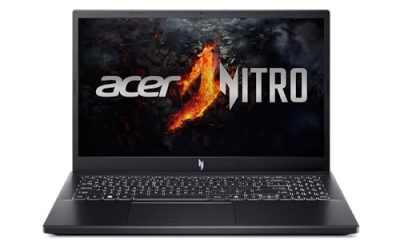
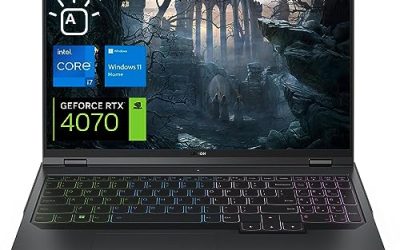
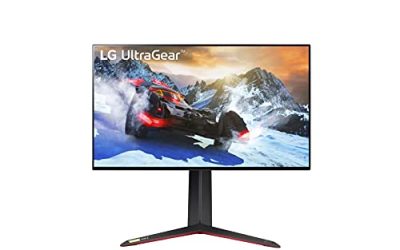
Esports titles reward consistency more than spectacle. A laptop that holds a stable frame rate, stays cool, and responds instantly will help you more than one that spikes to high numbers and then drops during a team fight. Learning how to optimize gaming laptop for esports is about removing those dips and delays so your hardware supports your decisions instead of fighting them.
As an Amazon Associate we earn from qualifying purchases.
Start With Power and Performance Modes
Plug In and Use the Right Power Plan
On battery power, a gaming laptop lowers CPU and GPU limits, dims the display, and may switch to integrated graphics to save energy. For competitive play, always compete plugged in with the original charger or one rated for your model.
In Windows, open Settings, go to System and Power, and set Power mode to Best performance while plugged in. Then open your laptop maker’s control app and select its performance or turbo profile for esports sessions. That profile usually raises power limits, sets a more aggressive fan curve, and keeps the dedicated GPU active.
Understand CPU and GPU Power Limits
Laptop processors and graphics chips share a power budget, so balance matters. Esports titles are often more sensitive to CPU speed and consistency than to ultra detail.
Avoid extreme overclocking if you are new to tuning. Unstable gains are not worth crashes mid-match. Instead:
- Keep the dedicated GPU selected for your games in Windows graphics settings and your GPU control panel.
- Turn off battery-saving features that cap frame rate while plugged in.
- Disable background overlays you do not use.
- Restart before a serious session to clear memory and pending updates.
For the operating system side, our guide on how to optimize Windows 11 for gaming covers background processes, Game Mode, and update settings in detail.
Control Thermals for Sustained Performance
Heat is the main reason a laptop that starts a match feeling fast ends it feeling sluggish. When temperatures climb, the CPU and GPU lower clock speeds to protect themselves — a behavior called thermal throttling.
Improve Airflow First
Place the laptop on a hard, flat surface so the intake vents underneath can breathe. Raise the rear slightly with a stand if your model allows it; even a modest lift can improve airflow. Keep exhaust vents clear of walls and clutter, and play in a cooler room when you can.
Clean fans and vents regularly with compressed air while the machine is off. Dust raises temperatures over time.
Set a Fan Curve That Favors Competition
In your control app, choose a performance fan profile for matches, even if it is louder. Headphones make the noise easy to ignore, and cooler components hold higher clocks for longer. If the app allows a custom curve, set fans to ramp up earlier as temperatures rise rather than waiting until the system is already hot.
Watch temperatures during a match. If frame times become uneven near the limit, lower a few graphics settings first. Cooler and stable beats hotter and erratic.
Configure In-Game Settings for Consistency
Prioritize Frame Rate and Frame Time
Set a frame rate cap slightly below what your system can hold consistently, or use your display refresh rate as a sensible ceiling. A locked, even frame rate often feels smoother than an uncapped rate that swings widely.
Lower settings that cost a lot but add little competitive information:
- Shadows: low or medium.
- Reflections and ambient occlusion: low or off.
- Volumetric effects, fog, and particle density: low.
- Texture quality: medium or high if you have enough video memory.
- Anti-aliasing: a light option that keeps edges clear without heavy blur.
Keep view distance high enough to spot opponents clearly. Adjust one setting at a time.
Reduce Input Lag
Enable the low-latency or reflex option in your game or GPU panel if available. Turn off vertical sync in competitive titles, as it can add delay, and rely on a frame cap or variable refresh technology if your display supports it. Disable motion blur, film grain, and depth of field — these make tracking targets harder. Use exclusive fullscreen mode when a game offers it, as it often provides the most direct path from GPU to display.
Set Up Your Display Correctly
A high-refresh panel only helps if Windows and your game are actually using it.
Confirm the Refresh Rate
Open Display settings, then Advanced display, and confirm the refresh rate is set to the highest value your panel supports — for example 144Hz, 165Hz, or 240Hz if those modes are listed. Check again after connecting an external monitor, because Windows may default to a lower rate. In each game, select the same resolution and refresh rate as the desktop.
Choose Resolution and Scaling With Intent
Native resolution gives the sharpest image. If frames are unstable, try the in-game resolution scale slider before dropping the full resolution; lowering it slightly can recover consistency while keeping the interface crisp. Set scaling in one place only, either the game or the GPU panel, not both.
Adjust brightness and gamma so dark areas reveal detail without washing out the scene.
RAM, SSD, and Storage Considerations
Make the Most of Your Memory
Most modern esports titles run well with 16GB of RAM, and dual-channel memory — two matched sticks rather than one — can improve frame consistency. Check Task Manager while gaming: if memory use is constantly near the limit, closing browsers and launchers will help, and an upgrade may be worth considering later.
If memory is upgradeable, confirm supported speed and capacity first and follow the maker’s guidance. If it is soldered, focus on reducing background use.
Keep Your SSD Healthy
Install esports titles on the internal SSD, not an external drive, for faster loading and smoother asset streaming. Keep at least 15 to 20 percent of the drive free so the SSD can manage its cache and Windows has room for updates. Remove games you no longer play and move recordings to another drive.
Ports, Peripherals, and Network Basics
Use the ports recommended in your manual for high-speed devices. A wired mouse is the simplest low-latency choice; if you use a wireless mouse, place its receiver close by with a short extension cable. Disable pointer acceleration in Windows so aim stays predictable. For keyboards, wired mode avoids battery and wireless interruptions during matches, and headsets should be tested for mic clarity before competition, not during it.
Prefer an Ethernet cable whenever possible. A wired connection is usually more stable than Wi-Fi, with fewer spikes when others use the network. If Ethernet is not an option, play close to the router on the faster Wi-Fi band and pause cloud backups, streaming, and large downloads during sessions.
Close launchers, browsers, and sync tools before playing; they compete for resources and cause stutter.
Build a Pre-Match Routine
Before a session: plug in, select the performance profile, confirm the refresh rate, close background apps, check fan mode, and launch in fullscreen. Play one warm-up match; if something feels off, undo the last change rather than changing five settings at once.
Keep a short note of settings that worked for each title, so you can restore a known-good setup after updates.
FAQ
Should I cap my frame rate for esports?
Usually, yes. A cap your laptop can hold consistently gives smoother frame times than an uncapped rate that rises and falls.
Is it safe to use the highest performance mode all the time?
For plugged-in gaming, yes. For everyday work, a balanced profile is quieter, cooler, and easier on battery life.
Do I need to upgrade RAM or storage to compete?
Not necessarily. Start with settings and thermals. Upgrades help most with a clear bottleneck, such as single-channel memory or a nearly full drive.
Why does my laptop feel slower in later matches?
Heat is the most common reason. Improve airflow, use a stronger fan profile, clean the vents, and lower heavy graphics settings.
Should I play on Wi-Fi or Ethernet?
Ethernet is preferred for stability. On Wi-Fi, stay close to the router, use the faster band, and limit other network activity.
Conclusion
To optimize a gaming laptop for esports, focus on fundamentals that deliver consistency: plugged-in performance power, controlled temperatures, sensible in-game settings, a correctly configured high-refresh display, enough memory and SSD headroom, and a stable wired setup for peripherals and networking. These steps remove stutters that cost rounds, and let your practice — not your hardware — decide the result.