

- Top Pick: LG UltraGear 27GP850-B
- Runner-up: AOC Q27G3XMN
- Also consider: BenQ Zowie XL2546X
On Windows, a gaming monitor is mostly a panel purchase. On Linux, it is a chain purchase: GPU driver, cable standard, Wayland compositor and panel must all agree before the refresh rate, variable refresh and HDR printed on the box appear on your desk. A monitor that tops a general roundup can be the wrong buy here if its best mode sits behind a port your driver cannot fully drive.
This guide covers the buying side of that chain: which connection to insist on per GPU vendor, how VRR ranges behave under Wayland, and how far HDR support has travelled per desktop. It is not an ultrawide guide or a deep HDR setup explainer; those have their own articles here. The question: which monitor, bought today, lights up every feature it advertises on a Linux desk.
As an Amazon Associate, we earn from qualifying purchases.
Quick answer
For Linux, buy DisplayPort first and the panel second. AMD cards cannot use full HDMI 2.1 bandwidth in the open driver, so DisplayPort is the only route to high-refresh 4K on Radeon. NVIDIA’s proprietary driver and Intel handle HDMI 2.1 properly. Then match the panel class to your GPU tier, and confirm your Wayland desktop supports the VRR and HDR you are paying for.
The connection decision
The most Linux-specific monitor fact is the HDMI 2.1 licensing limit. Its high-bandwidth FRL mode carries 4K at 120Hz and above, and open-source implementations need HDMI Forum approval. AMD requested that approval for its open Linux driver and was turned down, a decision made public in early 2024. The result: Radeon over HDMI on Linux is limited to HDMI 2.0-class bandwidth, so 4K stops at 60Hz over that cable.
DisplayPort has no equivalent wall. A VESA standard with no licensing gate on open implementations, it lets the same Radeon card drive 1440p at 240Hz, or 4K at 240Hz over DisplayPort 1.4 with DSC. Check the DisplayPort version too: some budget panels ship DisplayPort 1.2, which caps modes below the advertised refresh.
NVIDIA owners are the exception: the proprietary driver is closed-source, so it ships full HDMI 2.1 support on Linux, and a GeForce card drives 4K at 120Hz or more over HDMI. The open Nouveau and NVK stack does not share that freedom, so the HDMI route belongs to the proprietary driver. Intel is friendly too, with HDMI 2.1 in its Linux driver for Arc and integrated graphics. Even so, DisplayPort remains the safer first cable, with the longest VRR track record on Linux.
VRR under Wayland, honestly
Variable refresh on Linux is a Wayland feature in practice. KDE Plasma’s KWin exposes adaptive sync per display, with an automatic mode for full-screen games. GNOME’s Mutter gained official variable refresh support in GNOME 46. The wlroots family, including Sway and Hyprland, exposes VRR in output configuration. On X11, variable refresh was always partial and HDR is absent, so these features mean a Wayland session.
The range matters more than the badge. A wide range such as 48 to 240Hz, backed by low framerate compensation on FreeSync Premium tier panels and above, stays in sync when frame rates dip below the floor.
Two caveats complete the picture. KWin can drive variable refresh on several displays with AMD and Intel graphics, while NVIDIA’s proprietary driver on Wayland has historically been happiest with a single VRR display, so a multi-monitor adaptive-sync desk favours AMD. And VA panels can flicker when frame rates swing widely inside the VRR range, with OLEDs shimmering near black: a panel trait on every operating system, not a Linux defect.
HDR readiness: a desktop question
The panel is the easy half of HDR: DisplayHDR True Black OLEDs and DisplayHDR 1000 mini-LED monitors are ordinary retail products. Whether HDR games render in HDR depends on the compositor, and the desktops are not at the same point. KDE Plasma 6 is the most mature route, with per-display HDR on Wayland and the deepest colour management. GNOME arrived later, with HDR support landing in GNOME 49 and younger, simpler controls. On wlroots compositors, HDR output is still best described as experimental. Whatever the desktop, Gamescope, Valve’s micro-compositor from the Steam Deck’s gaming mode, supports HDR end to end and is the most battle-tested route for HDR in games.
In short, HDR on Linux today means HDR in games, with the desktop itself usually still in SDR.
Panel classes matched to GPU tiers
The panel follows the GPU. Entry cards in the GTX 1660 and RX 6600 class feed 1080p high-refresh panels or modest 1440p screens. Mid-range cards of the RTX 4070 and RX 7800 XT class match 1440p at 165 to 240Hz: IPS for all-round use, VA mini-LED for real HDR, OLED for the best motion and contrast. Flagship cards, the RTX 4080, 4090 and 5090 class and the RX 7900 XTX, suit 4K at 240Hz OLED panels.
Panel technology sets the trade-offs. Fast IPS is the safe all-rounder, with no burn-in question. Fast VA with mini-LED backlighting is the only LCD route to HDR that looks like HDR, at the cost of dark-scene smearing and VRR flicker. TN survives in one niche, esports, where strobed motion clarity outranks colour and HDR. OLED, WOLED or QD-OLED, delivers true blacks and near-instant response, with two caveats: full-screen brightness is lower than LCD, and static desktop elements raise a long-term burn-in consideration that makers address with panel-care routines and burn-in warranty cover. OLED subpixel layouts render text less crisply than IPS, a point for work use.
How to choose
Start with the GPU vendor, because it decides the cable: Radeon owners should treat a DisplayPort 1.4 or better input as non-negotiable and not pay for unreachable HDMI 2.1 features, while NVIDIA proprietary and Intel owners can use either input but should still default to DisplayPort. Match panel class to GPU tier: a 4K 240Hz OLED fed by a mid-range card lives upscaled or below its ceiling. Check the VRR range, not the badge, favouring a low floor with low framerate compensation. Pick the HDR route honestly: KDE Plasma or Gamescope for maturity, GNOME 49 for the newer path, and a DisplayHDR 1000 LCD or True Black OLED if HDR is a real priority. Fit the desk last: 24.5 inches for close competitive setups, 27 inches as the flexible middle, and weigh the OLED text caveat if the screen splits between games and text.
Who should skip this
Skip this approach if your gaming is Windows-only, because the general roundups here cover that ground and the port logic above does not apply. Skip it if you play mainly on consoles, since console gaming belongs on HDMI 2.1 televisions, and several picks below are PC-first monitors whose HDMI inputs are the secondary path. Skip the VRR and HDR spending if you plan to stay on an X11 session, where neither is properly available.
Five monitors that fit the Linux rules
LG UltraGear 27GP850-B

The mainstream recommendation: this Nano IPS panel runs 1440p at 165Hz, or 180Hz overclocked, only over DisplayPort, while HDMI caps the same screen at 144Hz. That DisplayPort path carries FreeSync Premium and G-Sync Compatible refresh with low framerate compensation, the profile a mid-range card wants. Treat DisplayHDR 400 as a colour credit, not HDR.
Specs
– 27-inch Nano IPS, 2560 x 1440, 165Hz native, 180Hz overclocked over DisplayPort
– 1 ms GtG, maker-stated; DisplayHDR 400; DCI-P3 98 percent
– FreeSync Premium and G-Sync Compatible, 48 to 180Hz, low framerate compensation
– Inputs: DisplayPort 1.4 x1, HDMI 2.0 x2, USB 3.0 hub
AOC Q27G3XMN
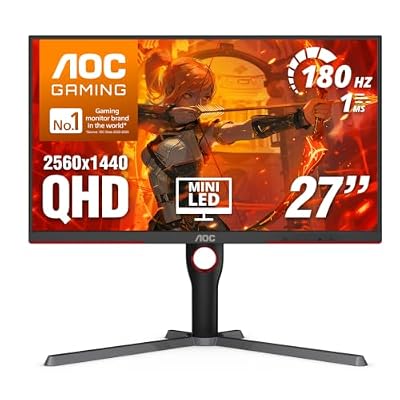
The budget HDR route: a mini-LED backlight with 336 dimming zones earns a genuine DisplayHDR 1000 certification, so HDR highlights carry real brightness in games. The trade-offs are connectivity and character: no USB hub, HDMI 2.0 only, and Fast VA smearing in dark motion plus possible VRR flicker. Trust AOC’s own specification over marketplace titles.
Specs
– 27-inch Fast VA, mini-LED backlight, 336 dimming zones, 2560 x 1440
– 180Hz over DisplayPort, 165Hz over HDMI; 1 ms GtG, maker-stated
– DisplayHDR 1000; Adaptive-Sync, 48 to 180Hz
– Inputs: DisplayPort 1.4 x1, HDMI 2.0 x2, headphone jack, no USB
BenQ Zowie XL2546X
The esports specialist, whose Linux story is refreshingly empty: no HDR to enable and no high-bandwidth mode to lose, so the OS never stands between panel and job. The Fast TN screen runs 1080p at 240Hz, and DyAc 2 strobing provides motion clarity as an alternative to variable refresh, suiting fixed high frame rates in competitive titles. Colour, contrast and viewing angles are knowingly sacrificed.
Specs
– 24.5-inch Fast TN, 1920 x 1080, 240Hz
– DyAc 2 backlight strobing, S Switch controller, shielding hood
– No HDR; AMD FreeSync support
– Inputs: DisplayPort 1.4 x1, HDMI 2.0 x2, headphone jack
LG UltraGear 27GS95QE-B

The 1440p OLED step: a WOLED panel at 240Hz with DisplayHDR True Black 400, FreeSync Premium Pro and G-Sync Compatible support. It is the one pick with full-bandwidth HDMI 2.1 for NVIDIA proprietary and Intel owners; Radeon owners take DisplayPort and lose nothing. On KDE Plasma or Gamescope, this is where Linux HDR gaming looks its best. Mind the OLED caveats: modest full-screen brightness, burn-in warranty terms worth reading.
Specs
– 26.5-inch WOLED, 2560 x 1440, 240Hz; 0.03 ms GtG, maker-stated
– DisplayHDR True Black 400; DCI-P3 98.5 percent, maker-stated
– FreeSync Premium Pro and G-Sync Compatible
– Inputs: HDMI 2.1 x2, DisplayPort 1.4 x1, USB 3.0 hub
Alienware AW2725Q

The flagship: a QD-OLED running 4K at 240Hz, a mode that exists on Linux because DisplayPort 1.4 with DSC can carry it, precisely the route an AMD flagship card must take given the HDMI limit above. NVIDIA and Intel owners can use its HDMI 2.1 inputs instead. Dell adds Dolby Vision, both major VRR certifications, and a three-year warranty with burn-in cover.
Specs
– 26.7-inch QD-OLED, 3840 x 2160, 240Hz; 0.03 ms GtG, maker-stated
– DisplayHDR True Black 400 and Dolby Vision; DCI-P3 99 percent
– FreeSync Premium Pro, G-Sync Compatible, VESA AdaptiveSync
– Inputs: DisplayPort 1.4 with DSC x1, HDMI 2.1 x2, USB-C and USB hub
FAQ
Does HDMI 2.1 work at all on Linux?
Yes, with the right driver: NVIDIA’s proprietary driver and Intel’s driver implement it, so 4K at 120Hz and above over HDMI works there. The limit is specific to AMD’s open driver, where the HDMI Forum declined an open implementation of the high-bandwidth mode. DisplayPort avoids the question entirely.
Which desktop should I run for HDR gaming, KDE or GNOME?
KDE Plasma 6 has the most mature HDR support on Wayland, with per-display controls. GNOME added HDR in version 49 and is the newer, simpler route. Either way, Gamescope remains a reliable alternative, handling HDR end to end on any desktop.
Will variable refresh work with two monitors connected?
With AMD or Intel graphics under KDE Plasma, yes: variable refresh can run on multiple displays at once. NVIDIA’s proprietary driver on Wayland has historically worked best with a single VRR display, one of the few places the AMD stack is plainly ahead.
Final verdict
Buying a gaming monitor for Linux is a two-step decision Windows buyers never face. Settle the connection first: DisplayPort for everyone, HDMI 2.1 only where the driver supports it, today meaning NVIDIA’s proprietary driver and Intel, and never as a Radeon owner’s primary plan. Then buy the panel your GPU and desktop can honour. The LG 27GP850-B is the sensible 1440p default, the AOC Q27G3XMN the honest budget HDR experiment, the Zowie XL2546X removes Linux from the equation, and the two OLEDs are where the platform’s HDR and VRR support shines brightest, card permitting.










