

- Top Pick: Amazon Fire HD 10 Kids Tablet (2023 Release)
- Runner-up: OtterBox Defender Series Case for iPad (10th Generation)
- Also consider: 8BitDo Zero 2 Bluetooth Gamepad
A tablet is the easiest way for a child to reach a cloud game, and the easiest place for a parent to set the limits. There is no console to hide in a cabinet. The controls live on the same glass the child taps, which means a parent who configures the tablet properly has already done most of the work.
This guide stays on the tablet itself. It covers the parental controls built into the three tablet platforms children actually use, the network speeds cloud services publish, and the gear that makes a tablet survivable in small hands. It does not cover family account sharing rules. Everything here happens on the device.
As an Amazon Associate, we earn from qualifying purchases.
Quick answer
Yes. Set the tablet’s own screen-time and purchase controls first, then open only age-appropriate cloud services, and add a rugged case, a small controller, volume-limited headphones, and a stand. A tablet on Wi-Fi with GeForce Now needs 15 Mbps for 720p and 25 Mbps for 1080p, while Xbox Cloud Gaming needs 10 Mbps at minimum and 20 Mbps for a smoother session.
Lock the tablet down before the first game
On an iPad, Apple Screen Time in Settings covers Downtime schedules, per-app time limits, and Content and Privacy Restrictions that block age-inappropriate apps and web content. A parent sets a Screen Time passcode so the child cannot switch the limits off. Turn on Downtime for homework hours and bedtime first, then add an app limit for the cloud gaming app itself.
On an Android tablet, Google Family Link is the equivalent control panel. A parent links the child’s Google account, then sets daily screen-time limits, approves or blocks app downloads, and applies content filters from the parent’s own phone. Family Link can also lock the tablet remotely or set a bedtime. That app-approval step matters: a child cannot install a new cloud service without the parent seeing the request.
On a Fire tablet, the Amazon Parent Dashboard is the control center. It sets screen-time limits by category, applies age filters, and can set educational goals that must be met before entertainment apps unlock. Fire tablets also require a PIN before anything can be bought or downloaded. The dashboard works from any browser, so a parent can change a limit from a phone.
Purchase locks deserve their own step on every platform, because cloud services are built around stores. On iPad, Ask to Buy sends every purchase or download request to the parent for approval. On Android, Google Play purchase authentication can require a password or biometric check for every transaction. On Fire tablets, the parental-controls PIN blocks purchases and downloads until the parent enters it. Set the lock before the first game session, and check that in-app purchases are covered too.
Age-appropriate services are the next filter. GeForce Now and Xbox Cloud Gaming both publish minimum-age rules for their accounts, and both libraries mix family-friendly titles with games meant for adults. Browse the library with the child and pick a short list of approved games together. Content restrictions can block store pages for games outside the approved age band.
The network check comes last and it is simple. GeForce Now publishes 15 Mbps for 720p streaming and 25 Mbps for 1080p, with latency under 80 ms. Xbox Cloud Gaming publishes 10 Mbps as a minimum and 20 Mbps as the recommended speed. Run the first session close to the router. If the picture breaks up, drop the stream to 720p in the service settings.
1. Amazon Fire HD 10 Kids Tablet (2023 Release)

The Fire HD 10 Kids tablet is the most parent-ready tablet in this guide because the controls are built in rather than added later. It ships with a Kid-Proof Case with a kickstand and preset age filters for children ages 3 to 7. The Amazon Parent Dashboard behind it handles screen-time limits, age filters, and purchase controls, and the tablet includes one year of Amazon Kids+ for new subscribers.
For cloud gaming, the 10.1-inch 1920 by 1200 display is large enough to read game menus without squinting, and the octa-core processor with 3 GB of RAM handles streaming apps without strain. Battery life runs up to 13 hours, and storage is 32 GB, expandable by microSD up to 1 TB.
Specs
| Feature | Detail |
|---|---|
| Display | 10.1-inch, 1920 by 1200 resolution |
| Processor and memory | Octa-core processor, 3 GB RAM |
| Storage | 32 GB, expandable by microSD up to 1 TB |
| Battery life | Up to 13 hours |
| Operating system | Fire OS 8 |
2. OtterBox Defender Series Case for iPad (10th Generation)

A child playing cloud games on an iPad needs a case that survives drops onto hard floors, and the OtterBox Defender Series is built for that job. Its multi-layer design pairs a hard inner shell with a synthetic rubber outer slipcover. The case fits the iPad 10th generation and the iPad A16.
The four-position stand is the feature that matters most for cloud gaming, because it holds the tablet upright at a comfortable viewing angle while the child’s hands stay on a controller. The case adds noticeable bulk, and that is the trade-off: a slim case does not survive a drop from a kitchen counter.
Specs
| Feature | Detail |
|---|---|
| Fits | iPad 10th generation and iPad A16 |
| Protection | Multi-layer design with port covers |
| Stand | Four-position stand |
| Pencil storage | Built-in Apple Pencil storage |
3. 8BitDo Zero 2 Bluetooth Gamepad
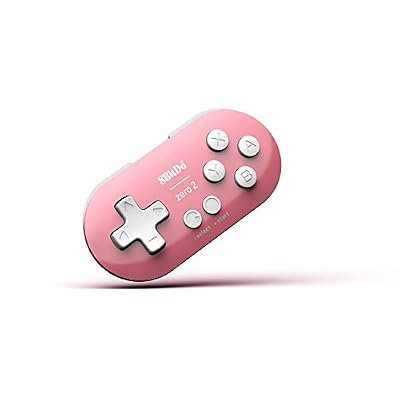
Adult controllers are too large for small hands, and the 8BitDo Zero 2 is genuinely tiny. It weighs 20 grams and is keychain-sized, so a child can hold it comfortably for a full session without hand fatigue, and it clips onto a bag for travel. It connects over Bluetooth to Android tablets, and it also works with Switch, Windows, macOS, and Raspberry Pi.
The trade-off is that there are no analog sticks, so games built around twin-stick movement or precise camera control will not play well on it. For the platform games, puzzle games, and side-scrollers that suit younger players, the small button layout is a good fit.
Specs
| Feature | Detail |
|---|---|
| Weight | 20 grams |
| Connection | Bluetooth |
| Compatible with | Switch, Windows, Android, macOS, and Raspberry Pi |
| Analog sticks | None |
4. Puro Sound Labs BT2200s Volume Limited Kids Headphones

Headphones are where a parent’s control over volume becomes physical rather than digital: the Puro Sound Labs BT2200s cap sound at 85 dB by design. The limit cannot be switched off by the child, which matters because tablet volume sliders are easy to find and easier to push to maximum during an exciting game. The headphones connect over Bluetooth and also work through the included 3.5 mm audio cable.
Battery life runs up to 18 hours, the ear cushions are sized for children’s heads, and a built-in microphone covers voice chat. The earcups also provide noise isolation that blocks a large share of background sound.
Specs
| Feature | Detail |
|---|---|
| Volume limit | 85 dB |
| Connection | Bluetooth and wired 3.5 mm cable |
| Battery life | Up to 18 hours |
| Microphone | Built-in |
5. Lamicall Adjustable Tablet Stand

A tablet flat on a table forces a child to hunch over it, and a tablet held in the hands gets dropped. The Lamicall Adjustable Tablet Stand fixes the viewing angle instead. It folds flat for travel, rotates 360 degrees so the tablet can switch between landscape and portrait, and its heavy-duty base keeps the tablet steady when a child taps the screen hard or bumps the table.
The stand fits devices from 4.7 to 13 inches, which covers every tablet in this guide. It is a simple piece of hardware with no electronics and nothing to charge: the parent sets the angle once and the child plays at eye level.
Specs
| Feature | Detail |
|---|---|
| Fits devices | 4.7 to 13 inches |
| Rotation | 360 degrees |
| Design | Ultra-slim and foldable |
| Base | Heavy-duty base |
| Weight | Not stated |
How to choose
Match the tablet to the child’s age first. A Fire HD 10 Kids tablet suits ages 3 to 7, with its preset filters and included case, while an older child on an iPad benefits more from Apple Screen Time plus a rugged case like the OtterBox Defender. Check the controls on the platform the household already uses, since a parent who already manages an iPhone or an Android phone will find them familiar. Add the controller only after the controls are set, add volume-limited headphones before the first long session, and buy the stand last.
Who should skip
Skip the dedicated kids tablet if the child is already in the double digits and wants games the Fire tablet’s filtered library does not carry; an iPad or Android tablet with Screen Time or Family Link will fit better. Skip the tiny controller if the child’s favorite games need analog sticks, since the 8BitDo Zero 2 has none. Skip the heavy-duty case if the tablet never leaves a desk. And skip the whole tablet setup if the household internet cannot hold the published minimums for the chosen service.
Frequently asked questions
Can a child play cloud games on a tablet without a controller?
Yes. Most cloud services support touch controls on a tablet. A controller helps with games that need precise movement, but touch play works well for puzzle and platform games.
Which parental controls work on a Fire tablet?
The Amazon Parent Dashboard sets screen-time limits, age filters, educational goals, and purchase controls on Fire tablets. The Fire HD 10 Kids tablet also ships with preset age filters for children ages 3 to 7 and a Kid-Proof Case.
How much internet speed does cloud gaming need on a tablet?
GeForce Now publishes 15 Mbps for 720p streaming and 25 Mbps for 1080p, with latency under 80 ms. Xbox Cloud Gaming publishes 10 Mbps as a minimum and 20 Mbps as the recommended speed. Play close to the router and drop to 720p if the picture stutters.
Are volume-limited headphones necessary for kids?
They are the simplest way to cap listening volume, because the 85 dB limit is built into the headphones and cannot be switched off from the tablet. Tablet volume sliders are easy for a child to raise during an exciting game, so a physical limit protects hearing during long sessions.
Final verdict
The tablet is the control panel for kids cloud gaming, not just the screen. Set Apple Screen Time, Google Family Link, or the Amazon Parent Dashboard first, lock purchases behind approval, and pick age-appropriate games together before the first session. Then add the gear that fits a child: a rugged case, a small controller, volume-limited headphones, and a stand. A Fire HD 10 Kids tablet is the easiest starting point for younger children, while an iPad with a Defender case suits an older child.










