

- Top Pick: Thrustmaster T.16000M FCS Flight Stick
- Runner-up: Logitech G Extreme 3D Pro
- Also consider: Thrustmaster TWCS Throttle
Most big multiplayer games treat Linux as an afterthought, but War Thunder is one of the rare exceptions. Gaijin Entertainment has shipped an official native Linux client since November 2014, first as a download from its own site and on Steam later that same month, and the Steam store page still lists Linux as a full platform today with its own published system requirements. There is no compatibility layer involved in the main route at all.
That long history does not mean the picture is static. The anti-cheat underneath the game changed completely at the start of 2025, the renderer is now Vulkan by default, and a minority of players deliberately ignore the native build and force the Windows version through Proton instead. This article sets out the current status of the native client, what Gaijin documents for it, and when the Proton route makes sense.
As an Amazon Associate, we earn from qualifying purchases.
Quick answer
War Thunder runs natively on Linux through an official Gaijin client sold on Steam since 2014, with Vulkan as the default renderer and BattlEye anti-cheat enabled for Linux since January 2025. Install the native build first. Forcing the Windows build through Proton also works and carries a strong community record, but it needs the Proton BattlEye Runtime installed for multiplayer.
The native client at a glance
The native build is not a recent experiment. Gaijin announced the Linux version on 6 November 2014, noting that only 64-bit systems are supported, and the Steam release followed within the same month. More than a decade later the Steam listing still carries a dedicated Linux section in its system requirements, which is the clearest public signal that the build is maintained rather than abandoned.
Those published Linux requirements are modest. The minimum calls for a modern 64-bit distribution, a dual-core processor, a Vulkan-capable graphics card in the class of a GeForce GTX 660 or a comparable AMD card, and up-to-date proprietary drivers. The recommended tier names Ubuntu 20.04 in 64-bit form, a Core i7 class processor, 16 GB of memory, and a GeForce GTX 1060 or Radeon RX 570 class card with Vulkan support. Gaijin’s own requirements page puts the minimal client at roughly 22 GB and the full client at roughly 62 GB, with higher-resolution texture packs adding further bulk on top.
One requirement deserves emphasis because it is stricter than most native games: Gaijin’s published Linux specifications ask for proprietary graphics drivers no older than six months. Players on slow-moving distributions with older driver stacks are outside the documented envelope, and Gaijin’s FAQ points at current proprietary drivers as the first fix when a version does not work.
Renderer, updates and the Deck
The Linux build renders through Vulkan, which Gaijin made the default on Linux in a major engine upgrade covered by GamingOnLinux at the time. That matters for expectations: there is no older OpenGL fallback to retreat to, so a working Vulkan driver is a hard requirement rather than a preference.
Update parity is the other question native players usually ask. The evidence in Gaijin’s own patch stream is reassuring. Major updates land on the Linux client in the same release cycle as Windows, and ordinary patches regularly include platform-specific fixes: a recent client update in the 2.59 series, for example, fixed a crash that hit macOS and Linux players right after logging in, and a separate Linux black-screen fault tied to a ray reconstruction setting. Ray tracing features have also arrived on the Linux build, including support aimed at AMD and Intel graphics cards in the Hornet’s Sting update. Valve rates the game Verified on Steam Deck, which is only possible because the native build is kept current.
Cross-play is total. Gaijin states that players on Windows, Mac, Linux, PlayStation and Xbox fight in the same battles, so the native client is not a side pool with a smaller population.
Anti-cheat: BattlEye replaced Easy Anti-Cheat
Older guides still describe War Thunder as an Easy Anti-Cheat game, and that is now out of date. Easy Anti-Cheat was introduced in 2019, but on 5 December 2024 Gaijin announced a full switch to BattlEye. The two systems ran side by side for a few weeks, BattlEye was switched on for Linux on 24 January 2025 in update 2.43.0.72, and from 28 January 2025 every mode with active anti-cheat has used BattlEye. Gaijin has since explained that a second system, Viking, runs inside the game client alongside BattlEye on PC.
For the native route this is simple: BattlEye is enabled for Linux by the developer, so native players can enter every mode that requires anti-cheat, including the higher Battle Rating brackets where Gaijin has made it mandatory. There is no launch option or workaround involved, and nothing about the arrangement depends on community fixes.
The Proton route, and its one extra step
Because a native build exists, ProtonDB catalogues War Thunder as a native title, and its several hundred reports mix native runs with forced-Proton ones. The Windows build under Proton has built a strong community record over the years, and some players prefer it because they hit a native-build quirk on their particular setup. That is a legitimate fallback rather than the recommended path.
It carries one extra step that catches people out. BattlEye under Proton only works because Gaijin enabled Linux support for it, and the Proton BattlEye Runtime must be installed in Steam for the anti-cheat to initialise. Community reports are explicit that without that runtime the game refuses to let you into player-versus-player battles. Install the runtime once, keep Proton current, and the route behaves.
How to choose between native and Proton
Start native. It is the build Gaijin supports, it needs no compatibility layer, its anti-cheat is enabled by the developer, and it receives fixes in the same patch stream as Windows. If your distribution ships current proprietary drivers and your card handles Vulkan, there is no decision left to make.
Consider the Proton route only if the native build misbehaves on your specific hardware or driver combination, or if you already maintain the Windows build for another reason. Accept the trade honestly: you gain a different code path that may dodge a native bug, and in exchange you take on the BattlEye Runtime step and a route Gaijin does not document as its Linux offering.
Gear that suits War Thunder
War Thunder rewards proper flight controls more than most arcade-leaning games, because its realistic and simulator modes expose trim, rudder and throttle axes that a keyboard handles badly. These five picks cover the desk and the handheld routes.
Thrustmaster T.16000M FCS Flight Stick

The natural first stick for War Thunder’s air modes. Its contactless magnetic sensor keeps the pitch and roll axes precise, the twist handle covers rudder input without pedals, and the ambidextrous grip suits either hand.
Specs:
– Sensor: H.E.A.R.T HallEffect magnetic technology
– Buttons: 16 action buttons
– Hat: 8-way point-of-view hat switch
– Rudder: twist handle axis
– Item model: 2960773
Logitech G Extreme 3D Pro

The budget classic that has introduced generations of players to stick flying. It offers a twist rudder, a throttle slider and enough programmable buttons for the essential War Thunder bindings at a starter tier.
Specs:
– Buttons: 12 programmable buttons
– Hat: 8-way hat switch
– Rudder: twist handle
– Throttle: built-in slider
– Item model: 963290-0403
Thrustmaster TWCS Throttle

A standalone throttle that pairs with either stick above and adds the axis War Thunder’s engine management actually uses. The sliding rail action gives fine control, and the rear connector accepts the TFRP pedals below as three extra axes.
Specs:
– Axes: 5 axes, plus 3 more via the rear RJ12 connector
– Buttons: 14 action buttons and one 8-way hat switch
– Travel: sliding rail system with 80 mm of travel
– Connection: USB
– Extras: adjustable friction screw
Thrustmaster TFRP Flight Rudder Pedals
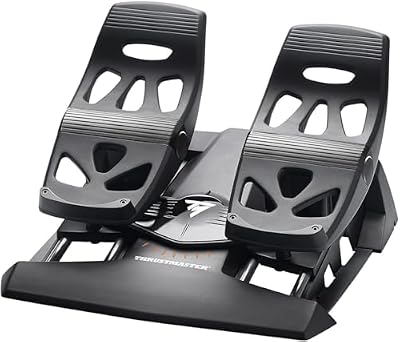
Pedals move rudder control off the twist grip, which steadies aim in propeller aircraft and makes ground handling far easier. The TFRP slides on rails rather than pivoting cheaply, and it plugs straight into the TWCS throttle.
Specs:
– Axes: rudder axis plus two differential brake pedals
– Mechanism: S.M.A.R.T sliding rail system
– Connection: RJ12 to a TWCS throttle, or USB with the separate adapter
– Compatibility: part of the Thrustmaster flight ecosystem
Valve Steam Deck OLED

War Thunder is one of the few big vehicle multiplayer games rated Verified on Steam Deck, so the handheld route is genuinely supported rather than tolerated. The OLED model’s brighter panel helps pick out distant aircraft, and the native client means no Proton configuration at all.
Specs:
– Display: 7.4-inch HDR OLED, 1280 by 800
– Storage: 512 GB NVMe
– Wireless: Wi-Fi 6E
– Controls: dual sticks, trackpads and full gamepad layout
Who should skip
Skip the native client if your distribution cannot provide current proprietary drivers, because Gaijin’s documented requirements assume them and older stacks sit outside official support. Skip the Proton route if you are unwilling to install the BattlEye Runtime, since multiplayer will refuse you without it. And skip War Thunder entirely if you want an offline game: it is an always-online multiplayer title on every platform, Linux included.
FAQ
Does War Thunder have a native Linux client?
Yes. Gaijin released it in November 2014, it is sold through Steam with published Linux system requirements, and it is still updated in the same patch cycle as the Windows build.
Does War Thunder still use Easy Anti-Cheat?
No. Gaijin announced the move to BattlEye in December 2024, enabled it for Linux on 24 January 2025, and retired Easy Anti-Cheat from the game shortly afterwards. A second in-client system called Viking runs alongside BattlEye.
Is War Thunder playable on Steam Deck?
Yes. Valve rates it Verified, and because the Deck runs the native Linux build, there is no compatibility layer to configure. BattlEye is enabled for Linux, so online modes are fully available.
Should I force Proton instead of playing native?
Only as a fallback. The native build is the supported route; the Proton route works well by community accounts but adds the BattlEye Runtime requirement and steps outside what Gaijin documents for Linux.
Final verdict
War Thunder is in the small group of major multiplayer games where Linux players are first-class citizens. The native client is official, current, Vulkan-based and covered by developer-enabled anti-cheat, and the Steam Deck Verified rating backs that up. Install the native build, keep your proprietary drivers current, and keep the Proton route in reserve for the day a native quirk hits your exact setup.










