

Logitech has never shipped G Hub or Options Plus for Linux, so the receiver in your USB port is normally a black box: no pairing screen, no battery readout, no way to change the settings Logitech exposes on its own hardware. Solaar is the open-source answer. It is a Linux manager for Logitech keyboards, mice, trackballs and headsets that talks to devices through Unifying, Logi Bolt, Lightspeed and Nano receivers, and many Bluetooth or wired models.
This guide explains what Solaar actually controls, where its limits sit, and why the receiver generation you own decides how much of it you can use. It closes with five current Logitech products chosen because their receivers are exactly the hardware Solaar exists to manage.
As an Amazon Associate, we earn from qualifying purchases.
Quick answer
Solaar is a free, open-source Linux application that manages Logitech devices connected through Unifying, Logi Bolt, Lightspeed and Nano receivers, plus some Bluetooth and wired models. It pairs and unpairs devices, shows battery levels, changes HID++ settings such as DPI and scroll behaviour, and runs rules on diverted buttons. It does not update firmware.
What Solaar actually does
Solaar speaks Logitech’s proprietary HID++ protocol, the same channel G Hub uses on Windows. Its headline job is receiver management: it can pair and unpair devices as far as the receiver allows, which makes it the only practical way on Linux to add a spare mouse to an existing dongle or move a keyboard between receivers. It continuously reports battery status in its window and tray icon, so a headset or mouse rarely dies without warning.
Beyond pairing, Solaar exposes the changeable settings each device implements: sensitivity and DPI, scroll wheel direction and wheel modes, function key behaviour, backlight options and similar toggles. Two details from the project documentation matter here. First, every device implements a different subset of HID++, so a flagship and a budget model on the same receiver will not show the same controls. Second, most devices forget changed settings when they power down, so Solaar remembers your settings per computer and restores them whenever a device connects.
The power-user layer is diversion. Buttons and keys set to their HID++ state send notifications to Solaar instead of acting directly, and Solaar’s rule engine, edited from the built-in Rule Editor, can react to them: adjusting thumb wheel behaviour, triggering mouse gestures, or applying sliding DPI while a button is held. Solaar also offers a command-line interface, which makes the same pairing, battery and configuration queries scriptable.
What Solaar cannot do
Solaar has no firmware-update function, and this is the limit that surprises most new users. Receiver and device firmware is updated with Logitech’s software on Windows; on Linux, the separate fwupd tool covers some receivers, but that is a different project, not a Solaar feature. If a receiver security update is your main concern, Solaar is not the tool that delivers it.
Solaar is also not a device driver. It does not process normal input and cannot fix problems in how the kernel, X11 or a compositor turns keycodes into characters; layout and remapping at the operating system level belong to other tools. Bluetooth pairing itself is handled by the usual Bluetooth stack, after which Solaar can control supported devices. Finally, the cloud side of G Hub has no equivalent: no cloud profiles and no per-game profile sync. Solaar can switch, dump and load the onboard profiles stored on supported mice, which covers most single-machine needs, but G Hub’s cloud library stays behind.
Receiver generations: why the dongle decides your experience
On Windows, G Hub hides the receiver layer. On Linux, Solaar works at that layer, so the generation of your dongle sets the rules. Nano receivers are the oldest design: many can only ever talk to the device they shipped with, and some hold exactly one keyboard and one mouse, with a new pairing silently replacing the old device and no way to unpair. Unifying receivers are the flexible classic: up to six devices, and any device carrying the Unifying logo can pair with any Unifying receiver, provided a slot is free. Lightspeed receivers serve the gaming lines. Solaar pairs Lightspeed devices only with a receiver for the same model, and capacities are small, so a gaming dongle is essentially dedicated to its own device class. Logi Bolt is the current desktop standard: up to six devices, Bolt-logo matching like Unifying, and an added authentication step during pairing.
The practical consequence is that buying for Linux means buying the receiver as much as the device. A Unifying or Bolt product can join a shared dongle; a Lightspeed product brings its own dedicated receiver, and Solaar manages that pairing instead. Check the logos before assuming two products can share one port.
The daily workflow: tray, settings and rules
Solaar is designed to start at login and live in the system tray, applying your stored settings as devices wake. In the main window, each receiver and device is listed with its battery state and settings; a setting must be unlocked before it can be changed, and it can also be marked to be ignored if you want Solaar to leave that one alone. Solaar caches device state while it runs, so changes made by other means may not show until it restarts.
Once the basics are set, rules are where Solaar earns its keep for gamers. Divert a side button or a gesture button, then build a rule around the notification it sends: hold-to-slide DPI for aiming, gesture directions mapped to key presses, or thumb wheel speed changes on the MX line. None of it needs a vendor cloud account, and all of it survives because Solaar reapplies it at every connection.
Five Logitech devices that make sense with Solaar
Logitech G305 LIGHTSPEED Wireless Gaming Mouse
The G305 is the low-cost way into the Lightspeed ecosystem, and its receiver stores inside the body. In Solaar it appears behind its Lightspeed receiver with battery reporting, which matters because its replaceable AA cell is easy to forget until it dies mid-match.
- Receiver: LIGHTSPEED USB receiver, stored in the mouse
- Sensor: HERO optical, up to 12,000 DPI
- Battery: 1 AA, maker-rated up to 250 hours
- Buttons: 6, with onboard memory
- Weight: 99 g
Logitech G502 LIGHTSPEED Wireless Gaming Mouse
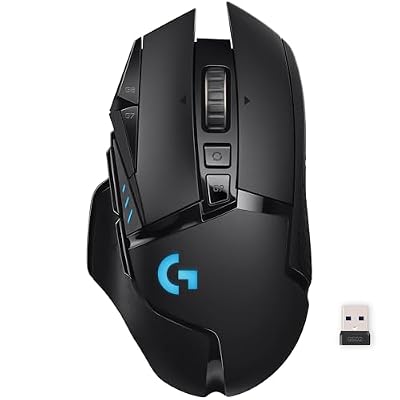
The G502 LIGHTSPEED is the full-size flagship of the same receiver family, with more buttons, tunable weights and support for Logitech’s POWERPLAY charging system. Solaar manages its receiver pairing and battery reporting and can switch its onboard profiles, making it the natural partner for a Linux gaming desk.
- Receiver: LIGHTSPEED USB receiver
- Sensor: HERO 25K, up to 25,600 DPI
- Battery: rechargeable, maker-rated up to 48 hours with lighting, 60 hours without
- Buttons: 11
- Extras: POWERPLAY compatible, adjustable weights
Logitech G915 TKL Lightspeed Wireless Keyboard (Clicky)

The G915 TKL brings the keyboard side of the desk onto a Lightspeed receiver, with Bluetooth and wired USB as fallbacks. Solaar reports its battery and exposes the function key behaviour the board supports, and handles its receiver pairing when the board moves between machines.
- Receiver: LIGHTSPEED USB receiver, plus Bluetooth and wired USB
- Switches: GL low-profile mechanical, Clicky
- Battery: rechargeable, maker-rated up to 40 hours at full brightness
- Layout: tenkeyless, LIGHTSYNC RGB
- Extras: dedicated media controls and volume roller
Logitech G733 LIGHTSPEED Wireless Gaming Headset (Lilac)

The G733 connects through its own Lightspeed USB receiver, and it is the honest edge case in this list: Solaar’s documentation notes that some Logitech headsets use the related Centurion protocol and that support for those devices is new and experimental. Expect battery reporting first and deep audio settings a distant second; the microphone’s Blue VO!CE filters remain a G Hub feature on Windows regardless.
- Receiver: LIGHTSPEED USB receiver
- Drivers: PRO-G, 40 mm
- Battery: rechargeable, maker-rated up to 29 hours
- Microphone: detachable, with Blue VO!CE filters via G Hub on Windows
- Weight: 278 g
Logitech MX Master 3S Wireless Mouse (Graphite)

The MX Master 3S is the Bolt representative: the standard edition ships with a Logi Bolt receiver, so Solaar handles its authenticated Bolt pairing, battery reporting and the wheel and sensitivity settings this line is known for, including the ratchet and free-spin scroll modes. It is the desktop half of a mixed desk, next to the Lightspeed gaming gear above.
- Receiver: Logi Bolt USB receiver included, plus Bluetooth
- Sensor: Darkfield, up to 8,000 DPI
- Battery: USB-C rechargeable, maker-rated up to 70 days
- Wheel: MagSpeed electromagnetic scrolling
- Model: 910-006557, Graphite
How to choose
Start with the receiver, not the product. If you want several devices on one dongle with central pairing, buy Unifying or Bolt products and match the logo on device and receiver. If you are buying for gaming, Lightspeed is the relevant family, and each device effectively brings its own receiver. Then check Solaar’s own device list for your exact model before buying for a specific setting, because HID++ support is documented per device, never per brand. Finally, decide whether you will use the rule engine: if diverted buttons and gestures are part of your setup, run Solaar at login permanently; if you only need pairing and battery checks, the command-line interface on demand may be enough.
Who should skip this
Skip Solaar if your desk is not Logitech hardware, because it manages no other brand. Skip it if your real goal is firmware updates, which belong to Logitech’s Windows software or, for some receivers, fwupd. Skip it if you rely on G Hub cloud profiles moving between machines, or if all your devices are wired and already behave the way you want. And if your exact model is absent from Solaar’s device information, basic input will still work as a standard HID device, but the management features in this guide may not appear.
FAQ
Does Solaar work with Bluetooth-connected Logitech devices?
For many models, yes. Solaar detects and reports on a range of Bluetooth and wired devices in addition to receiver-based ones. The pairing itself is done with the normal Bluetooth tools; Solaar then provides battery information and whatever settings that device exposes.
Can Solaar update my receiver’s firmware?
No. Solaar has no firmware-update feature. Firmware updates are delivered by Logitech’s software on Windows, and on Linux the separate fwupd tool supports some receivers. Solaar’s role is pairing, battery reporting and settings.
Will Solaar fully replace G Hub on a Linux gaming PC?
For receiver management, battery status and core device settings on documented hardware, it covers the everyday ground, and its rule engine goes further than many expect. Cloud profiles, some profile and lighting depth, and extras such as Blue VO!CE microphone filters remain G Hub territory on Windows.
My device connects but shows almost no settings. Is Solaar broken?
Probably not. Each Logitech device implements a different subset of the HID++ protocol, and Solaar can only change what a device supports. A device may show basic information and battery status with few or no changeable settings; the project’s device list is the reference for what a given model exposes.
Final verdict
Solaar is effectively mandatory infrastructure for a wireless Logitech setup on Linux. It restores the three things the missing G Hub takes away: receiver pairing, honest battery reporting, and control over the settings your hardware already has, then adds a rule engine that Windows users arguably should envy. Its limits are equally clear: no firmware updates, no cloud profiles, and support that is always per device rather than per brand. Buy receiver-matched hardware from its documented families, Bolt or Unifying for shared desks and Lightspeed for gaming, and Solaar turns a drawer of dongles into a managed setup.










