

- Top Pick: XPPen Star G640
- Runner-up: Huion Inspiroy H640P
- Also consider: Gaomon S620
A pen tablet is one of the few gaming peripherals where the Linux question comes before the hardware question. The pad itself is simple: a flat surface, a battery-free pen, a USB cable. What decides whether it behaves on a Linux desktop is the driver stack underneath it, and that stack looks nothing like the Windows one. There is no single vendor control panel that everything plugs into. Instead there are kernel drivers, a community driver project that the osu! scene adopted years ago, and a short list of brands whose official configuration apps simply do not exist for Linux at all.
That split shapes this guide. The five tablets below are all small, wired, screen-free pads, because that is the format serving both audiences here: osu! players who want a fast aiming surface, and artists or photo editors who want pressure-sensitive input in Krita, GIMP or a browser-based editor without buying a pen display. Every pick is judged first on how it is driven on Linux, and only then on active area, report rate and pen.
As an Amazon Associate, we earn from qualifying purchases.
Quick answer
Every tablet here works on Linux, but the route differs: Wacom models run on the kernel’s built-in driver, while the Huion, XPPen and Gaomon picks are best served by OpenTabletDriver. For osu!, pick a small pad with a high report rate like the XPPen Star G640; for drawing and photo work, the Wacom Intuos Small or Huion H640P.
The driver reality comes first
Wacom is the easy case. Support for Wacom tablets lives in the Linux kernel itself, maintained with Wacom’s involvement, and distributions ship it by default. Plug an Intuos or a One by Wacom into a current distro and the pen moves the pointer, pressure reaches applications, and the tablet shows up in the settings panel of desktops like GNOME, with libwacom handling model detection underneath. There is no download step and no account.
Huion and XPPen take a middle path. Both publish their own Linux driver packages, and many of their tablets are also covered by the in-kernel DIGImend drivers, so basic pen input usually works the moment the cable lands. The vendor packages add the configuration layer: area mapping, button assignment and pressure curves. Gaomon is the honest gap in the market. Its official driver is a Windows and macOS product, so on Linux a Gaomon pad depends on kernel support or on the community route below.
That community route is OpenTabletDriver, an open-source driver that supports hundreds of tablets across all four brands in this guide, including every model listed below. It is the tool the osu! community standardized on because it offers precise area control, pen button binding and optional smoothing filters in one place, on Linux as much as on Windows. For a non-Wacom tablet, the practical choice is usually between the vendor package and OpenTabletDriver, and many players and artists end up on the latter because it behaves the same across brands. One warning applies to every route: a tablet that works on the desktop but shows no pressure in your drawing app is usually an application issue, not a dead driver, so check the app’s tablet settings before reinstalling anything.
Two different jobs: osu! versus art
osu! and drawing pull the same hardware in opposite directions. An osu! player maps a small region of the pad to the screen, often a corner of the active area, and cares about report rate, the rate at which the tablet sends pen positions, because a higher rate means the cursor tracks fast movements with less stepping. Hover matters too: many players hold the pen just above the surface, so the reading height and hover tracking decide whether the cursor stays calm between beats. Pressure levels are irrelevant in play, and tablet buttons go unused because the other hand is on a keyboard.
An artist wants the reverse. The full active area gets mapped to the monitor so strokes can come from the wrist and forearm rather than the fingertips, pressure levels shape line weight, and express keys earn their keep for undo, brush size and canvas flipping. Photo editors sit between the two: reliable pressure for masking work, and buttons bound to layer shortcuts. The picks below are ordered so the first three lean toward play and the last two lean toward the desk, but each one can cross over.
The picks
XPPen Star G640

The Star G640 is the default osu! recommendation for a reason: a small pad, a battery-free pen and a maker-stated report rate of up to 266 RPS in its gaming revision, the figure players look for when a cursor has to cross the screen between beats. There are no buttons on the tablet itself, which suits a game played with one hand on a keyboard. On Linux it is covered by XPPen’s own driver package and by OpenTabletDriver, and the listing itself names Linux among supported systems.
Specs:
- Active area: 6 x 4 in
- Pen pressure: 8,192 levels
- Report rate: up to 266 RPS, maker-stated
- Resolution: 5,080 LPI
- Pen: battery-free, two side buttons
- Tablet keys: none
- Connection: USB, wired
Huion Inspiroy H640P

The H640P is the crossover pick. Its 6.3 x 3.9 inch area is small enough for a mapped osu! region and large enough for sketching, and the six express keys give artists the shortcut row the G640 lacks. Huion states a 233 PPS report rate and 8,192 pressure levels, and its product material lists Linux support outright. On Linux it runs through Huion’s driver package, the kernel’s DIGImend support, or OpenTabletDriver. The listing verified here is the bundle adding an artist glove and spare nibs.
Specs:
- Active area: 6.3 x 3.9 in
- Pen pressure: 8,192 levels
- Report rate: 233 PPS, maker-stated
- Resolution: 5,080 LPI
- Pen: PW100, battery-free
- Tablet keys: 6 express keys
- Connection: USB, wired
Gaomon S620

The S620 matches the G640 on the numbers osu! players read first: 8,192 pressure levels, a maker-stated 266 PPS report rate and a 10 mm pen reading height for hover play, with four express keys on the pad. The catch is the one described above: Gaomon publishes no Linux driver, so on Linux this tablet lives on kernel support and OpenTabletDriver. Players who already run OpenTabletDriver will not notice the difference; buyers who expected a vendor app should pick a different brand.
Specs:
- Active area: 6.5 x 4 in
- Pen pressure: 8,192 levels
- Report rate: 266 PPS, maker-stated
- Resolution: 5,080 LPI
- Pen: AP32, battery-free
- Tablet keys: 4 express keys
- Connection: USB, wired
Wacom Intuos Small (CTL-4100)
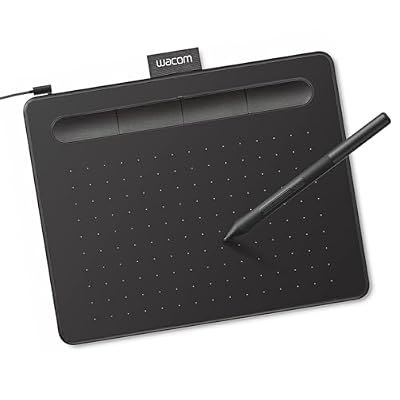
The Intuos Small is the art-leaning pick, and its Linux story is the simplest in this guide: the kernel driver handles it, GNOME exposes it in settings, and Krita or GIMP receives its 4,096 pressure levels without a vendor download. Four ExpressKeys and the Wacom Pen 4K make it the most complete small pad here for drawing and photo retouching, where its smaller area matters less than pressure behaviour and button support. Its report rate is not the headline figure osu! players chase, which is the honest trade for the driver polish.
Specs:
- Active area: 6.0 x 3.7 in
- Pen pressure: 4,096 levels
- Pen: Wacom Pen 4K, battery-free
- Tablet keys: 4 ExpressKeys
- Resolution: 2,540 LPI
- Connection: USB, wired
- Linux route: in-kernel Wacom driver, libwacom
One by Wacom Small (CTL-472)
The CTL-472 is the plainest tablet Wacom sells: no tablet buttons, 2,048 pressure levels, a maker-stated reading speed of 133 pps, and a pen that needs no charging. On paper it trails every other pick. On Linux it shares the Intuos advantage, full in-kernel support with nothing to install, and it is also on OpenTabletDriver’s supported list, which is why it keeps appearing in osu! setups years after launch: for a player who maps a small area and never uses pressure, the numbers it lacks are never asked for.
Specs:
- Active area: 6.0 x 3.7 in
- Pen pressure: 2,048 levels
- Reading speed: 133 pps, maker-stated
- Pen: battery-free, cordless
- Tablet keys: none
- Resolution: 2,540 LPI
- Connection: USB, wired
How to choose
Start with the driver, not the spec sheet. If you want a tablet that a fresh distro recognises with zero setup, buy a Wacom and let the kernel handle it. If you are willing to install one community tool, OpenTabletDriver unlocks the Huion, XPPen and Gaomon picks and gives all of them the same configuration experience, which is why it dominates the osu! side of this market.
Next, size the active area to the job. For osu!, small is a feature: a 6 x 4 inch pad mapped to a partial region keeps hand movement short, and every pick here qualifies. For drawing, the same pad works, but expect to zoom and pan more than on a larger surface; if most of your time is illustration rather than play, the Intuos Small’s buttons and pressure behaviour are worth more than a higher report rate. Finally, treat pressure levels as a drawing feature and report rate as a gaming feature, and do not pay for the one your hobby never uses.
Who should skip this
Skip this entire category if you want to draw directly on an image: that is a pen display, a different product with a screen, and none of these pads has one. Skip it if your drawing application is a closed professional suite whose Linux version you have not confirmed, because a working tablet cannot fix an application that is not there. Wireless hunters should also look elsewhere; every pick here is wired, which is deliberate for gaming, since a cable removes one source of delay and one battery from the setup.
FAQ
Do these tablets work on Linux without installing anything?
The two Wacom models do, on any current distribution, because their driver is part of the kernel. The Huion, XPPen and Gaomon models usually produce basic pen input through kernel support, but full configuration, area mapping, button binding and pressure adjustment, needs either the vendor’s Linux package where one exists or OpenTabletDriver.
Which tablet is best for osu! on Linux?
The XPPen Star G640 is the standard answer: small area, a maker-stated report rate of up to 266 RPS, and support in both XPPen’s Linux driver and OpenTabletDriver. The Gaomon S620 matches its headline figures if you are already using OpenTabletDriver, and the One by Wacom is the zero-install alternative.
Does pen pressure work in Krita and GIMP on Linux?
Yes, with the tablets here, provided the driver underneath is reporting pressure, which the kernel Wacom driver, the vendor packages and OpenTabletDriver all do. If pressure is missing inside one application while the desktop responds normally, check that application’s tablet or input settings before changing drivers.
Is a bigger tablet better for drawing?
A larger active area gives longer, more controlled strokes and less zooming, but it also takes desk space and costs more. These small pads suit sketching, notes and photo masking well. Sustained illustration work is the case for stepping up to a medium pad from the same brands, using the same driver routes described here.
Final verdict
On Linux, the safest pen tablet is a Wacom, and the Intuos Small is the pick for anyone whose drawing matters as much as their gaming. For osu! first and everything else second, the XPPen Star G640 remains the pad to beat, with the Huion H640P as the better-equipped crossover and the Gaomon S620 as its equal on paper for OpenTabletDriver users. The One by Wacom is the overachiever: outclassed in every specification column, and thanks to the kernel driver, one of the least troublesome tablets a Linux user can plug in.










