

- Top Pick: Logitech G502 X Plus
- Runner-up: Razer Basilisk V3 Pro
- Also consider: SteelSeries Aerox 5 Wireless
The scroll wheel is the most-used control on a gaming mouse after the two main buttons, yet it gets the least attention when people shop. Players compare sensors and weights for hours, then accept whatever wheel comes with the shape they like. That is a mistake, because the wheel decides how fast you move through a loadout and how precisely you switch weapons.
This guide explains what happens inside the wheel, how the main wheel types differ, and how to set up and care for the one you own. It covers notched and free-spin scrolling, tilt input, and lines-per-notch settings. The five mice at the end are examples only, each showing a different wheel idea.
As an Amazon Associate, we earn from qualifying purchases.
Quick Answer
A notched wheel gives one clear step per click and suits weapon switching and precise menu moves, while a free-spin wheel spins without steps and suits long documents and timelines. A tilt wheel adds left and right inputs for extra binds. Set lines per notch to three in Windows for a balanced feel, and clean a gritty wheel with dry compressed air and a lightly damp cloth.
How a Scroll Wheel Actually Works
A scroll wheel is a small cylinder on an axle, with a rubber grip around its edge and an encoder underneath it. Rolling the wheel turns the encoder, which sends pulses to the mouse firmware, and the firmware turns those pulses into scroll commands. Pressing the wheel straight down clicks a small switch beneath it. A mechanical encoder uses a rotating contact and a detent spring, and each detent is the notch you feel. An optical encoder reads rotation with light instead, which can feel smoother and last longer.
Notched Scrolling: The Default for Games
Notched scrolling is the stepped feel most gaming mice ship with. Each notch is one detent and one scroll command. In a shooter, one notch usually means one weapon slot forward or back. In a menu, one notch usually means one row or one small step through a list. Its strength is control: you can count steps without looking, stop exactly where you meant to stop, and avoid overshooting a weapon during a tense moment. The weakness is speed over long distances, since a long list takes many repeated flicks.
Free-Spin Scrolling: Fast, Smooth, and Easy to Overshoot
Free-spin scrolling, also called hyper-scroll or infinite scroll, removes the detents so the wheel spins with almost no resistance. One strong flick can carry the view through hundreds of lines, and the wheel keeps turning on its own momentum until friction stops it. Free-spin is at its best outside of combat, for long web pages, chat logs, video timelines, and long in-game lists. In a firefight it is harder to trust, since a wheel that keeps spinning can skip past the weapon you wanted.
Tilt Wheels: Left and Right as Extra Buttons
A tilt wheel adds a sideways input to the usual up and down roll. Press the wheel to the left or the right and it clicks like a button, sending a separate command. That gives you two more inputs within easy reach of your index finger, without moving your hand to a side button. Common choices include leaning in a tactical shooter, switching to a gadget, toggling a scope, or cycling grenades. Not every game treats tilt the same way: some accept it directly as a mouse button, while others need the mouse software to translate it into a key press first.
Scroll Settings: Lines per Notch, Speed, and Direction
The most important setting is how many lines the screen moves for each notch. In Windows, open Settings, then Bluetooth and devices, then Mouse, and look for the lines to scroll setting. Three lines per notch is the usual default and a sensible starting point. One line feels slow and deliberate, while five or more feels fast for long documents but can make weapon switching feel jumpy. If your mouse software has its own scroll setting, it usually overrides Windows while the software is running, so change the value in one place only. On macOS, use the scrolling speed slider in System Settings, then Mouse, moving it one step at a time and testing it in the app you actually use.
Cleaning a Gritty or Sticky Wheel
A gritty or sticky wheel usually has dust, skin oil, or dried residue in the gap around it, rather than a broken encoder. Start with the mouse unplugged or switched off. Hold it upside down and use short bursts of compressed air around the wheel, aiming into the gap on each side, keeping the can upright. Next, roll the wheel slowly with a dry microfiber cloth pressed lightly against it, so the cloth picks up surface grime as the wheel turns. If it still feels sticky, dampen a corner of the cloth with a small amount of water or isopropyl alcohol, wipe the exposed part, roll a quarter turn, and repeat until you have covered the full circle.
When the Wheel Matters in Games
The wheel matters most when it is a combat input. Weapon switching is the clearest example: in many shooters, scroll up moves to the next weapon and scroll down moves to the previous one, and a missed notch can leave you holding the wrong gun. A firm, distinct notch helps, because you can feel the switch without looking at the loadout, and the same logic applies to cycling grenades, gadgets, or healing items.
Five Mice That Show the Differences
Each mouse below shows a different wheel idea in a real product.
Logitech G502 X Plus

The G502 X Plus is the clearest example of a dual-mode wheel for gaming. Its wheel switches between hyperfast free spin and precise ratchet mode, and it tilts left and right for two more inputs.
Specs
- Sensor: HERO 25K, up to 25,600 DPI
- Wheel: Dual-mode hyperfast, ratchet and free-spin, plus left and right tilt
- Buttons: 13 programmable controls, LIGHTFORCE switches
- Weight: 106 g; Connectivity: LIGHTSPEED wireless, USB-C, PowerPlay capable
Razer Basilisk V3 Pro
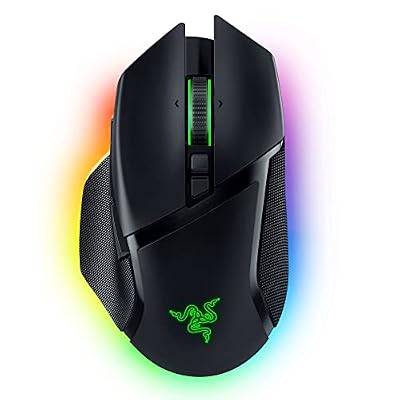
The Basilisk V3 Pro shows a tilt wheel with real modes behind it. Its HyperScroll tilt wheel offers tactile cycling, free-spin scrolling, and a Smart-Reel mode that switches between the two based on how fast you scroll. A slow roll stays notched for precise changes, while a fast flick spins freely for long menus.
Specs
- Sensor: Focus Pro 30K, up to 30,000 DPI
- Wheel: HyperScroll tilt wheel, tactile cycling, free-spin, and Smart-Reel, plus tilt
- Buttons: 13 programmable controls, Gen-3 optical switches
SteelSeries Aerox 5 Wireless

The Aerox 5 Wireless shows the other end of the range: a light mouse where the wheel is a straightforward notched control rather than a feature in itself. Its holey shell keeps the weight down, and the wheel feels direct and easy to count, which suits players who want the wheel to do one job well.
Specs
- Sensor: TrueMove Air, up to 18,000 DPI
- Wheel: Notched scroll wheel with middle click
- Buttons: 9 programmable buttons; Weight: 74 g
Corsair M75 Wireless

The M75 Wireless is a modern lightweight mouse with a clean, firm notched wheel, a good fit for players who switch weapons with the wheel and want no surprises.
Specs
- Sensor: MARKSMAN, up to 26,000 DPI
- Wheel: Notched scroll wheel with middle click
- Buttons: Swappable side buttons, optical switches; Weight: 89 g
- Connectivity: 2.4 GHz wireless and Bluetooth, iCUE compatible
Pulsar X2H Mini
The X2H Mini is the smallest mouse here and the clearest example of a wheel tuned for feel rather than features. Its Pulsar Blue Encoder gives a tactile rotation with a quiet, smooth action, and its dust-proof design aims to keep that feel consistent.
Specs
- Sensor: PAW3395, up to 26,000 DPI
- Wheel: Notched scroll wheel with Pulsar Blue Encoder
- Buttons: Optical switches rated for 90 million clicks; Weight: 52 g
How to Choose
Start with how you use the wheel in your main game. If the wheel switches weapons or cycles items, choose firm, distinct notches and a reliable middle click, and treat free-spin as a bonus. If the wheel mostly moves through menus and documents, a dual-mode wheel will save you time every day, and switching modes without opening software is worth having.
Who Should Skip
Skip a dual-mode or tilt wheel if your main game already gives you keys for everything the wheel would do. If you switch weapons with number keys and lean with dedicated keys, the extra wheel modes add complexity without adding speed. Skip free-spin if you play fast shooters where a single missed weapon switch costs a round. A wheel that keeps spinning after your finger leaves it is a liability there, even if it feels satisfying on the desktop.
Frequently Asked Questions
Is a free-spin wheel better than a notched wheel for gaming?
Neither is better in every game. A notched wheel is better when each step must land on a specific weapon or item, because you can feel and count the steps.
How many lines per notch should I set in Windows?
Three lines per notch is a good starting point, balancing speed and control without making weapon switching feel jumpy.
Why does my scroll wheel feel gritty or sticky?
Dust, skin oil, and dried residue collect in the gap around the wheel, making rotation feel rough. Switch the mouse off, use short bursts of compressed air around the wheel, then wipe it with a dry microfiber cloth, rolling a quarter turn at a time.
Can I use tilt left and tilt right as game binds?
Yes, in most cases, but confirm it in the game first. Some games accept tilt directly as a mouse button, while others need the mouse software to translate it into a keyboard key. Try to bind an action to a tilt press in the game settings; if it does not register, map the tilt to a key in the mouse software and bind that key in the game.
Final Verdict
A firm notched wheel gives you control when each step matters, a free-spin wheel gives you speed when distance matters, and a tilt wheel gives you two more binds when your loadout needs them. Set the lines per notch to three, learn the mode switch on your mouse, and clean the wheel when it starts to feel gritty.










